


Welcome to LIS-SKINS. Today, we'll discuss what to do if FACEIT gives an error when entering the game.
FACEIT is an anti-cheat system used to monitor dishonest gamers who use third-party software, hacks, game bugs, glitches, and other engine vulnerabilities to gain a gaming advantage. The current version of the program works only on Windows 8.1 and 10 in the 64-bit version of the OS. The platform does not support clients on Linux or macOS.
With the introduction done, now let's examine what to do if a FACEIT anti-cheat error prevents you from entering the game.
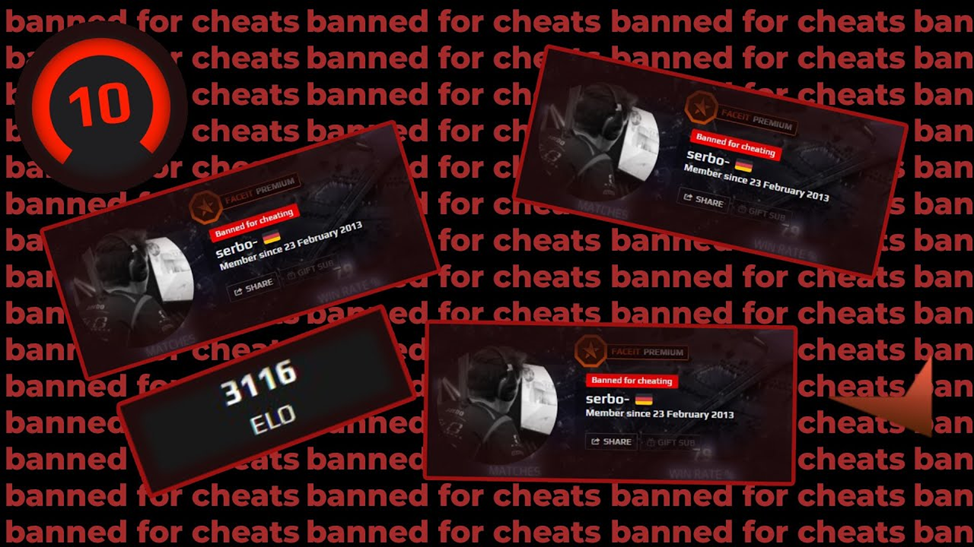
Error: Ban
A fairly common situation in the game. It often occurs if you let a friend play, and they installed a couple of not entirely legal programs to ease progress. You might forget about it, but one fine day, FACEIT will register the modified files and issue a ban, possibly permanent.
In this case, neither reinstalling the game nor re-entering the client will help. Only creating a support ticket with an explanation of the reason may work. It works 50/50, but the chances are pretty high. Just don't forget to delete all questionable software from your PC first, so the reviewers have no reason to reject the request.
Error: You Need to Have the Anti-Cheat Client Running to Connect
This error may occur if the game was launched from a desktop shortcut or from the folder where CS2 is installed instead of through Steam. It happens rarely.
As a remedy, try playing through the Steam client, so that FACEIT also starts automatically.
Error: AutoHotkey Is Forbidden, Please Close It and Restart FACEIT AC
A hotkey program is installed on the computer, which automatically presses a button or a combination to simplify gameplay. These need to be closed urgently, or better yet, removed.
Examples of such programs include:
- SBZ Switcher
- TrayMenu
- Menu.exe
- Vibrancer
After closing potentially harmful software, restart the client. Ideally, restart the PC first, and then the game.
Error: The Service Cannot Be Started
The FACEIT service was previously manually disabled in the Task Manager. Or, while modifying the client, you might have accidentally deleted some executable files.
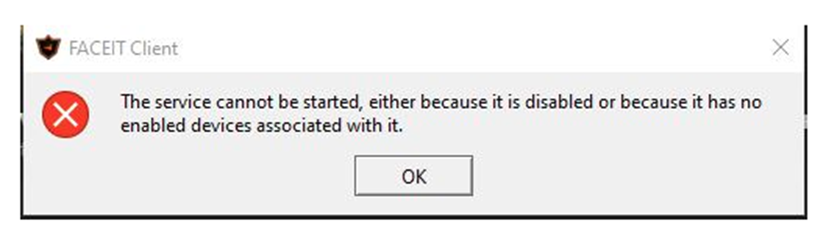
In this case, you need to either manually enable the anti-cheat or run a file integrity check through the Steam client.
Error: The Driver or UNC Share You Selected Does Not Exist
This error may appear if you unintentionally deleted FACEIT or CS2-related files. Even a file integrity check might not fix it.
Try deleting the registry section:
HKEY_LOCAL_MACHINE\SOFTWARE\Microsoft\Windows\CurrentVersion\Uninstall\{086D343F-8E78-4AFC-81AC-D6D414AFD8AC}_is1
Be sure to create a system restore point beforehand. It helps in 90% of cases.
Error: Service Has Been Stopped
This problem is rare but does occur. To solve it, you will need to disable the operating system's debug mode. Follow these steps:
- Press Start and find the Command Prompt (CMD)
- Run it as administrator by right-clicking on the icon
- In the "User Account Control" window, press Yes
- Type the command
bcdedit /debug off - Press Enter
Error: Forbidden Driver
This often happens with drivers that are not digitally signed. FACEIT may consider them a threat.
The simplest solution is to update or reinstall the original driver. If not possible, try using a driver pack like DriverPack Solution.
If everything works out, reboot and try to run CS2 again. If not, disconnect the questionable hardware temporarily.
Error: Failed to Load the Launcher DLL
This may occur due to an incorrect Windows update. Here's how to fix it:
- Close FACEIT AC via Task Manager
- Open Registry Editor (Win+R → regedit)
- Go to HKEY_CURRENT_USER\Software\Microsoft\SystemCertificates\Root
- Right-click on
ProtectRoots→ Permissions - Select your account and check "Allow Full Control"
- In Task Manager, stop the service
CryptSvc - Return to Registry Editor and delete the
Rootkey
Error: Warning — Your System Hasn't Been Patched Against Critical Windows Security Vulnerabilities
This message may appear on outdated Windows builds. FACEIT supports only Windows 8.1/10 64-bit. Solution: install a fresh official version of Windows 10.
Error: FPS Drop and Other Problems at Launch
If FPS drops after enabling FACEIT AC, try this:
- Launch CS2 and enter a non-FACEIT match (e.g., Deathmatch)
- Check FPS
If performance improves, do the following:
- Open
msconfigvia Windows search - Hide Microsoft services
- Leave only Steam and FACEIT services enabled
Then open Task Manager → Startup and disable all items except for Steam/CS2. Restart your PC and test again.
Error: FACEIT.sys
This blue screen error may be caused by:
- Faulty hardware
- Overclocking
- Buggy or outdated software
- System overheating
- Incorrect RAM timings
Reset BIOS settings to default, clean the system from dust, and update all drivers and software.
We hope our tips help you solve issues with FACEIT and improve your CS2 experience. Don’t forget — at LIS-SKINS, you’ll find even more guides on game optimization.
