


FFACEIT'e ilk kez kaydolan hemen hemen herkes aynı soruyla karşılaşır: FACEIT Anti-Cheat in düzgün şekilde nasıl kurulacağı ve hatasız veya bloksuz bir maça nasıl dönüştürüleceği. Kısa cevap: İstemciyi resmi faceit.com/en/anti-cheat sayfasından indirin, yönetici olarak yükleyin ve öncelikle BIOS'unuzda TPM 2.0 ve Güvenli Önyüklemenin etkinleştirildiğinden emin olun. Kulağa basit geliyor, ancak özellikle yıllardır anakart ayarlarına dokunmamış olanlar için pek çok şey var.
FACEIT Anti-Cheat çekirdek düzeyinde çalışır. Oyun başlamadan önce yüklenir ve sürücü bütünlüğünden donanım güvenliği ayarlarına kadar her şeyi kontrol eder. 25 Kasım 2025 itibarıyla FACEIT, TPM 2.0 ve Güvenli Önyüklemeyi istisnasız tüm oyuncular için zorunlu hale getirdi; platformun resmi blogunda da onaylandı. Bunları ayarlamadıysanız, bir maça giremezsiniz.
FACEIT Hile Önleme Nedir ve Neden Bu Kadar Zorludur?
FACEIT AC, çekirdek düzeyinde bir hile karşıtıdır. Bu, standart uygulamalardan daha derin çalıştığı ve normal bir antivirüsün kaçırabileceği şeyleri yakaladığı anlamına gelir. Bu nedenle FACEIT Anti-Cheat i yüklemek yeterli değildir; sistemin donanım düzeyinde hazır olması gerekir, aksi takdirde FACEIT sizi bir sunucuya bağlamayı reddeder.
Platform, Nisan 2025'ten bu yana iki ek gereksinimi uygulamaya koyuyor: IOMMU ve VBS. Bunlar, RAM için donanım düzeyinde bir güvenlik duvarı görevi görür ve daha önce standart korumaları aşabilen DMA hilelerini engeller. Ağustos 2025 itibarıyla IOMMU ve VBS, 3.000 Elo nun üzerindeki tüm oyuncular için zorunlu hale geldi. Kalan oyuncuların dağıtımı dalgalar halinde devam ediyor.
FACEIT Hile Önleme Sisteminin Sistem Gereksinimleri Nelerdir?
Herhangi bir şey indirmeden önce sisteminizin minimum gereksinimleri karşılayıp karşılamadığını kontrol etmekte fayda var. Bu, kurulumun sorunsuz gittiği ancak FACEIT bir maça katılmaya çalıştığınızda hala hata verdiği sinir bozucu durumun önlenmesine yardımcı olur. Aşağıdaki tablo FACEIT'ın resmi belgelerinden alınmıştır:
Parametre | Gereklilik |
İşletim Sistemi | Windows 10 (derleme 22H2+) veya Windows 11 |
Mimarlık | 64 bit |
TPM | Sürüm 2.0 |
Güvenli Önyükleme | Etkin (25 Kasım 2025'ten beri zorunludur) |
BIOS Modu | UEFI (Eski değil) |
IOMMU / VBS | Elo 3.000+ için gereklidir |
Windows hakkında dikkat edilmesi gereken bir nokta: FACEIT Anti-Cheat, güncellemeler olmadan Windows 10'da çalışmaz. FACEIT yalnızca 22H2 (19045) ve üstünü destekler; daha eski yapılar desteklenmez. Windows un korsan veya değiştirilmiş bir kopyasını çalıştırıyorsanız, FACEIT resmi olarak desteği reddeder ve bunu aşmanın hiçbir yolu yoktur. Yaklaşan son tarihi de bilmeye değer: Windows 11, FACEIT drops Windows 10'un tamamen destekleneceği 14 Ekim 2026'dan itibaren tek seçenek olacaktır.
Kurulumdan Önce Sisteminizin Hazır Olup Olmadığını Kontrol Etme

Yüklemeden önce, mevcut sistem durumunuzu kontrol etmek için üç dakikanızı ayırmaya değer; bu, FACEIT bir hata verdikten sonra sizi ayarlara bakmak zorunda kalmaktan kurtarır. Her üç kontrol de yerleşik Windows araçlarını kullanır; BIOS erişimi gerekmez.
Bu adımlar, FACEIT Anti-Cheat i yüklemeden önce herhangi bir şeyin ayarlanması gerekip gerekmediğini veya sisteminizin zaten kullanıma hazır olup olmadığını size söyleyecektir:
TPM'yi kontrol edin: Win → tpm.msc → Girin. Durum şu şekilde olmalıdır: 'TPM kullanıma hazır', Belirtim Sürümü: 2.0.
Güvenli Önyüklemeyi ve BIOS modunu kontrol edin: Win → msinfo32 → Girin. Şunu arayın: BIOS Modu – UEFI, Güvenli Önyükleme Durumu – Açık.
Windows Güvenliği ile kontrol edin: Win → Windows Güvenliği → Cihaz Güvenliği → Güvenlik İşlemcisi – bölüm hiçbir uyarı olmadan aktif olmalıdır.
Üçü de teslim edilirse istemciyi indirebilirsiniz. Bunlardan herhangi biri hata veya beklenmeyen bir değer gösteriyorsa öncelikle BIOS'u düzeltin. Aksi halde FACEIT AC düzgün bir şekilde yüklenecek ancak bir maça katılmaya çalıştığınızda başarısız olacak ve yine de BIOS ayarlarına geri döneceksiniz.
Windows ta FACEIT Anti-Cheat Nasıl İndirilir ve Kurulur
Kontroller tamamlandı; şimdi kurulumun kendisine geçebiliriz. İşlem Windows 10 ve Windows 11'de aynıdır, anlamlı bir fark yoktur. Temel kural: istemciyi yalnızca faceit.com adresinden indirin; başka hiçbir yerden. Yüklemeden önce, AC istemcisinin önceki sürümlerinin 'Apps & Özellikler' aracılığıyla tamamen kaldırıldığından emin olun. Windows ta.
Kurulum adımları:
faceit.com/en/anti-cheat adresine gidin.
İstemci indirme düğmesine tıklayın.
İndirilen dosyayı yönetici olarak çalıştırın (→ 'Yönetici olarak çalıştır''a sağ tıklayın).
Kurulum boyunca ekrandaki talimatları izleyin.
Bilgisayarınızı yeniden başlatın – FACEIT AC, yeniden başlatmanın ardından otomatik olarak etkinleşecektir.
Yeniden başlatmanın ardından sistem tepsinizde FACEIT simgesi görünecektir. İlk maçınızdan önce müşteri ek bir güncelleme isteyebilir; bu normaldir, bırakın bitsin. Platform kurulumdan sonra hala hata gösteriyorsa sorun neredeyse her zaman BIOS ayarlarındadır, istemcinin kendisinde değil.
FACEIT Hile Önleme için BIOS'ta Güvenli Önyükleme Nasıl Etkinleştirilir
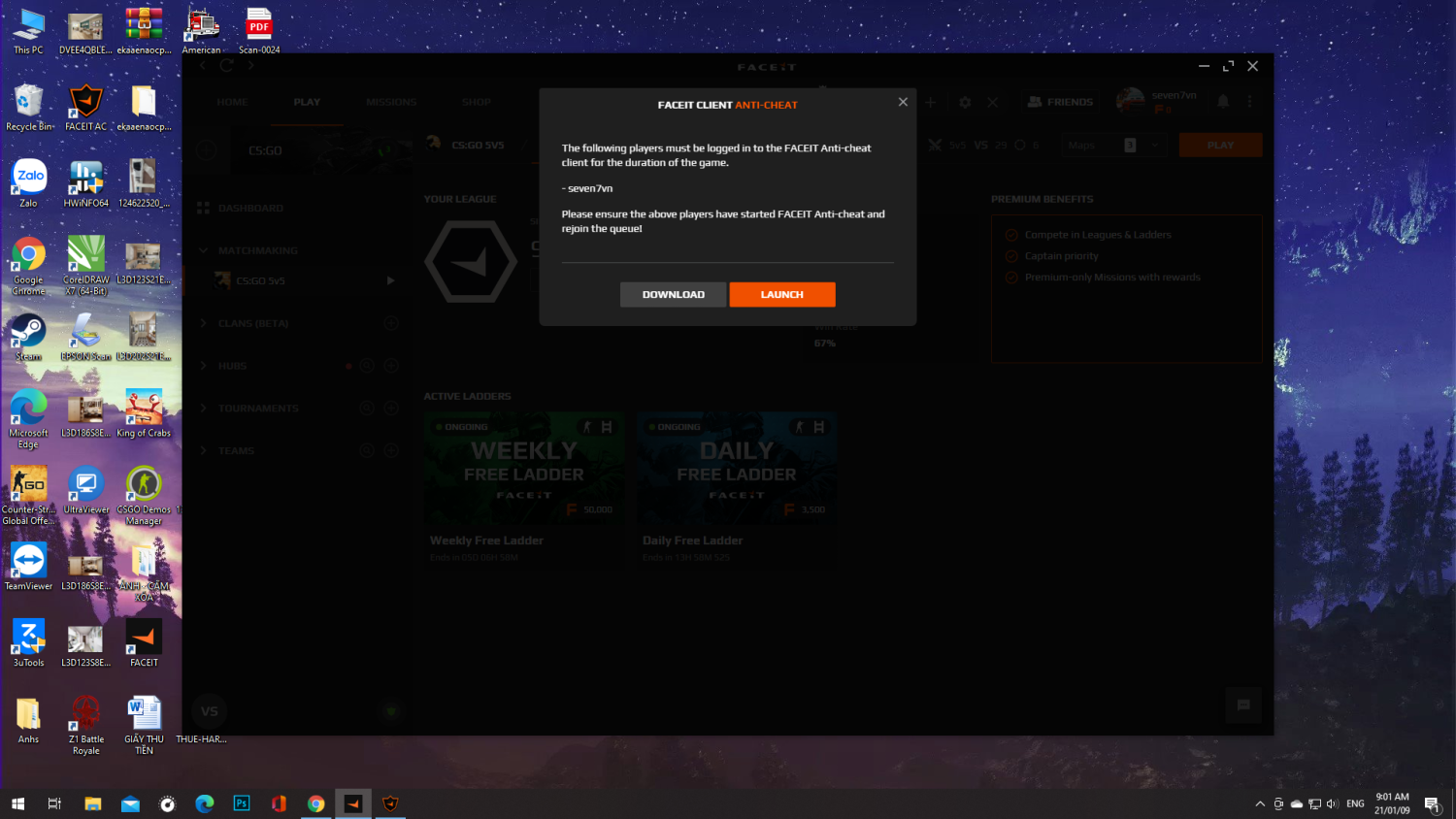
Çoğu oyuncunun tedirgin olmaya başladığı yer burasıdır: BIOS. Ne yaptığınızı ve nedenini bildiğiniz sürece endişelenecek bir şey yok. FACEIT için Güvenli Önyüklemeyi etkinleştirmek daha az teknik bir zorluktur ve daha çok sabır ve ayrıntılara gösterilen dikkat meselesidir. Ancak başlamadan önce bir uyarı.
Msinfo32, BIOS Modunu UEFI yerine Eski olarak gösteriyorsa, önce sürücünüzü MBR'den GPT'ye dönüştürmeniz gerekir. Bu kritik bir adımdır: Dönüştürme sırasında yapılacak bir hata, sisteminizin yeniden başlatılamaz hale gelmesine neden olabilir. Herhangi bir şüpheniz varsa, ne yaptığını bilen birinin bu konuyu halletmesini sağlayın. FACEIT bu riski resmi belgelerinde açıkça işaretliyor.
BIOS'ta Güvenli Önyüklemeyi etkinleştirmenin genel süreci çoğu anakartta aynıdır:
Bilgisayarınız açılırken BIOS giriş tuşuna basın – genellikle DEL, bazen F2, F10 veya ESC.
Güvenlik → Güvenli Önyükleme ye gidin.
UEFI önyükleme modunun seçildiğini doğrulayın.
Güvenli Önyüklemeyi Etkin olarak ayarlayın.
F10 → tuşuna basın → yeniden başlatmayı onaylayın.
Yeniden başlattıktan sonra msinfo32'yi tekrar açın ve Güvenli Önyükleme Durumunun artık Açık olarak göründüğünü doğrulayın. İşe yaradıysa sisteminiz hazırdır ve istemci kurulumuna geri dönebilirsiniz. Güvenli Önyükleme hâlâ Kapalı görünüyorsa sorun muhtemelen disk modunuz veya BIOS sürümünüzdür.
MSI Anakartlarında Güvenli Önyüklemeyi Etkinleştirme – Özel Bir Durum
MSI anakart sahiplerinin kendilerine özel durumları vardır. MSI anakartında FACEIT Anti-Cheat in çalıştırılması, belgelenmiş ayrı bir sorundur: Bazı MSI kartlarında, Güvenli Önyükleme gerçekte çalışmazken hem BIOS'ta hem de Windows ta Etkin olarak görünebilir. Standart prosedür sorunu çözmez.
Resmi FACEIT Destek çözümü, MSI anakartlarında BIOS aracılığıyla bu sorunun tam olarak nasıl çözüleceğini kapsar. Herhangi bir değişiklik yapmadan önce şunu unutmayın: BIOS'unuzda gerekli menü seçenekleri yoksa donanım yazılımınız güncel değildir ve öncelikle güncellenmesi gerekmektedir. Geçici çözümler aramayın; BIOS güncellemesi burada isteğe bağlı değildir.
MSI anakartları için adımlar:
Bilgisayarınızı yeniden başlatın ve açılışta DEL tuşuna basın.
Şuraya gidin: Ayarlar → Güvenlik → Güvenli Önyükleme.
Güvenli Önyükleme Modunu Özel olarak ayarlayın.
Güvenli Önyükleme Ön Ayarını Maksimum Güvenlik olarak ayarlayın.
Kaydetmek için F10 → tuşuna basın.
'Güvenli Önyükleme Ön Ayarı' veya 'Görüntü Yürütme Politikası' menüde yoksa BIOS'unuzun güncellenmesi gerekiyor. Anakart modelinizi bulmak için: → msinfo32 → BaseBoard Ürününü kazanın – not edin, ardından resmi MSI web sitesine gidin ve en son aygıt yazılımını indirin. Güncellemeden sonra tüm adımları tekrar uygulayın. FFACEIT'ın Bilinen Sorunlar belgelerine göre, bir ürün yazılımı güncellemesi, MSI vakalarının büyük çoğunluğunda sorunu çözmektedir.
FACEIT Hile Önleme Hala Başlamıyorsa Ne Yapmalı?
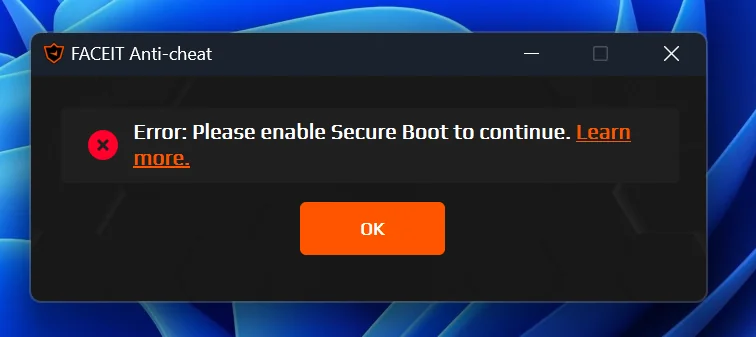
Bazen şöyle olur: Her şey yapılandırılmıştır, yeniden başlatmışsınızdır ve FACEIT hâlâ hata vermeye devam etmektedir. Kuruluma tekrar dönmeden önce öncelikle ilgili hatayı tanımlayın. Her hata mesajının hedeflenen bir düzeltmesi vardır ve FACEIT, çok sık ortaya çıktıkları için tam olarak onlar için özel bir destek bölümüne sahiptir.
İşte en yaygın sorunlar ve bunların düzeltmeleri. Bunların her biri iyi belgelenmiştir ve bilinen bir çözümü vardır:
'TPM hazır değil' – AMD sistemlerinde en yaygın olanıdır. BIOS'unuzu güncelleyin: AMD, çoğu anakart için fTPM düzeltmelerini içeren ürün yazılımını yayınladı.
'Eski BIOS Modu' – UEFI moduna geçin ve sürücünüzün MBR olarak değil GPT olarak bölümlendiğini doğrulayın.
'Eksik Windows güvenlik güncellemeleri' – Ayarlar → Windows Güncelleme ye gidin ve mevcut her şeyi yükleyin. FACEIT yalnızca güncel derlemelerle çalışır.
FACEIT hız aşırtma sonrasında başlatılmayacak – MSI Afterburner, Intel XTU ve benzeri araçları geçici olarak kapatın. Hile önleme, bunları potansiyel olarak tehlikeli süreçler olarak işaretleyebilir.
Güvenli Önyükleme Açık görünüyor ancak FACEIT hala şikayet ediyor – modu kontrol edin: Kurulum Modunda değil, Kullanıcı Modunda olması gerekir. Düzeltme: BIOS'ta Anahtar Yönetimi ni bulun → Varsayılan Güvenli Önyükleme Anahtarlarını Yükleyin.
Yukarıdakilerin hiçbiri yardımcı olmadıysa doğru hareket FACEIT'ın resmi desteğiyle support.faceit.com adresinden iletişime geçmektir. Ulaşırken hatanın ekran görüntülerini ve sistem günlüğünü ekleyin. Destek ekibi, donanıma özgü sorunlara aşinadır ve çoğu zaman sorunları, forumlarda standart dışı düzeltmeler aramaktan çok daha hızlı çözer.
Oynamaya Hazır Fuarı – Lansman FACEIT
FACEIT Anti-Cheat i hatasız çalıştırmak için üç zorunlu koşul: Güvenli Önyükleme etkin, TPM 2.0 etkin ve desteklenen bir Windows yapısı. Geriye kalan her şey donanıma özeldir ve resmi kılavuzlar veya platform desteği aracılığıyla çözülebilir.
Son tarihleri aklınızda bulundurun: TPM 2.0 ve Güvenli Önyükleme 25 Kasım 2025'ten beri zorunludur. Windows 10'da FACEIT Anti-Cheat i çalıştırmak hala mümkündür, ancak yalnızca 14 Ekim 2026'ya kadar mümkündür; bu tarihten sonra platform yalnızca Windows 11'i gerektirecektir. Sorunu önemli bir maçtan on dakika önce keşfetmektense, her şeyi önceden halletmek daha iyidir.
