


Some gamers, especially beginners, may find it confusing to determine what to do if they constantly experience high ping in CS GO during server play, and there are no visible reasons for it. Below, we will discuss several methods to solve this problem, but first, let's define the term "ping" clearly to ensure we all understand the essence of the issue.

In simple terms, ping is the time period it takes for data to travel from your PC or laptop to the game server and back. The measurement is in milliseconds, abbreviated as ms. It's clear that if the time interval is large, the player will react to opponents' actions with a delay, becoming an easy target for the opposing team.
However, before tackling the question of what to do if CS GO freezes, it's necessary to analyze the level of ping. Based on this, one should choose an optimal solution that is effective in terms of time and effort.
Discovering Your Ping Level
There are 2 ways to check your ping:
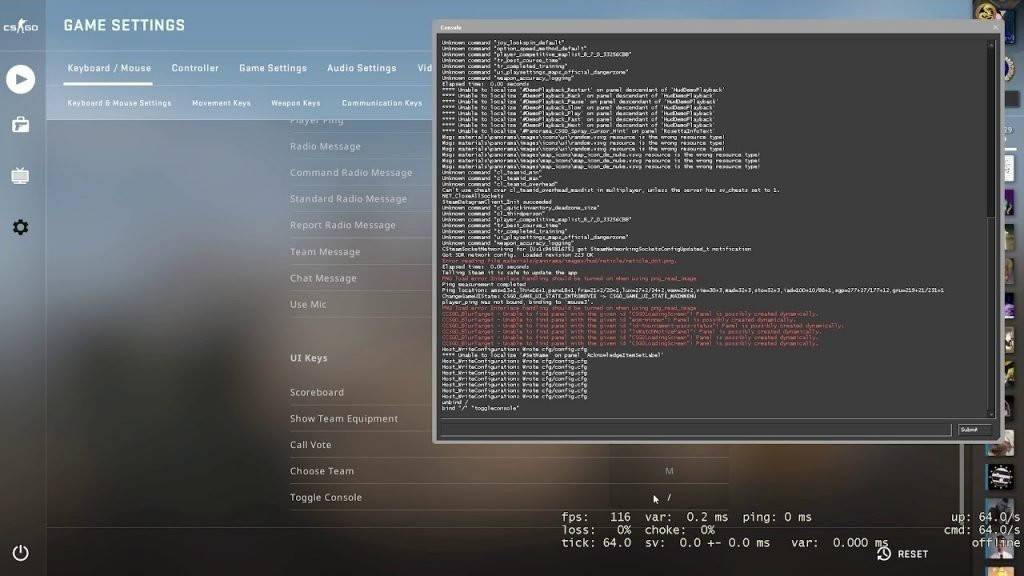
- Enable the console in Counter-Strike running on your device. Here’s how: go to settings, click on the "Game" tab, then press again on the newly appeared "Game" tab. Among the options, find "Enable developer console" and toggle the switch to "Yes". After this, press the tilde key, i.e., the "Ё" key on your keyboard located above Tab. The console is now open.
We are almost there: in the console, type net_graph 1 and watch the ping level. The information will appear in the lower right corner of the screen.
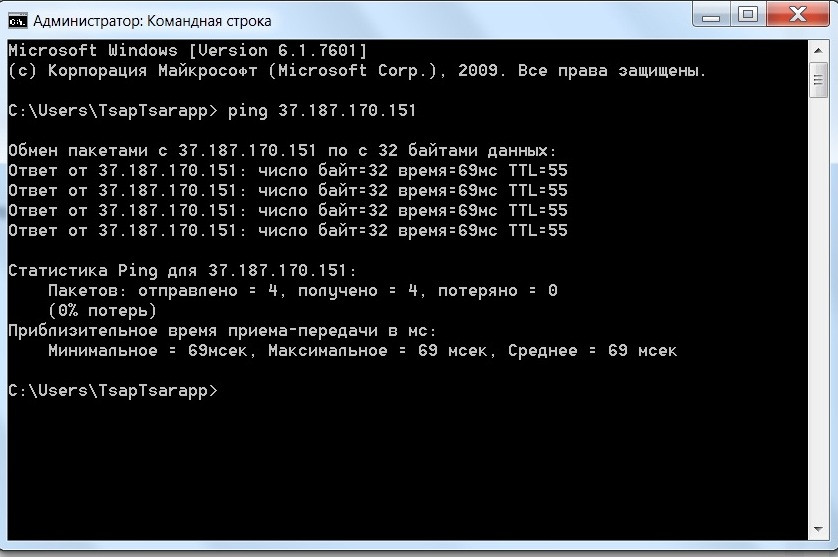
- Through the operating system. In Windows, follow these steps: press Win+R, then in the "Run" window type cmd, and in the new window type ping followed by the IP address of the game server.
For macOS, the order of actions is: go to search and type "Network Utility", navigate to the Ping tab, and there enter the address of the game server.
Analyzing the Ping Level
We have answered the first part of the question: "What to do if CS GO lags?" - we found out where to see the ping level. In the second stage, we start working with this information.
So, a ping value less than 50 milliseconds is ideal, indicating no problem with it, and the connection to the server is maintained properly. Freezes occurring with such a ping suggest other data transmission issues.
A range from 50 to 100 milliseconds can be considered acceptable. There might be some gameplay lags, but they are not critical. Such delays, of course, are unacceptable for playing at a professional level.
A ping over 100 milliseconds causes serious lags, and there will be no joy in playing. You need to stop the game immediately and address the freezes issue.
Lags at Low Ping: Reasons
Sometimes, even with low ping, the game still lags. At first glance, it's unclear what to do if CS GO freezes when the ping is normal and there are no apparent reasons for the slowdowns.
The solution is as follows: in the same console where the ping value is displayed, you should study 2 parameters:
- The first one - loss. It shows how many data packets were lost during transmission from you to the game server. Ideally, it should be zero.
- The second - choke. It shows how many data packets were lost from the game server to you, or the amount of data the server failed to send to your device. Ideally, this should also be zero.
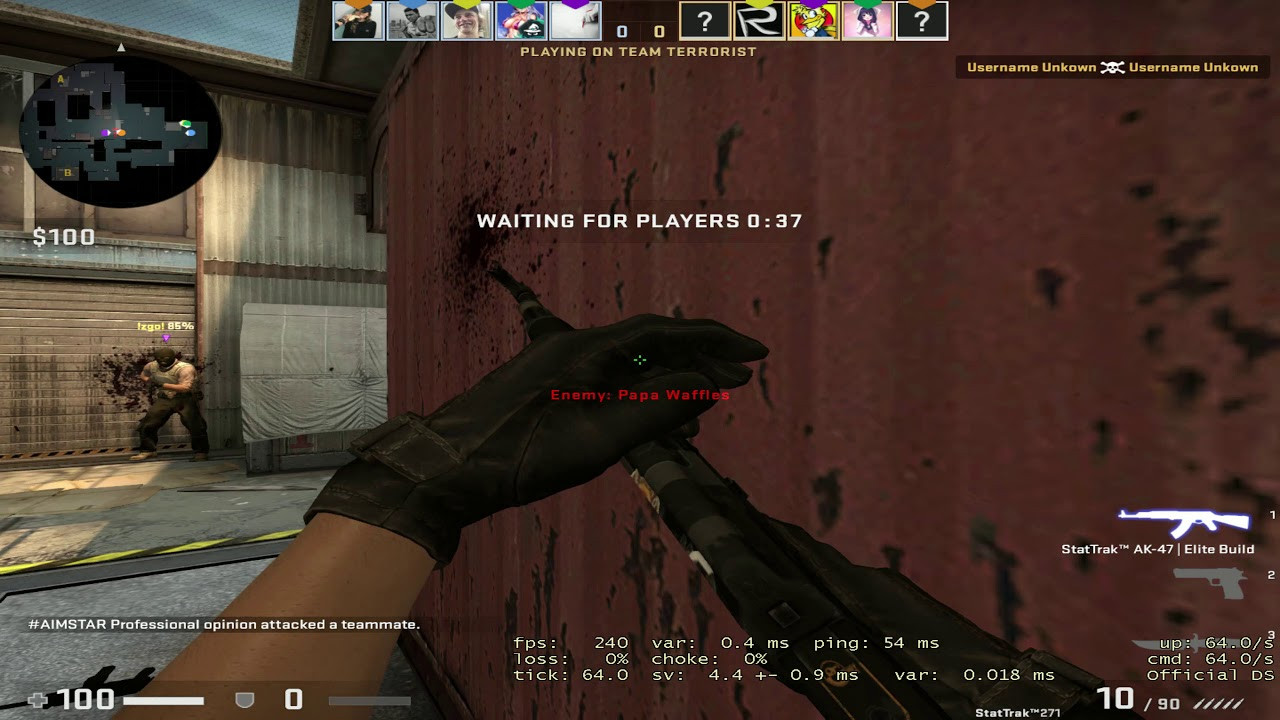
Now, look at these parameters. When choke is more than 0, and loss is zero, it indicates issues on the game server. The solution in this case is simple - switch to another server.
When loss is more than 0, and choke is zero, first, deal with your ISP by checking the connection parameters, run a speed test, and find out whether your provider reduces the speed of connections to certain websites.
Simple Solutions for the Player's PC or Laptop
We move to the finale. Here you will learn what to do if CS GO lags, and how to solve this problem quickly and for free:
- Record or remember the ping value. Next, remove all programs from "Startup", other background running programs, torrent downloads, and also disable program updates without confirmation. The idea is to maximize the unloading of your device and internet channel. After this, check the ping again and compare it with the original value.
- If you are playing via Wi-Fi, recall how exactly you secured it. Do you have a complex password combining letters and numbers, with various cases and symbols, or just "0000"? Could it be that your neighbors are quietly pilfering your internet? Try changing your password to a more complex one.
- The problem could be in mundane viruses. One of the rules of internet hygiene is to conduct a full scan of your device for "pests" at least once every two weeks. So, if you haven't searched for worms and trojans lately, now is the time to do so.
Other Methods
If you have tried the above methods and the problem is unresolved, and you still don't know what to do if the ping in CS GO remains at the same level and does not decrease, try a few more options. Keep in mind, some of them may require significant time investments, and sometimes money.
First. Forget about Wi-Fi and switch to a wired Ethernet connection. This method works by reducing ping by 2-2.5 times due to more stable data transmission, but it requires purchasing a cable.
Second. Subscribe to services that optimize data transmission channels between gamers and game servers. The idea is to reduce the number of intermediary nodes, thereby increasing speed and reducing data packet loss.
Third. Replace your internet provider if they use outdated equipment that cannot provide high speed, or subscribe to a tariff with a faster connection.
