


Console – This is a tool that allows you to access the hidden features of the game, which means that once you figure out how to open the console in cs 2, you can customize the game to suit your needs without being limited to the options available through the main menu. Using console commands, you can configure game modes, issue weapons in local matches, change the appearance of the sight, and check network settings. Information about console commands will be useful for both experienced players and those who are just starting to master CS2.
How to activate the console
To open the console in cs 2, you must first activate it. To do this, go to the “Game” section. in the settings menu and select the “Yes” option. in the “Enable developer console” item. After this, the console in cs go 2 can be activated at any time in the game by pressing the appropriate key.
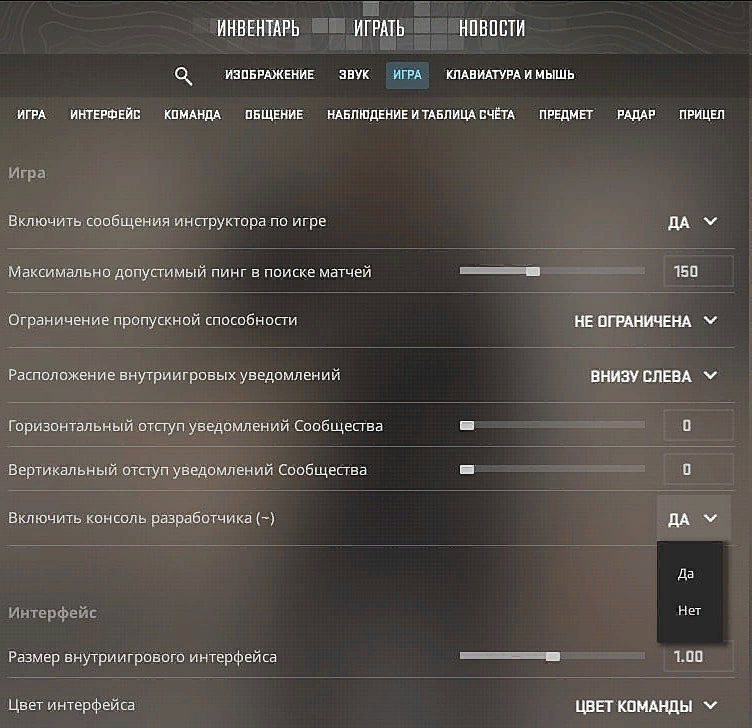
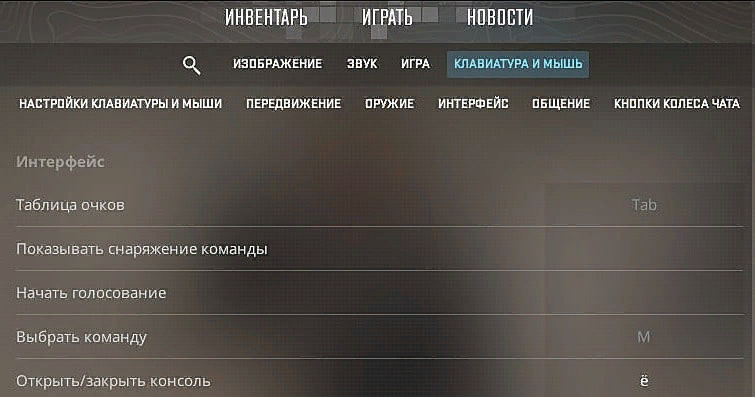
By default in CS2, as in many other games, the “~” key, which is located in the upper left corner of the keyboard, is used to open the console. This is due to the fact that it is rarely used for any other tasks and, regardless of what keyboard settings the player has, it remains unoccupied. If you find it inconvenient to reach for this key or you often forget where it is, you can set the console opening to any other button. To do this, open the “Keyboard and Mouse” section, scroll down for the “Console” item. and assign it any other value – the main thing is that it does not intersect with other keys that you use.
Sometimes it’s not possible to open the console in cs 2 right away. The fact is that Counter-Strike 2 is a beta version, which means there may still be bugs in it. Their detection and elimination is one of the main tasks of closed testing. Due to one of the bugs, which remains unfixed, the console may stop opening, even if the settings were set as described above. To solve it, try different methods:
Turn the console on and off in the settings.
Change the console power key, and then return it to the one you need.
Reset the settings to the “default” state and set the necessary parameters again.
Select the English keyboard layout instead of the Russian one for the duration of the game (on the Russian keyboard, the letter E is in place of ~, and because of this, some games do not correctly recognize the press).
In most cases, one of these methods helps to get rid of the bug and open the console in CS without any problems 2. If you are one of the small number of players who have already been given access to the beta version, bugs may often come your way. To avoid having to re-set the settings when you have to reset them, save them in a configuration file just in case – this will allow you to automatically set the necessary parameters in the game.
How to use the console in CS2
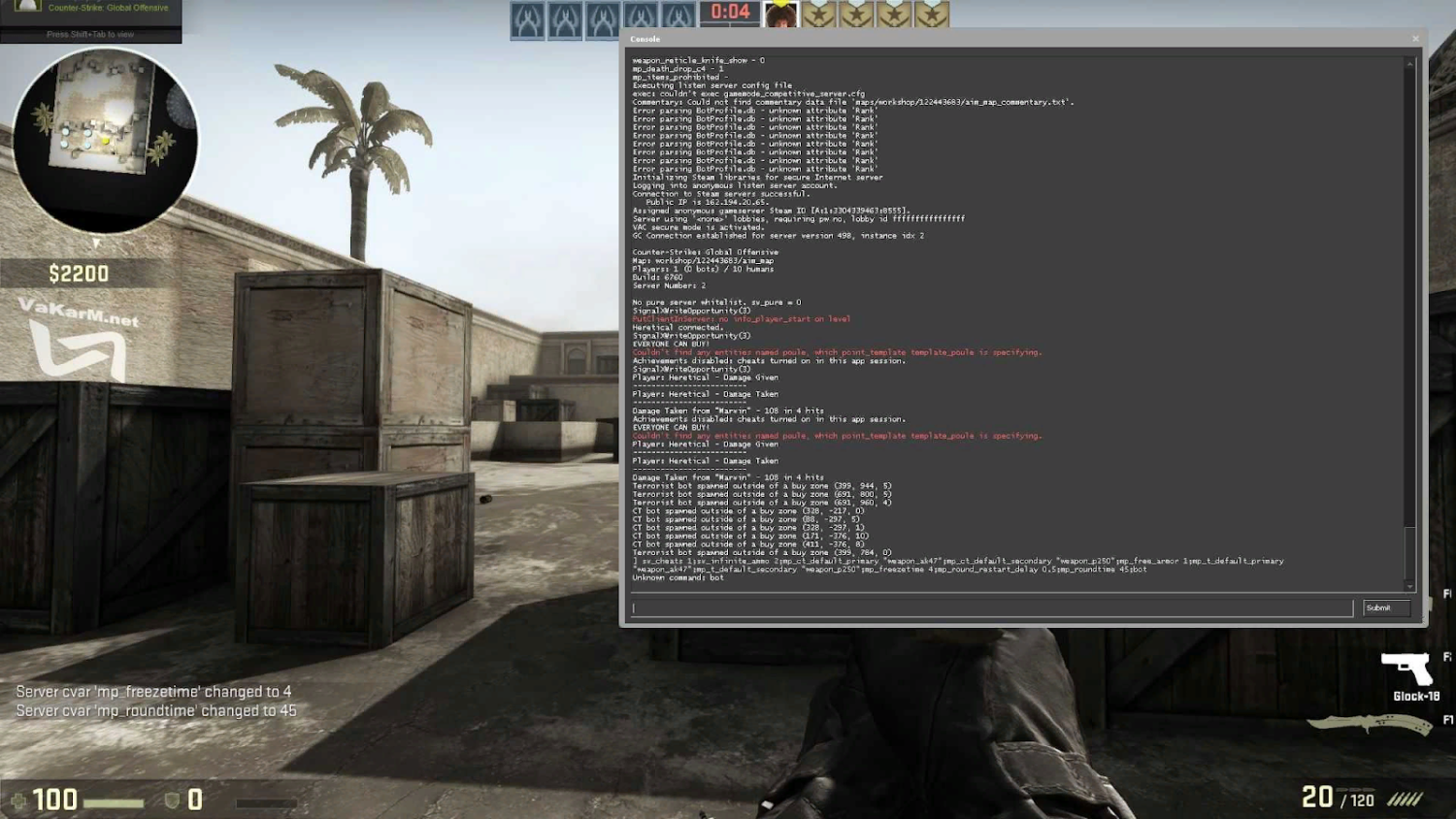
As you can see, the order of actions that need to be performed to open the console in cs 2 is not much different from the previous version of the game. The location of the settings remains exactly the same. However, some console commands may differ. For example, in Counter-Strike: Global Offensive, many players attached importance to commands to change the tickrate, that is, the speed of data exchange with the server. In CS2, the online portion of the game was heavily redesigned to eliminate synchronization issues. Therefore, now the need for these commands may disappear.
In addition, the spelling of some console commands may change, although their function will remain the same. Therefore, simply copying settings from CS:GO will not always work – Sometimes the game may not recognize commands. In order to open the console in CS 2 and use it effectively for your own purposes, it is useful to get acquainted with the lists of commands that are available on the Internet. They can be divided into several groups:
Optimizing the game, preventing lags and making the most efficient use of your computer's resources.
Improving communication and teamwork.
Improving the user interface.
Practicing certain aspects of the game, for example, in games with bots, on maps to practice quick aiming or other actions.
Thus, console commands for cs go 2 will come in handy to make the game as comfortable as possible. At the same time, you should not pay too much attention to the game optimization tools: since CS:GO came out quite a long time ago, even the beta version, which uses a newer version of the engine, runs without problems on PCs of recent years.
However, many find it useful to open the console in cs 2 and enter the command to limit the frame rate fps_max 0. If you leave it at 0, FPS will become unlimited, and the game will use all available computer resources to maximize it. Some players prefer to limit it to a specific number, such as 60 or 144, taking into account the settings and characteristics of their monitor. And if you have problems with the connection, you can use the command net_graph 1 to display the network parameters.
Popular console commands in cs 2
Here are a few more console commands that may be useful for use in CS2 or CS:GO. To practice and become more familiar with the updated versions of the maps, the noclip command will be useful, which allows the player to walk through walls. Of course, you can only use it in local matches after the cheats have been activated using the command sv_cheats 1. By opening the console in cs 2 and entering these two commands, you will be able to explore all corners of the maps and fully enjoy their updated graphics, which were added to Counter-Strike 2.
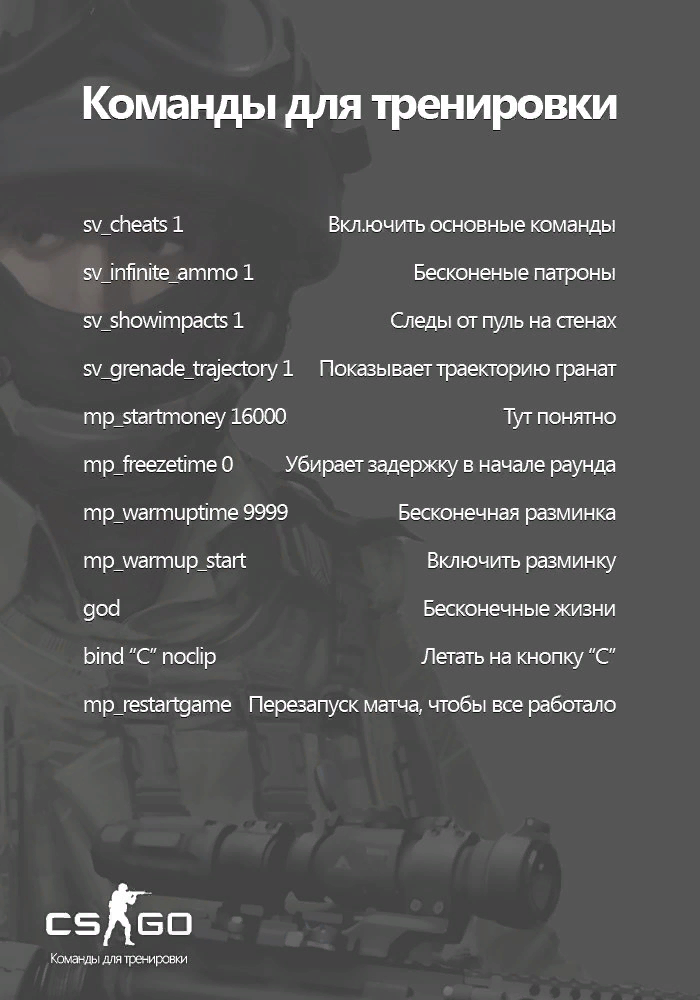
In addition, commands for adding bots for special forces and terrorists will be useful for training (bot_add_ct and bot_add_t, respectively), as well as forcing them to stop (bot_stop 1) and take a crouching position (bot_crouch). To work out the final stage of the round, you can manually set any amount of time on the bomb timer (mp_c4timer with a numeric parameter that indicates the time in seconds).
Another reason to open the console in cs 2 is the numerous possibilities for fine-tuning the interface. For example, you can use hud_scaling with a parameter from 0.5 to 0.95 to change the scale at which its elements are displayed. Depending on the size of your monitor, you can make the interface smaller to minimize distractions, or larger to make the map easier to use. You can completely remove the interface using cl_drawhud 0, but this command only works when cheats are activated, so its main purpose– creating beautiful screenshots.
The command cl_crosshairstyle will help you change crosshair parameters with parameters from 1 to 4. Load a local map and look at different crosshair designs to see which one you like best. You can also change its color (cl_crosshaircolor with parameters from 1 to 4), thickness (cl_crosshairthickness) and distance between lines (cl_crosshairgap). Sight settings – a matter of individual preference, so you will need to try several options before you find the optimal one.
Once you figure out how to open the console in cs 2, you can use many other commands. With them you will make the game more comfortable for yourself, which means you can fully concentrate on defeating your opponent.
