


The console is an important tool for changing various game parameters, which you should know how to use, however, you should start with how to turn on the console in Dota 2. After all, you must admit, if you don’t know how to start it, then you can’t do anything: you can’t even connect the necessary ones functions, nor change settings.
Activation and launching the console in Dota 2
Unfortunately, you won’t be able to start using the console right away, because the developers decided that it will be disabled by default. And there is one more problem: it is impossible to turn on the console in Dota 2 right during the skating rink if it has not been previously activated. This is especially unpleasant, since just during the match there are such situations that you need to use a cheat code or something else beneficial for yourself, and you have to lose due to the fact that the console cannot be started.
This will not work, so just repeat the instructions we suggested, and you will not have problems starting the console.
Connection
As we have already said above, initially all dota players are denied access to the console. To get it, do this:
First you need to launch the Steam client on your device and go to the game library.
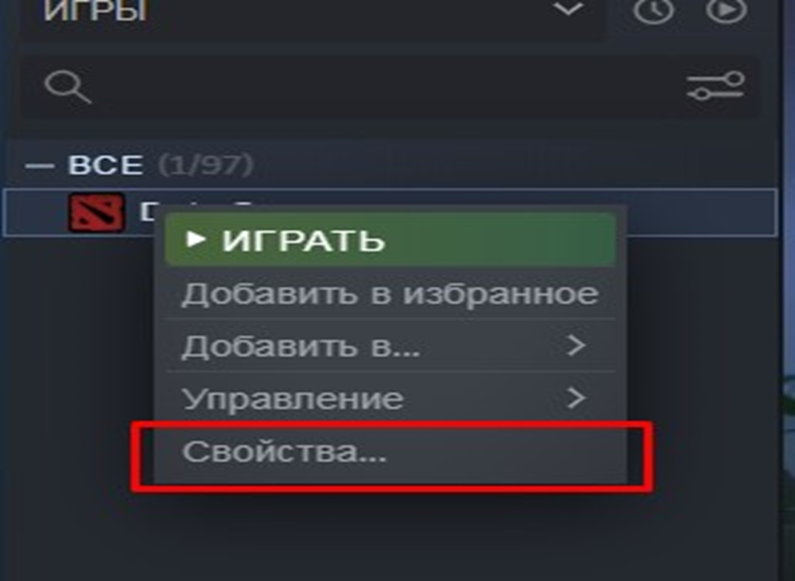
Use RMB on the Dota 2 favicon. A menu should appear, at the very bottom there will be Properties, go there.
Look down at Launch Options. Under this phrase there will be a window where you need to write -console. A minus before the word is required.
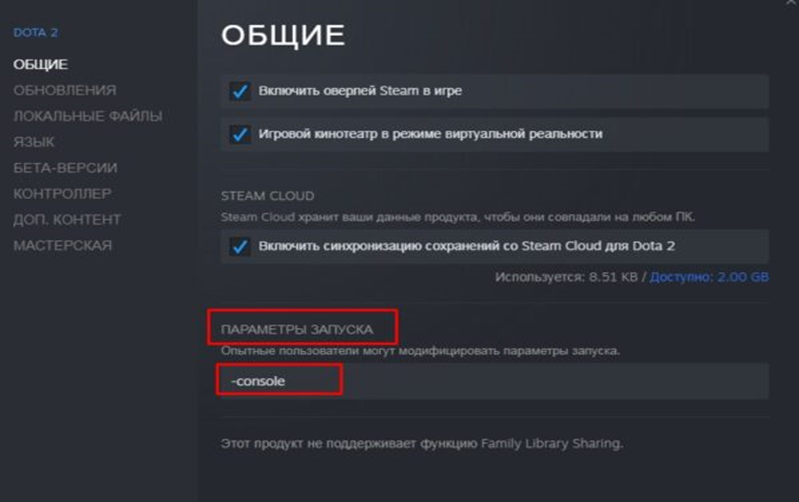
Close the window.
Now you can turn on the console in Dota 2 whenever you want: even during any match, even in the main menu. The game itself needs to be running. Of course, if necessary, it is possible to block your access to the console, but we’ll talk about this a little later.
Assign a convenient key
«`» is the key that by default calls the console. However, some dota players have problems with this key, since it usually does not work on the Russian keyboard. Imagine this situation: you are participating in a tough skating rink, where seconds are counting, and you urgently need to turn on the console in Dota 2. You press, press, and press ““, but it’s pointless. The game is open in full screen, so you can't check the layout. You press the combo key to change the layout in the hope that you have switched to English, and press ““ again. And, lo and behold, the console opened, but too late. The time to enter the command has been lost, the roller has been drained. As a result, anger gives way to tilt.
To prevent this from happening, simply change the key according to our instructions:
In the running game, go to the settings (gear in the upper left corner).
Expand Advanced settings at the bottom of the screen.
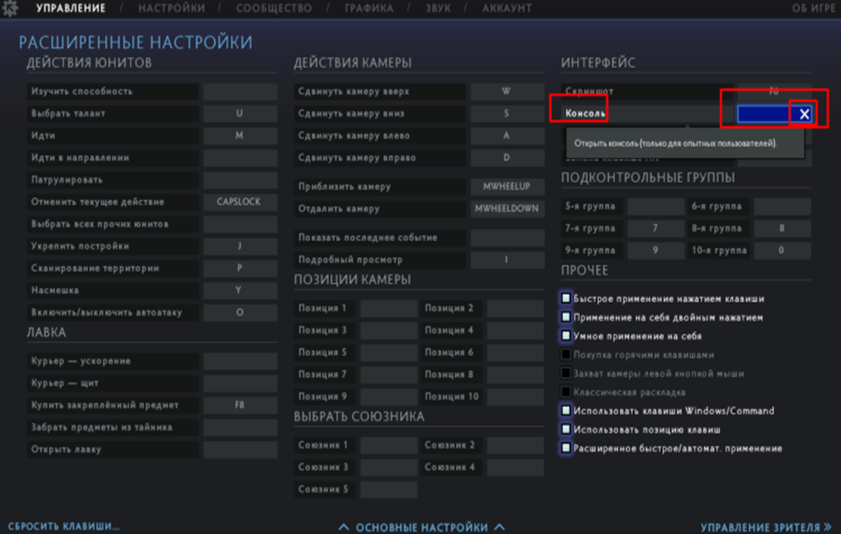
Go to Interface. There, on the right side of the screen, you will see the Console.
To the right of the word “Console” there will be a rectangle that you need to press.
Press the key you want to set.
These actions can be done while the game is running at any time, even while rolling. A reboot is not required in the future.
Problems with opening the console (part 1)
If you cannot turn on the console in Dota 2 after you have completed the steps described above, then this can be caused by 5 reasons.
Firstly, you We made a mistake when writing -console. Repeat all the steps from the list under the subheading “Connection”. Check that -console is written correctly in the box under Launch Options. If there is an error, correct it. Try whether the console turns on in Dota 2 or not. If not, then read on.
Secondly, if you did not change the default “`” button that calls the console, you can install another button. The step-by-step process is described in this post under the subtitle “Assigning a convenient key.” Or you can simply switch to the English layout and tap “`”. If this does not help, then move on to the next point.
Problems with opening the console (part 2)
So, you tried the two ways to solve the problem described above, but you couldn’t turn on the console in Dota 2. Do not despair, these difficulties can be solved.
Thirdly, check whether you really have a key set to open, because it happens that due to game glitches some settings are lost. Return to the subheading “Assigning a convenient key” and follow the steps in the list. The rectangle next to the word "Console" empty? If yes, then indicate the desired key.
Fourthly, if you still cannot turn on the console in Dota 2, then, apparently, your key game files are damaged. Here it’s already a simple “cosmetic” one. repairs cannot be limited. You will have to completely remove the toy and reinstall it on your device.
Fifthly, if the console does not work even after reinstallation, then you have an extraordinary case. Here we can recommend checking your computer for viruses, just be sure to update the virus databases to the latest ones. And if this doesn’t help, then write to Steam support or directly to Valve, perhaps they can help.
Useful commands
If by now you have turned on the console in Dota 2, then it would be useful to try it out. Activating and disabling game settings or parameters is achieved by using various commands. We will introduce you to the most, in our opinion, necessary for every dota player:
disconnect - ends the match and allows you to quickly leave it upon completion.
ping - shows the ping value on the screen in real time.
dota_new_player 0 - gives a beginner the opportunity to unlock all characters without having to play 25 matches.
dota_camera_alternative 1-4 - adjusts the distance of the camera from the hero during the skating rink. Experiment by entering numbers from 1 to 4 alternately until you find the optimal camera distance.
dota_pause - sets a forced pause even when the game does not allow it.
cl_showfps 1 - starts displaying the current FPS on the screen.
dota_player_smart_multiunit_cast 1 - activates the application of the selected skill to all selected characters simultaneously.
dota_apm - starts displaying the number of mouse clicks per minute on the screen.
Of course, this is an incomplete list of what you can do when the console is turned on in Dota 2.
Disable console
This section is written for those cases when you no longer need the console. There are 2 ways to deactivate it.
First, just remove the call key. Go to Settings, then to Advanced settings, then to Interface, then find the word “Console”, click the rectangle on the right. It will be highlighted in dark blue, with a cross icon on the right. Click on it. The key has been reset.
Secondly, you can use a more radical option. At the beginning of the post we described the connection process. Get to the point where you find Launch Options. Now erase -console from the box under Launch Options and close the window. That's it, the console is deactivated, there is no need to restart the toy. Changes take effect immediately.
