


Information on how to enable demo rewind in cs go will be useful for those who analyze their matches in order to improve tactics. The past match can be saved in a special format so that you can then view it directly in the game. Thus, you can study the situations that arose during the match, understand how optimal the team’s actions were and find new tactical solutions. To prevent viewing demos from taking up too much time, it is useful to understand the commands that allow you to control them.
What is a demo?
Since the vast majority of commands for controlling the recording and viewing of demos are issued through the console, you need to make sure in advance that it is enabled. To do this, find the “Enable developer console” item in the game settings. and make sure that the value “Yes” is set there.
A demo is a file with a special DEM extension in which a recording of the game is stored. To create it, use the following console commands:
record mydemo (where mydemo must be replaced with any file name of your choice) – to start recording;
stop – to stop recording. As a result, the file will be saved in the same folder where the game is located.
Thus, you can record the entire match or a separate fragment. In order to study it later, you need to know how to enable rewind mode in cs go, to spend time studying only those fragments that are really interesting.
How to view the demo
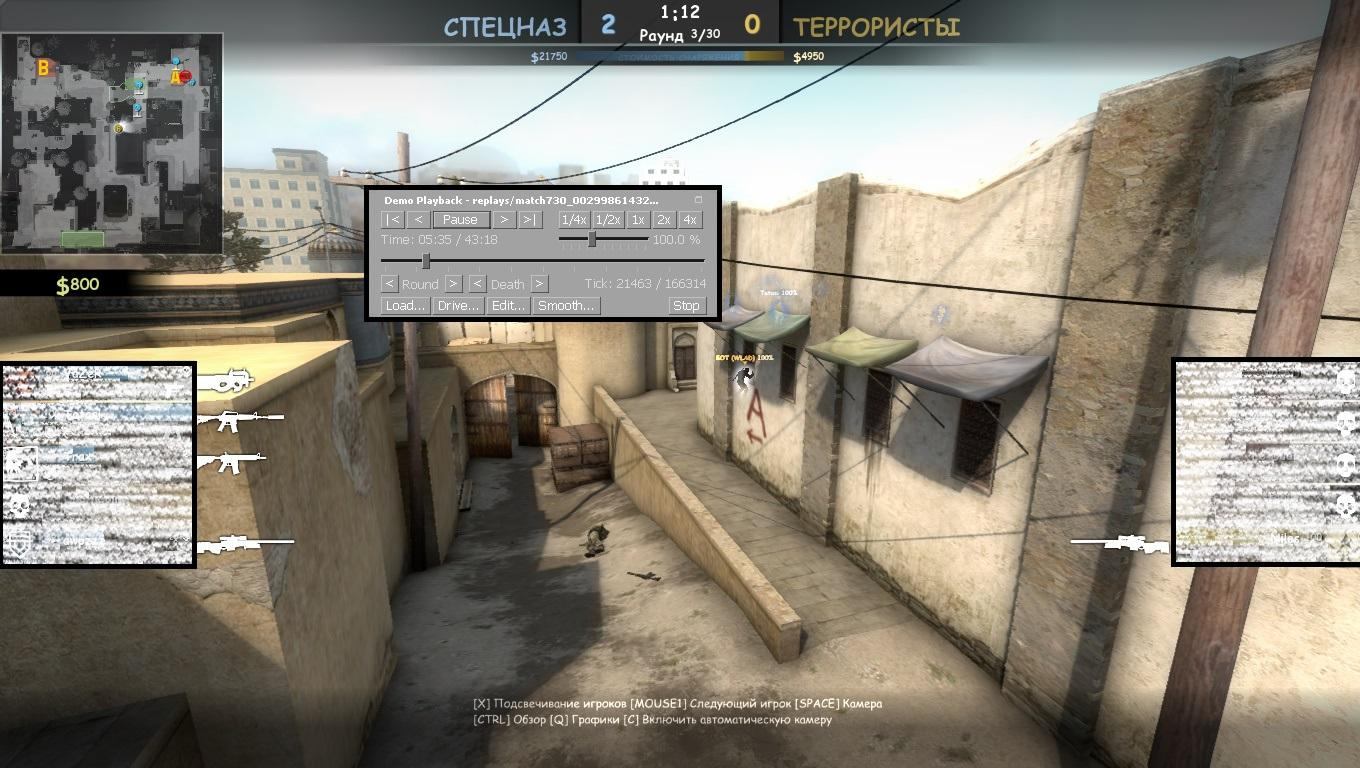
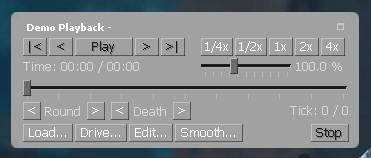
To start studying the demo, first you need to enter the command demoui. An interface resembling a regular video player will appear on the screen. It has the following functions:
selecting playback speed;
selecting the desired moment on the timeline;
starting and stopping playback;
fast forward and backward;
jump to the beginning of the next or previous round;
switching to the moment of the player's death.
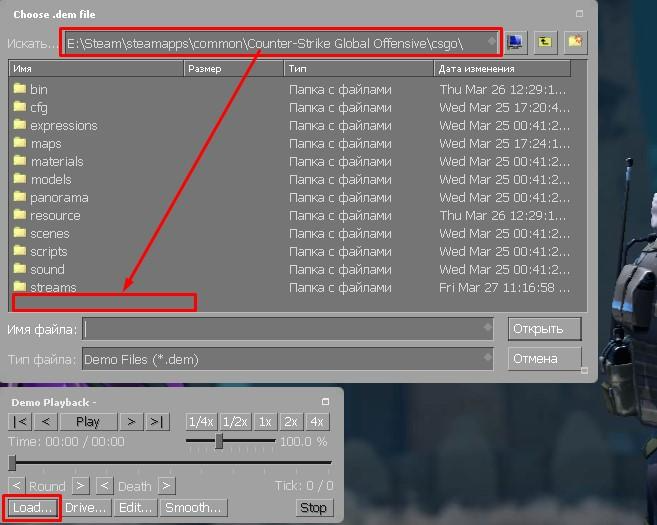
By clicking on the Load button, you can select the desired file from among the saved ones. Of course, you can open not only your own matches, but also records of other players downloaded from the Internet. Another way to display the rewind interface – keyboard shortcut Shift+F2.
Thus, you can turn on the rewind menu with the demoui command, giving you the opportunity to move around the entire mast and view it at a comfortable pace. It should be taken into account that fast forward, due to the technical features of the engine, works faster than rewind. If you move the slider a little forward, new frames will appear almost instantly, and when moving backwards, for example, to repeat a passage, you will have to wait a while for loading.
Another useful function – select playback speed. You can select one of the fixed values (with deceleration or acceleration), or you can use the slider to select the desired speed with an accuracy of a percentage.
Rewind using keys
After you have enabled rewind in the demo of cs go, you can think about bindings that will help you move faster through records. The demo viewing interface has buttons to go to the beginning of the previous or next round, to the death of a player, or to an arbitrary moment, but reaching for the mouse every time will be inconvenient, especially if you watch demos often. Therefore, in addition to the visual interface, you can make binds for various rewind commands, binding them to convenient keys, for example, to unoccupied keys from the F5 row – F9. Since they are rarely used, you don’t have to worry about the binds intersecting with some other commands.
The structure of creating a bind through the console is as follows:
bind key “name of the desired command.”.
For example, to bind pause to F9, you need to enter the following:
bind F9 "demo_pause".
Using this scheme, you can create convenient binds for other viewing control commands:
demo_timescale 8 – viewing at 8x speed. You can also use numbers from 1 to 8 to indicate the desired speed.
demo_timescale 0.1 – viewing at 0.1 speed from normal. Other fractional values can also be used.
demo_timescale 1 – return to normal viewing speed.
demo_resume – restoring viewing after a pause.
Interestingly, this is exactly the method used in CS 1.6. There was no visual interface for viewing the demo, so you could only turn on rewinding in cs go using the keys. If desired, all the binds can be registered in the console at once, separating them with a semicolon.
Thus, you can control the viewing speed with one hand: one key will be responsible for fast viewing, one for slow viewing, and two more for pausing and starting.
Solving problems when viewing a demo
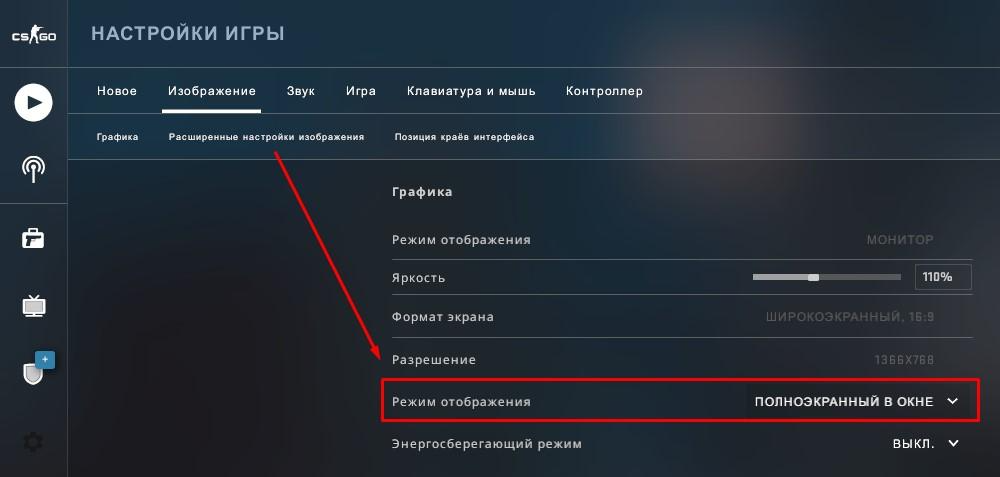
If you If you know how to turn on the rewind console in cs go to view the demo, then it won’t be difficult to deal with possible difficulties either. One of the problems that players often encounter is that after entering the demoui command, the mouse cursor disappears, which means that it becomes impossible to select the desired buttons. This is due to the fact that viewing the demo opens in a separate window, which is located on top of the game. To avoid this problem, you need to open the game settings and select the “Full screen in window” mode in the image parameters. Then the cursor will always be visible, regardless of which window is active at a particular moment.
And if the demo does not open, this may have the following reasons:
an internal bug of the game due to which the file was damaged;
the demo is too old, which is no longer compatible with the current version CS:GO;
CS:GO conflict with other programs;
file damage as a result of a file system failure.
The recommendations in these cases are the same as for other bugs in CS:GO: you can go to the lobby before reopening the file, restart the game, or restart your computer. Most problems are solved in this way.
In addition, problems may arise if, for convenience, you used Russian words in the title of the demo. Perhaps, in order to open the file correctly, it is enough to change its name to one that contains only numbers and Latin letters.
Having learned how to turn on rewind in cs go repeat, you should not abuse moving forward and backward through the video. If you frequently change the video speed and move around a lot, this can lead to a noticeable decrease in FPS, and to get rid of this, you will have to open the demo again. Such problems are especially often noted on HDD, so if possible, CS:GO, like other modern games, is better to run from a solid-state drive.
Now you know how to turn on the rewind console in cs go and use it to study demos, you can solve several tasks at once. First of all, you can watch the most important moments of the match in the recording in order to detect your mistakes and try not to repeat them in the next games. Looking at successful demos saved by other players can also be very useful. And finally, by studying the recording of the match, you can catch a cheater. The actions of players using walhack may not attract attention during the game, when there is no time to think, but in slow motion it will be immediately visible in the way the enemy moves and where he looks.
