

If you want to achieve maximum performance from the game or are trying to choose the best settings, knowing how to enable the FPS counter in cs go will help you monitor how one of the most important parameters changes. FPS, that is, the number of frames per second – it is a general characteristic of system performance. It affects the quality of the game: if the image is updated too slowly, it is uncomfortable to play, and you may not have time to react to the appearance of an enemy.
How to enable FPS display via the console
Figureing out how to enable the frame counter in cs go is quite easy. The easiest way to do this is through the console. To do this, use one of two possible commands.
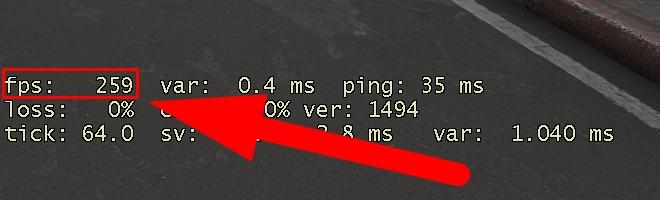
net_graph 1 displays various graphics indicators in the lower left corner of the screen. Among them will be FPS.
cl_showfps 1 displays only the fps value, without any other parameters. The indicator is located in the upper left corner.
If you specify the parameter “1” for these two commands, the necessary data will appear on the screen. To remove them, use the same commands, but with the parameter "0".
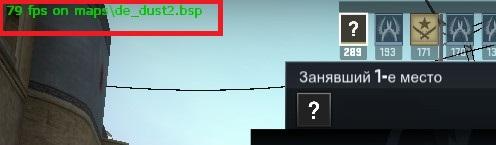
Thus, the choice depends on what parameters the user wants to track. If not only the frame rate, but also other performance characteristics are important to you, choose the first option. If you only monitor FPS – the second, so as not to be distracted by unnecessary inscriptions.
In addition, net_graph has additional parameters that can be accessed using the following commands:
net_graphwidth 64 - determines the size of the area in which the parameters will be displayed;
net_graphos 1 – depending on the value of the parameter (0 or 1), it determines where the inscription – in the left or right corner.
Net_graph – a useful command because it not only turns on the frame counter in cs go, but also shows other important parameters – ping, server tick rates, number of received and sent packets, percentage of losses. Thus, if there are delays in the game, you can immediately understand what’s wrong.
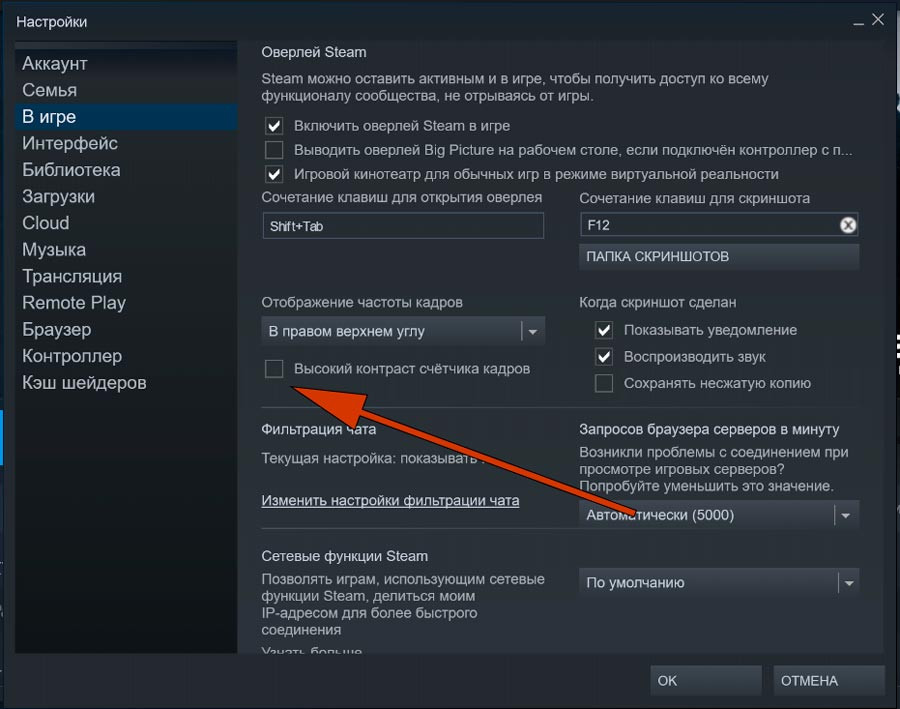
Various ways to enable the FPS counter in cs go are not limited to the console commands described above. Another simple way to do this – go to client settings in Steam. In the “In the game” section there will be a “Frame Rate Display” option. In the drop-down menu you can choose in which corner of the screen to show the parameter.
How to see FPS using other programs
Another way to enable the frame counter in cs go is to use third-party programs.. If you just need to see the FPS in the game, downloading special software may not be necessary. But if you optimize your computer's performance, record video from the screen, or fine-tune your video card, you may already have a program installed that, among other things, can show FPS. This function is available, in particular, in the following software:
FRAPS – a tool for recording video and performing benchmarks.
FPS Monitor –a program for monitoring computer performance during the game.
PlayClaw – a tool for creating overlays in the game.
MSI Afterburner – a tool for overclocking a video card, which allows you to display various parameters, including FPS.
If you have an NVIDIA video card, you can enable the frame counter in cs go using the official utility for the video card – NVIDIA GeForce Experience programs. In its settings, you can specify in which part of the screen information about FPS is located.
What should the FPS be in CS:GO
The maximum frame rate that can be obtained depends on the selected settings and computer performance. Having learned how to turn on the frame counter in cs go, you will be able to control the FPS value and be able to estimate it based on the following recommendations: An FPS indicator of 30 frames or less can be considered absolutely unacceptable, regardless of what mode you are playing in. 30-60 FPS is already enough for playing with bots, but it will be difficult to compete with other players with more modern hardware. Since the system requirements of CS:GO are low, this figure can be achieved even on old computers.
A value of 60-100 FPS can be considered optimal. On most gaming computers in recent years, you can get this indicator without any problems. With such a frame rate, you don’t have to worry that image update delays will prevent you from reacting to enemy movement in time.
100-300 FPS can be obtained on modern computers. In this case, input delays are minimized. It makes sense to achieve such an indicator if you strive for professional achievements.
By turning on the FPS counter in cs go, you can track changes in this parameter to understand why FPS may be decreasing, and, if necessary, find the problematic setting and change it.
How to increase FPS in CS:GO
If the indicators you see on the FPS counter do not suit you, you can use one of the ways to increase this indicator. First of all, look at the system information with the minimum requirements for CS:GO. Since the game has been out for a long time, there are usually no problems with modern computers. But if you are playing on an old machine that does not significantly exceed the minimum system requirements for some parameter, try changing the graphics settings to the minimum. style="width: 800px;">
Pay special attention to such a parameter as screen resolution. The larger the size of the image you want to display on your monitor, the more resources will be spent on processing it. If there is not enough RAM and video memory for this, FPS will drop. Therefore, if you encounter FPS drops, reduce the resolution – the first thing you need to do.
To compare how different settings affect the game, just turn on the FPS counter in cs go and see how the selected parameters affect its performance. This way you can quickly figure out which configuration is best for your computer. For example, try changing the graphics settings to show shadows and anti-aliasing. Through the console, you can remove dynamic light and reflections, bullet marks, and glow effects.
If you are using an NVIDIA video card, its control panel will allow you to change settings for a specific game. Find CS:GO in the menu and set performance as a priority.
Here are some more tips that will help improve CS:GO performance and achieve higher FPS:
If possible, install the game on an SSD rather than an HDD. If this is not possible, defragment it regularly.
Check whether the latest version of DirectX is installed on your PC and update it if necessary.
Update your video card drivers.
Use the CS:GO launch options. By specifying the appropriate commands in the game settings, you can give the game high priority, remove the opening splash screen, and disable controller support to free up some memory. On modern computers, the resource savings that these parameters provide are insignificant, but sometimes they can be useful.
Thus, having mastered turning on the FPS counter in cs go, you can set up the game so that nothing prevents you from gaining the upper hand opponents.
