


Forty minutes into the game, your team is trying to coordinate, and every second counts — that's when you realize typing in chat is a luxury you simply can't afford. Most experienced players already know how to bind a phrase in Dota 2: there are three ways to do it — through the game settings, through the Chat Wheel, or directly via the console. Each method suits different situations, and this guide breaks down all three with step-by-step instructions and specific commands.
Why bother with phrase binds at all?
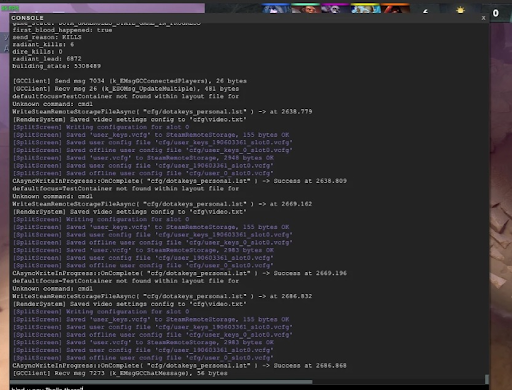
Dota 2 is a team game where the outcome of a match often comes down to communication rather than mechanics. Players who can relay information to their teammates instantly have a clear edge over those who spend ten seconds typing it out. That's exactly where binding a phrase in Dota 2 to a dedicated key makes all the difference.
Beyond the tactical benefits, phrase binds serve other purposes too. They're a tool for psychological pressure on the enemy (a well-timed "GG WP" can genuinely tilt someone), a way to boost team morale, and a way to fire off a quick joke without losing your tempo. Chat Wheel phrases send instantly and are perfect for quick comms when there's no time to type. The Chat Wheel remains one of the quickest ways to talk to your team, though what you can actually say depends on Valve's current communication rules and any active sanctions on your account.
How to enable the console in Dota 2
Before getting into console commands, you need to make sure the console is actually enabled — without it, some of the methods below simply won't be available. This is a one-time setup and takes under a minute.
There are two ways to enable the console.
The first is through the in-game settings by turning on the Developer Console / Enable Console option.
The second is through Steam: open your library, right-click on Dota 2, select “Properties” → “Launch Options”, and add -console. This way the console will open automatically every time you launch the game.
How to bind a phrase through the game settings
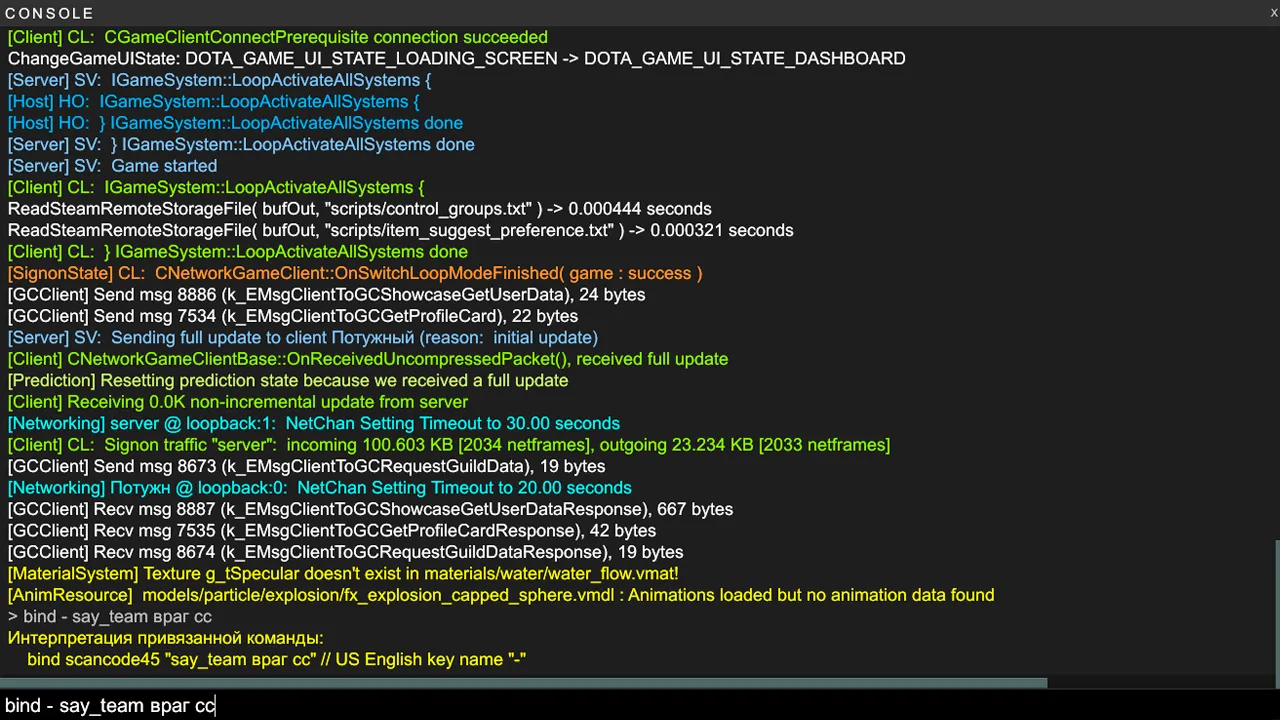
This is the simplest and most straightforward approach — no console required, and it works even if you've just started getting familiar with Dota 2's interface. Here you can assign hotkeys to standard phrases directly from the settings menu.
The path is: “Settings” → “Hotkeys” tab → “Chat” section. You'll see a list of standard phrases, each with an input field where you can assign a key. The game comes with a default set of Chat Wheel phrases that you can configure through this interface. It's a quick way to bind a phrase in Dota 2 if the text you need is already on the standard list.
The key thing to understand is that through settings, you can only assign keys to phrases that already exist in the system. If you want to fire off something custom — a meme, a specific callout, or anything outside the defaults — you'll need to go the console route.
How to bind a phrase through the Chat Wheel
The Chat Wheel is Dota 2's built-in quick communication tool. It's simple: hold down your assigned key and move your mouse in the direction you want — eight directions, eight phrases per wheel. The moment you release the key, the selected line fires off in chat.
Dota 2 has two Chat Wheels — a primary and a secondary. By default, they're triggered by hotkeys assigned in the client, which you can change under “Hotkeys.” That means you get instant access to 16 different lines from just two buttons. Dota Plus subscribers unlock additional hero-specific voice lines, and Chat Wheel sound effects are available as Plus Rewards, purchasable with Shards.
To set up phrase binds in Dota 2 through the Chat Wheel:
The Chat Wheel is configured entirely through the standard in-game interface — no console or third-party tools needed. Here's the step-by-step process.
Open “Settings” from the Dota 2 main menu.
Go to the “Hotkeys” tab.
Find the “Chat” section and click “Customize Chat Wheels.”
In the window that opens, select your desired phrases for each of the eight directions.
If needed, configure the second wheel by clicking “Secondary.”
Save your settings and test them in-game.
Once set up, the Chat Wheel works instantly with no delay and no need to open the console. It's the optimal choice for tactical callouts like “careful,” “fall back,” or “ward up” — the kind of lines you need on the fly, as long as they're already in the standard list.
How to bind any phrase in Dota 2 through the console
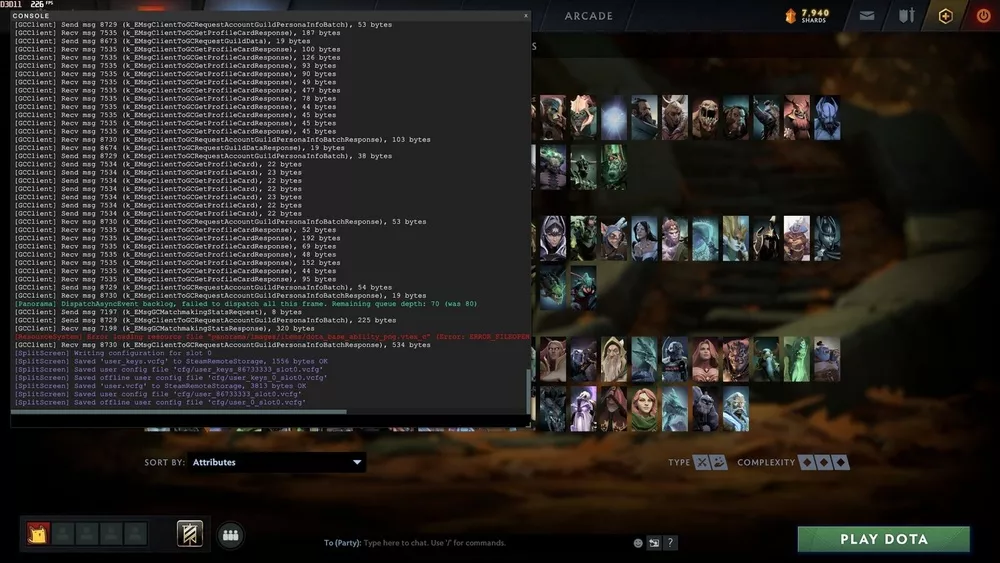
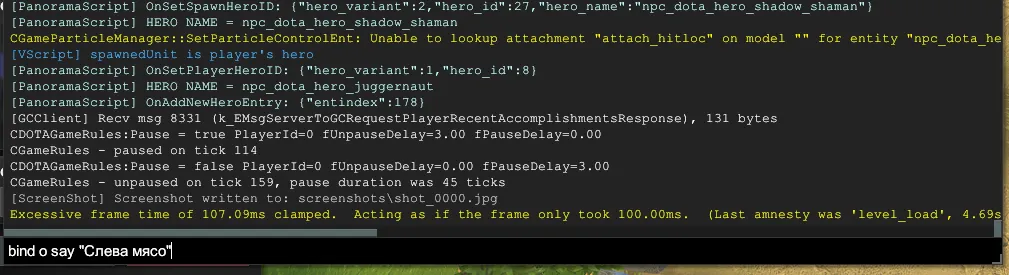
If the phrase you want isn't in the standard list, the console is your best friend. This method gives you complete freedom: bind any phrase in Dota 2 — to all chat or team-only, to any key on your keyboard, using any text in Latin characters.
The console command syntax is straightforward. To send a message to all chat:
bind [key] say "phrase"
To send to teammates only:
bind [key] say_team "phrase"
To remove a bind from a key:
unbind [key]
Before diving into examples, there's one important caveat: Cyrillic characters in the Dota 2 console frequently turn into question marks. This isn't a bug specific to your machine — it's a widespread issue. The fix is simple: use transliteration or write your phrases in Latin characters.
Here are some working command examples you can enter directly into the console:
Console binds are the most flexible way to bind a phrase in Dota 2 because they aren't limited to the default set of lines. The table below helps you pick the right command for any situation.
Command | Where the message goes | Example use case |
bind F say "GG WP" | All chat (everyone sees it) | After killing the enemy carry |
bind G say_team "mid missing" | Team only | Warning the team about a missing mid |
bind H say "ez" | All chat | Psychological warfare |
bind J say_team "rosh now" | Team only | Coordinating a Roshan attempt |
unbind F | – | Remove the bind from key F |
Once you enter a command it takes effect immediately — no need to restart the game. Binds persist between sessions if they're saved to your config file. If you skip that step, some binds may reset after relaunching the client.
Comparing all three methods: which one to use?
Each method has its place, and seasoned players tend to combine all three. For anyone still getting their bearings, here's a quick comparison table.
Feature | Game Settings | Chat Wheel | Console |
Setup difficulty | Easy | Easy | Medium |
Phrase limit | 87 standard | 16 (2×8) | Unlimited |
Custom text | No | No | Yes |
Auto-translated for recipients | No | Yes | No |
Requires console | No | No | Yes |
Hero voice lines | No | Yes (Dota Plus) | Via chatwheel_say |
Best suited for | New players | Everyone | Experienced players |
How to bind hero voice lines in Dota 2
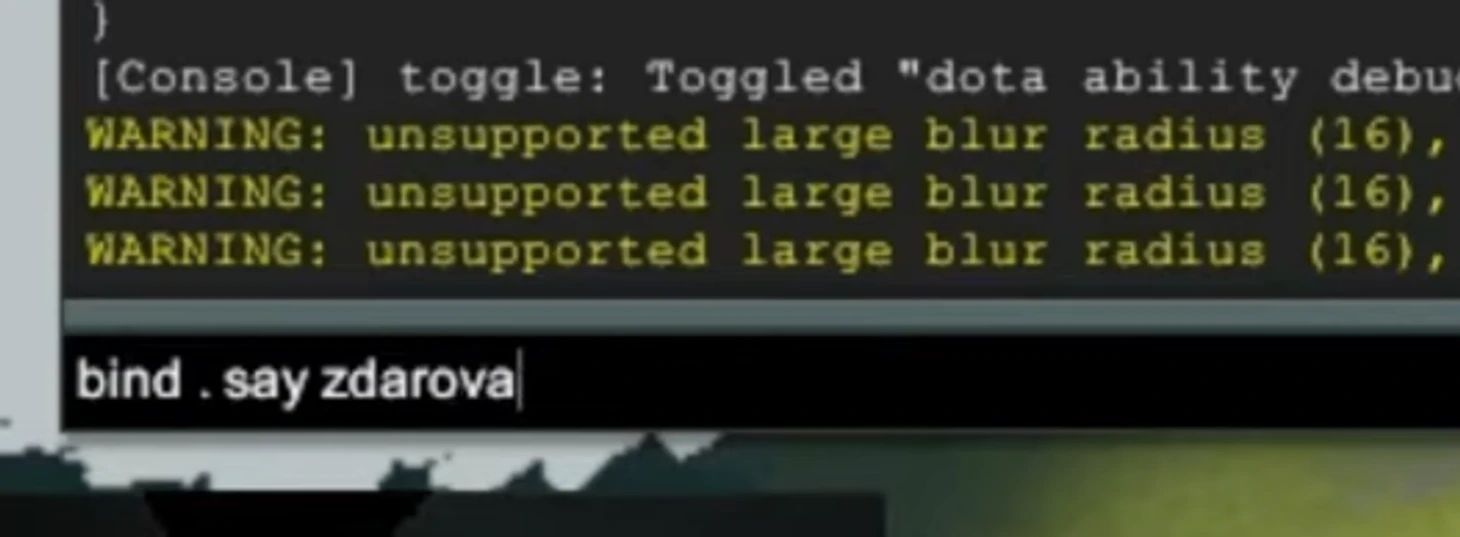
The hero Chat Wheel is a whole different story. This feature lets you fire off hero-specific voice lines in chat — think Invoker's iconic “Pathetic” or Axe's various lines. There are some access requirements here that are worth understanding before you spend time on the setup.
By default the hero Chat Wheel is assigned to the K key. You can rebind it under “Settings” → “Hotkeys” → “Chat” → the “Hero Chat Wheel” section. Now, here's how hero line access actually works and what you need to unlock it.
The hero voice line system is tied to your hero progression and a Dota Plus subscription; pricing varies by region and is displayed in the Steam/Dota 2 client. Here's what each tier gives you:
The hero Chat Wheel is linked to your progress on a specific hero. Valve officially confirms that the first lines unlock after your very first game on that hero, with more unlocking as you level up the hero badge. Without Dota Plus, heroes can only be leveled to badge level 5, while Silver badge and above are exclusive to Dota Plus subscribers.
The hero Chat Wheel is linked to your progress on a specific hero. The first lines unlock after your first game on that hero, and new ones appear as your badge levels up. Without Dota Plus, hero progression caps at level 5, with Silver badge and higher reserved for Dota Plus subscribers. Also worth noting: there's a cooldown — you can't spam multiple lines back-to-back without a short pause in between.
For advanced players, there's a way to bind a specific hero line directly to a key through the console, bypassing the wheel entirely. The command is chatwheel_say followed by the numeric line ID:
bind [key] "chatwheel_say [number]"
For example: bind o "chatwheel_say 39003". Line IDs can be found in the user_convars.vcfg file located at steam/userdata/[SteamID]/570/remote/, or in community-maintained spreadsheets. Standard Chat Wheel line IDs are also documented on the Dota 2 Wiki — that's where you'll find the numeric codes for chatwheel_say 1 (Care!), chatwheel_say 2 (Back!), and other default lines.
Common mistakes that break your binds
Even with the right commands, players occasionally run into binds that “just don't work.” In most cases the cause is something simple with a quick fix.
The most common bind issues are covered below. The table will help you identify the problem and resolve it without wasting time digging through forums.
Issue | Cause | Fix |
Cyrillic text shows as “???” in chat | The console doesn't natively support Cyrillic | Use transliteration or switch to Latin characters |
Numpad bind doesn't work | Num Lock is off | Enable Num Lock before entering the command |
Hero line is only heard by allies | Bronze tier is team chat only | Level the hero to badge level 12 (Silver) or subscribe to Dota Plus |
Binds disappear after restarting | Not saved to config | Add your commands to autoexec.cfg |
Key conflict | Key already assigned to another bind | Check all assigned keys via key_listboundkeys in the console |
Most issues take a couple of minutes to sort out. The main thing to watch out for is confusing say and say_team — if you mix them up, a callout meant for your teammates goes into all chat, and any tactical element of surprise goes straight out the window.
Which phrases should you bind first?
Once you've got the mechanics down, the practical question is: what should you actually bind? Experienced players typically split their phrases into two categories — tactical and psychological. The first group helps you communicate with your team; the second puts pressure on the enemy.
Below are ready-to-use commands you can copy directly from this guide and paste into the console. One quick note before the list: if your phrase contains spaces, the text must be wrapped in quotation marks.
Tactical binds:
bind F4 say_team "mid missing" — mid MIA, team only
bind F3 say_team "back off" — fall back, team only
bind F2 say_team "rosh now" — call for Roshan
bind F1 say_team "need wards" — ward request
Psychological binds:
bind H say "GG WP" — after a clean teamfight win
bind J say "well played" — after killing the enemy core
bind K say "ez" — a timeless classic
This is a solid starter set. From here, every player naturally builds out their own list based on their playstyle and go-to heroes. If you make heavy use of hero voice lines, the next step is looking up line IDs on the Dota 2 Wiki and putting together a custom console bind setup for each of your mains.
Set up your binds and stop letting the chat box slow you down
Knowing how to bind a phrase in Dota 2 is a small tweak with a noticeable payoff. Dota 2 gives you three ways to set up chat phrases: through the in-game interface, through the Chat Wheel, and through console binds for fully custom text. The hero Chat Wheel adds another layer — character voice lines that, when timed right, hit harder than anything you could type.
Dota Plus, which unlocks additional hero voice lines, can be purchased through the Dota 2/Steam client; pricing varies by region. Everything else is free and available right now. Spend five minutes on the setup once, and your in-game communication will be noticeably faster and more effective from that point on.
