


Before downloading CS2, it's worth checking whether your drive can actually handle it. The game has grown considerably since the move to Source 2, and it's no longer the compact 15 GB install that old CS:GO used to be. If you want to know exactly how much space CS2 takes up, you can check directly through Steam or using Windows Explorer.
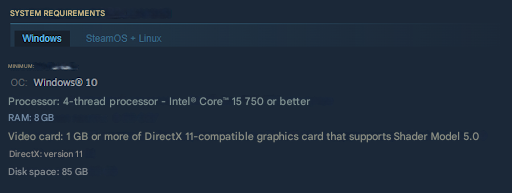
As of early 2026, CS2 sits at roughly 45–55 GB (though this can vary depending on your installed content). That said, Valve lists a full 85 GB in the system requirements — that's a buffer for future updates, operations, and whatever content the developers add down the line. There's also a difference between the size of the download itself and how much space the game occupies after installation, since files are decompressed and unpacked onto your drive.
CS2 File Size on PC in 2026
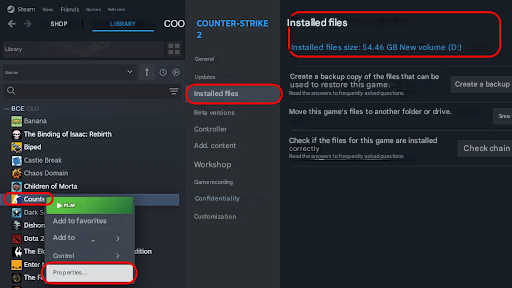
Source 2 didn't just bring improved visuals — it also significantly bumped up the game's footprint. How much space CS2 takes up on your specific machine depends on a couple of things: which language packs you have installed and whether you've subscribed to any Workshop maps. The download itself comes in at around 27.5–30 GB compressed, expanding to 33–35 GB after installation. Some players end up closer to 40–45 GB once demos, cache, and extra content start piling up.
Valve played it safe by listing 85 GB in the requirements — that's enough headroom for all future patches, new skin collections, and operations. Here's a quick comparison with the old version:
The size increase comes down to higher-resolution textures, updated weapon and character models, a new lighting system, and higher-quality audio files. The exact size at any given point can shift with each major update — adding new maps to the active pool or running a Major brings in team stickers, graffiti, and other content that adds to the total. According to SteamDB, patches in January 2025 ranged from a few megabytes to around 1 GB depending on the type of update.
How to Check CS2's Install Size Through Steam
Steam gives you a few different ways to see how much space the game is using. There are three methods — one for an already-installed game, one that shows the size before you download, and one that uses Windows Explorer. Checking directly through Steam is generally the most accurate, as it reflects the full install including any Workshop content.
Method 1: Through the Steam Library
The simplest option if the game is already installed:
Launch Steam and sign into your account.
Open the Library tab at the top.
Find Counter-Strike 2 in your game list.
Right-click on the game.
Select Properties from the menu.
Navigate to the Installed Files tab.
The exact install size will be listed there.
This shows you the real number — how much CS2 actually takes up on your machine, including all updates and additional content. There's also a "Browse local files" button that opens the game folder in Windows Explorer, where you can see which components take up the most space and drill down into the directory structure.
Method 2: Through the Store Page
If the game isn't installed yet, you can still check the size on the store page:
Open the Steam Store.
Search for Counter-Strike 2.
Scroll down to the System Requirements section.
The required storage space is listed in that block.
Keep in mind that the 85 GB figure is Valve's future-proofed recommendation, not the actual install size. The game will take up significantly less space than that once installed.
Method 3: Through Windows Explorer
An alternative approach using the operating system's built-in tools:
Open Windows Explorer (Win+E).
Navigate to your Steam installation folder (usually C:\Program Files (x86)\Steam).
Open the steamapps → common folder.
Find the "Counter-Strike Global Offensive" folder (the name carried over from CS:GO).
Right-click the folder and select Properties.
The window that opens will show the exact size in gigabytes.
This method is useful if you want to dig into the folder structure and see how much space individual components — maps, models, textures — are taking up. Worth noting: some players still have leftover files from the original CS:GO install sitting in that folder. You can safely clear those out by running "Verify integrity of game files" in Steam — nothing will break.
Why CS2's Install Size Varies Between Machines
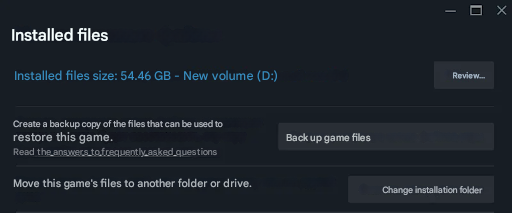
A lot of players notice that CS2's reported size differs from one PC to the next — and that's completely normal. Quite a few factors affect the final number. Steam's cache, temp files, and user-generated content can add anywhere from 2 to 10 GB on top of the base install. How much CS2 takes up varies per player depending on how long the game has been installed and how many demos or screenshots have accumulated over time.
The main driver of bloat is saved match demos. Plenty of players save their games for review, and each recording weighs in at 50–150 MB depending on match length. Workshop map subscriptions add a few more gigabytes, especially if you've downloaded a stack of aim training or deathmatch maps. Language packs also contribute — each additional language adds around 300–500 MB of voice lines and localization files.
The discrepancy is most often down to cache, demos, Workshop content, and the difference between "Size" and "Size on disk" in Windows. The only way to get an exact figure for your specific machine is to check the folder properties directly, since NTFS and exFAT file systems calculate occupied space slightly differently. Some users also notice a gap between the size Steam reports and what Windows Explorer shows for the actual folder.
Storage Requirements for CS2
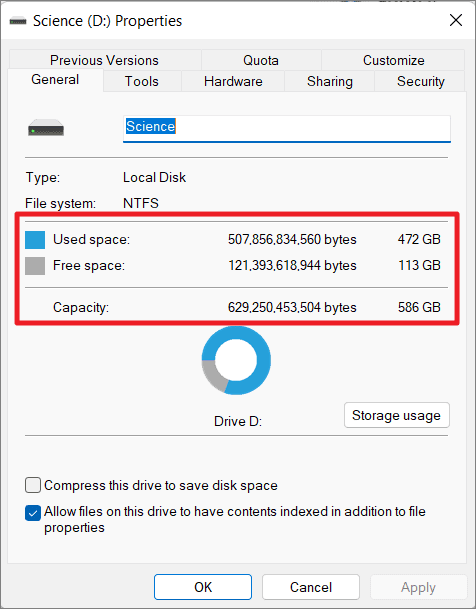
Understanding how much space CS2 needs isn't just relevant for the initial install — it matters for keeping the game running smoothly long-term. Valve recommends a minimum of 85 GB of free space on the drive where the game is installed. That might seem overkill given that the core install sits at 33–35 GB, but that headroom is what allows updates to unpack and temp files to be created during gameplay without issue.
Windows constantly uses free disk space for the page file and various system temp data. If the drive hosting CS2 drops below 15–20 GB of free space, you'll start running into problems — stuttering, maps that take forever to load, and updates that refuse to install. Ideally you want at least 30–40 GB free even after the game is installed. For SSDs this is especially important — solid-state drives start throttling once they're more than 80% full.
When you install the game, think beyond the current size and account for what's coming. Every operation brings new skins, stickers, graffiti, and sometimes new maps. Over a year of active support, the game can easily grow by 5–10 GB. Your CS2 install a few months after first downloading it will almost certainly be larger than it was on day one. That's why experienced players put CS2 on a drive with at least 100–120 GB free — so they're not constantly playing cleanup.
How to Free Up Space Taken by CS2
If you're running low on disk space, there are several safe ways to trim down the install. The key is not deleting anything critical that'll cause errors on launch. Start with unnecessary language packs — they're downloaded automatically during installation. If you only play in English, what do you need Chinese or Portuguese voice lines for? They're just dead weight on your drive.
Here's how to remove extra language packs through Steam:
Open Counter-Strike 2 properties in your library.
Navigate to the Language tab.
Select only the language you actually use.
Steam will automatically remove the unused language files during the next verification pass.
Accumulated match demos are another common reason for the game folder ballooning over time. The .dem files are stored in the \replays directory inside the CS2 folder and can take up several gigabytes for active players. These can be safely deleted manually, or you can set up automatic cleanup for older demos. Screenshots pile up in a separate folder too — check \screenshots and clear out anything you don't need, especially if you're saving them at high resolution.
Workshop map subscriptions contribute a significant chunk of data. Head to the Workshop section in Steam and unsubscribe from any maps you no longer use for practice. A detailed map like aim_botz or recoil master can weigh 100–200 MB each. The shader cache and temp files can be cleared through Steam's settings under Downloads → Clear download cache. This operation frees up 1–3 GB without affecting how the game runs.
The "Verify integrity of game files" function in Steam can also help remove corrupted or duplicate files. The install size often drops slightly after a verification pass, since the process cleans out temp data and only restores the essential files. Running this every few months is a good habit for keeping the install size under control. One important warning: never manually delete .pak, .vpk, or .dll files from the root game folder — that will cause launch errors.
Common Questions About CS2's File Size
Why does CS2 take up more space than CS:GO?
Source 2 is a completely new engine, which meant rebuilding everything from scratch. Textures are now 4K rather than the standard HD they were in CS:GO — so every wall, floor, and crate takes up considerably more disk space. Weapon models are more detailed with far higher polygon counts, meaning every AK or AWP now occupies 2–3 times more space than its old-game counterpart. The audio has been upgraded too — high-quality positional sound adds extra gigabytes. CS2 is also heavier because the new lighting system stores pre-baked light maps for every map, which looks great but isn't cheap on storage.
Will the game keep getting bigger over time?
Inevitably, yes. Every operation adds new skins, cases, and Major stickers — all of which settle onto your drive. After major tournaments, CS2 can be 3–5 GB heavier from all the team graffiti, player stickers, and event content. Valve is gradually bringing back maps from CS:GO rebuilt for the new engine, and each one adds anywhere from 500 MB to a full gigabyte. Based on how CS:GO grew over its lifespan, it's reasonable to expect CS2 to reach 40–45 GB by the end of 2026 if the content pipeline stays active.
Can you install CS2 on an external drive?
Absolutely — Steam handles external drives without any issues. Go to Settings, then Storage, add your external HDD or SSD as a new Steam library location, and select it when installing CS2. The game takes up the same amount of space regardless of which drive it's on. The one thing to keep in mind is that load times will be noticeably slower on an external HDD compared to an internal SSD. If you do go external, use at least USB 3.0 — USB-C is even better — otherwise load times will get pretty painful.
Keep an Eye on Your Free Space
Stay on top of it and you'll avoid performance headaches or getting blocked by an update that won't download. As of early 2026, CS2 sits at 33–35 GB on most machines, but that number creeps up with every patch. Try to keep at least 30–40 GB free on the drive where the game lives, and periodically clean house — old demos, cached data, Workshop maps you haven't touched in months.
A good habit is checking the install size through Steam every couple of months, especially after major updates or the end of an operation. It takes a minute, and it'll save you from scrambling to figure out why the game is stuttering or why a patch won't go through. Just keep an eye on the game's properties occasionally and make sure there's enough breathing room on your drive — CS2 will reward you with stable performance.
