


You browse someone's profile and there it is: an animated hero in a rare set, a meme scene built from emoticons, a sick background – and then you glance at your own grey stats page. If you've been wondering how to make your Dota 2 profile just as eye-catching, you're in the right place. The short version: open the Showcase editor directly in the Dota 2 client, pick a background, place your elements, and stay within the budget shown in the editor. Now for the details – what you can actually add, how to spend that budget wisely, and where to find inspiration for a showcase that actually turns heads.
What is the profile Showcase – and when did it launch?
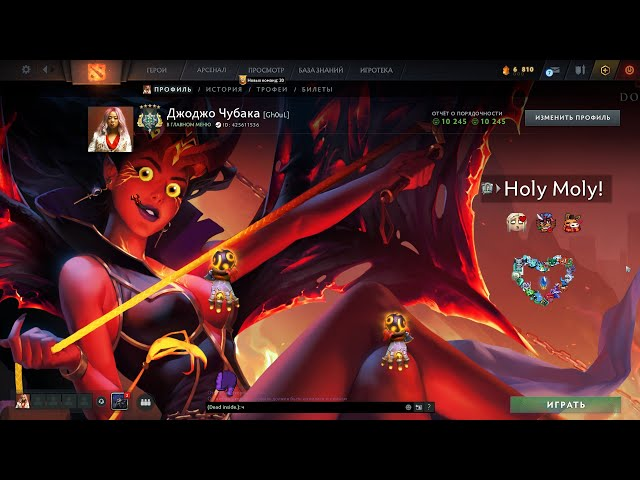
Before September 2023, the Dota 2 profile page was a pretty dull place. Some stats, a couple of standard widgets, zero customization. On September 27, 2023, Valve introduced the Showcase system alongside The International 2023 Compendium – and everything changed. Player pages became a full creative canvas: you could place heroes, emoticons, Chat Wheel lines, trophies, and a whole lot more.
The update covered both the full profile and the mini-profile – that small pop-up window that appears when you hover over someone's avatar in the friends list or the main menu. The mini-profile is actually what other players see most often; it's essentially your account's face in everyday interactions. Valve summed up the whole system in one line: “You are Michelangelo, and your profile is your canvas. You are only limited by your imagination and basic standards of decency.”
Who can set up a Showcase – are there any restrictions?
It's pretty straightforward. The only in-game requirement to access the editor is a behavior score of 6,000 or above. According to Valve, that covers roughly 98% of active players, so most people reading this can jump in right now. No paid subscriptions or purchases are required for the basic setup.
Requirement | Value |
Behavior score | ≥ 6,000 |
Purchases required | No |
Paid subscription | Not required |
Platform | Steam (PC) |
The second constraint is the Showcase budget. Each element costs a certain number of points, and the total can't exceed the cap: 100 points for the full profile and 50 points for the mini-profile. This is where the real puzzle begins – figuring out how to fit your planned layout within those limits without sacrificing what matters most. The third condition is Valve's "basic standards of decency" clause – moderation rights are reserved, though the exact criteria aren't spelled out.
How to open the Showcase editor – step by step
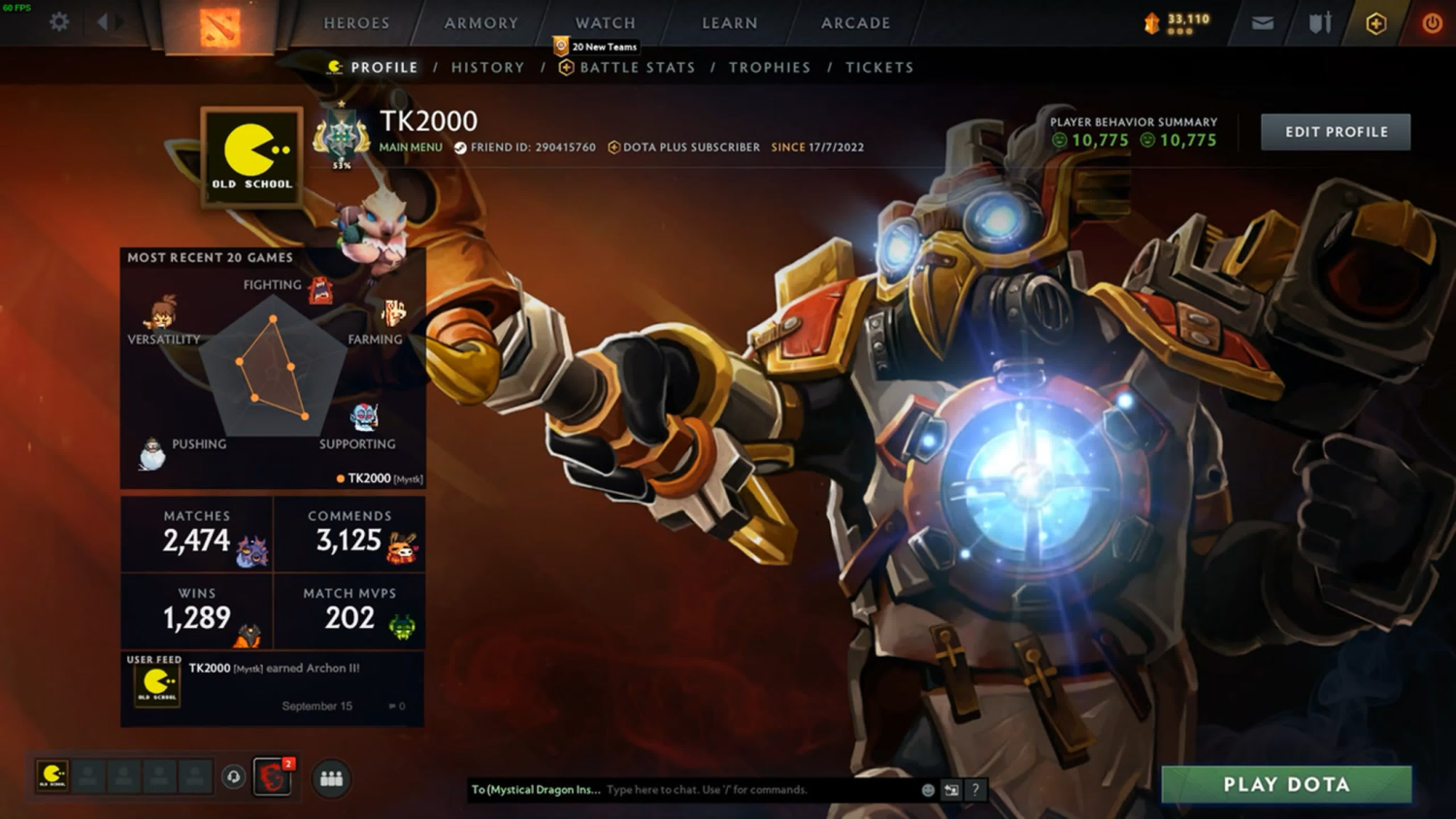
Setting up your Dota 2 profile from scratch doesn't require digging through hidden menus – everything is right there in the client. The whole process takes just a few seconds to access, and then the creative part begins. One thing to keep in mind: the game needs to be running and your account logged in, since the Showcase editor is only accessible from inside the Dota 2 client.
Before following the steps below, make sure your behavior score is above 6,000 – the editor simply won't open without it. If you're good to go, here's what to do:
Launch Dota 2 and go to the main menu.
Click your avatar or username in the top-right corner of the screen.
Open the profile tab – you'll find the Showcase editor button there.
Choose a background: either the default options or loading screens from your inventory.
Add elements to the canvas, keeping an eye on the budget counter in the interface.
Save when you're done.
Once saved, the Showcase updates immediately – other players will see the changes right away with no extra steps needed. If you want to tweak it later, the editor is always available and there's no limit on how many times you can go back in.
What you can add to your Showcase – the full list
The Showcase has a lot more to offer than most people realize. Many players stop at a couple of heroes and an MMR widget, not knowing that the editor gives you access to almost everything in the Dota 2 universe. Valve even added summoned units, familiars, couriers, and standalone item skins – not just hero models.
The key thing to understand is how the editor categorizes elements: "heavy" ones (full-size hero models, large widgets) and "light" ones (emoticons, chat lines, arsenal items). Mixing them smartly lets you build a rich Showcase without blowing your budget. Here's everything available to place:
Hero models – with any custom sets and skins from your inventory.
Hero portraits – a compact version that shows hero level and relics.
Summoned units, wards, familiars, couriers – added in December 2023.
Taunts.
Arsenal items – standalone item skins not attached to a specific hero.
Emoticons – use them to spell out text or decorate the scene.
Chat Wheel lines.
Sprays and stickers.
Trophies and rewards for in-game achievements.
Stats widgets – wins, matches played, MMR, commends.
Loading screens as background images.
Every time you add an element, the editor instantly shows your remaining budget. That way you won't accidentally paint yourself into a corner and have to rip out half your layout because you went over at the very end.
How the Showcase budget works – and how not to waste it
The budget is the main obstacle for anyone trying to pack as much as possible into their Dota 2 profile. A lot of players hit the cap halfway through their planned layout and end up starting over. There are a few tricks that help you stretch your points without compromising the end result.
Knowing roughly what each element costs gives you a real advantage: you can plan your layout ahead of time instead of constantly shuffling things around through trial and error.
Element | Approx. cost (points) |
Hero model | ~10 |
Hero portrait | ~2 |
Arsenal item | ~3 |
Emoticon | ~1 |
Stats widget | ~5–8 |
Chat Wheel line | ~1–2 |
One underrated trick: instead of placing a hero model in a rare full set (10 points), display its individual pieces through the Arsenal – each item costs around 3 points, and the overall impression is just as strong. Another practical tip: don't stack all your stats widgets just because you can. They eat into your budget, and for most players with a typical 50% winrate, they'll hurt the look more than help it. Stick to the one stat you're genuinely proud of.
How to set up the Dota 2 mini-profile – what makes it different
The mini-profile is something a lot of players overlook in favor of the main one – which is a mistake. It's actually what other players see most often: in the friends list, in the main menu, during quick profile peeks. It's the first thing anyone sees when they hover over your avatar, and it shapes the first impression of your account.
The mini-profile is edited separately from the main profile: it has its own canvas and its own budget of 50 points. You can access its editor through the same profile interface by switching to the corresponding tab. With a tighter budget, prioritization matters more: one hero in a solid set, a short line or two from the Chat Wheel, a couple of emoticons – and the showcase already looks lively and memorable.
A solid mini-profile strategy is to feature your signature hero – the one you've played the most – and pair it with a few emoticons or one well-chosen Chat Wheel line. That's enough to make the mini-profile feel personal, recognizable, and true to your playstyle.
Animations, freeze frames, and element attachment – what the December 2023 update added
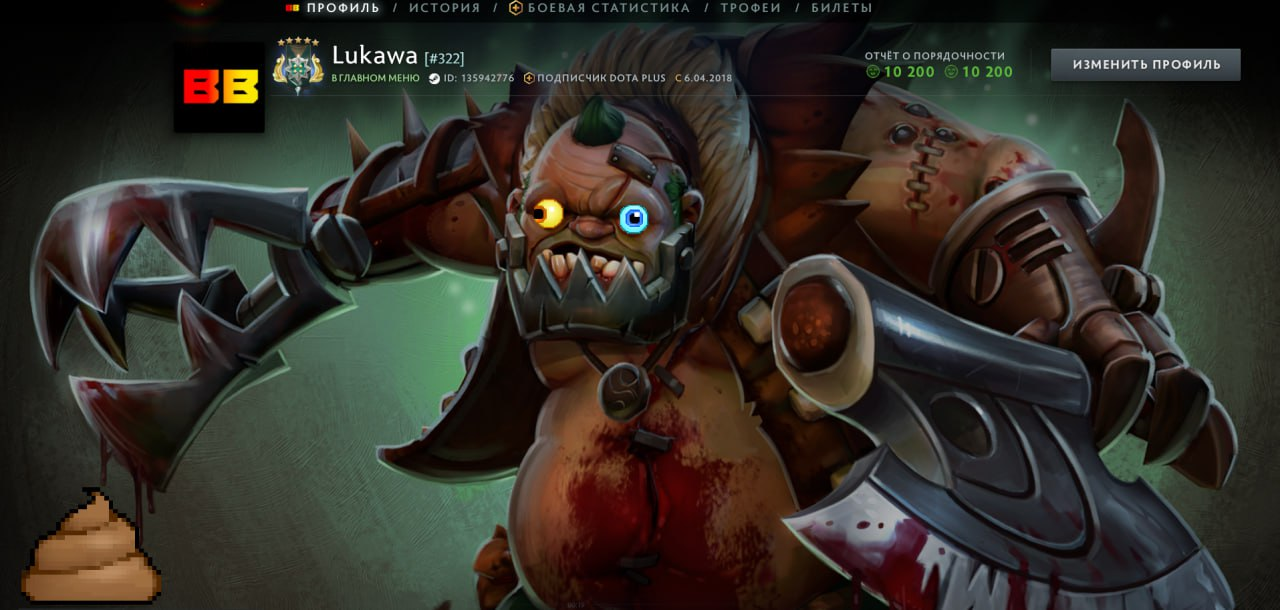
In December 2023, with the Frostivus update, Valve significantly expanded the editor's capabilities. Before this, heroes just stood there – now you can assign animations to them, freeze them in a specific pose, and attach other elements to them so they move in sync. Showcases became noticeably livelier as a result.
Before this update, getting an expressive hero pose on your profile meant settling for a static image. Now Ember Spirit can "shred a guitar" in a taunt animation while attached emoticons bounce along with him. All the new features are found under the "Other Options" tab when editing a specific element. Here's what Valve added in the December update:
Hero animations – choose from a standard list: attack, victory pose, taunt, and more.
Freeze frames – lock an animation on a specific frame to nail the exact pose you want.
Element attachment – emoticons and objects "snap" to a hero model and move with it.
Improved portraits – choose between model and portrait view, display hero level and relics.
Expanded model list – summoned units, wards, familiars, taunts.
Getting a handle on these settings takes just a few minutes – the interface is intuitive. Animations and attachments have the biggest impact on how a Showcase looks, so they're worth trying first.
How to make a great Dota 2 profile – ideas and concepts
Once you know the tools, the real question is: what do you actually make? Building a great Dota 2 profile isn't a technical problem anymore – it's a creative one. Over the two years since Showcases launched, the community has settled on a handful of tried-and-true concepts that consistently look good without overwhelming the viewer.
There's no need to go for something complex right out of the gate. The smarter move is to take one of these proven concepts as a starting point and personalize it from there – throw in your main hero, add a personal touch, or slip in a nod to your favorite team. Here's what actually works:
Themed set – one hero in a rare or visually striking cosmetic set, a matching background, minimal clutter. Clean, readable, never fails.
Meme scene – heroes and emoticons recreating a well-known community joke. Works best when the meme is current and recognizable to most Dota players.
Minimalist – one or two heroes, a neutral landscape background, nothing excessive. Looks genuinely stylish.
Narrative – two heroes in dynamic poses, as if mid-fight or acting out a scene.
Fan profile – heroes from your favorite pro team, trophies, on-theme Chat Wheel lines.
On the subject of backgrounds: landscape loading screens without large foreground characters give you the most room to work with. Seasonal update backgrounds – locations, architecture, Dota 2 scenery – work particularly well as neutral bases for almost any layout.
How to change your name and avatar in Dota 2
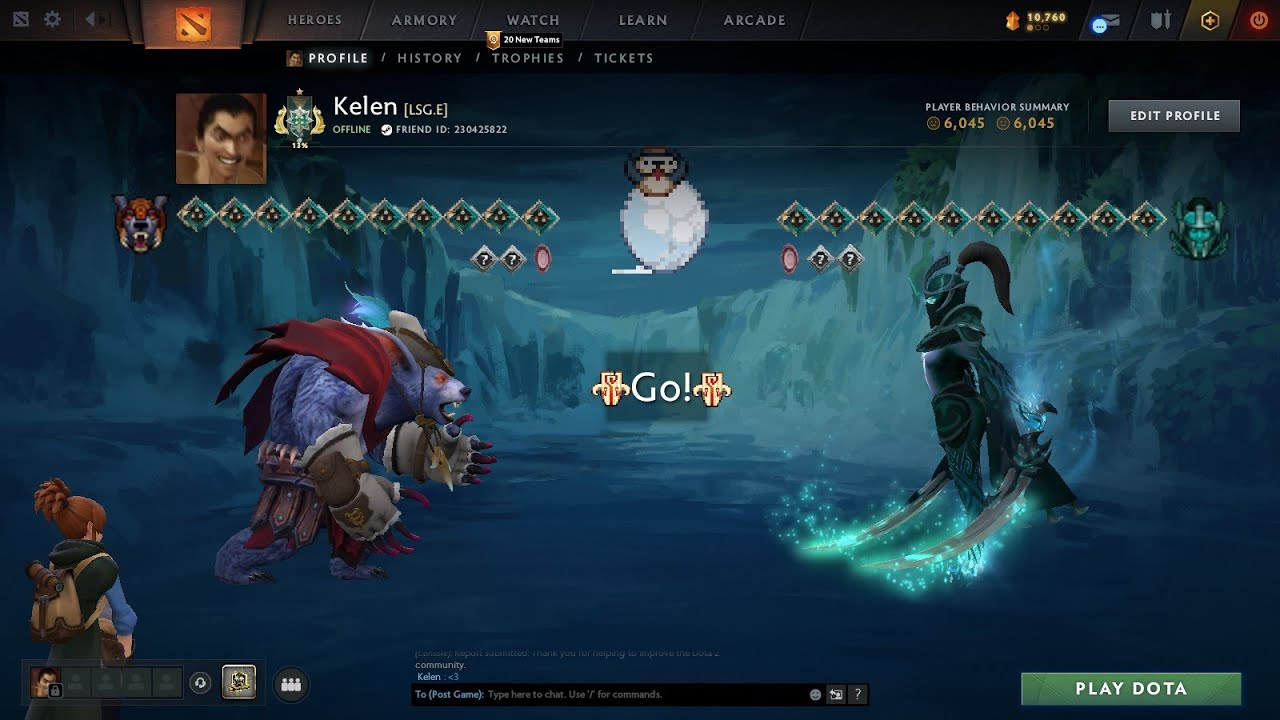
Before calling your profile finished, it's worth sorting out your name and avatar – they're part of the overall package too. Dota 2 doesn't have separate settings for either: the game pulls both directly from your Steam account.
There are two ways to change your name. The first is straight from the client: press Shift+Tab to open the Steam overlay → “Friends” → the arrow next to your name → “Edit Profile Name.” The second is through a browser: go to steamcommunity.com → click your name in the top-right corner → “Profile” → “Edit Profile” → update your name and avatar → save. Both methods take effect immediately – the updated name shows up in-game right away.
Steam profile avatar and background through the Points Shop
There's also the Steam profile itself, which you can customize separately through the Points Shop. Animated Dota 2 hero avatars, avatar frames, and profile backgrounds are all available there. None of this affects the in-game Showcase, but it rounds out your account's overall look from the outside.
Steam Points are earned automatically: every $1 spent in the Steam store earns you 100 points. You can't buy points directly – you accumulate them through purchases. The Points Shop currently offers around 120 animated Dota 2 hero avatars.
Points Shop item | Cost (Steam Points) |
Animated avatar (Dota 2 hero) | ~3,000 |
Animated frame (Aghanim's Border) | ~5,000 |
Profile background | ~500–2,000 |
Dota 2 Complete Item Bundle | ~300,400 |
For most players, an animated avatar at ~3,000 points is more than enough – that's the equivalent of $30 spent on Steam.
Where to start – a solid profile in 5 minutes
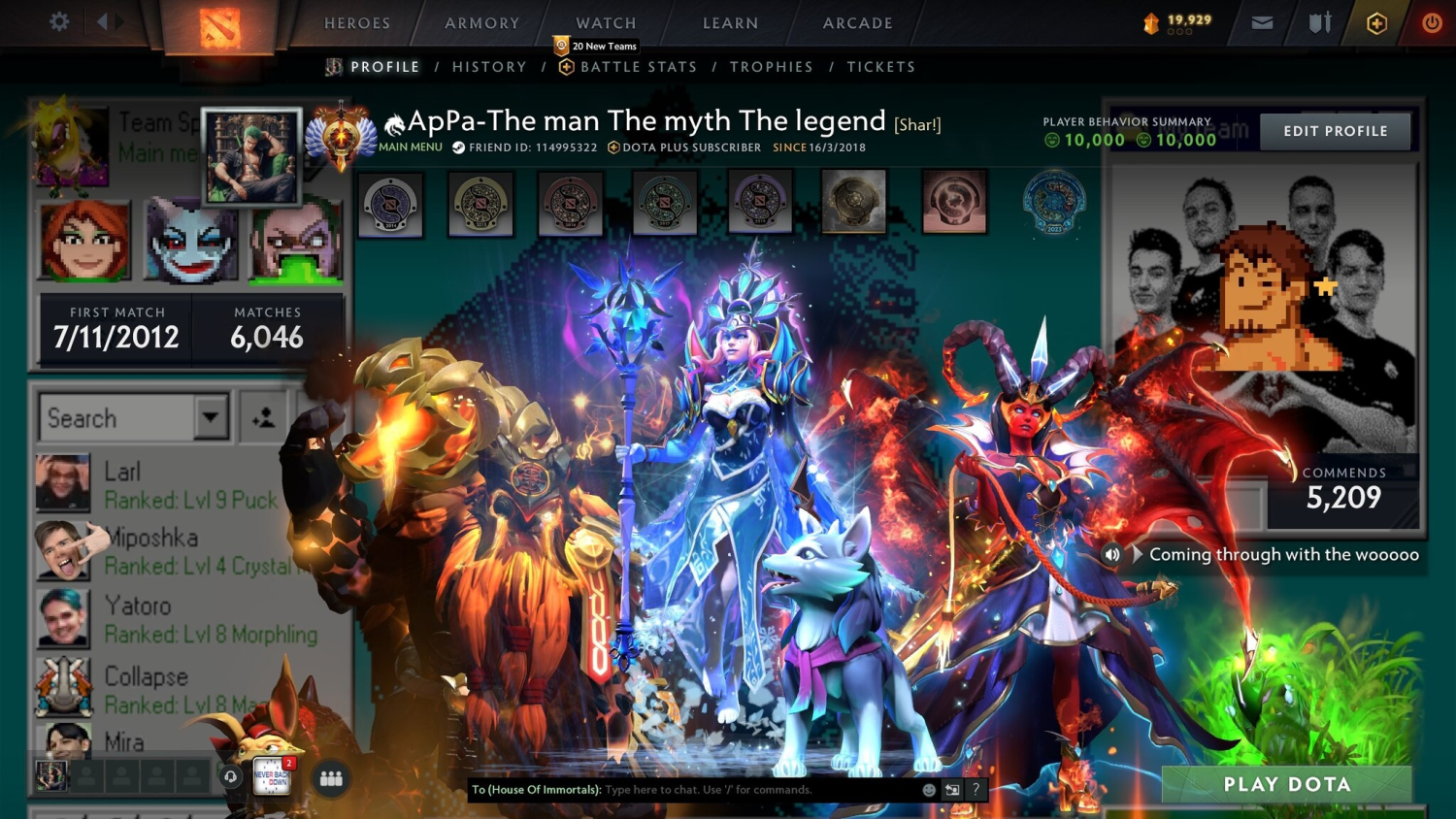
The best way to understand how to build a great Dota 2 profile is to just start building one. Don't worry about nailing an elaborate meme scene or a multi-layered composition on the first try – get a working version up and refine it from there.
Quick start: pick a loading screen from your inventory as the background, place one hero (ideally your signature pick), add a widget for the one stat you're happy to show off, and throw in a couple of emoticons for personality. That's already better than most profiles out there. For the mini-profile, it's even simpler: one hero, one line, a couple of emoticons. The 50-point budget is more than enough to make a Dota 2 mini-profile feel alive even with a minimal cosmetic collection.
The main thing to keep in mind: composition, concept, and restraint are what actually make a Showcase stand out. Players with a basic inventory regularly build showcases that look more interesting than accounts where someone just piled on every expensive item they own. Money helps, but it doesn't make the call – creative thinking does.
