


Rust players often argue about what really determines item sharpness and detail. Some swear it’s all about the monitor, others blame graphics settings or a weak PC. In reality, the question of how to improve skin quality in Rust comes down to a bunch of small factors: textures, filtering, hardware, and even which server you’re on. Let’s break it down step by step so anyone can tidy things up and see their set in all its glory.
What does “skin quality” mean in Rust?
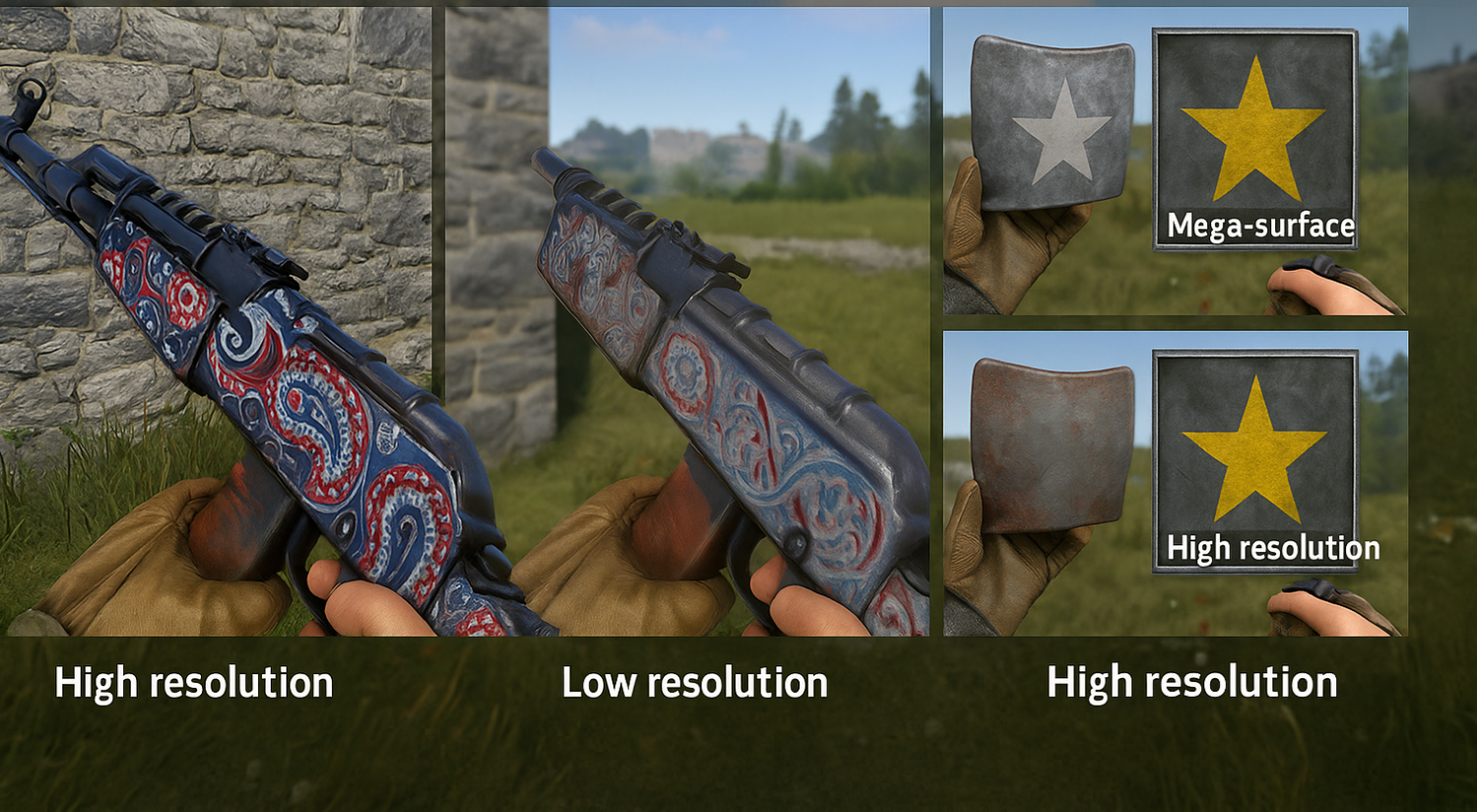
When we talk about a crisp image, it’s not just the paint job on a weapon or piece of clothing. Skin quality in Rust is a stack of technical parameters. First is texture resolution: the higher it is, the more tiny details you can see. Then come normal maps, which add perceived depth—metal starts to catch highlights, fabric looks textured.
LOD levels matter too. If they’re set too aggressively, a skin may look blurry at range and snap to sharp when you get close. Those “pops” are obvious even to the naked eye.
Simple example: a SAR with ornamentation turns into a gray blob after a few steps at low texture resolution. With sensible tuning, the detail holds, and skin quality in Rust stays high even at mid-distance.
Which graphics settings affect sharpness?
Skin readability in Rust is shaped by three things working together: which texture mip levels are loaded, how the image is filtered at an angle, and how cleanly edges are anti-aliased. Push any one of these too far and overall quality tanks. Overzealous TAA softens micro patterns and lettering, low anisotropic filtering turns diagonal surfaces into gray smears, and a shifted LOD makes artwork “flip” every step you take. So a smart strategy starts with the core sources of sharpness—texture quality and anisotropic filtering—then layers on depth and “cinematic” effects so skin quality in Rust doesn’t smear in motion.
Below are the sliders that actually affect how skins look. Each point answers three questions: what changes on screen, how to set it, and what it costs in performance. This approach saves time on endless preset tinkering.
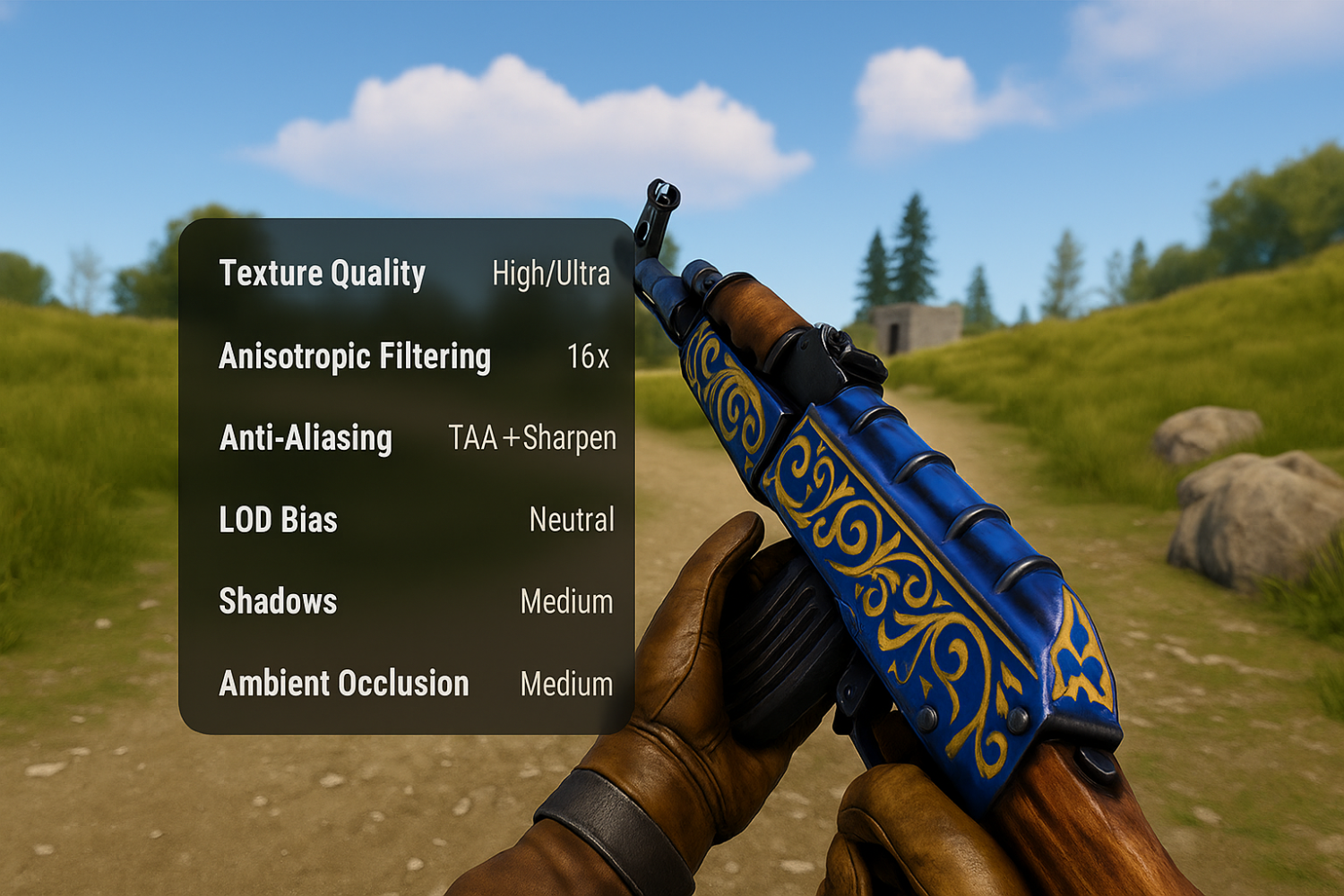
Texture Quality (High/Ultra). Controls which texture detail levels stay in memory. On High/Ultra, fine strokes on weapons and seams on clothing remain readable; when VRAM runs short, the game swaps in “lighter” assets and the image “breathes.” The simple rule: use High/Ultra if you still have VRAM headroom in a typical session; if you’re at the limit, trim secondary effects—not textures—so your sharpness foundation doesn’t suffer.
Anisotropic Filtering (8×–16×). Keeps angled and distant surfaces sharp: door edges, floor planks, grips—any diagonal plane stops turning into a gray “carpet.” 16× barely touches FPS on modern GPUs and helps most where you look most—in ADS and while sprinting. Dropping to 4× is already noticeable in interiors and long corridors.
Anti-Aliasing (TAA/MSAA) + moderate Sharpen. AA removes jaggies, but TAA naturally softens tiny patterns and text in motion. Pairing TAA with a light sharpen restores micro-contrast without sawtoothing; overdoing it shows up as halos and noise on high-contrast edges. MSAA looks cleaner on stills but costs far more performance; a careful TAA + Sharpen combo usually wins.
LOD Bias / draw distances. Control when a model swaps to a simplified level. An aggressive bias creates “pop-in” sharpness: step forward—pattern snaps crisp; step back—instant blur. Neutral values reduce that popping and preserve skin quality in Rust at mid-range without overloading CPU/GPU.
Shadows and Ambient Occlusion. Create depth: metal “catches” light, fabric stops looking flat. Cranked shadows/AO can hide micro detail and eat frames. Medium is usually the sweet spot: you get volume without burying fine patterns in darkness.
Post-processing (Bloom/Blur/DOF/Film Grain) and spot sharpening. Anything that adds “haze” hurts readability. Minimalism wins: light Sharpen—yes; heavy bloom, motion blur, film grain, and strong depth of field—no. That keeps edges clean and textures fine without fake “gloss.”
After you set the foundation, test in typical PvP scenes—not just still frames: AK grip in hand, armor seams, sign lettering, all under consistent lighting. If small elements stop “breathing” when you move a step and you still have reasonable VRAM headroom, you’ve found the balance. Then you can dial in atmosphere—some shadow, some AO—without touching the fundamentals that decide skin quality in Rust. This order yields stable visuals in fights and frees you from the “pretty or readable” dilemma—you get both crispness and pleasing depth.
How important is the hardware side?
Visual clarity in Rust isn’t just about graphics sliders. No matter how careful your preset is, the game still hits hardware limits. The logic is simple: textures are read from disk, go to RAM, then to VRAM, and only then to the screen. If there’s a weak link anywhere, the image “crumbles”: you see streaming steps, tiny patterns vanish and reappear, and skins look muddy even on high settings. That’s why any graphics talk has to start with whether your hardware has enough resources.
VRAM is especially sensitive. When video memory is lacking, the game swaps high-res textures for simpler ones, and patterns literally “breathe”—sharp one moment, smudged the next. This is where the difference between Full HD, 2K, and 4K shows up.
Good ballparks by resolution:
Resolution | Minimum for High | Recommended for Ultra | If VRAM runs short |
1080p | 6 GB | 8 GB | Texture swaps, patterns turn “blurry” |
1440p | 8 GB | 10–12 GB | Stepwise streaming, small details get lost |
4K | 12 GB | 16 GB+ | Blur even up close, long loading stalls |
The higher the resolution, the more VRAM you need to keep textures near the player without delays. If you still have 300–500 MB free, visuals stay stable. If the VRAM graph is pegged, no amount of “ultra” will save you—Rust will start cutting corners and skin quality will drop even with perfect settings.
VRAM isn’t the only factor. In practice, clarity depends on the whole chain. Your drive determines how fast assets arrive, RAM handles caching, the CPU manages LODs, and the GPU decides how confidently it can filter and anti-alias. If any one part lags, you’ll see it instantly in-game.
Video memory (VRAM). The main predictor of how reliably high textures stick. With enough VRAM, patterns stay sharp even mid-range; when it’s short, they start to “swim.”
SSD. A slow hard drive always shows itself with stalls. On HDD, after spawning or quick camera turns, you’ll see streaming steps and skin patterns appear late. Moving Rust to an SSD removes those dips and makes streaming predictable.
System RAM. Rust caches aggressively, and 16 GB is a comfortable minimum. If RAM is eaten by background apps, the client hits the page file more often, slowing texture loads. Result: skin quality in Rust can sag even when VRAM is fine.
GPU. Newer generations handle TAA and anisotropic filtering cleaner and more stably, without smearing fine detail. It’s not just “power,” though—drivers and AF quality profiles matter too.
CPU. Manages streaming and LOD. If it’s saturated, the game can’t swap detail levels in time, and artwork “flashes” in bursts. This is most obvious on busy servers with higher load.
Each piece contributes. SSDs stabilize asset intake, RAM smooths caching hiccups, VRAM holds the textures, the GPU handles filtering/AA, and the CPU keeps the pipeline timely. Anyone who’s moved Rust from HDD to SSD or added a RAM stick has seen the difference: skins stop “breathing,” and quality stays predictable even in crowded areas. That’s why graphics talk is pointless without understanding your PC—only balanced hardware keeps skin quality in Rust consistently high.
How do you dial the game in yourself?
Many assume cranking everything to “ultra” makes it shine. Rust is trickier: one setting can add sharpness while another immediately eats it. So tuning is always stepwise. It’s less a set of magic buttons and more a sequence of checks that make visuals predictable. Players who’ve tested dozens of presets know: only a staged approach shows skin quality in Rust actually improving—rather than guessing.
Here are the steps that work:
Update your GPU driver and enable a “High performance” power plan. Fresh drivers fix filtering/AA issues, and a performance profile stops the system from lowering quality to save power.
Set Texture Quality to High or Ultra and enable anisotropic filtering (16x). This is the foundation: textures stay sharp even at angles and range. Without it, everything else is wasted effort.
Use TAA and add a light sharpen. TAA kills jaggies; a touch of sharpen brings back fine pattern clarity. With TAA alone, the image gets too soft and artwork loses depth.
Disable bloom and blur. Pretty in single-player, but in Rust they smear detail. Turning them off gives a clean image where skins read without distortion.
Run the game at your monitor’s native resolution. If your hardware allows, try 1440p or 4K. Even at the same preset, artwork detail jumps—especially on weapons and large armor.
Watch VRAM and FPS in an overlay. You’ll see whether your PC can actually carry the settings. When VRAM hits the red, drop secondary effects before you sacrifice texture clarity.
Take before/after screenshots. It’s the most honest way to see if a change worked. Your eye adapts fast in motion; 1:1 frame comparisons show where quality truly improved.
Each step matters on its own, but the real win is the combo. For example, setting high textures without anisotropic filtering still loses patterns at an angle. And without tracking VRAM, any “ultra” devolves into mush. That’s why veterans follow the order: drivers → textures & AF → AA → kill excess post → resolution test → stability check.
This makes results repeatable. Tune once, save the config, and stop wasting hours guessing. Most importantly, skins stop depending on chance and start looking as intended: crisp, detailed, and easy on the eyes.
How to keep the image clean on a low-end PC?
Players with modest rigs often think good visuals in Rust are only for expensive PCs. In practice, balance wins: if you allocate resources wisely, even a budget system can deliver a solid image. The key is knowing which settings directly impact skin sharpness, and which you can cut with little downside.
Textures and filtering are the foundation. They decide how weapons and clothing look up close. Shadows and extras like motion blur mostly eat FPS without helping readability. Players who’ve tried different presets notice: the right compromises keep details readable even if your frame rate isn’t sky-high.
A practical setup:
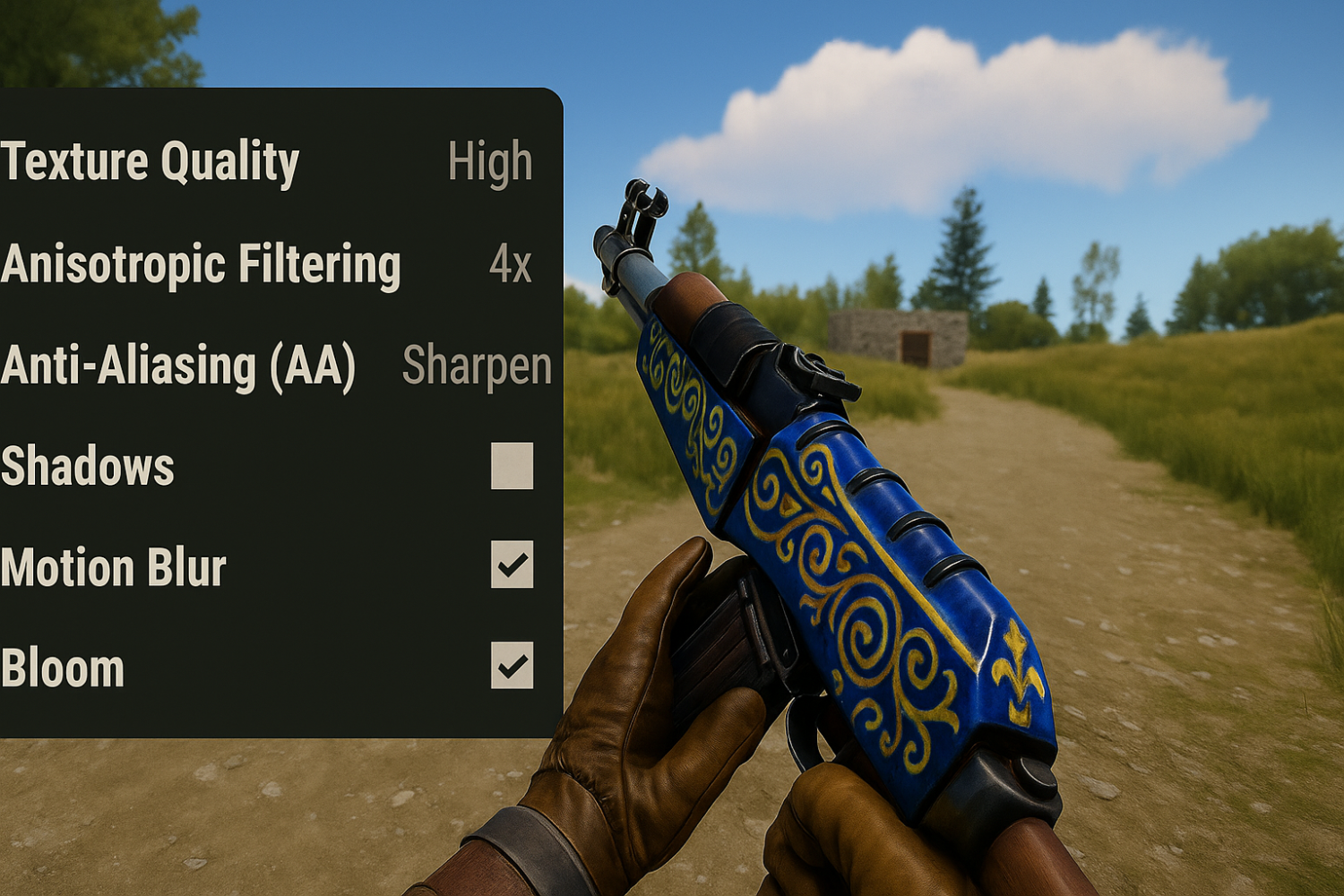
Texture Quality. Keep it on High even if you have to sacrifice elsewhere. If VRAM is tight, Medium is acceptable, but don’t go lower—skins instantly turn into smudges.
Anisotropic Filtering. On weak systems set at least 4x; if there’s headroom, bump to 8x–16x. This setting preserves pattern sharpness on angled surfaces—don’t skimp.
Anti-aliasing (AA). TAA with a light sharpen keeps lines smooth without losing skin clarity. If FPS tanks, you can turn AA off entirely.
Shadows and Ambient Occlusion. Sensible to drop to Low or disable. Skins won’t suffer, and performance improves a lot.
Motion Blur and Bloom. Turn them off. They only add smearing and hide detail.
Anyone who’s compared “ultra shadows” vs. “low shadows” screenshots sees it fast: skin readability barely changes. But FPS on a weak PC can jump by 50% or more. The goal isn’t to sacrifice sharpness—it’s to cut the fluff.
Once priorities are straight, even budget hardware can show clear patterns and legible labels, and your collection looks the part. FPS might not always be high, but the visuals will stay tidy. In the end, skin quality in Rust depends less on GPU price and more on choosing what to keep and what to disable.
How to get a crisp image
If you set textures to High or Ultra, enable anisotropic filtering at least at 8×, add a light sharpen, and run the game from an SSD with enough VRAM headroom, skin quality in Rust will look consistently clean and sharp—and you can tweak shadows and effects purely to taste.
