


Anyone who's ever lost all their settings after a patch knows exactly why it's worth learning how to set up a config in CS2. The short version: create an autoexec.cfg file, drop it in C:\Program Files (x86)\Steam\steamapps\common\Counter-Strike Global Offensive\game\csgo\cfg, and add +exec autoexec.cfg to your game's launch options in Steam. Everything else is just details — but those details are the difference between a config that loads reliably and one the game silently ignores.
What Is a Config and Why Does It Keep Getting Wiped?
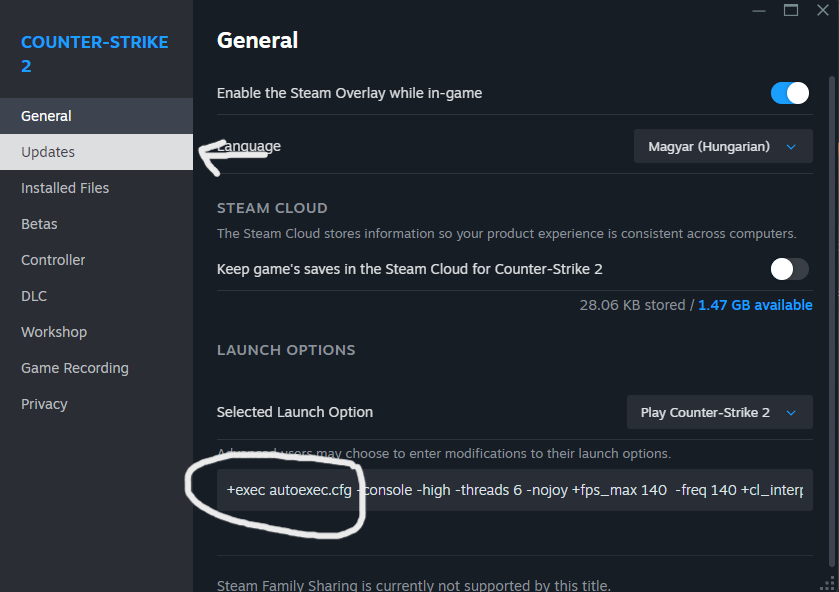
Before setting up a config in CS2, it helps to understand what actually happens to your settings and why they keep resetting. CS2 uses two types of config files. The first — config.cfg — is generated automatically by the game and stores your current settings: mouse sensitivity, key binds, UI preferences. The problem is that CS2 can overwrite this file after updates, system crashes, or Steam Cloud syncs. Everything you carefully dialed in just disappears.
The second file — autoexec.cfg — is created manually by the player. The game never touches it. That's exactly why experienced players switched to autoexec long ago: set it up once and your settings survive patches and reinstalls alike. This is a fundamental distinction worth understanding from the start.
Property | config.cfg | autoexec.cfg |
Created by | The game automatically | The player manually |
Can the game overwrite it | Yes | No |
Auto-loads on CS2 startup | Yes | Only with the launch option configured |
Portable to another PC | Yes | Yes |
Protected from updates | No | Yes |
The difference between the two files is the difference between "hopefully it won't reset" and "it definitely won't reset." If you want stability, the choice is obvious. Let's walk through exactly how to set up a CS2 config from scratch.
How to Set Up a CS2 Config from Scratch
Creating your own config is no harder than writing a note in Notepad — literally. Open a plain text editor (Notepad works, Notepad++ is more convenient and free), type in your commands one per line, and save the file with the right name and extension. The only real pitfalls are the file extension and the destination folder — those are where most people run into trouble.
Here's how to set up a CS2 config step by step:
Open a text editor — Notepad will do, but Notepad++ is better: it won't mess with file encoding.
Type in your console commands — one per line.
Save the file as autoexec.cfg — in the "Save As" dialog, set the file type to "All Files," otherwise Windows will quietly append .txt.
Move the file to: C:\Program Files (x86)\Steam\steamapps\common\Counter-Strike Global Offensive\game\csgo\cfg.
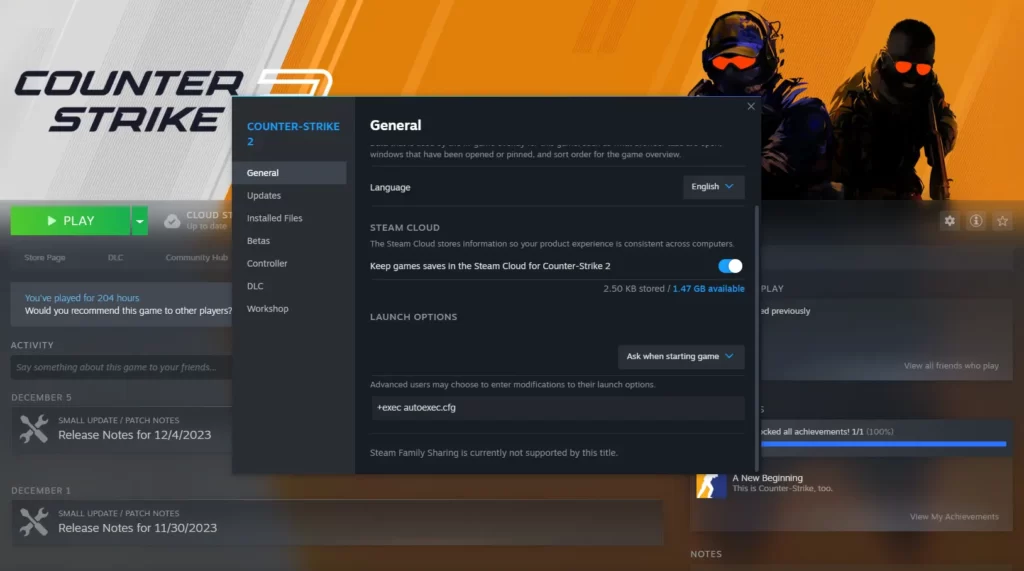
Open Steam → right-click CS2 → Properties → General → Launch Options → add +exec autoexec.cfg.
Once the file is in place and the launch option is set, you can test it immediately. Open the console with ~ and type exec autoexec — if everything's set up correctly, the commands will apply instantly in your current session without needing to restart. To confirm it's working, add the line echo "Autoexec loaded!" at the end of your file — every time it loads successfully, that message will appear in the console.
One thing that trips people up when setting up a CS2 config: Windows hides file extensions by default. That means a file named autoexec.cfg.txt can look like autoexec.cfg in Explorer — visually correct, but invisible to the game. The fix: enable file extensions via View → Show → File name extensions in Windows Explorer.
What Commands Should Go in the Config?
Once you've got the config set up in CS2, the next logical question is what to actually put in it. A config isn't magic — it's just a list of console commands that run automatically every time the game launches. You put in things that don't exist in the standard settings menu, or things you'd rather not type out manually every session.
A solid baseline set of commands to start with:
cl_crosshairsize 3 — crosshair size.
cl_righthand 0 — left-hand weapon model.
fps_max 300 — frame rate cap.
viewmodel_fov 65 — weapon model field of view.
bind "F" "use weapon_flashbang" — quick bind for flashbang.
bind "MWHEELDOWN" "+jump" — scroll wheel jump.
host_writeconfig — save the config (always the last line).
This is the starting point most players use. Over time, everyone tailors their CS2 config to their own playstyle: grenade lineup binds, radar tweaks, viewmodel adjustments. A config is a living document that grows with you and your understanding of the game. Start lean, then add only what you actually use in real matches.
How to Install a Downloaded Config in CS2
A lot of players want to try pro settings — configs from top players circulate widely in the community. Installing a downloaded config in CS2 is technically no different from setting up your own: the process is identical, the file is just already written. The one thing to do before installing is open it in a text editor and make sure you understand what's in it and nothing looks off.
Steps for installing a downloaded config:
Download the .cfg file from a trusted source.
Open it in Notepad++ and read through the commands — make sure everything makes sense.
Either rename the file to autoexec.cfg, or keep the original name — in which case add +exec filename.cfg to your launch options instead.
Copy the file to ...\game\csgo\cfg.
Confirm the launch option is already set in Steam.
Launch the game or run exec autoexec in the console to apply it immediately.
Before installing someone else's CS2 config, back up your current one — just copy your autoexec.cfg to a different folder. It takes ten seconds and saves you headaches if the new settings don't feel right. One important thing to know: video settings are not controlled by the config — resolution and graphics options are stored in a separate file called cs2_video.txt and have to be set manually through the in-game menu. That's not a bug, that's just how CS2 works.
How to Reset to the Default CS2 Config
Sometimes it's the opposite situation: you've tweaked so much that starting fresh is easier than untangling everything. Resetting to a default CS2 config is a fair ask — but there's an important catch. CS2 doesn't have a standalone "default settings" file. The default values are baked into the game's internal files and generated fresh on first launch. There's no ready-made default config sitting in a folder or available for download through official channels.
That said, there are two practical methods for getting back to factory state. The first is quick and done through the game's own settings menu. The second is more thorough and goes through the file system.
Method 1 — via in-game settings: Launch CS2, go to the settings menu, and manually reset whichever categories need fixing. Best used when something specific is broken rather than everything at once.
Method 2 — full reset via the file system: This works even when you can't get into the game, or when the settings are broken enough that the menu doesn't help. Before wiping everything and starting fresh, back up anything important — rename files rather than deleting them.
Disable Steam Cloud for CS2: right-click the game → Properties → Cloud tab → uncheck the box.
Navigate to: C:\Program Files (x86)\Steam\userdata\<YourSteamID>\730\local\cfg.
Delete or rename the contents of the cfg folder (renaming is safer — you can restore the files if needed).
Launch CS2 — the game will generate a fresh config with default settings automatically.
Reset method | Difficulty | What gets reset | Risk of data loss |
Via in-game settings | Low | Selected categories only | Minimal |
Via file system | Medium | Everything | High without a backup |
After a full reset, you can set up your CS2 config from scratch again — this time knowing exactly what needs to go in it and why.
Why Your Config Isn't Working — Common Mistakes
Sometimes everything seems right but the config still doesn't apply. It's a common situation, and in the vast majority of cases the cause is one of a handful of typical mistakes. Before trying to reinstall the config or going down a rabbit hole of complex explanations, run through the table below — it covers 90% of all cases.
Issue | Cause | Fix |
Config doesn't load on startup | Missing +exec autoexec.cfg | Add it to Steam launch options |
File isn't being read by the game | Extension is .txt instead of .cfg | Enable file extensions in Explorer, then rename |
Settings reset after updates | Steam Cloud is overwriting the file | Disable Steam Cloud for CS2 |
Config is in the wrong folder | File placed in a path missing the /game/ segment | Move it to ...\game\csgo\cfg |
Commands aren't being applied | Multiple commands on a single line | Each command must be on its own line |
The single most common mistake when setting up a CS2 config is the wrong folder path. When CS:GO became CS2, the directory structure changed: the path now requires a /game/ segment. A file placed in the old location without it simply won't be found. The second most common culprit is Steam Cloud quietly overwriting your local files with whatever's saved in the cloud. The fix is simple: turn off cloud sync in the game's properties once, and the problem goes away for good.
To verify that your CS2 config loaded correctly, add the line echo "Autoexec loaded!" at the end of your file. After launching the game, open the console — if that message shows up, the config was picked up. If not, work through the points above until you find the culprit.
Config Done — Your Settings Go Wherever You Do
Setting up a CS2 config is the first step toward a stable play environment — not the last. From here it grows: new binds get added, crosshair adjustments get made, handy aliases for practice servers get thrown in. A config is a working tool, not a one-time artifact you set and forget.
A good habit is keeping a backup not just locally but in the cloud or on a USB drive. This is especially important for players who game on multiple machines or show up to LAN tournaments: drop your autoexec.cfg on a flash drive, copy it into the right folder on any computer, and you're playing with your own settings immediately — no fuss.
A properly set-up CS2 config won't boost your rank on its own, but it eliminates the situations where your settings wiped right before an important match, your crosshair shifted, or your binds stopped responding. Fewer technical surprises means more mental bandwidth for the actual game — and that's worth quite a bit.
