


When a player jumps into CS2 after hours in CS:GO, one thing usually stands out almost immediately: the camera behaves differently now. Firing produces noticeable camera movement, and the screen starts to "bounce" in a way that can throw off aim. This is exactly why a lot of players start looking into how to reduce screen shake in CS2 to make the picture feel calmer.
On April 21, 2026, Valve adjusted recoil camera movement to bring it closer to how CS:GO behaved. Bullet trajectories, however, still follow CS2's own mechanics. There's no built-in command to fully disable camera movement, recoil, or aim punch, but you can reduce the visual discomfort and make the image noticeably smoother.
What Is Screen Shake in CS2 and Why Does It Happen?
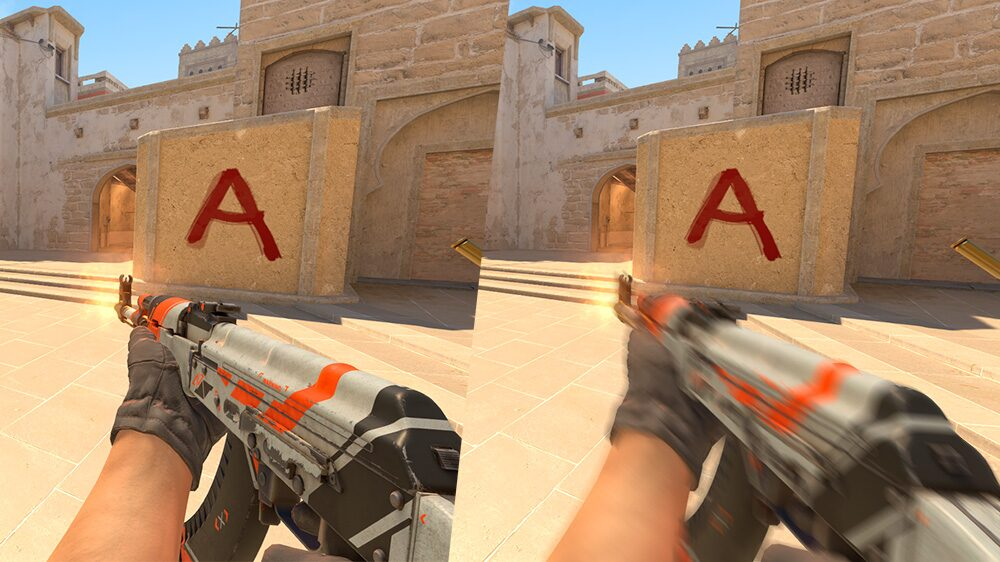
When players say "screen shake in CS2," they're usually lumping together several distinct effects:
- camera movement from weapon recoil;
- aim punch after taking a bullet hit;
- weapon model sway while walking or running;
- crosshair movement when Follow Recoil is enabled;
- frame stutter caused by unstable FPS or frame time.
These effects aren't one single setting. Weapon model sway is purely visual animation and has no effect on bullet spread. Aim punch, on the other hand, is a real gameplay mechanic: after a hit, both the camera and firing direction can shift. FPS drops and screen tearing have nothing to do with recoil at all, even though they can feel like part of the same "shake" subjectively.
After the April 21, 2026 update, Valve adjusted recoil camera movement to feel closer to CS:GO. This changed the camera's visual behavior, but it didn't bring back CS:GO's actual gunplay: bullet trajectories still follow CS2's rules.
On top of that, players now see the full camera movement from external aim punch regardless of connection latency. The server applies aim punch's effect on bullet trajectory immediately, and the client shows the matching camera deviation.
Can You Officially Disable Screen Shake in CS2?
No, you can't fully disable recoil camera movement and aim punch in regular matchmaking. There's no user-accessible command in the current version of CS2 that removes these effects entirely.
Older guides frequently list these commands:
viewmodel_recoil 0
cl_bobamt_lat 0
cl_bobamt_vert 0
cl_bobcycle 2
cl_viewmodel_shift_left_amt 0
cl_viewmodel_shift_right_amt 0
These parameters belonged to CS:GO. In current CS2, they've either been removed, aren't accessible to players, or simply don't produce the results described in older guides. So don't add them to your config expecting them to work as an actual fix for screen shake in CS2.
There's currently no standalone command to turn off screen shake in CS2. What you can do is fine-tune image smoothness, crosshair behavior, and system performance.
Standard in-game settings, crosshair console commands, and a custom autoexec file are all allowed. None of them, however, change the actual weapon recoil, spread, hitboxes, or aim punch's effect.
Can You Disable Screen Shake While Shooting?
No, you can't fully remove screen shake while shooting in CS2. Valve controls camera movement and weapon animations at the engine level. The viewmodel_recoil 0 command that older guides often recommend is no longer a working fix.
That said, it's worth checking the Follow Recoil setting, which makes the crosshair track the weapon's recoil pattern. When it's enabled, the crosshair moves during spray, which can make the whole screen feel even more chaotic.
To turn it off:
- Open CS2 settings.
- Go to the "Game" section.
- Open crosshair settings.
- Disable "Follow Recoil."
Turning off Follow Recoil doesn't change the weapon's actual recoil – the crosshair just stops mirroring its movement. For some players, this makes it easier to keep focus on the center of the screen.
You can also switch to a static crosshair style. It doesn't remove camera movement, but it does cut down on distracting animations.
How to Reduce Shake Through Graphics and Video Settings
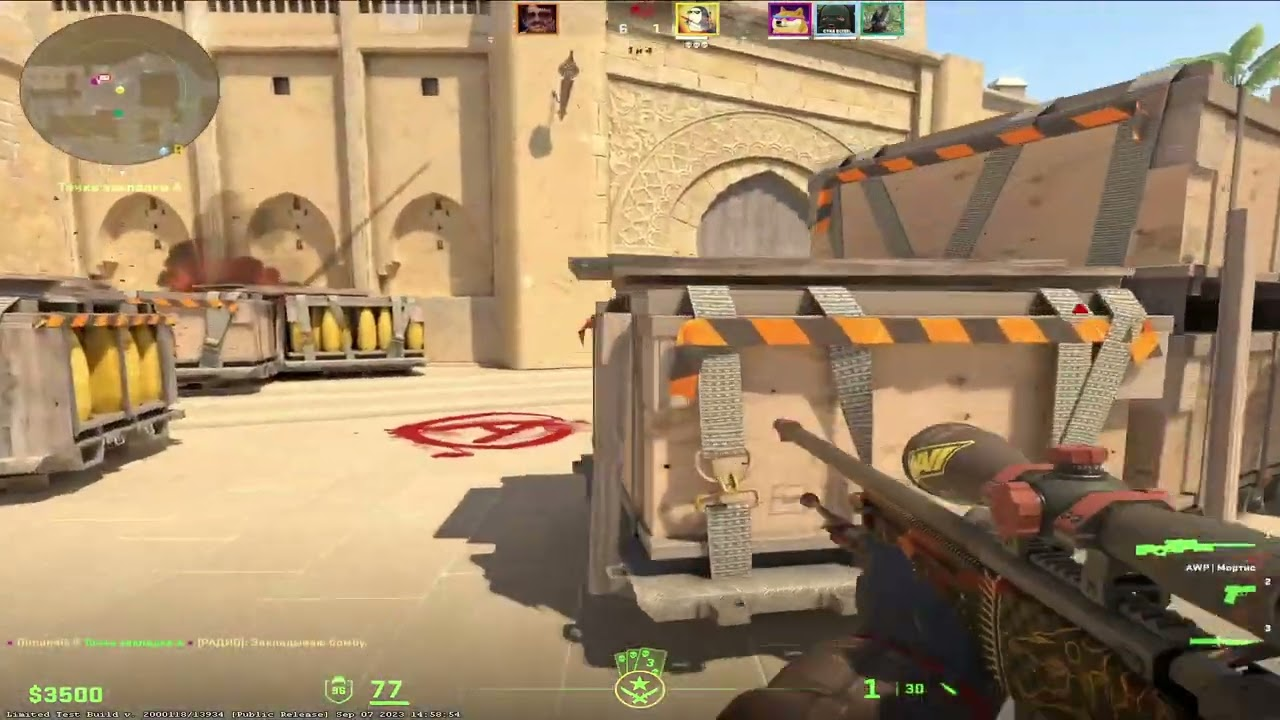
Video settings don't disable recoil camera motion or aim punch. Their job is different: cutting down FPS drops, screen tearing, and unstable frame time, all of which can make the sense of shake feel worse than it actually is.
It's worth checking the following settings.
Pick the Maximum Refresh Rate
Open CS2's video settings and make sure the game is running at the highest refresh rate your monitor supports. Going from 60Hz to 120, 144, 165, or 240Hz makes on-screen motion noticeably smoother, but it doesn't reduce the recoil itself.
A high refresh rate isn't a hard requirement to run the game – it just improves smoothness and reduces the delay before a new frame shows up.
Aim for Stable FPS
A comfortable experience depends not just on high average FPS, but on stable frame time too. A sharp drop from 250 to 100 FPS can feel worse than a steady 160 FPS the whole match.
Turn down whatever graphics settings are stopping your system from holding a steady frame rate. Start by checking:
- shadow quality;
- model and texture detail;
- particle quality;
- ambient occlusion;
- anti-aliasing mode;
- HDR quality.
Turning off anti-aliasing by itself doesn't reduce camera movement. It can boost FPS on a weaker PC, but it also tends to make edges more jagged and prone to shimmering.
CS2's standard menu doesn't have separate Motion Blur or Post-Processing toggles, so advice about disabling them through the in-game menu no longer applies.
Use G-Sync or FreeSync
If your monitor supports NVIDIA G-Sync or AMD FreeSync, adaptive sync can reduce the tearing and stuttering caused by a mismatch between your FPS and the display's refresh rate.
These technologies have no effect on recoil, aim punch, or weapon animations. They smooth out how frames are delivered, but they're not a way to disable screen shake in CS2.
Enable NVIDIA Reflex
Owners of a compatible NVIDIA GPU can go to:
"Settings" → "Video" → "Advanced Video Settings" → "NVIDIA Reflex Low Latency."
For most systems, Enabled is the recommended mode. It reduces system latency and makes controls feel more responsive. Enabled + Boost can increase power draw and isn't ideal for every system.
NVIDIA Reflex doesn't disable camera movement. It reduces the delay between an input and that action showing up on screen.
Adjust Your Crosshair
A static crosshair combined with Follow Recoil disabled can make the picture feel calmer overall. Neither of these changes weapon accuracy, but both cut down on visual noise while shooting.
So if you're looking for how to reduce screen shake in CS2 through graphics settings, it's important to understand the limit here: you can eliminate stutter and tearing, but you can't disable the built-in camera movement from firing and taking hits.
How to Save Screen Shake Commands to Your Config
There's no reason to save the old viewmodel_recoil, cl_bobamt_lat, cl_bobamt_vert, or cl_viewmodel_shift_left_amt commands to your autoexec. They aren't a working way to reduce shake in current CS2.
What you can save in your autoexec are crosshair settings and an FPS cap. For example:
cl_crosshairstyle 4
cl_crosshair_recoil 0
fps_max 180
echo "autoexec loaded"
The fps_max 180 value here is just an example. Replace it with a cap your specific PC can hold steadily. That might be 144 FPS on one system, and 240, 300, or higher on another.
Save the file under this exact name:
autoexec.cfg
The typical file path looks like this:
...\Steam\steamapps\common\Counter-Strike Global Offensive\game\csgo\cfg\
If the file is genuinely named autoexec.cfg, you usually don't need the +exec autoexec.cfg launch option. To check, open the console and type:
exec autoexec
If you see the line "autoexec loaded," the file ran correctly.
A space between the command name and its value is required. For example, fps_max 180 is correct, but fps_max180 is not. Quotation marks are fine for string values.
Which Hardware and Settings Affect Screen Shake?
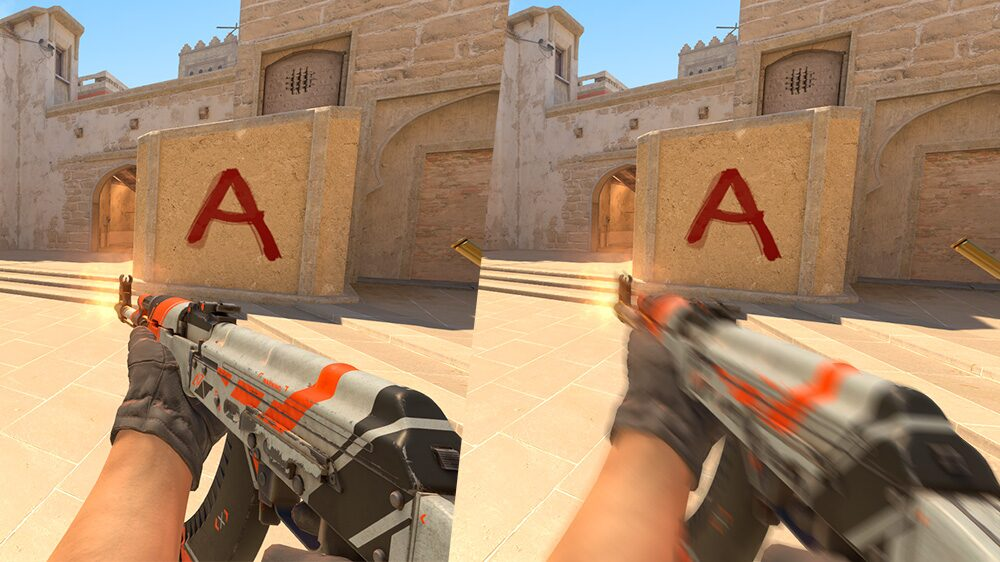
Hardware doesn't change the amount of recoil or aim punch, but it does affect how smoothly a player perceives camera movement.
Monitor
The higher the refresh rate, the more often your monitor shows a new frame. Motion generally feels smoother at 144 or 240Hz than at 60Hz. That said, a monitor doesn't remove the built-in animations, and a high refresh rate isn't a requirement to play CS2.
Make sure the high refresh rate is selected both in Windows and in CS2's own settings.
FPS and Frame Time
Stable FPS reduces stutter. There's no universal number that works for everyone, though. Capping the game at exactly 240 FPS just because your monitor runs at 240Hz isn't necessary.
The right cap depends on:
- your CPU and GPU's performance;
- your monitor's refresh rate;
- which sync mode you're using;
- your resolution;
- your graphics settings;
- how stable your frame time is.
Pick whatever value your system can hold without frequent drops.
G-Sync and FreeSync
Adaptive sync helps fight tearing and stuttering. It doesn't change the shooting mechanics, but it can make camera turns and movement around the map look noticeably smoother.
CPU and GPU
If your CPU or GPU is running maxed out constantly, frame time can become unstable. In that case, what a player notices isn't recoil – it's brief freezes and stutters.
Before touching your config, it's worth checking component temperatures, background programs, and overall system load.
Mouse
Mouse sensitivity and polling rate have no effect on camera shake. That said, an unstable mouse connection, wireless interference, or too-high sensitivity can create the impression of jerky, poorly controlled movement.
How Does Screen Shake Affect Shooting and Accuracy?
Screen shake in CS2 can genuinely make it harder to visually track an enemy, especially during a long spray. But it's important to separate visual comfort from the weapon's actual mechanics.
Weapon model position, a static crosshair, refresh rate, and graphics settings do not change:
- the recoil pattern;
- bullet spread;
- damage;
- hitboxes;
- accuracy recovery speed;
- server-side hit registration.
So it's inaccurate to claim that turning off visual effects directly improves weapon accuracy. A smoother picture can help a player process what's happening faster and control their mouse with more confidence, but the underlying shooting mechanics stay exactly the same.
Aim punch deserves a separate mention. When a character takes damage, their aim direction can shift. This isn't just a decorative animation. After the April 21, 2026 update, the client shows the full camera movement tied to aim punch regardless of connection latency.
In practice, a comfortable picture helps you:
- spot enemies faster;
- track weapon model movement more easily;
- get less fatigued during long sessions;
- tell the difference between an FPS drop and normal gameplay more precisely;
- avoid confusing crosshair animation with actual recoil.
But no graphics setting replaces practicing spray control, counter-strafing, and crosshair placement.
What's the Difference Between Screen Shake in CS2 and CS:GO?
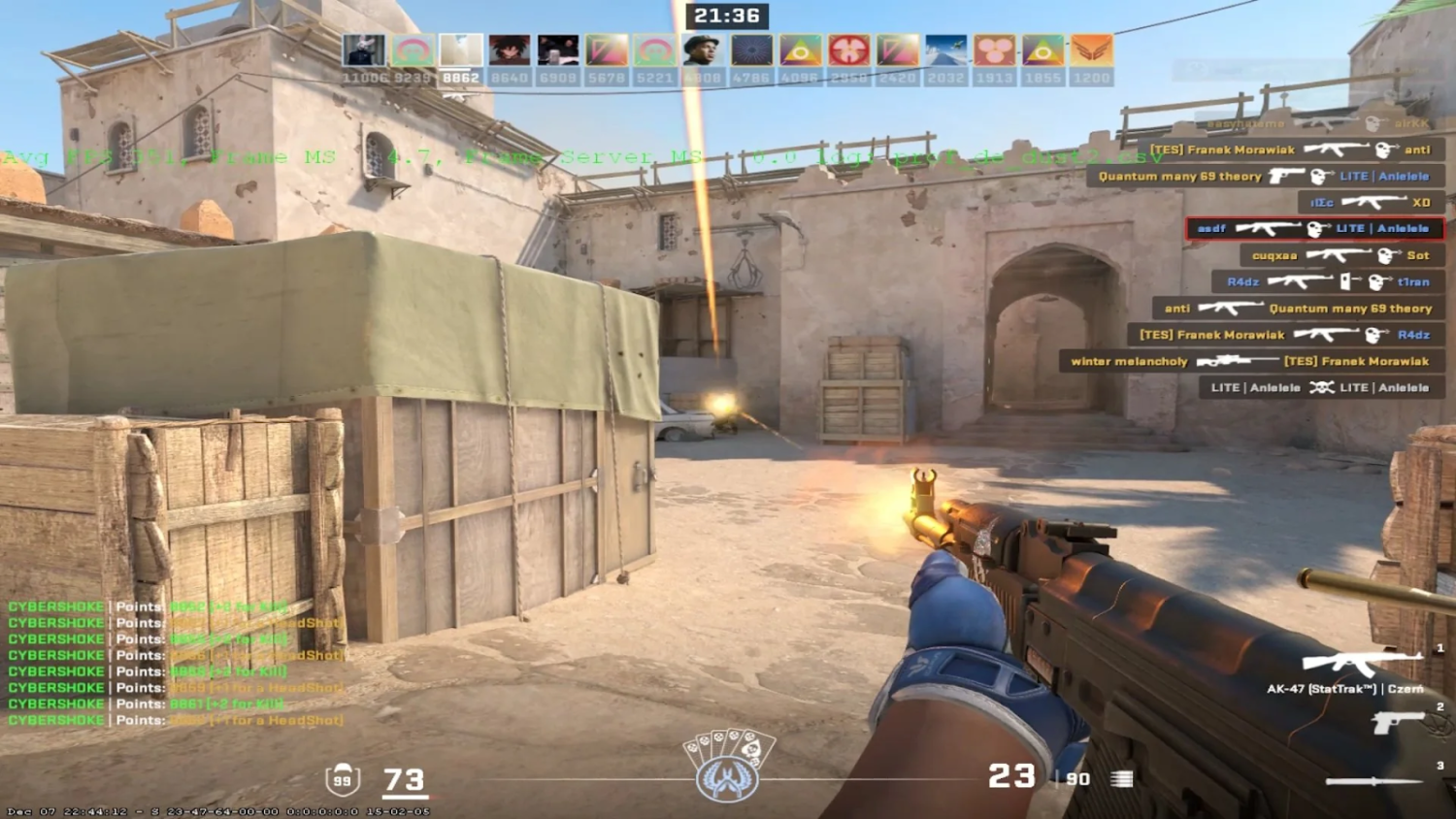
Framing CS2 versus CS:GO as "fixed camera versus floating camera" isn't accurate. Weapon sway, recoil, and aim punch existed in both games. What differed was the animation, intensity, and how it was displayed.
Camera
In CS2's early versions, recoil camera movement felt noticeably more pronounced than in CS:GO. On April 21, 2026, Valve adjusted the effect to bring it closer to CS:GO's feel.
The two games still aren't identical. Bullet trajectories continue to follow CS2's own rules, even though the camera's visual movement now feels closer to the previous game.
Viewmodel
The weapon model moved in both CS:GO and CS2. In CS:GO, players could adjust several bob parameters through the console. In CS2, the old cl_bobamt_lat, cl_bobamt_vert, and cl_bobcycle commands can no longer be used the way they used to.
Valve continues to tweak viewmodel animations through game updates.
Recoil
Recoil pattern and camera movement aren't the same thing. The camera visually represents the recoil, while bullet trajectory is calculated separately. Graphics settings and weapon model position don't change the weapon's actual spray pattern.
Aim Punch
Aim punch existed before too, but after the April 2026 update, CS2 more fully displays the camera movement from hits regardless of ping. The server's effect on bullet trajectory is applied immediately either way.
The main difference in the current version isn't that CS:GO's camera was static while CS2's is "alive." Both games use camera and weapon movement – Valve has simply adjusted the intensity and visual representation of these effects multiple times over.
Which Settings Should You Pick Based on Your Playstyle?
There are no working commands to fully disable recoil camera motion or aim punch. So instead of chasing "removing the shake" entirely, settings should be picked based on what actually helps a specific player read the match better.
Snipers: AWP and SSG 08
For playing sniper rifles, it's worth:
- using a static crosshair;
- disabling Follow Recoil;
- picking your monitor's maximum refresh rate;
- getting stable FPS;
- enabling NVIDIA Reflex on a compatible GPU.
The viewmodel_recoil 0 command isn't needed here and isn't a valid CS2 setting anyway. The weapon model is hidden while scoped in regardless.
Riflers: AK-47, M4A4, M4A1-S, and Galil AR
Smoothness during long sprays matters most for riflers. It's worth:
- checking your FPS stability;
- using a static crosshair or testing out Follow Recoil;
- dialing in a sensitivity that feels right;
- turning down graphics settings that are causing drops;
- practicing spray control on a training map.
Follow Recoil can be turned on while practicing, to visualize the recoil pattern's direction, and then you can decide whether it's comfortable to play with in matches. It doesn't simplify the recoil pattern or change bullet trajectories.
Aggressive Playstyles: MAC-10, MP9, P90, and Shotguns
Unstable frame time and tearing stand out most during fast movement. It's worth:
- using the maximum refresh rate;
- setting up G-Sync or FreeSync;
- lowering graphics-heavy settings;
- enabling Reflex on a supported system;
- skipping the outdated CS:GO bob commands entirely.
None of these settings disable explosions, aim punch, or camera movement while shooting. Their job is to make frame delivery smoother and controls more responsive.
Quick CS2 Setup for New Players
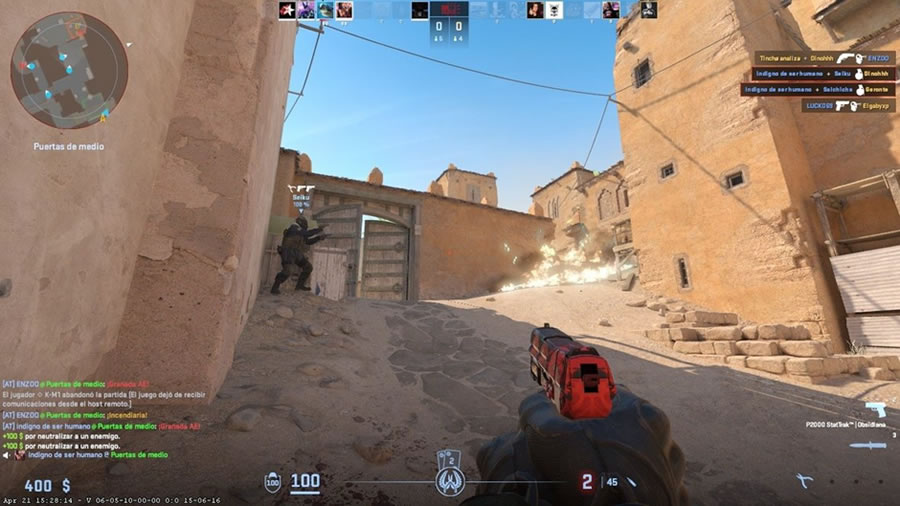
To reduce screen shake in CS2 and make the picture more comfortable, follow these steps:
- Update CS2 to the latest version.
- Set your monitor's maximum refresh rate in both Windows and the game.
- Open advanced video settings and get your FPS stable.
- Enable NVIDIA Reflex in Enabled mode, if your system supports it.
- Set up G-Sync or FreeSync if you have a compatible monitor.
- Switch to a static crosshair and disable Follow Recoil if needed.
- Don't add the old viewmodel_recoil and cl_bobamt commands to your autoexec.
- Test the result on a training map or in Deathmatch.
You don't need to create an autoexec for any of this. Most of these settings are available directly in CS2's standard menu.
What to Do If Commands Aren't Working
If the console shows "Unknown command," the command has most likely been removed or belonged to CS:GO. This happens especially often with:
- viewmodel_recoil;
- cl_bobamt_lat;
- cl_bobamt_vert;
- cl_bobcycle;
- cl_viewmodel_shift_left_amt;
- cl_viewmodel_shift_right_amt.
Don't try to fix these with quotation marks or by tweaking the value. In current CS2, these commands can't be restored through the config.
If your autoexec itself isn't working:
- Check that the file extension is actually .cfg, not .cfg.txt.
- Make sure the file is in the game\csgo\cfg folder.
- Type exec autoexec in the console.
- Add echo "autoexec loaded" to the end of the file.
- Double-check that you're using the correct, current command names.
The +exec autoexec.cfg launch option usually isn't needed. A correctly named file runs automatically when the game starts.
FAQ
Can You Disable the Shake Completely?
No. There's no built-in command to fully disable camera movement from recoil and aim punch in regular matches.
Is This Against the Rules?
Standard CS2 settings, crosshair commands, and an autoexec are all allowed. Just avoid third-party programs that interfere with the game or automate player actions.
What's the Best Approach?
Use your monitor's maximum refresh rate, keep FPS stable, pick the right adaptive sync mode, and use a static crosshair. On a compatible GPU, it's also worth turning on NVIDIA Reflex.
Do These Settings Change Weapon Recoil?
No. Graphics, crosshair settings, viewmodel position, and refresh rate don't change the recoil pattern, spread, or bullet trajectory.
Why Does the Screen Jerk Sharply After a Hit?
That's aim punch. After the April 21, 2026 update, the client shows the full camera movement from external aim punch regardless of network latency.
Can You Bring Back CS:GO's Behavior Through Commands?
No. Valve brought recoil camera movement closer to CS:GO at the game-update level, but there's no console way to fully switch CS2 back to the old system.
Dial It In and Play Comfortably
You now know how to reduce screen shake in CS2 as much as the current version of the game allows. You can't fully disable recoil camera motion, aim punch, or weapon animations. The old CS:GO commands don't work either.
The approach that actually works comes down to this: keep your FPS stable, use the maximum refresh rate, set up G-Sync or FreeSync correctly, turn on NVIDIA Reflex, and cut out unnecessary crosshair movement. None of these settings change weapon accuracy, but they do make the picture smoother and help you read what's happening on screen.
