


A lot of players run into a situation where the game feels choppy or stuttery even though their hardware is clearly capable of more. That's largely because Dota 2 ships with a default 120 FPS cap – and on 144Hz monitors and above, you feel it. The fastest fix: open Dota 2 properties in Steam, add +fps_max 0 to the launch options, and the cap is gone entirely. Here's everything you need to know.
Why Does Dota 2 Have an FPS Cap in the First Place?
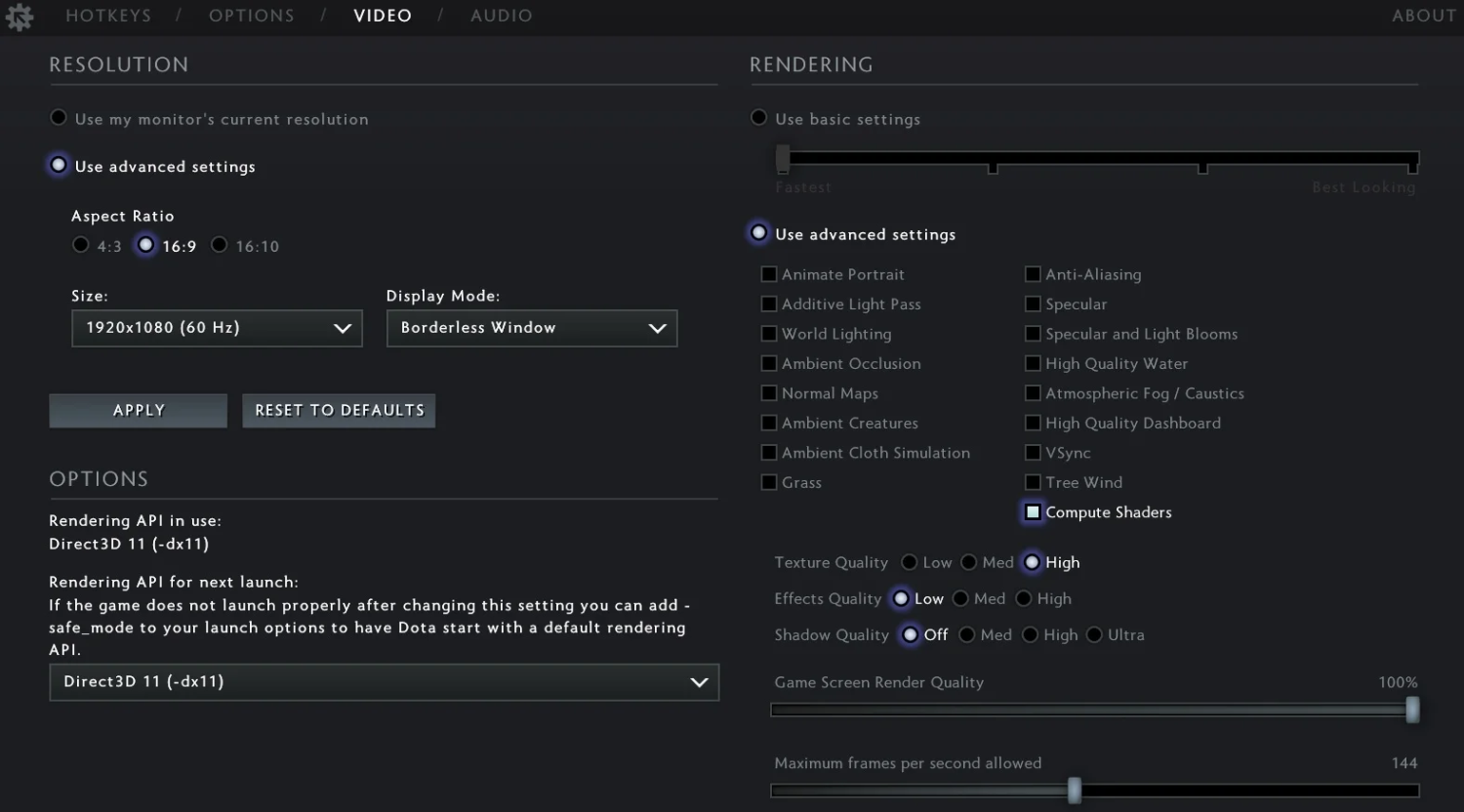
It's not a bug or an oversight. Valve sets the default cap intentionally – so the game runs reliably for the widest possible range of hardware, including players on weak machines or laptops without adequate cooling. Remove all limits on underpowered hardware and the GPU starts rendering hundreds of frames the monitor will never display, while temperatures go through the roof.
By default, Dota 2 caps FPS at 120. Through the in-game video settings, you can manually push that up to 240 FPS. Anything above that is only accessible via launch options or the console.
For owners of 144Hz, 165Hz, or 240Hz monitors, the default cap cuts performance exactly where it matters most. That's the whole reason to remove the FPS cap in Dota 2 – or at the very least, match the limit to your monitor's refresh rate.
How to Remove the FPS Cap in Dota 2 Through the Video Settings
Start with the simplest method – no commands needed, and it works for most players. Everything is done directly inside the game menu, no launch options required.
Step by step:
Launch Dota 2 and open Settings (the gear icon in the top-left corner).
Go to the "Video" tab.
Find the "Max Frames Per Second" option.
Set it to your desired value – up to 240 FPS.
Click "Apply" and restart the game.
This works well for anyone who just wants to raise the cap to 144 or 240 without getting into launch options. The one limitation: you can't go above 240 FPS through the interface. If you need to remove the cap completely, keep reading.
How to Remove the FPS Cap in Dota 2 Through Steam Launch Options
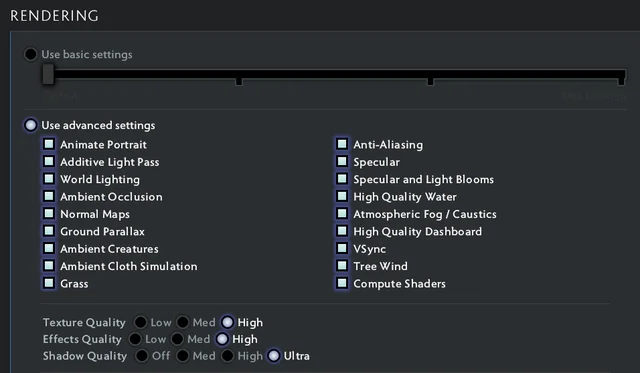
This is the most reliable and universal method, and the one most experienced players use. The +fps_max 0 command is set once and applies automatically on every launch. It's the go-to solution for anyone who wants to get every frame their hardware can produce.
Step by step:
Open Steam → go to your Library.
Right-click Dota 2 → select "Properties."
In the "Launch Options" field, enter: +fps_max 0.
Close the window and launch the game.
The value 0 means no cap at all – the game renders as many frames as your hardware allows. If you want a specific limit instead, replace 0 with your target number.
Below are the values players use most often:
Command | Result |
+fps_max 0 | Uncapped – maximum frames your hardware allows |
+fps_max 240 | Capped at 240 FPS |
+fps_max 165 | Capped at 165 FPS |
+fps_max 144 | Capped at 144 FPS |
+fps_max 60 | Capped at 60 FPS – for low-end PCs |
One important note: if you've set +fps_max 0 in launch options but the in-game video settings still show a 120 FPS limit, the launch option wins. It overrides whatever the in-game slider is set to.
How to Remove the FPS Cap in Dota 2 Through the Console
The console method is handy when you want to change the value mid-session – quickly switching from 240 to 60 FPS for a test, or the other way around, without restarting the game. To use it, you'll need to enable the console first.
Two ways to enable the console:
Add -console to your Steam launch options – it will open automatically on launch.
Or add +con_enable 1 – then bring it up with the ~ (tilde) key, to the left of the 1 key.
Once the console is open, just type:
fps_max 0
Note: in the console the command is written without the + prefix – that's only needed in launch options. The effect is identical: the cap is lifted immediately, no restart required.
Why Did FPS Lock to 60 After an Update – and How to Fix It
One of the most frustrating situations: the game was running at a stable 120–144 FPS, a patch dropped, and suddenly everything went sluggish and capped at 60. The +fps_max 0 command is already in your launch options and it's doing nothing. That means there's a cap coming from somewhere else.
The first thing to check is V-Sync. It literally pins your FPS to your monitor's refresh rate – if your monitor is 60Hz, you'll get exactly 60 frames no matter how powerful your hardware is.
How to disable V-Sync in Dota 2:
Settings → Video.
Find "Vertical Sync."
Set it to "Off."
Apply and restart.
Beyond V-Sync, a 60 FPS lock can come from several other sources. Here's the full list of the most common culprits:
V-Sync enabled – locks FPS to monitor refresh rate.
Windows power plan set to Power Saver – throttles CPU and GPU load.
Frame rate limit set in the NVIDIA or AMD driver – applied independently of the game.
Windows Game Mode – can interfere in rare cases.
Thermal throttling – when the GPU overheats, it drops its clock speed and FPS tanks with it.
Disabling V-Sync and switching to a High Performance power plan resolves the issue in most cases. If not, check the driver next.
How to Remove the FPS Limit Through the NVIDIA or AMD Driver
Sometimes the cap isn't coming from the game at all – it's set at the GPU driver level. It's less common, but worth checking, especially if +fps_max 0 is set, V-Sync is off, and FPS is still hitting a ceiling.
For NVIDIA users:
Open the NVIDIA Control Panel by right-clicking on the desktop. Go to "Manage 3D Settings," select the "Program Settings" tab, find Dota 2 in the list, and check the "Max Frame Rate" entry – make sure it isn't set to a forced limit.
For AMD users:
In AMD Software: Adrenalin Edition, go to the Gaming section, select Dota 2, and check the Frame Rate Target Control setting – it should be Off, or set to your preferred value.
Below is a comparison of where to find the setting depending on your GPU manufacturer:
Manufacturer | Software | Path to Setting |
NVIDIA | NVIDIA Control Panel | Manage 3D Settings → Program Settings → Dota 2 → Max Frame Rate |
AMD | AMD Software: Adrenalin Edition | Gaming → Dota 2 → Frame Rate Target Control |
Intel | Intel Arc Control | Performance → Frame Rate Limit |
Should You Remove the FPS Cap Entirely – or Keep a Limit?
This is where the community is split. Some say uncap everything and let your hardware run flat out. Others argue there's no point rendering 400 frames on a 144Hz monitor – you're just cooking your GPU for no reason. As usual, the right answer is somewhere in between.
Going fully uncapped makes sense in a few situations: your monitor supports a high refresh rate (144Hz or above), your cooling is adequate, and you want to minimize input lag – the delay between a mouse movement and what appears on screen. Even on a 144Hz monitor, running at 200–300 FPS produces lower input latency than locking exactly to 144.
If your PC is on the weaker side or your laptop tends to overheat, it's smarter to set the cap to match your monitor's refresh rate. That gives you a stable, consistent image without unnecessary strain on the hardware.
Recommended fps_max values by monitor:
Monitor refresh rate | Recommended fps_max |
60Hz | 60–120 |
144Hz | 144 or 0 |
165Hz | 165 or 0 |
240Hz | 240 or 0 |
360Hz | 0 |
Extra Dota 2 Launch Options for Smoother Performance
While you're in the launch options anyway, there are a few other commands worth adding. These have been battle-tested by the community and don't conflict with +fps_max 0. Each one targets something specific: cutting unnecessary background processes, disabling unused features, or speeding up load times.
Here's the set most experienced players run:
-novid – skips the Valve intro video on startup.
-nojoy – disables gamepad/controller support, frees up a small amount of RAM.
-novr – disables the VR module, which loads even without a headset connected.
+dota_embers 0 – removes the ember particle animation on the main menu.
+map_enable_portrait_worlds 0 – disables the background 3D worlds on the main screen.
-prewarm – pre-loads game resources before a match starts, reducing stutters in the opening minutes.
A complete launch string might look like this:
+fps_max 0 -novid -nojoy -novr +dota_embers 0 +map_enable_portrait_worlds 0 -prewarm
Each flag is separated by a space. No commas, no semicolons – just spaces. Save, close, launch.
Which Method Should You Use?
If you want a quick result, +fps_max 0 in Steam launch options gets it done in 30 seconds. If FPS still isn't climbing after that, check V-Sync in the video settings first, then your Windows power plan, and finally the frame rate limit in your GPU's control panel.
Removing the FPS cap entirely makes sense for any PC paired with a 144Hz monitor or higher – it delivers noticeably lower input lag and more responsive controls, which you'll actually feel in competitive matches. On weaker hardware, +fps_max 144 (or whatever your monitor's refresh rate is) is the smarter call – consistent performance matters more than peak numbers.
The key thing to remember: the FPS cap in Dota 2 is a setting, not a sentence. Three minutes in Steam and the game responds the way it should.
