


A lot of players ask how to get Dota 2 running smoothly – and for good reason: a freeze in a teamfight or a stuttering screen during a smoke gank costs you far more than a few missed last hits. The answer is straightforward: everything lives under Settings → Video, which is split into three sections – Display, Rendering, and Options. There's no universal preset – the right Dota 2 graphics settings depend on your hardware, your monitor, and what you're actually after: a locked 144 FPS or the best-looking visuals your rig can push.
Where are the settings and what do they cover?
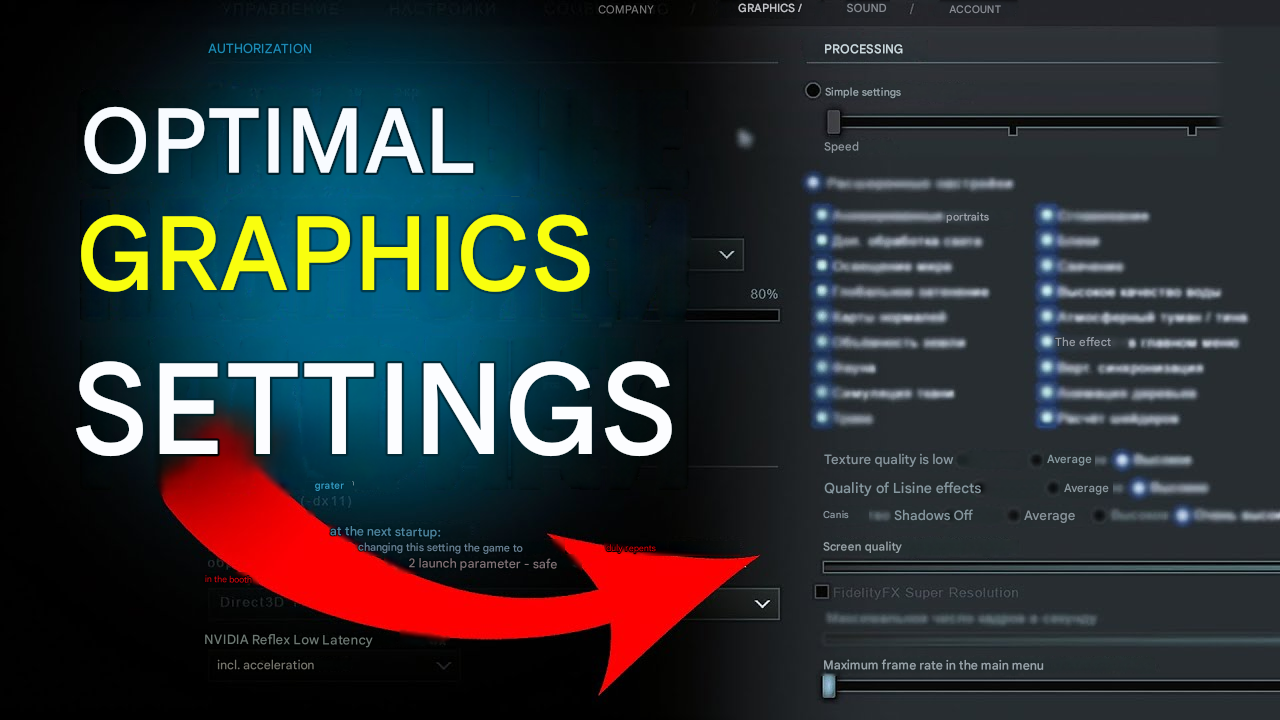
Before changing anything, it helps to understand the menu layout. Click the gear icon in the top-left corner of the main screen, go to Settings, and open the Video tab – or just type "Video" into the search bar inside settings. Valve overhauled the interface not long ago and it's now clean and logically organized.
The Video section is split into three parts, each handling a different layer of Dota 2's visuals. Basic mode gives you a single slider ranging from performance to quality. Advanced mode hands you individual control over every parameter – this is what competitive players use, because it lets you surgically disable only the things that are actually taxing your system.
Video menu structure:
- Display – monitor, resolution, aspect ratio, screen mode, FPS caps.
- Rendering – core and advanced parameters: textures, shadows, effects, anti-aliasing, FSR.
- Options – graphics API selection (Vulkan, DX11) and NVIDIA Reflex Low Latency.
Once you understand the layout, it becomes clear that dialing in Dota 2's visuals is a solvable problem for any hardware level. You just need to know what each setting actually does and which ones to cut first.
How to configure Display: resolution, screen mode, and FPS
Display is where you start. Getting these right does more for your experience than any texture tweak downstream.
Resolution
Your monitor's native resolution is the right call – for most players that's 1920×1080. Dropping the resolution gives a modest FPS bump but makes everything blurry, which is especially painful when you're trying to read ability descriptions mid-teamfight. If your monitor supports 1440p or 4K, weigh whether your GPU can actually keep up.
Screen Mode
Exclusive Fullscreen is what most players use for the lowest input latency. Desktop-friendly Fullscreen is more convenient if you alt-tab frequently or stream. Windowed mode is only useful for testing – no one plays ranked in it.
V-Sync – turn it off
V-Sync syncs your frame rate to the monitor's refresh rate, but at the cost of input lag. In a fast-paced MOBA that translates to a "sticky" cursor showing up at exactly the worst possible moment.
Dashboard Max FPS → 60
The Dota 2 main menu is surprisingly GPU-hungry – without a cap, your graphics card will run at full tilt just sitting in the lobby, burning power for no reason.
Setting | Recommendation | Why |
Resolution | Native monitor resolution | Sharp image, no readability loss |
Screen Mode | Exclusive Fullscreen | Minimum input lag |
V-Sync | Off | Eliminates input delay |
In-Game Max FPS | Match Refresh Rate | Consistent frametime |
Dashboard Max FPS | 60 | Keeps the GPU idle in menus |
High-quality Dota 2 graphics: settings for powerful PCs
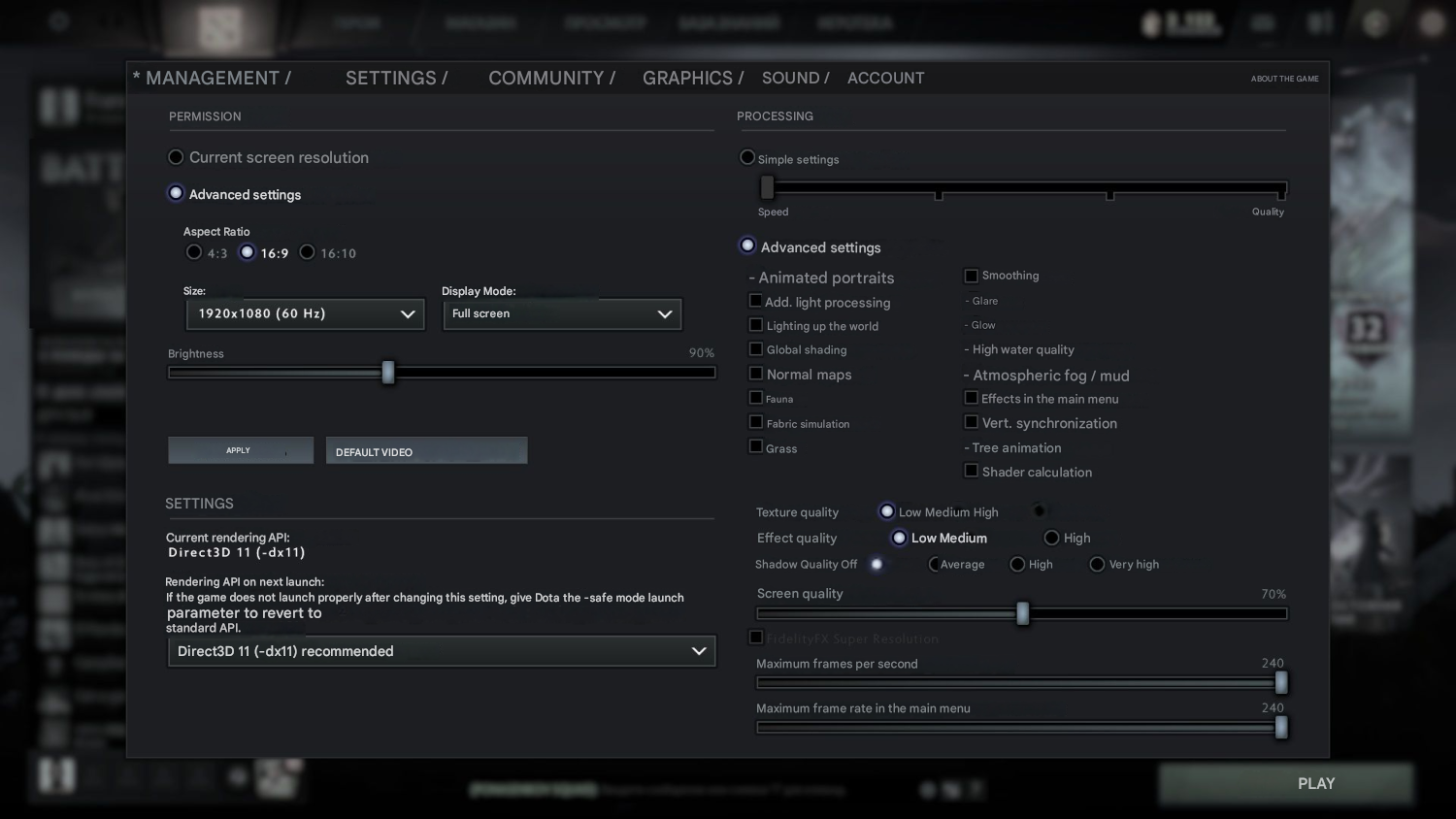
If your hardware can handle it, great-looking Dota 2 graphics are absolutely within reach. The trick isn't maxing out every slider – it's picking the right combination of settings so the visuals stay strong without tanking your frame rate.
Start by enabling "Use advanced settings" in the Rendering section. This unlocks the full parameter list with granular control over each option. Everything that shapes the game's final look lives here, and so does the biggest lever for performance.
Recommended settings for the best visuals on a high-end PC:
- Texture Quality → High or Ultra. Hero, map, and item textures become noticeably sharper. On modern GPUs this setting has minimal FPS impact.
- Effects Quality → High. Ability animations and particle effects look fully detailed.
- Shadow Quality → Medium. Ultra shadows make a barely visible difference to the image but put a real load on the GPU.
- Anti-Aliasing → 2x or 4x MSAA. Smooths out object edges – especially noticeable at 1440p and above.
- Ambient Occlusion → On. Adds depth and dimensionality to shadows.
- High Quality Water + Atmospheric Fog → On. Both add a lot to the map's atmosphere.
- Game Screen Render Quality → 100%. FidelityFX Super Resolution isn't needed at this level.
- Rendering API → Dota 2 supports Vulkan, but real-world results vary depending on your system and drivers.
After changing rendering settings, Dota 2 will ask you to restart – that's expected. Play a full match first and watch how your FPS holds up specifically during teamfights, since that's when the load peaks.
Best Dota 2 graphics settings for low- and mid-range PCs
Most players aren't running Dota 2 on top-tier hardware. The approach for low- and mid-range systems is the opposite: strip out everything that doesn't affect game readability and keep only what matters. The goal is a stable 60+ FPS with no drops during teamfights. Frame drops in fights cost you games – visual quality doesn't.
What to turn off first on low- and mid-range hardware:
- Shadow Quality → Off. Shadows are one of the heaviest GPU loads in Dota 2. Disabling them gives a meaningful FPS boost.
- Effects Quality → Low. The difference between Low and High is barely visible during the heat of a fight.
- Anti-Aliasing → Off. Dota 2's stylized art doesn't need MSAA at 1080p.
- Ambient Occlusion → Off. Looks good, costs too much.
- Game Screen Render Quality → 85–90% + FidelityFX Super Resolution → On. FSR compensates for the sharpness loss from reduced render quality – a solid compromise for mid-range systems.
- Low Spec Mode → On if you're running a weak GPU or 4–8 GB of RAM.
Once you've adjusted the settings, close any background apps: a browser, Discord, and the Steam overlay all eat into your resources even on modern hardware. That's free FPS with zero in-game changes required. Keeping your GPU drivers up to date is also worth doing – outdated drivers are behind a lot of mysterious frame stutters that people tend to overlook.
Dota 2 pro player graphics settings: what champions actually use
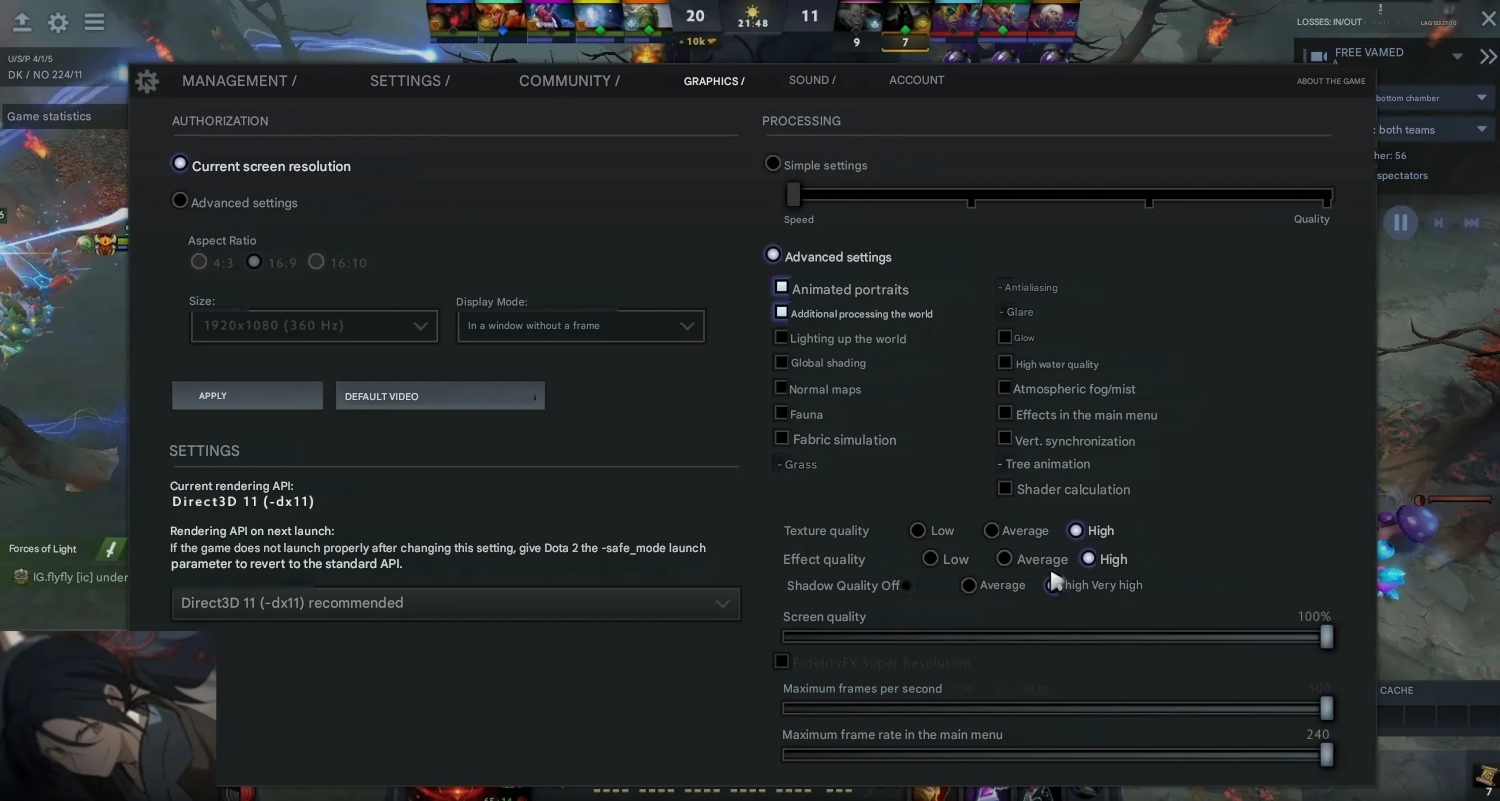
Pro player graphics configs are a topic that surprises a lot of people. You'd think that with top-tier tournament setups, pros would just crank everything to max and enjoy the view. Reality is very different.
According to third-party settings aggregators, the overwhelming majority of pros enable "Use advanced settings" and switch nearly everything off in favor of a locked frame rate. The reasoning is clear: in a 5v5 teamfight with five ultimates going off simultaneously, even a high-end system can see frametime spikes. A pro can't afford a moment of lag when the fight is on the line – it directly costs them the game. Performance always comes first in pro graphics configs.
Real configs from several top players:
- Yatoro (TI10 champion with Team Spirit) – minimum graphics across the board: almost everything disabled, only hero portraits and basic lighting kept on.
- Topson (two-time TI champion with OG) – equally minimal: only Compute Shaders enabled from the advanced settings.
- Gpk (one of the strongest mid laners out of the CIS region) – all effects disabled including shadows, pure max FPS priority.
- Nine (world champion) – runs about half the settings enabled, going for a balance between visuals and performance.
- ATF (offlaner for Team Falcons, The International 2025 champion) – a clear outlier: plays on maximum graphics settings. Proof that high-end visuals and top-level play are compatible – as long as the hardware is there.
The takeaway is clear: there's no single right answer. Dota 2 graphics settings are a personal call based on your system and what you're optimizing for.
Launch Options: squeezing out more performance before the client loads
In-game settings are only half the picture. Steam Launch Options let you push Dota 2's graphics and performance even further before the client even opens. To add them: Steam → right-click Dota 2 → Properties → General → the "Launch Options" field.
A commonly used launch string looks like this: +fps_max 0 -high -map dota -novid -nojoy -novr. Valve officially supports the Launch Options mechanism itself – the effectiveness of any specific combination is down to your setup.
Understanding what each flag actually does matters – it lets you build a launch string that fits your hardware instead of blindly copying someone else's. Copying without understanding can backfire: -high in particular occasionally conflicts with antivirus software on some systems.
Flag | What it does |
+fps_max 0 | Removes the default 120 FPS cap |
-high | Sets the Dota 2 process to high priority in Windows |
-map dota | Preloads the map, eliminating stutters at the start of a match |
-novid | Skips the intro video on launch |
-nojoy | Disables gamepad/controller support |
-novr | Disables VR modules |
-vulkan / -dx11 | Forces a specific rendering API |
If micro-stutters appear after adding the string, remove -high first and retest. On top of that, switching your Windows Power Plan to High Performance and disabling the Steam and Discord overlays during play is another layer of free optimization that's worth doing.
Dota 2 graphics settings: full reference table
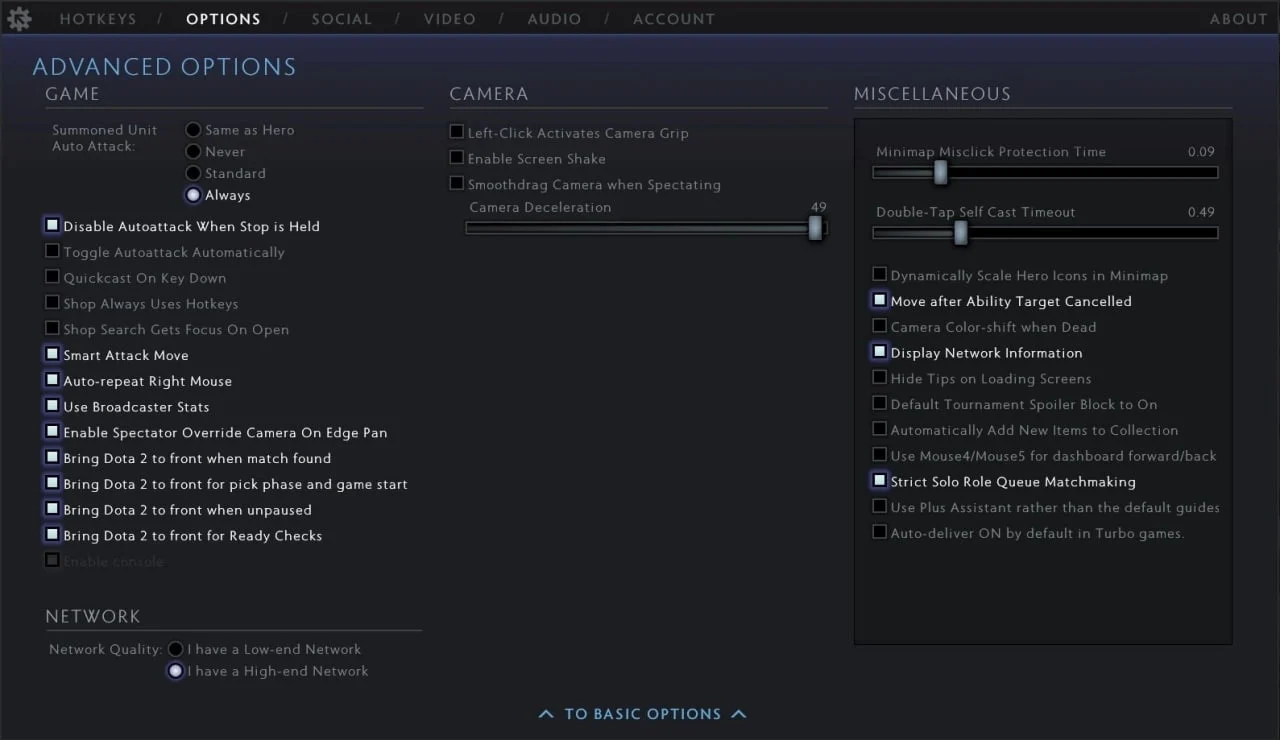
The right Dota 2 graphics settings for comfortable play depend on your hardware. The table below covers three system tiers and pulls everything from the sections above into one place. The data is based on publicly available pro player configs from prosettings.net and hawk.live, along with current GPU benchmark data across different hardware generations.
Setting | Low-end PC (up to GTX 1060) | Mid-range PC (RTX 2060–3060) | High-end PC (RTX 3070+) |
Display Mode | Exclusive Fullscreen | Exclusive Fullscreen | Exclusive Fullscreen |
Resolution | 1280×720 | 1920×1080 | 1920×1080 / 1440p |
V-Sync | Off | Off | Off |
Rendering API | DX11 | Vulkan / DX11 | Vulkan |
Texture Quality | Low | Medium | High / Ultra |
Effects Quality | Off | Low | High |
Shadow Quality | Off | Off | Medium |
Anti-Aliasing | Off | Off | 2x MSAA |
Render Quality | 70–80% + FSR | 85–90% + FSR | 100% (FSR Off) |
Ambient Occlusion | Off | Off | On |
High Quality Water | Off | Off | On |
Low Spec Mode | On | Off | Off |
Comfortable Dota 2 graphics aren't about beauty or raw FPS numbers. They're about stability: consistent frametime, a responsive cursor, and clean decision-making in teamfights without the screen locking up.
Find your ideal Dota 2 graphics setup
Configuring Dota 2's graphics isn't a one-time job. If you upgrade your PC, bump up the texture quality. If a patch introduces stutters, revisit the Rendering settings. If you add a 144Hz monitor, it's worth rethinking Max FPS and Display Mode.
Players broadly fall into three camps: some want the highest FPS possible, some want great visuals without major trade-offs, and some are working around the limits of a budget machine. There are solid settings for each situation. The best starting point is the table above – then take it into a real match and fine-tune from there.
One more thing worth keeping in mind: Dota 2 skins look noticeably better at higher texture settings. If you've got rare sets or flashy couriers, that's a good reason to run at least Medium textures – it gets the cosmetics closer to how the artists actually intended them to look.
