


Owners of low-performance PCs must know how to configure NVIDIA for CS2. Modern graphics cards differ significantly from previous generations. While in the past it was enough to display an Excel spreadsheet, now the computer gaming industry forces graphics card manufacturers to develop at twice the pace to keep up.
As the graphics card has become a multifunctional computer component, its developers provide users the ability to adjust settings flexibly, which will help you increase FPS in CS2.
What is NVIDIA Control Panel
NVIDIA Control Panel is an official application from the graphics processor manufacturer "NVIDIA." Among all other video cards, it is this control panel that allows even a novice user to configure NVIDIA for CS2, to enhance their FPS in the game.
This application was created not only for video games, initially, it was made to implement new driver capabilities and to configure image output on the screen. NVIDIA Control Panel provides access to change image quality, resolution, and much more.
How To Know If You Have NVIDIA Control Panel On Your Computer
Usually, the NVIDIA control panel is installed on the device right away. However, there are cases when this application is not on the computer. It should be noted right away that you can configure NVIDIA for CS2 through the control panel only if you have an NVIDIA graphics card installed, no matter which generation.
To check the presence of the control panel, right-click on any empty area of the desktop. The pop-up menu should have the company icon and the name of the application.
If this method did not work, then press "start" and in the search menu type "NVIDIA control panel." Still not found? Then your last hope is the area in the lower right corner of the screen, where there should be an NVIDIA icon. If you couldn't find the control panel there either, then you'll need to install it yourself.
The control panel is installed by default with DCH-type drivers. If they are standard, then you will need to download it yourself.
What to do if there is no NVIDIA Control Panel On Your Computer
Microsoft has changed its requirements for application developers, so to configure NVIDIA for CS2, you first have to download this application. It should automatically install from the Microsoft Store in the background. If this did not happen, then you need to do the following:
Check the quality of the internet connection.
If automatic installation did not start, then press Win+R
In the "run" menu, enter the command "ms-windows-store://pdp/?PFN=NVIDIACorp.NVIDIAControlPanel_56jybvy8sckqj."
After this, go to the Microsoft store and find the Nvidia control panel.
Install it and on the first launch agree to the user terms.
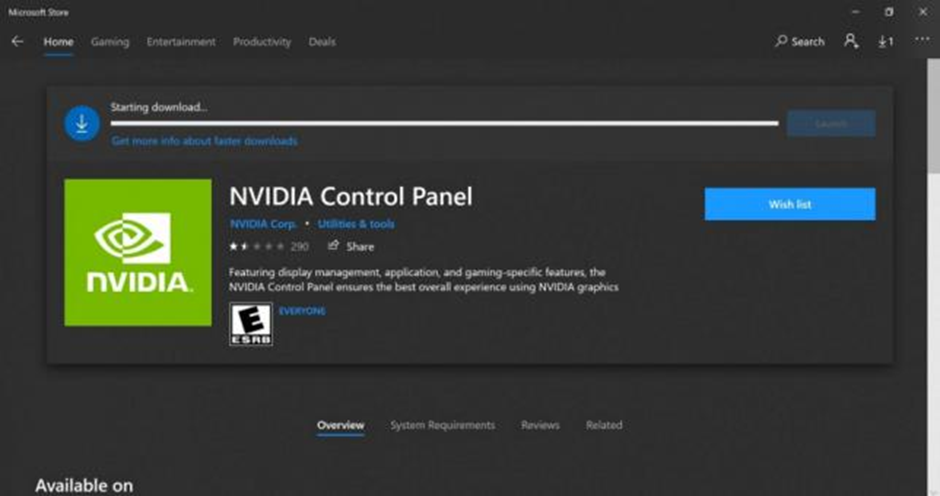
After completing the installation, you will have access to configure your NVIDIA graphics card.
Why is NVIDIA Control Panel Necessary
In-depth configuration of the graphics adapter allows you to increase the FPS or improve the image in any game. Some computers have two graphics cards. One is intended for video games, the other for rendering or office work in various editors. The NVIDIA control panel allows you to manage these graphics cards separately and adjust them to your needs.
A wide range of configuration options allows you to change not only the in-game image but also the user interface, thanks to adjustments in contrast, brightness, and other screen parameters.
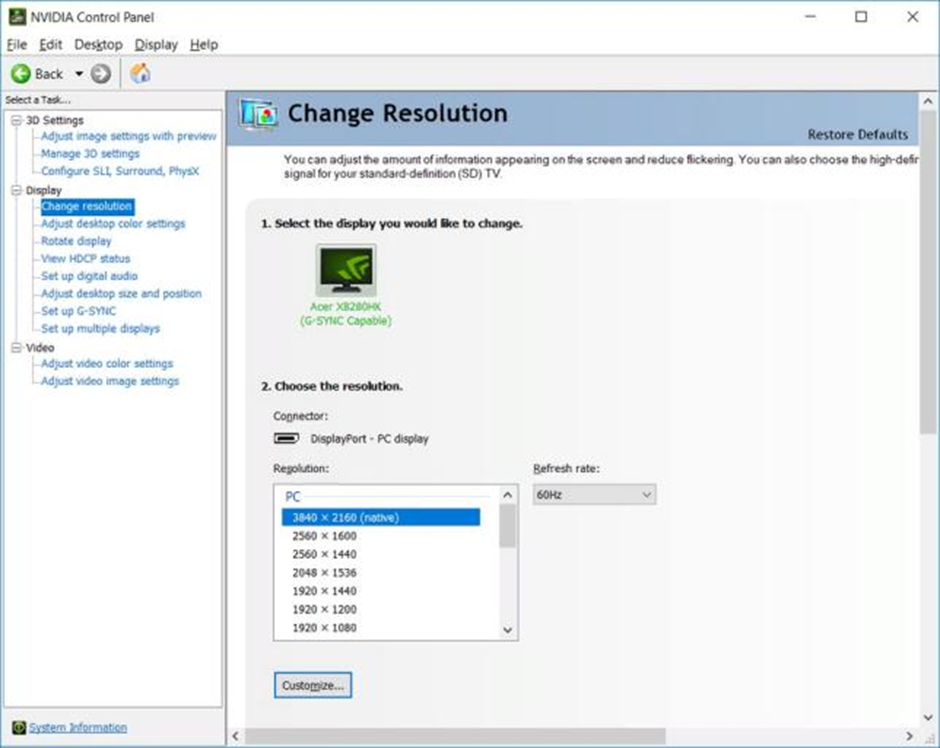
Detailed Review Of NVIDIA Control Panel Settings
On the main page, we are greeted by the main performance settings. Thanks to the slider, you can configure NVIDIA for CS2 in such a way as to get more FPS:
Select custom settings.
Move the slider towards performance.
You will get the necessary FPS, but the image quality will significantly worsen. It is necessary to set "advanced 3D image settings" and adjust the image yourself to maintain quality and increase FPS.
There are global and program settings. The former apply to all applications that use the graphics card. Program settings are set individually for each application.
Image Scaling
This item does not need to be adjusted; it can be turned off and not worried about. If you want to adjust the scaling percentage, note that this is only possible on Experience graphics cards.
Graphics Processors - CUDA
Select the "all" option. CUDA technology allows you to use all cores of the processor to increase the computing power of the graphics card. This increases performance, but also the load on the GPU increases.
DSR Rendering
This setting is not needed for CS2; turn it off. DSR rendering is the process of rendering an image at high resolution and then moving the resulting image to fit your monitor.
The image quality certainly improves, but there is a significant load on the graphics card, therefore, performance, which is very important in any online shooter, decreases.
Anisotropic Filtering
Turn on "application managed." Anisotropic filtering requires complex calculations, and its principle of operation cannot be explained without using incomprehensible terms. Without going into details, this type of filtering hardly eats up FPS compared to bilinear or trilinear filtering, but it significantly improves the quality of the image.
Example of filtering work:

Vertical Sync Pulse

A familiar picture that causes pain for any gamer. These image tears are related to the incorrect setting of the sync pulse. By configuring NVIDIA for CS2, we turn this function off. Turning off the sync pulse does not set a specific ceiling for frame rendering which will depend on the screen's hertz rate. FPS will only be influenced by the performance of the graphics card.
OPENGL Rendering GP
Choose your main card. If you have several graphics accelerators, then for computations during games, choose the most powerful one. If you ignore this setting, the main graphics card will be chosen randomly.
Pre-Rendered Frames
The value in this parameter determines the number of frames that the central processor prepares before they are processed by the graphics adapter. If your FPS exceeds the hertz rate of the screen, then set the value to "1". This will help get rid of image tears if they are present.
If your performance is low, it is better not to touch this parameter at all, or try to find an optimal value.
Background Lighting Shading
This function does not work in new games as it is not supported on DX 12. The essence is that shading is calculated using shaders. In some titles, performance hardly drops, but sometimes the image changes significantly, but forget about good FPS, so turn it off.
Maximum Frame Rate
If you have unstable FPS, which constantly jumps, then set a limit at such a value to get rid of the jumps. If your FPS is stable, then do not touch this setting.
Streaming Optimization
Set the setting to "AUTO". Some games, including Counter-Strike 2, can use multiple processor cores for calculations, which increases performance, this is called streaming optimization.
Shader Cache Size
You can configure NVIDIA for CS2 without caching shaders, however, this function allows for smoother image quality, set it to 100 GB if possible. If your storage has a lot of free space, then setting caching is not necessary, as the smoothness of the image will be good without it.
The downside is that when this function is turned on, the application will take longer to load, but it's worth it, as accessing ready-made shaders is more efficient than continuous caching.
REFLEX Low Latency Mode
If your screen supports G-Sync, then this setting should increase game responsiveness by reducing rendering delay. However, this function in the panel works strangely so far, it requires an update. There is exactly the same setting in CS 2 settings that works correctly. Turn off this function in the panel and turn it on in the game settings.
Power Management Mode
By increasing power consumption, you can increase the performance of your computer. If you turn on maximum performance, then power consumption will increase by about 20%, and the temperature of the processor will also increase due to the increased load on it.
If you are working directly from the wire, not on a laptop with a battery, and you have good cooling, preferably water, then feel free to use this function.
Texture Filtering
The function works only on DirectX and allows increasing the speed of calculations. Select the "high performance" value.
Triple Buffering
Triple buffering helps optimize vertical synchronization, but in the game itself, we turn off vertical synchronization for better performance, so in the NVIDIA panel, there is no point in turning on triple buffering.
Smoothing, FXAA, and others
These settings should not be touched in the video card panel, as they can be edited in the game itself. Smoothing is designed to remove unevenness in the contours of objects and various visual defects. The result is almost unnoticeable to the naked eye, but it consumes quite a lot of your graphics card's computational power.
How To Eliminate Input Lags Using NVIDIA Control Panel
The recently released Counter-Strike 2 uses Nvidia Reflex technology, which reduces delays in the game. Input lag is the time it takes from the start of an action until the game reacts to this action. A simple example:
You pressed to shoot as soon as you saw your opponent, but, unexpectedly for you, he shot first and killed you. Such delays are called input lags.
They significantly interfere with comfortable gameplay in ordinary games, especially in competitive online shooters. You can configure NVIDIA for CS2 in such a way to minimize the number of such cases, for this, turn on the "Reflex" mode in the graphics card panel and in the game itself.
How to Add Counter-Strike 2 To NVIDIA Control Panel
To use software settings that will only apply to one application, you need to add it to the panel list:
Go to the "3D settings" tab.
Next, "Set up 3D applications."
Select software settings.
Click on "add" and choose CS2 from the list.
If the game is not in the list, then specify the path to the .exe file of the application in the steam folder.
