


The new Counter-Strike gave us not only improved graphics, but also made increased demands on the hardware compared to CS:GO, which is why some of you will most likely need special CS2 settings for weaker computers. Although, let's be honest, the main problem is not the beautiful picture. Unfortunately, the developers from Valve have not yet solved all the shortcomings of the game related to its optimization, so even owners of medium-power PCs can easily encounter freezes or insufficient smoothness of the gameplay.
We separately warn: the recommendations for CS2 settings, which will be outlined below, are given with the expectation that your device meets the minimum system requirements of the new Counter-Strike. If this is not the case, then our suggestions are unlikely to help you. The game is almost guaranteed to slow down.
Minimum According to the System Requirements for the New CS2
We remind you that before moving on to the CS2 settings, it is advisable to check the compliance of your “computer” with the following requirements:
Operating system. At the moment, the new Counter-Strike only works on Windows 10. Neither the “seven” nor the eleventh version will work, not to mention the earlier ones.
Video card. Required with at least 1 GB of memory, must work with Shader Model 5.0, as well as DirectX 11.
RAM. Not less than 8 GB.
Processor. At least not weaker than Intel's i5 750 or an analogue from AMD.
Hard disk space. You will only need 34 GB, while Valve has officially stated that the game requires at least 85 GB.
And, of course, DirectX 11.
There are 2 easy ways to check information about your hardware. First, go to the Control Panel (you will find it in the menu called “Start”), then double-click on the “System” icon. Go through the tabs of the window that opens and get the information you are interested in. The second one is in the same “Start”. Click on “Run”. A line will appear where you need to enter dxdiag. That's it, the info is available.
The game does not work on Macs, so the question about the CS2 settings on them is, accordingly, automatically removed.
Adjusting the Graphics (Part 1)
The main reason for lags and freezes, as well as problems with low FPS — inconsistency between the graphic settings of the new Counter-Strike and the capabilities of your computer.
To go to the menu where you can set the parameters that best suit you, you need to perform the following steps: in a game already launched via Steam, find the gear icon in the upper left corner. Click on it. A list of tabs will appear at the top, you need “Image”, go there. Now look for “Advanced Picture Settings”. Go to the tab. Great, you are there, let's start changing the settings of CS2. We go through each point, not missing anything.
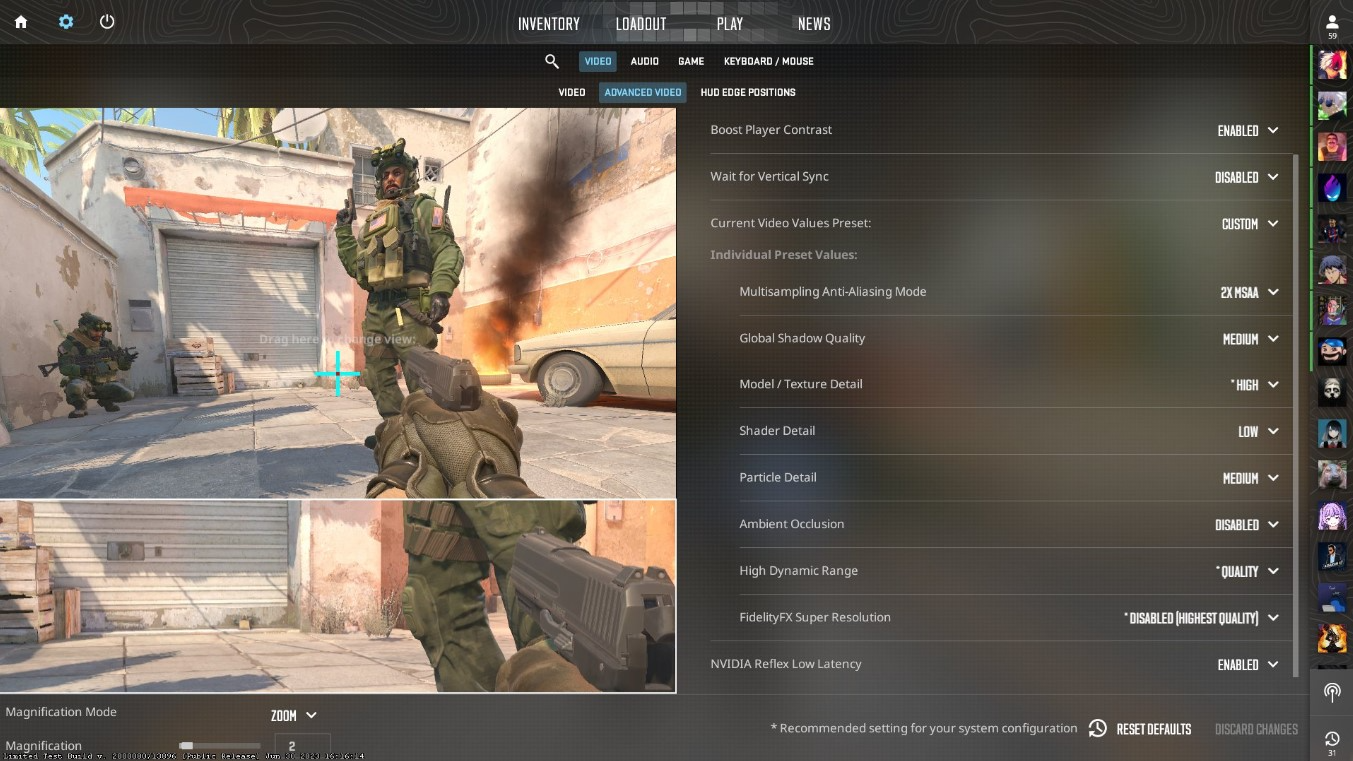
Increased player contrast. Leave it ON; this setting will generally have little impact on your device's performance. Turn it off only as a last resort.
Vertical sync. Also keep the ON position.
Current graphics settings template. Do “Custom” so that the system allows you to manually change further settings of CS2.
Adjusting the Graphics (Part 2)
We continue to work with advanced image settings.
The next item is the multi-sampling anti-aliasing mode. It is very important to turn it off, since it is one of the eaters of your FPS. As a side effect of disabling, ladders may appear along the edges of the image.
General quality of shadows. Set it to the “low” position.
Detailing of models and textures. Also lower it to the “low” value. Of course, it won’t be beautiful, especially if you have good eyesight: you’ll probably notice individual pixels in the picture, but raise the FPS for sure, and there will be fewer freezes.
Texture filtering mode. Also, don’t stand on ceremony with this setting of CS2, set it to low. Unfortunately, it’s “either/or”: either beautiful textures or smooth gameplay without the irritation of eternal lags.
Shader detail. In this case, we are talking about, for example, the beautiful refraction of sunlight on the water surface or shading effects. Switch to low, weak video cards will not withstand such loads.
Adjusting the Graphics (Part 3)
Move on to the next items of settings for CS2.
Detailing of particles. As usual, use low. Weak hardware won't get good detail, but at least you can play.
Global shading. If it is turned on, then during the game you can observe the so-called contact shadows between game objects. Disable this option.
High dynamic range. Its purpose is to regulate the detail of the picture at the extreme points of the contrast scale, i.e. at the lightest point and at the darkest point. Set the setting to “Performance.”
FidelityFX Super Resolution. Using this CS2 setting, the image is scaled without losing its quality. Used on Radeon video cards. Go for "performance".
Low Latency NVIDIA Reflex. This option, of course, has a slight impact on the FPS, but, in general, it is better to disable it on weak devices. The problem is that this function is not executed correctly in CS2 due to poor optimization.
Additional Features
When you are done with the graphical settings of CS2, the time will come to enhance the results obtained and further optimize the new Counter-Strike on your device. The console will help you with this. As a legacy from CS:GO, some commands moved to the second part of Counter-Strike. Some of them are worth applying. We remind you that by default, the console is activated after clicking on “~”:
cl_forcepreload 1 — starts preloading of all objects displayed on the map, accordingly, dynamic loading of objects is not applied, which increases performance. The downside is that you have to wait longer for the map to load.
novid — the start logo is no longer shown.
fps_max 0 — allows you to get the most out of your computer without limiting it to the upper FPS threshold.
nojoy — improves performance by deactivating joystick support.
The Best Resolution
Let us immediately note that this parameter of the CS2 settings does not play a significant role in increasing/decreasing FPS, but if for you raising the frame rate by at least 10–20 points is a matter of life and death, then read this chapter. Perhaps the information provided here will help you.
Kaesers conducted tests of different resolutions on medium graphics settings and measured FPS. No measurements were taken at low settings. As a result, it was found that the game produces the highest FPS (373) at a resolution of 1440×1080, in 2nd place in FPS (372.9) — 1280×960, in 3rd place in FPS (371.9) — 1024×768.
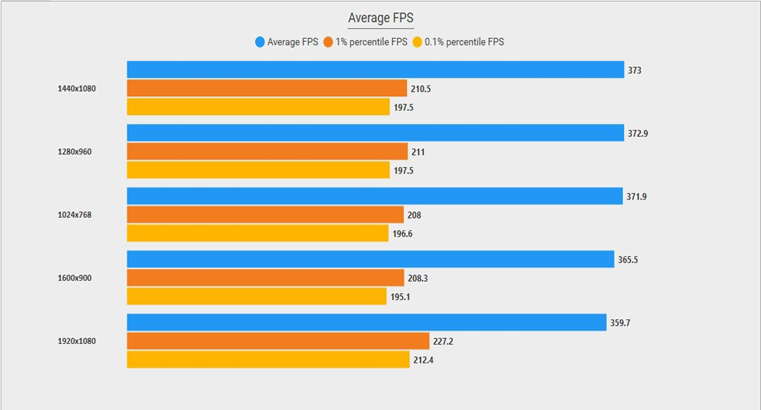
At the same time, it is curious that on Full HD (this is 1920×1080) the game runs most stable, i.e. does not drop in FPS as much as at other resolutions. The difference in drawdown between Full HD and other resolutions reaches 20–30 FPS, which proves: Valve, first of all, optimized the new Counter-Strike for powerful computers, and not for weak ones.
If Adjusting the CS2 Settings Does Not Help
So, you did everything we wrote about above, but this turned out to be not enough. Most likely, the problem is not in the game itself, but in your video card.
CS2 interacts very poorly with video cards from NVIDIA, so you'll have to dig into their settings. Freezes can be caused by NVIDIA Reflex Low Latency. This is a feature whose task is to reduce the delay time between pressing the mouse/key and displaying the result of the action on the screen. Test results showed that this function now works very poorly and, on the contrary, only increases the latency.
You need to open the NVIDIA Control Panel, look for “Manage 3D settings” in the left column. Now, in the right column, find Reflex Low Latency, right-click and disable the function through the menu that appears.
As a result of this setting, CS2's frame rate should increase by about 7%. Perhaps this will be enough for you to enjoy the game to the fullest.
What to Do If Nothing Helps at All
Freezes and stutters still remain, the previously proposed CS2 settings did not work. In this situation, the following measures can solve the problem:
Raising the priority of CS2 to the maximum. This is done through the Task Manager. Open the manager, find the name of the game, right-click, select “Set priority”, then “High”.
Cleaning startup and getting rid of background programs that take up processor resources.
Solving problems with a firewall or antivirus program.
Elimination of cooling system deficiencies. Cleaning coolers from dirt and installing software that monitors temperature indicators and can control fan rotation will help here.
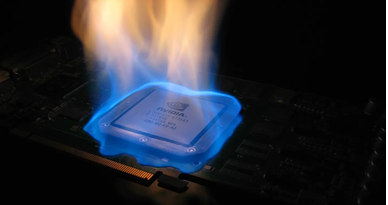
Overclocking the processor. We immediately warn you that this is a dangerous measure that can lead to critical damage to the processor. If you overclock, it is entirely at your own responsibility.
Defragmentation of the hard drive.
