


Anyone who's ever dug into matchmaking settings has eventually asked the same question — what exactly is ping in CS2 and why does everyone make such a big deal about it. Ping is measured in milliseconds (ms): the time it takes for a data packet to travel from your computer to the game server and back. The lower the number, the more responsive the game feels. The higher it climbs, the more it feels like there's an invisible wall between your crosshair and the shot landing.
In Counter-Strike 2, this isn't some abstract technical metric. Time-to-kill is measured in tens of milliseconds, peeking around corners comes down to fractions of a second, and one sluggish reaction costs you the round. In that environment, ping in CS2 stops being a background stat and becomes an active participant in every single duel.
How Ping Works in CS2 and Why It Matters
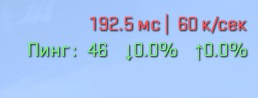
Most players glance at the number on the scoreboard without thinking much about what it actually represents. The mechanic is simple: every action in the game — a mouse click, movement, throwing a grenade — sends a data packet to the server. The server processes it and sends a response back. The time that round trip takes, measured in milliseconds, is your ping in CS2.
The technically precise term is "latency." Ping and latency are used interchangeably in the gaming community and no one's correcting anyone. What actually matters is this: unlike a browser or a chat app where an extra 100ms goes completely unnoticed, in CS2 that same gap can literally decide who wins a duel.
Consider this scenario: two players with identical reaction times, both responding in 200ms. One has 20ms ping, the other has 100ms. The first player's action reaches the server 80ms earlier. In practice, the second player is already losing the duel before their shot even registers. That's exactly why experienced players treat ping with the same attention they give mouse settings or sensitivity tuning.
What Ping Values Are Considered Normal in CS2?
There's no single magic number — it all depends on your region, ISP, and physical distance from the server. That said, real-world experience and CS2's own network characteristics give us clear reference points. Ping in CS2 is generally rated on the following scale:
Range | Rating | What the player experiences |
Under 30ms | Excellent | Actions register instantly, game feels fully responsive |
30–60ms | Good | Smooth and comfortable for ranked play |
60–100ms | Acceptable | Slight sluggishness, peeks feel a little less crisp |
100–120ms | Poor | Noticeable delays, ghost bullets start showing up |
120ms+ | Unplayable | Serious hit registration issues throughout |
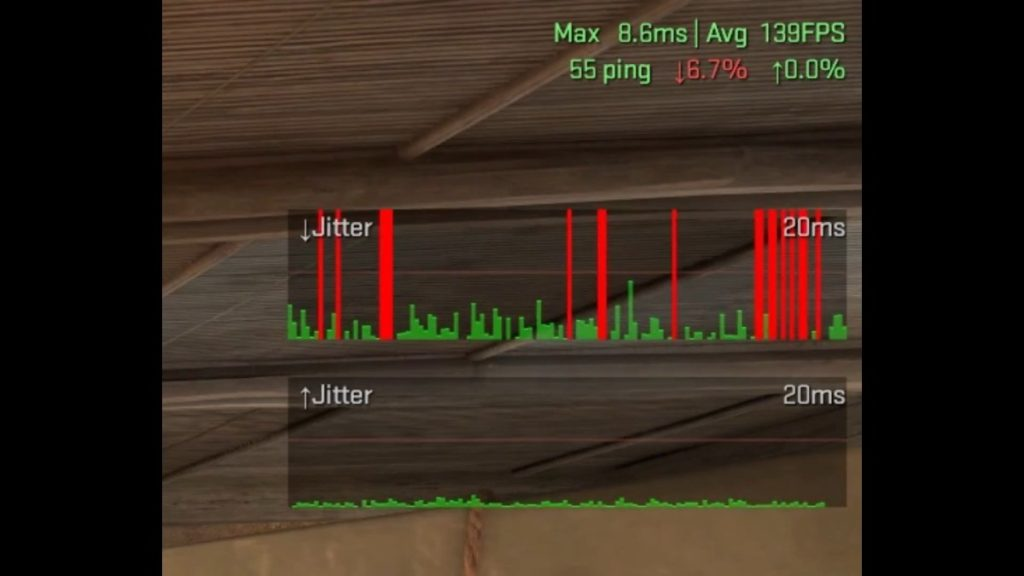
One important nuance: a stable 70ms ping is better than one that bounces between 20 and 90. That inconsistency is called jitter — variance in latency over time. When your ping in CS2 swings around every second, your muscle memory can't calibrate to the actual lag, and the game feels worse than it would at a steady higher ping. Playing on an unstable connection is like shooting from a moving platform: you can adapt, but it's a lot harder.
How to Check Your Ping in CS2 During a Match
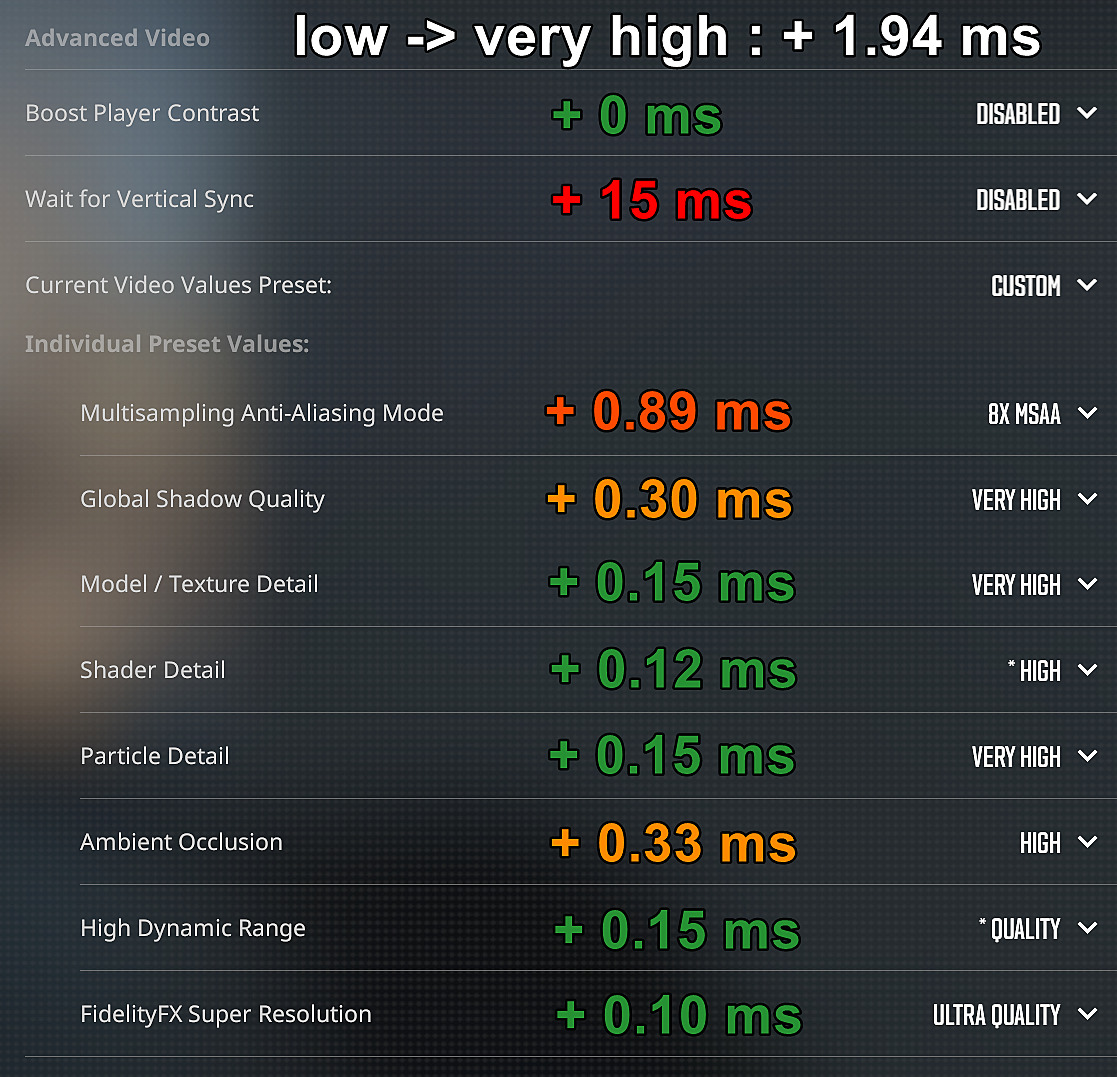
The quickest method is pressing Tab and checking the ping displayed next to your name on the scoreboard. That's fine for a quick glance, but it only shows a snapshot value — it won't tell you whether you're experiencing latency spikes, packet loss, or connection instability. For proper diagnostics, CS2 uses the Telemetry HUD instead of the old net_graph — a built-in telemetry system that replaced the classic net graph from CS:GO. The old net_graph 1 is no longer the primary way to monitor network info in CS2.
Method 1 — Scoreboard (Tab)
Press Tab during a match. Your ping in milliseconds is displayed next to your player name. It's the fastest way to get a quick read on your CS2 ping right now, but it shows no connection dynamics and gives no information about jitter, packet loss, or other network issues.
Method 2 — Telemetry HUD via Settings
This is the current replacement for net_graph in CS2. The telemetry overlay lets you display FPS, frame time, ping, and network quality directly on screen. Here's how to enable it:
Open Settings.
Go to the Game tab.
Find the Telemetry section.
Enable the metrics you want — such as Ping and network data.
Set the display mode: Always, Only if poor, or Never.
Once enabled, the data will appear directly on your HUD during matches. This is the official built-in way to monitor your connection in CS2.
Method 3 — Telemetry via Console
If you prefer using the console, first enable it: Settings → Game → Enable Developer Console → Yes. Then open the console with ~ and use the current telemetry commands. For example:
cl_hud_telemetry_ping_show 2 — always show ping
cl_hud_telemetry_net_quality_graph_show 2 — show the network quality graph
cl_hud_telemetry_net_detailed 2 — show detailed network data
These commands belong to CS2's new telemetry system and are the current replacement for the old net_graph.
The Telemetry HUD should be the first thing you pull up when the game suddenly starts feeling off. More often than not, your actual ping is still fine — the culprit is jitter, packet loss, or missed ticks, none of which the Tab scoreboard ever shows. Steam also notes that some network issues can be smoothed out via Settings → Game → Buffering, but this adds extra latency, so that setting should be used with caution.
What Is Max Acceptable Matchmaking Ping and How Do You Set It?
This is a separate and critically important setting that a lot of newer players don't know exists at all. Max Acceptable Matchmaking Ping is a threshold: the highest ping value at which CS2 will agree to place you on a server. If no available server falls within that limit, CS2 widens its search to other regions — it finds a match, but at a higher ping than you'd want.
The default is set to 150ms — loose enough to find a match quickly, but sometimes it results in landing on servers with uncomfortable ping. You can configure the max ping limit in two ways.
Via the menu: Settings → Game → Max Acceptable Matchmaking Ping → drag the slider or enter a value manually.
Via console:
mm_dedicated_search_maxping [value]
For example: mm_dedicated_search_maxping 60 — CS2 will only search for servers with ping up to 60ms.
The recommended balance for most regions is 60–80ms: low enough for comfortable play, high enough to avoid waiting several minutes for a match. For Europe, 50–70ms is realistic — dense server coverage means matches pop quickly. For regions with fewer servers (South America, parts of Asia), 90–100ms is more practical, otherwise queue times can stretch considerably.
To make sure the setting persists between game launches, add the command to your autoexec.cfg file — it runs automatically every time CS2 starts.
Why Is My CS2 Ping High — Common Causes
High ping rarely appears out of nowhere. Most of the time it's not a problem with the game or Valve's servers — it's something on the player's side or within their local network. Identifying the cause matters, because the right fix depends entirely on what's actually going wrong. Here's what's usually behind bad ping in CS2:
Network issues vary widely in nature: some are hardware-related, some stem from routing problems, and some are as simple as someone else saturating your home connection. Sometimes closing a browser tab is the fix; other times you need to switch ISPs.
Distance from the server — data packets physically travel across kilometers. The farther the server, the longer the trip.
Wi-Fi instead of Ethernet — wireless connections are susceptible to interference from walls, other devices, and even microwaves. This directly impacts both jitter and ping.
Background applications — torrents, Windows updates, Discord screen share, streaming — all of these compete for bandwidth and add latency.
Other devices on the network — smart TVs, phones, tablets actively pulling data at the same time you're playing.
Outdated network drivers — old or corrupted NIC drivers can cause inefficient data transfer.
ISP-side issues — congestion during peak hours, unstable routing paths to Valve's servers.
Worth knowing: high ping on its own won't get you banned. But frequent disconnects caused by an unstable connection can trigger temporary matchmaking cooldowns — the system reads them the same way it reads intentionally leaving a match.
How to Lower Your CS2 Ping — Methods That Actually Work
The good news is that high ping is a solvable problem in most cases. Some fixes require zero technical knowledge and take five minutes. Others are a bit more involved but can make a noticeable difference in your very next match.
Before diving into settings and console commands, start with the obvious — check what's actually happening on your home network right now. More often than not, someone else is pulling a large update or watching 4K video, and that's what's pushing your CS2 ping into unplayable territory.
Ethernet cable instead of Wi-Fi — the single most impactful step. Eliminates wireless interference, makes the connection more stable, and typically drops ping by 10–30ms immediately.
Close background applications — torrents, cloud sync services, browsers with a dozen tabs — everything competing for bandwidth needs to go.
Select the right region — play on servers in your geographic region. CS2 picks these automatically, but it's worth double-checking manually.
Set a max ping limit — use mm_dedicated_search_maxping to filter out servers that would give you unacceptably high ping from the start.
Update your network drivers — through Windows Device Manager or your network card manufacturer's website.
Order matters here: start with the cable and closing background apps — those have an immediate effect. Console commands and launch options come next, once the baseline environment is already optimized.
Milliseconds Decide Rounds
Ping in CS2 isn't just a number in the corner of your screen or something to complain about in chat. It's a direct measure of how fair your next duel is going to be. Understanding what each ping value means, how to monitor it through the Telemetry HUD, how to configure the max matchmaking ping through the menu or console, and what to do when the number starts creeping up — all of that is part of being a literate player, and without it it's genuinely hard to improve in competitive play.
Switching to Ethernet, closing background apps, and properly setting your matchmaking ping limit — that's the minimum set of changes most players notice the difference from in their very first match afterward. No magic involved, just physics and a bit of common sense.
