


Anyone who's put a few hundred hours into Dota 2 knows the feeling: you're deep in a ranked match, the game is on a knife's edge, and suddenly one of your teammates starts spamming the chat so hard it becomes physically unreadable. That's exactly the moment when you need to know how to turn off chat in Dota 2 – fast, without fumbling through menus, and without losing any game-critical information. You can do it through the game settings, via the individual player mute buttons on the scoreboard, or through console commands as a more advanced option. Which method fits depends on the situation – and this guide walks through each one step by step.
Why Do Players Want to Turn Off Chat in Dota 2?
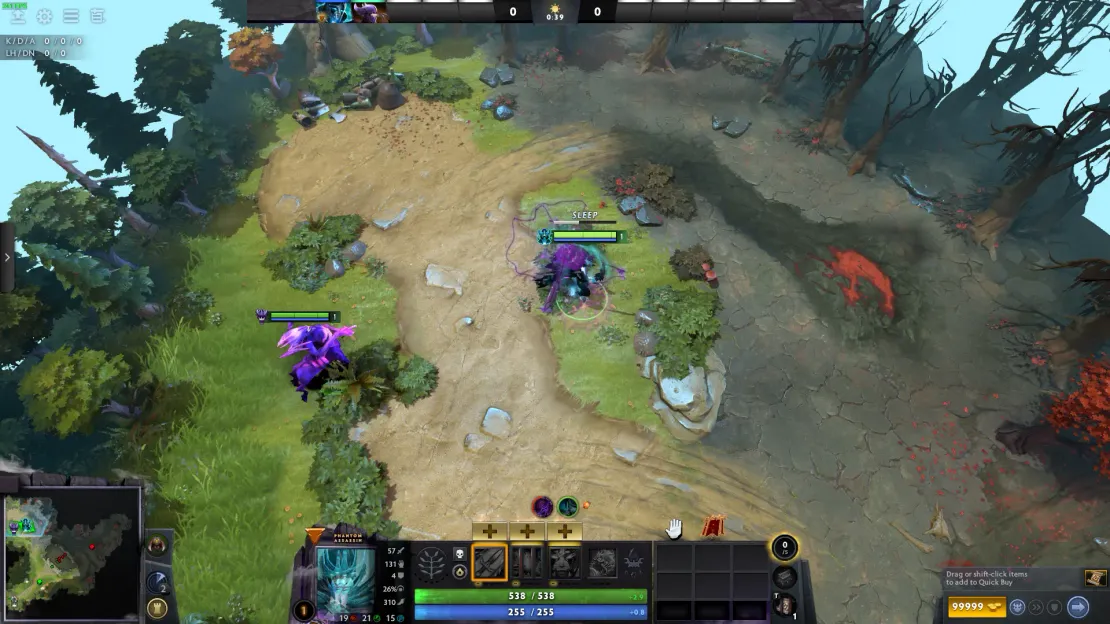
Dota 2 is a team game, and in theory chat should help with coordination. In practice, it often becomes a source of tilt rather than teamwork. One player is raging after a death, another is calling for reports from the first minute, and a third is trying to convince everyone that their build is the only correct one. All of this is happening right in your field of view, at the exact moment you need to make decisions.
Toxic messages in chat are distracting, and most players feel it. That's why many professional players and streamers mute chat entirely during serious matches – to cut out the noise and stay focused. Others just want to mute one person. Some want to block enemy chat specifically while keeping team comms open. Valve has built options for all of these scenarios.
It's worth understanding the difference between "hiding" and "disabling." When you block incoming messages, you stop seeing them – but other players keep writing, those messages just never reach you. This is the key point: the chat system keeps running normally; the only thing that changes is what you personally see.
How to Turn Off Chat in Dota 2 Through the Game Settings
This is the simplest and most reliable method. No console knowledge required, and it's been stable across patches. Most players who want a long-term solution use this one – set it once and forget about it.
Before going through the steps: no restart is needed after changing these settings. Everything applies instantly. The relevant section is under the "Social" tab – that's where all communication-related options live.
Here's how to do it:
Launch Dota 2 and go to the main menu.
Click the gear icon (Settings) in the top-right corner of the screen.
Open the "Social" tab.
Find the "Chat" section → the "Receive chat from" option.
Select one of the three available modes.
The setting takes effect immediately after you select it. No game restart, no leaving the match – it applies right away, even mid-game.
The three modes work as follows. "Everyone" is the default: you see messages from both teammates and enemies. "Friends and teammates only" silences the enemy team while keeping your own squad connected. "No one" is complete silence: all incoming text chat is blocked, though you can still send messages yourself.
How to Turn Off Chat in Dota 2 Through the Console
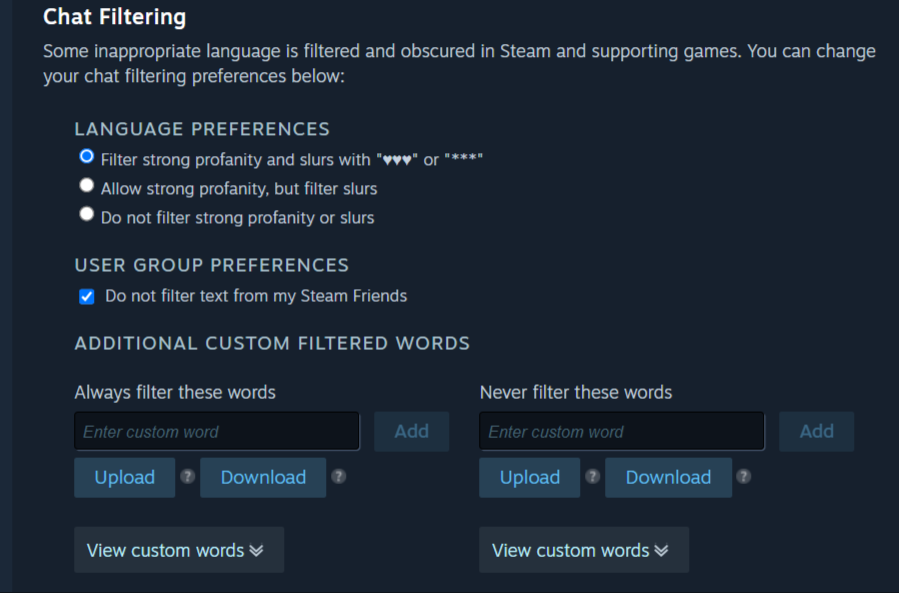
If you're the kind of player who prefers tweaking the game through configs and console commands, there's an alternative route. It's a bit more involved upfront, but gives you more flexibility – for example, you can add the command to your autoexec and never touch the settings menu again. This approach is especially useful if you want to tie chat behavior to a specific config or player profile.
First, make sure the console is enabled. It's a one-time setup: Settings → "Game" tab → find "Enable Developer Console" and check the box. After that, the console opens with the ~ (tilde) key from the main menu or during a match.
Console commands for chat control:
dota_chat_mute_everyone 1 – hides all incoming messages from other players. Chat technically keeps running, but you won't see any of it.
dota_chat_mute_everyone 0 – restores chat to normal.
dota_sf_hud_chat "0" – removes the entire chat and kill feed block from the HUD.
The dota_sf_hud_chat "0" command is the nuclear option: it wipes all text from the chat area entirely, including kill notifications. Useful if you want the cleanest possible screen with no UI clutter. To bring it all back, just enter dota_sf_hud_chat "1".
How to Mute a Specific Player Without Turning Off the Whole Chat
Sometimes the problem isn't the chat as a whole – it's one specific person. Nuking all incoming messages in that case is overkill. There's a more targeted fix that most veteran players know by heart but newer players often have to hunt for.
Muting an individual player takes literally two clicks, right in the middle of a match. Important note: the mute only applies to the current game – it resets automatically when the match ends. That's intended behavior, not a bug.
Step by step:
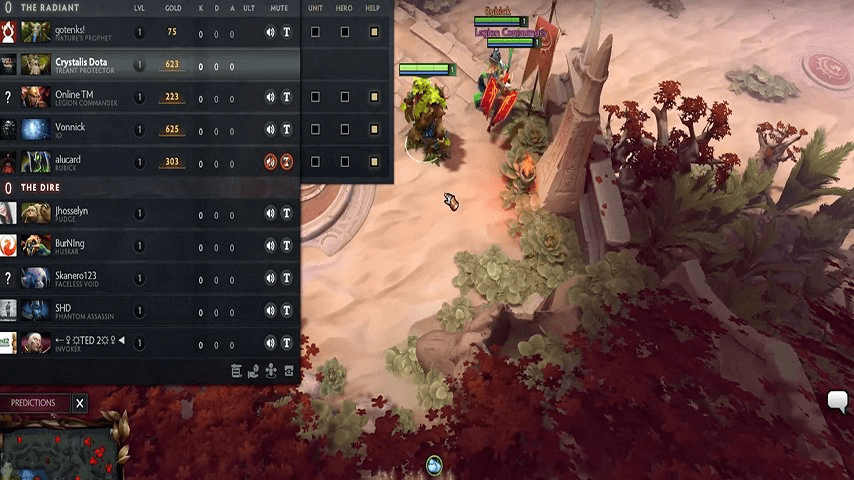
Press Tab to open the scoreboard.
Find the player you want to mute.
Click the speaker icon next to their name – this mutes their voice chat.
Click the message icon (T) next to their name – this blocks their text messages.
The distinction between voice and text mute matters. The speaker icon cuts voice only – you'll stop hearing them in voice chat, but their text messages will still appear. The T icon works the other way: text disappears, voice stays. You can activate both at once – at that point the player is completely cut out of your communication for the rest of the match.
How to Remove Asterisks in Dota 2 Chat
There's a separate issue that's less about muting and more about readability: the asterisks that replace certain words in chat. A lot of players find this frustrating because the filter regularly flags completely harmless words if they happen to contain a string of characters the system flagged. It's a known quirk – plenty of ordinary words have historically triggered the automatic filter.
The censorship filter in Dota 2 arrived in 2020 when Valve rolled out the Steam text filter across several of their games. The community's reaction wasn't exactly warm, so the developers quickly added the option to disable it manually. You can do this two ways – through Dota 2's own settings, or directly through Steam.
Here's how to remove asterisks from Dota 2 chat through the game settings:
Launch Dota 2, open Settings (gear icon).
Go to the "Social" tab.
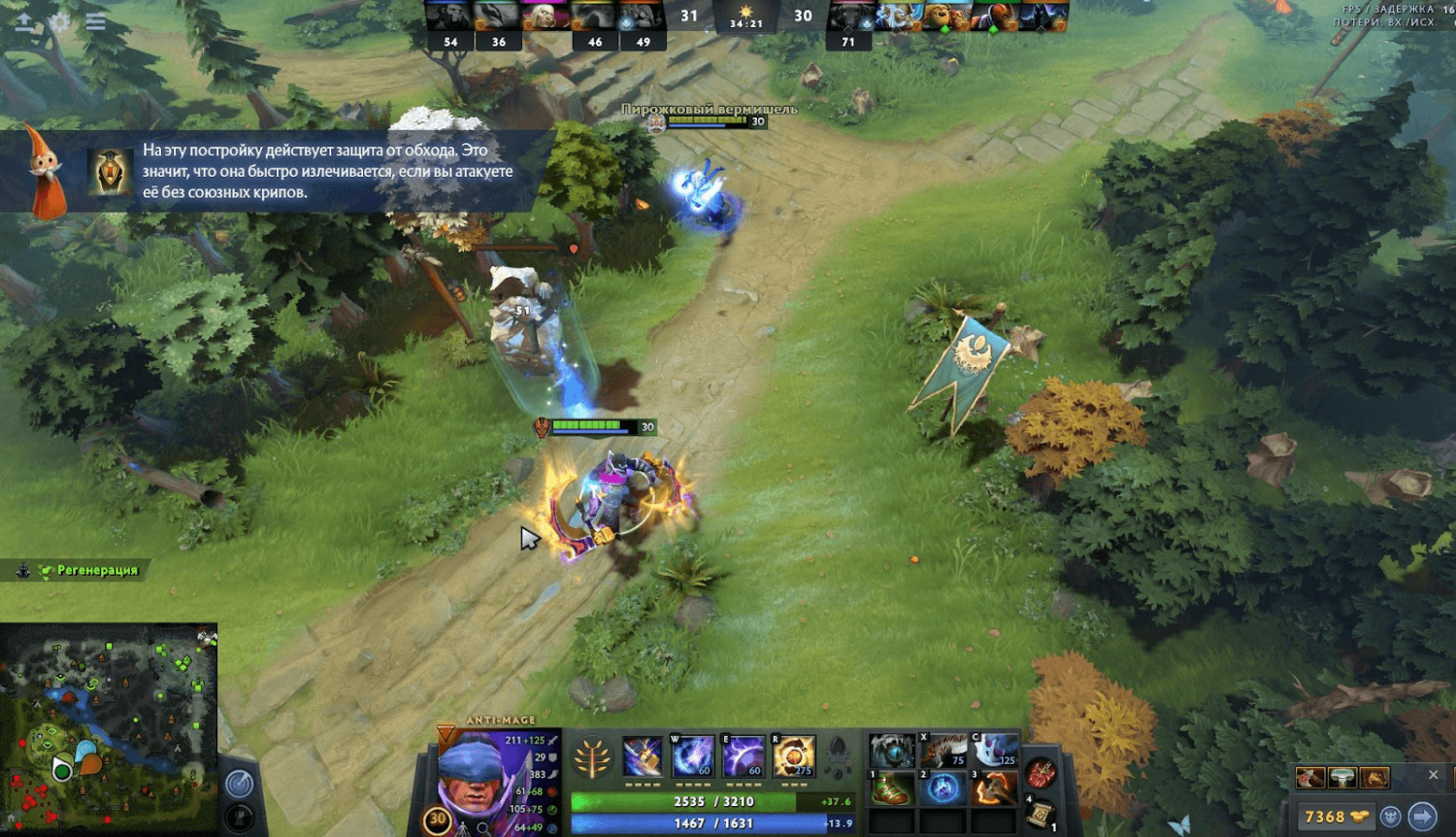
Find "Steam Text Filter Settings" and click it.
A Steam window will open – scroll down to the "Chat Filtering" section.
Check the box next to "Show Profanity and Slurs."
Changes apply immediately – no need to restart Dota 2. If the Steam overlay is acting up and won't open the window from inside the game, you can reach the same settings directly: open the Steam client → your account name in the top-right corner → "Settings" → "Language Settings" section → check "Show Profanity and Slurs." Same result either way.
How to fine-tune chat censorship in Dota 2: a breakdown of filter levels
Not many players realize the Steam filter isn't just a simple on/off toggle. It has several levels of configuration, which means you can dial it in to match your actual preferences rather than choosing between all-or-nothing. This is why the question of how to adjust chat censorship in Dota 2 is better framed as "customize it" rather than "turn it on or off."
Before getting to the table, there's one fundamental thing to understand: the filter only works in one direction. When you turn it off for your account, you start seeing unfiltered text. But other players may still have their own filters active – they'll continue seeing censored versions of messages regardless of what you've configured. Each player controls only their own view of chat.
Filter level | What appears in chat | Best suited for |
Full filtering (default) | Profanity and slurs → *** | New players, accounts used by younger players |
Partial filtering | Profanity visible, slurs → *** | Middle-ground option |
Filter fully disabled | All text unfiltered | Experienced players, deliberate choice |
Your filter level is a personal call. That said, one caveat is worth spelling out: disabling the filter doesn't change what you're responsible for in chat. If you're harassing other players, you're still at risk of a comms ban – a mute from Valve's system. That's an automatic restriction based on reports, and it has nothing to do with how you've configured the filter on your end.
Comparing All the Methods: Which One Should You Use?
When there are multiple options, the natural question is which one fits your situation. There's no single right answer – each method solves a specific problem. If you want complete silence every game, the solution looks different from muting one toxic player in a single match.
Below is a quick-reference table. All methods are tested and work in the current version of Dota 2.
Method | What it does | Difficulty | Requires restart? | Persists after match? |
Settings → Social | Hides incoming text chat (partially or fully) | Easy | No | Yes |
Console: dota_chat_mute_everyone 1 | Visually hides chat from all players | Medium | No | Until restart |
Console: dota_sf_hud_chat "0" | Removes the entire chat block from the screen (including kill feed) | Medium | No | Until restart |
Tab scoreboard mute | Mutes a specific player (voice and/or text) | Easy | No | No (resets after the match) |
Steam text filter | Removes asterisks and censorship | Easy | No | Yes |
The practical takeaway: for permanent peace in ranked, use the Social tab settings – configure once and you're done. For dealing with one problem player in a specific match, use the Tab scoreboard mute. For players who fine-tune everything through configs, the console commands with an autoexec entry are the way to go.
Play on Your Own Terms
Chat in Dota 2 is a tool. Like any tool, it can work for you or against you depending on how it's being used. When it starts working against you, it makes sense to mute it or configure it on your own terms – Valve has given players enough options to do exactly that.
Blocking all incoming messages through the Social tab is the right call for players who want to stay focused without distractions. Muting a specific player is the more precise option for those who value team communication but don't want to put up with one toxic person. Removing the asterisks through the Steam filter is a separate thing entirely – it's not about blocking chat, it's about the readability of what actually shows up in it.
The game gets noticeably more enjoyable when chat is working for you instead of against you. And while your next ranked match loads – a fresh set of hero skins wouldn't hurt for getting into the right headspace. Check out the current selection of Dota 2 skins on LIS.SKINS.
