


Gamers begin to wonder where to find CS GO on Steam when, for example, they need to look at file data regarding skins, configs, settings of game characters, or when they need to solve a problem with glitchy or broken files. This is a very specific question, so often even experienced kaesers cannot answer it right away. However, there are solutions, and they are very simple.
The root folder in which all your CS GO data is located can be found in 2 simple ways. In the first of them, you will need to go to Steam and find CS GO in Steam through its interface. In the second method, you will use the standard search tools offered by Windows and find game files without going to Steam.
Use Steam
This method is considered more reliable, although it takes longer. You will need to perform the following steps in the order we have indicated:
On your computer, click on the Steam icon or icon to go to this service.
Open the library with games. Here you need to find Counter Strike and then right-click on the name.
A menu will appear in front of you where you need to click on “Properties”.
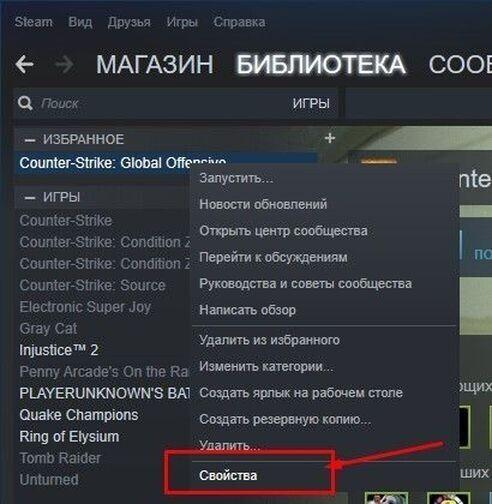
You need a tab called “Local Files”, this is where you will find CS GO in Steam. Of course, go to this tab.
Look for the “Browse local files” button. After clicking on it, you will be redirected to the desired root folder.
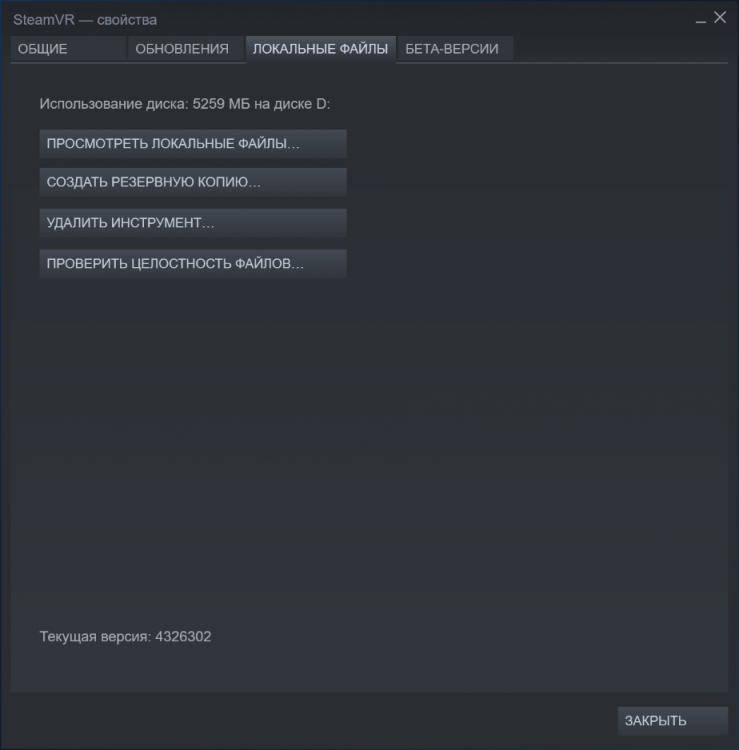
After completing the search, remember, or better yet, write down the path to the folder with CS GO, so as not to waste time in the future and not to look for it again.
We use Windows tools
Finding CS GO in Steam is much easier than using Windows tools, since Steam will find the game regardless of what your folders are called or whether you have renamed them.
We recommend searching through Windows only in if you are sure that you did not change the name of the Steam folder on your hard drive or remember how you renamed this folder. Otherwise, you will waste a lot of time to no avail.
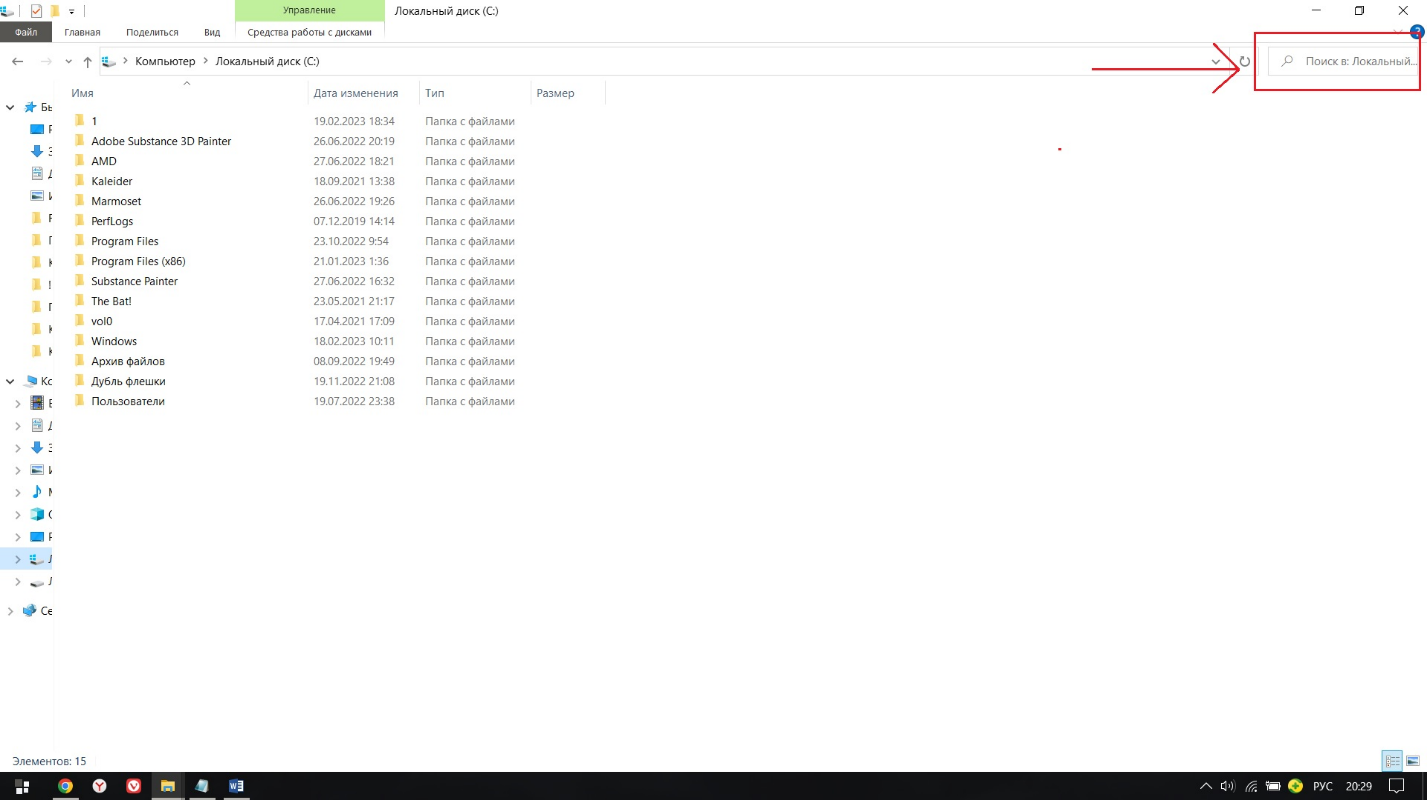
So, go to “My Computer” and then to your Local disk (if you have several of them, then search in each one in turn). In the search bar, which is usually located in the upper right corner of the window, type Steam (or another name you specify) and confirm your action by pressing Enter. Repeat for each local drive until you achieve the required result.
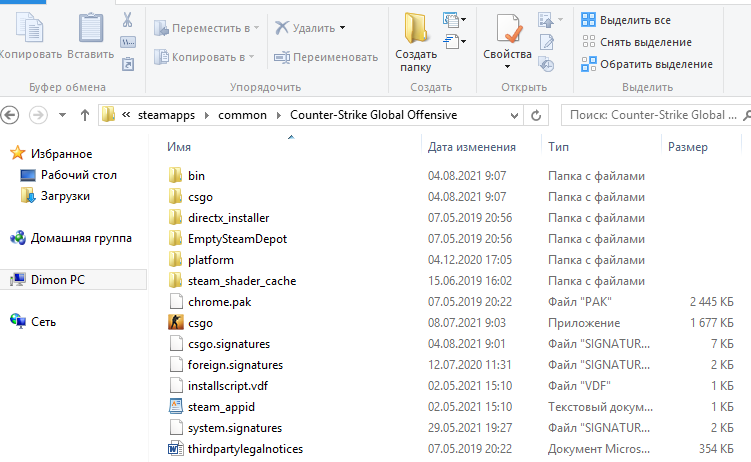
By default, if you have not changed the folder names, the path to the folder you need looks like this: Steam/steamapps/common/Counter-Strike Global Offensive/csgo
Solving possible problems (part 1)
Sometimes players need to find CS GO in Steam to resolve problems with broken files. Counter Strike, of course, cannot be perfectly optimized, and it has glitches, glitches, and data breakdowns. You will learn about the existence of a problem when you launch CS GO with its subsequent crash and a notification about what exactly happened and what file crashed.
Possible reasons: the hard drive is working intermittently, the file was not initially installed on the HDD.
In principle, the causes of the malfunction are not so important. The main thing is that these problems can be quickly corrected. This is done in the following sequence:
Find CS GO in Steam, as indicated in the chapter “Using Steam” and open the root folder.
In this window, enter the name of the broken file in the search bar (upper right corner).
Having found it, delete the file completely, including checking that it does not remain in the Recycle Bin.
Now you need to install a new similar working file. Go to Steam, from there go to the game library, there find the game Counter Strike and right-click on it, select “Properties”.
Open “Local Files”, then click on “Check the integrity of game files”.
Possible solutions problems (part 2)
We continue to talk about troubleshooting problems with broken files. As soon as you find CS GO on Steam and run an integrity check of game files, the Steam service will independently scan and evaluate the data you have recorded, and if necessary, overwrite the files or upload them again.
Before running the check, we ask you to make sure that there is enough free space on your hard drive to overwrite broken files.
The recommendations proposed above may not work. Then, most likely, the malfunction started in the “RAM” dies. Counter Strike has .vpk files that are programmed to evaluate whether the RAM is working properly. If there is a failure in RAM, they simply will not start. Download, for example, “prog” Memtest and use it to determine the state of the RAM. If errors are found, then in this case there is only one treatment – replacing faulty components with new ones.
Useful tips
When you find CS GO on Steam or through Windows and solve the problem for which you actually started the search, remember our recommendations outlined below and do a little additional checking.
Firstly, you may experience an unpleasant “startup error” in the future. (launcher error), where the word “unicode” will also be written. Here the diagnosis is simple: the error is related to the language. There is a mandatory rule that states: all names must be written in the Latin alphabet. Simply put, use only English. So no need to write Steam. Instead, only Steam.
Secondly, “launch error” may occur if Counter Strike is installed on 2 local drives. Try find CS GO in Steam and go to the root folder to check if you have 2 copies of the game. If multiple copies are found, delete all files and reinstall CS GO.
Never copy the game from one disk to another. First, remove everything from one disk and only then write files to the second disk.
