


If CS2 won't launch on Steam, the usual causes are corrupted files after an update, outdated GPU drivers, an antivirus conflict or leftover commands in your launch options. Start with two steps: restart Steam (ending its processes in Task Manager) and verify the integrity of the game files in Counter-Strike 2's properties. That is usually enough, with no reinstall needed. Below, every cause is covered in order, from the simplest fixes to the most drastic, with a quick-reference table at the end.
Why CS2 Won't Launch on Steam: The Main Causes
Before fixing anything, it helps to understand the nature of the problem: different symptoms point to different causes, and the cause tells you where to start. The most common culprits are corrupted or missing game files after a patch, hardware below the minimum system requirements, broken Microsoft Visual C++ Redistributable components, a bloated Steam download cache, antivirus interference or outdated commands in your launch options.
The symptoms vary: the game freezes on the splash screen, Steam shows "Running" but no window ever appears, or an error pops up right away. Recognizing the difference saves time, since you do not have to try every fix in turn. If the game does start but closes mid-session, that is a different problem, covered in why CS2 crashes.
CS2 Minimum System Requirements
Before touching any settings, check whether your hardware can run the game at all. Sometimes CS2 won't launch for exactly that reason: the CPU is too old, the GPU does not support the required DirectX version or there is not enough RAM. CS2 runs on the Source 2 engine, and its requirements are noticeably higher than CS:GO's were.
You can check your specs with a built-in Windows tool: press Win+R, type dxdiag and hit Enter. The window shows your CPU, RAM, GPU and DirectX version. Below are the official minimum requirements from the CS2 Steam store page; for more detail, see CS2 system requirements.
| Component | Minimum Requirements (official, Valve/Steam) |
|---|---|
| Operating System | Windows 10 64-bit |
| CPU | Minimum 4 hardware threads: Intel Core i5-750 or equivalent |
| RAM | 8 GB |
| GPU | DirectX 11, Shader Model 5.0, 1 GB VRAM minimum |
| DirectX | Version 11 |
| Free Disk Space | 85 GB |
If any of these specs fall short, that may be the direct answer to why CS2 won't launch on your machine. Older AMD Athlon and Phenom CPUs deserve a special mention: they have known launch problems with CS2 that no setting fixes, and the only reliable route is a hardware upgrade. If your PC barely meets the requirements, our guide to CS2 settings for weaker computers will help.
What to Try First When CS2 Won't Launch
If your hardware is fine, start with the basics. Do not jump straight to editing the registry or spending an hour on a reinstall: three straightforward steps solve the problem in most cases.
Restart Steam and Your PC
It sounds obvious, but it works more often than you would think. Steam can get stuck in background processes and keep the game from starting, especially if the PC has not been rebooted in a while. Force-close every Steam process: open Task Manager (Ctrl+Shift+Esc), find the related processes and end them. Alternatively, run taskkill /f /IM steam.exe in the command prompt. Then start Steam and try again.
Verify Game File Integrity
This official Steam tool finds and restores corrupted or missing files. If a restart did not help, this is your next move. It takes a few minutes and does not touch your settings or progress.
Open your Steam Library.
Right-click Counter-Strike 2.
Select Properties.
Go to the Installed Files tab.
Click "Verify integrity of game files."
Steam scans the files and downloads anything missing. If you see "1 file failed to validate" at the end, there is no need to worry: this usually marks local config files that are intentionally left as they are, and any corrupted game data is still restored. Restart the game after the check; in most cases, this is where the problem gets solved.
Clear the Steam Download Cache
Accumulated cache files can conflict with the game and keep it from starting properly. Go to Steam → Settings → Downloads → "Clear Cache." Steam may ask you to log in again afterward, so make sure you know your password and have Steam Guard at hand. The process takes a couple of minutes.
CS2 Won't Launch but Steam Says "Running"
If the Play button switches to "Running" but the game window never appears, the game process has most likely hung in the background. Open Task Manager, end the Counter-Strike 2 process (cs2.exe) and all Steam processes, then start Steam again. If it keeps happening, check file integrity, launch options and your antivirus: they are the most common reasons the game window fails to open.
Driver and System Component Updates
If the basics did not help, it is time to dig deeper. Outdated GPU drivers and broken system components often break the launch, especially after major Windows updates.
GPU drivers. For NVIDIA cards, update through the NVIDIA app or from nvidia.com; for AMD, through AMD Software: Adrenalin Edition or from amd.com. Download drivers from official sources only, never from third-party driver packs.
Microsoft Visual C++ Redistributable. This is one of the most underrated culprits. If launching the game produces an error mentioning vcruntime140.dll or msvcp140.dll, this is the cause. Open Settings → Apps, find Microsoft Visual C++ 2015-2022 Redistributable (x64) and choose Modify → Repair. If the package is missing or the repair does not help, download the latest version from Microsoft's official page (Latest Microsoft Visual C++ Redistributable Downloads on learn.microsoft.com). That typically clears the vcruntime140.dll error.
Antivirus Blocking CS2 from Launching
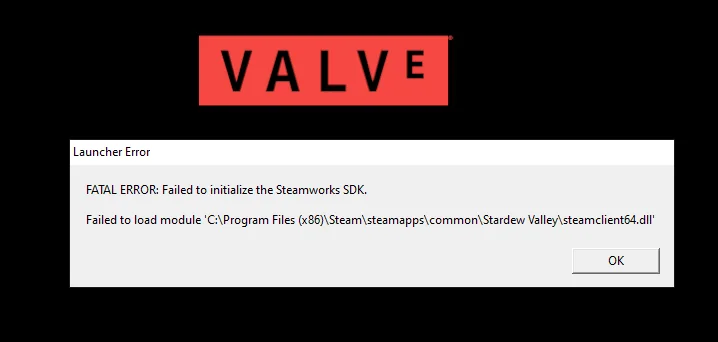
Antivirus software is a frequent and often overlooked cause. Some programs block CS2 files or VAC components, treating them as a threat, and the game fails to launch without any meaningful error: it looks as if clicking "Play" does nothing.
The check is simple: temporarily disable your antivirus and try launching the game. If it works, you have found the culprit. Leaving protection off is not the answer; the right fix is adding the CS2 executable to your exclusions. The path is:
C:\Program Files (x86)\Steam\steamapps\common\Counter-Strike Global Offensive\game\bin\win64\cs2.exe
Every antivirus has an "Exclusions" or "Allowlist" section in its settings. After that, you can play with protection turned on. If the antivirus still blocks the game, contact its support with a description of the issue.
Launch Options
Launch options are a handy fine-tuning tool, but they are also a common source of launch failures: outdated or conflicting commands can stop the game from starting at all. This is especially likely if you set them manually long ago, back in the CS:GO days, and never revisited them.
One example from practice: after some patches, players reported that the game stopped launching with a language parameter set. If your launch options contain -language, try removing it or replacing it with -language english.
To open your launch options, right-click Counter-Strike 2 in your Steam Library → Properties → the Launch Options field. Remove anything that has piled up and that you no longer recognize. With an older GPU, try adding the -vulkan flag: it switches rendering to the Vulkan API and sometimes helps where DirectX 11 falls short. For the options that are actually useful in CS2, see the best launch options for CS2. After any change, restart the game and check the result.
Run as Administrator and Compatibility Mode
Another working fix that is easy to forget: run the Steam client itself as an administrator, not cs2.exe directly. That distinction matters.
Close all Steam processes in Task Manager, find the Steam shortcut, right-click it and select "Run as administrator." Then launch CS2 from your library as usual.
Also check the compatibility settings for cs2.exe itself. This is especially relevant on enterprise editions of Windows 10, where system restrictions can interfere with the launch. File path: C:\Program Files (x86)\Steam\steamapps\common\Counter-Strike Global Offensive\game\bin\win64\cs2.exe. Right-click → Properties → Compatibility tab, select a Windows version and enable "Run this program as an administrator."
Reinstalling: When Nothing Else Works
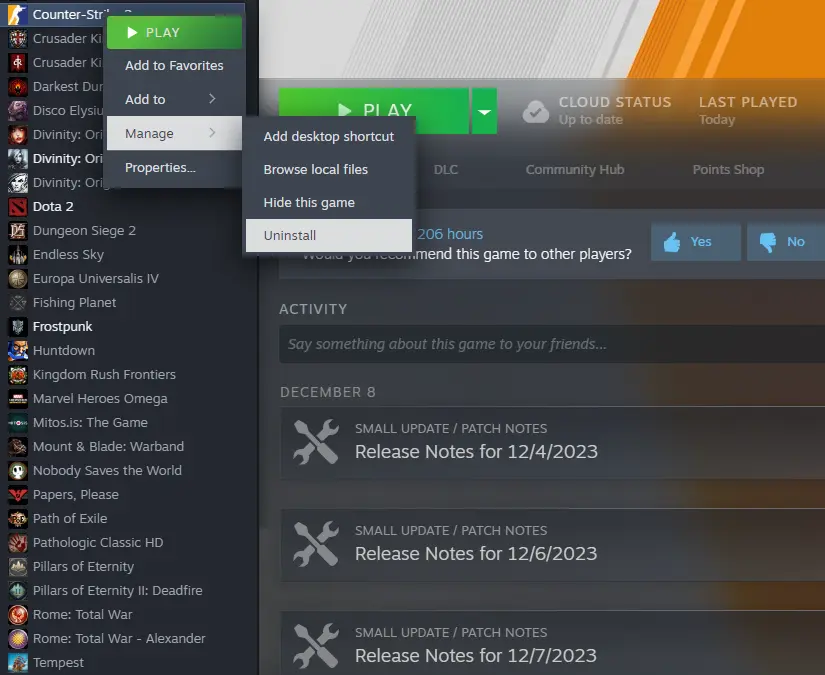
If you have worked through everything above and CS2 still won't launch, reinstalling is the last resort. Start with the game only: right-click CS2 → Manage → Uninstall, then install it again from your library. Your inventory and account progress are stored on Steam's servers and will not go anywhere, but it is worth backing up your personal settings first; where to find the config file in CS2 shows where they live.
If that does not help either, reinstall the Steam client, making sure you know your account password first. In extreme cases where the issue lies in Windows system files, the sfc /scannow command, run from an elevated command prompt, can help. It scans and repairs damaged system data and occasionally fixes what game-level methods cannot.
Quick Reference: What to Check When CS2 Won't Launch on Steam
Here is a checklist ordered from easiest to most involved. Move to the next step only if the previous one did not help. Most players solve the issue within the first three or four steps, and a reinstall is rarely needed.
| Step | Action | Difficulty |
|---|---|---|
| 1 | Restart Steam and your PC, end a stuck cs2.exe | Easy |
| 2 | Verify integrity of game files | Easy |
| 3 | Clear the Steam download cache | Easy |
| 4 | Check your launch options | Moderate |
| 5 | Run Steam as administrator | Moderate |
| 6 | Enable compatibility mode for cs2.exe | Moderate |
| 7 | Update your GPU drivers | Moderate |
| 8 | Repair or reinstall Microsoft Visual C++ | Moderate |
| 9 | Add CS2 to your antivirus exclusions | Moderate |
| 10 | Reinstall CS2 or Steam | Advanced |
If CS2 still won't launch after the whole checklist, contact Steam Support through help.steampowered.com and describe the exact error code and symptoms. Some issues are specific to particular hardware or a Windows build, and only support can resolve them.
FAQ
Why does Steam say "Running" when CS2 won't open?
The game process has hung in the background. End cs2.exe and the Steam processes in Task Manager, restart Steam and verify the game files.
What should I do if CS2 stopped launching after an update?
Verify the integrity of the game files, then clear old commands from your launch options and update your GPU driver. After patches, file verification is the fix that most often works.
Will I lose my inventory if I reinstall CS2?
No. Your inventory, ranks and progress are tied to your Steam account and stored on its servers, so reinstalling the game or the Steam client does not affect them.
Why won't CS2 launch without showing any error?
The most common reasons are an antivirus silently blocking cs2.exe, a stuck Steam process or conflicting launch options. Check these three one by one.
