


The best CS2 launch options are a short, proven set: -novid -console -fullscreen -nojoy +fps_max 0. It speeds up startup, opens the console, runs the game in fullscreen and removes the frame cap. You enter launch options in Steam: Library, right-click Counter-Strike 2, Properties, General, then the Launch Options field.
Keep in mind that many commands from old CS:GO guides (-tickrate 128, -dxlevel, +mat_queue_mode 2 and others) do nothing in CS2, which runs on the Source 2 engine. Most of your FPS gains come from graphics settings, up-to-date drivers and a clean Windows setup. Below we cover PC requirements, how to check your FPS, the launch options that work and video settings.
Hardware and System Requirements
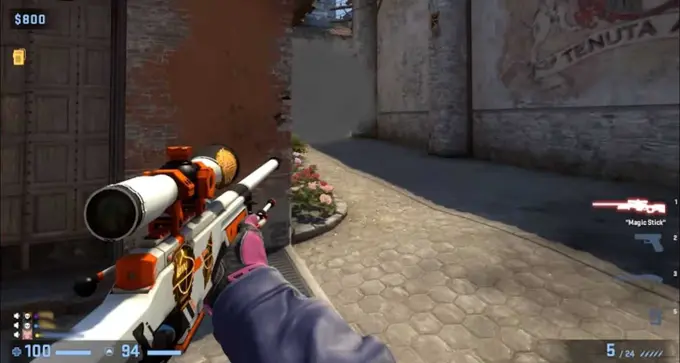
Before you touch launch options, check your hardware. Counter-Strike 2 is noticeably more demanding than CS:GO. Valve’s minimum requirements are:
Operating system: Windows 10 or 11 (64-bit).
Processor: 4 hardware CPU threads, Intel Core i5 750 or better.
Memory: 8 GB RAM.
Graphics card: 1 GB or more of video memory, DirectX 11 compatible with Shader Model 5.0 support.
Storage: at least 85 GB of free space.
Do not expect smooth gameplay on a minimum-spec PC: at the lowest graphics settings you may get around 30 FPS (more on what FPS means and which values are good below).
For good, smooth CS2 gameplay, aim for a build like this:
Processor: six-core AMD Ryzen 5 5600 (3.5 to 4.4 GHz) or eight-core Intel Core i7-11700KF (3.6 to 5.0 GHz).
Graphics card: RTX 3060 12 GB.
Memory: 16 GB DDR4 at 3200 MHz.
Storage: 500 GB SSD.
If your PC is close to the minimum, also see our guide to CS2 settings for weaker computers.
What FPS Is in CS2 and Why It Matters
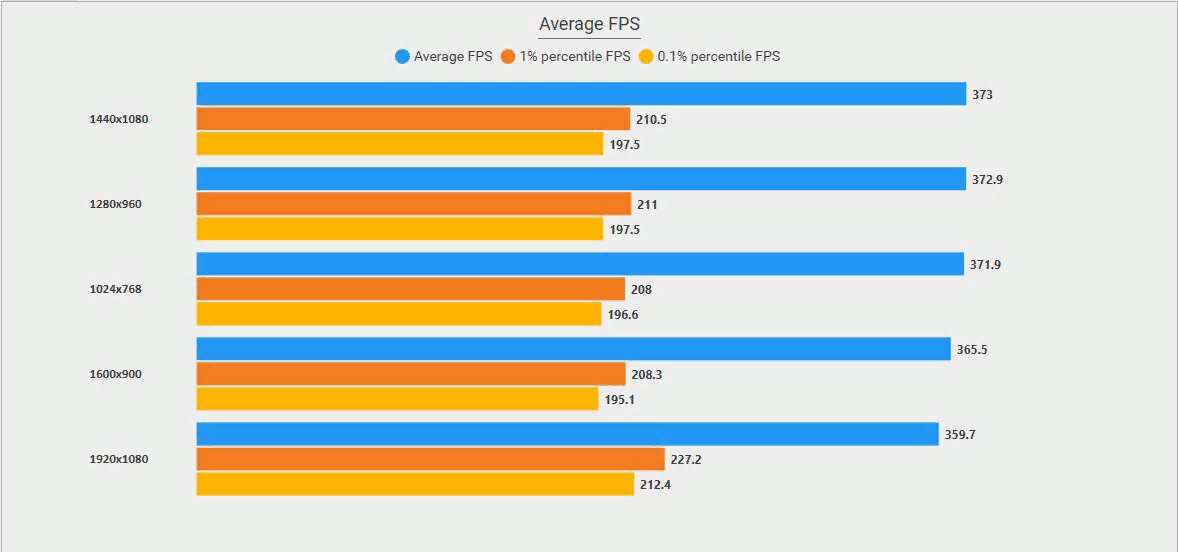
FPS (frames per second) is the number of frames your PC renders each second. The higher it is, the smoother the picture. At 50 FPS you see 50 frames per second, which is not great but not the worst either.
Below 30 FPS the game is barely playable and stutters constantly. At 60 FPS and above it runs smoothly without noticeable hitches.
FPS does not make you a better player, but it sets the conditions you practice and compete in. If it is constantly low, proper practice is hard.
The ideal number differs from player to player, but in general terms the scale looks like this:
Under 30. Very poor: the picture keeps stuttering, and playing like this is not recommended.
30 to 40. Slightly better, but still too low for competitive play, since your reactions will lag behind the action.
40 to 55. Good enough for competitive matches, although rounds with lots of grenades can drop you to 20 or 30 FPS.
60 and above. The comfortable range; on a high refresh rate monitor, try to keep FPS at or above your screen’s refresh rate.
How to Check Your FPS in CS2
There are several ways to see your FPS: the built-in CS2 telemetry, a console command and the Steam counter.
The old CS:GO net_graph command does not exist in CS2. Instead, open Settings, go to the Game tab, find the Telemetry section and turn on the frame rate display (you can show ping and packet loss there too). Another option is typing cl_showfps 1 in the CS2 console. All methods are covered in our guide on how to enable FPS in CS2.
The Steam counter works in any game. Launch the game and press Shift + Tab to open the overlay, then:
click the settings icon;
select "In-game FPS counter";
choose where it appears on screen;
optionally check "High contrast color";
close the settings window.
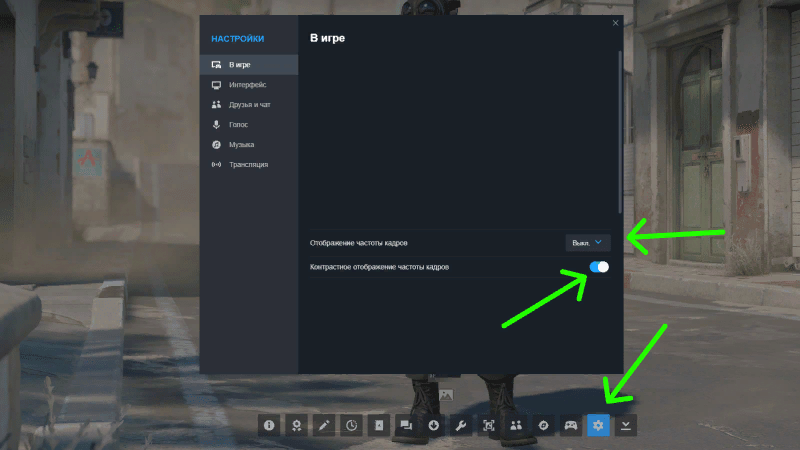
When you return to the game, your FPS will show in the corner of the screen.
Graphics in CS2 are easier and more reliable to adjust in the settings menu than through the developer console; video settings are covered below.
Ways to Boost FPS That Still Work
Launch options are entered once and applied every time the game starts:
open Steam, go to your Library and find Counter-Strike 2;
right-click the game and choose Properties;
on the General tab, find the Launch Options field and type your commands separated by spaces.
For most PCs, including weaker ones, this set is enough:
-novid -console -fullscreen -nojoy +fps_max 0 +cl_showfps 1
It skips the intro video and joystick support and removes the FPS cap. Long strings from old guides such as -threads 6 -high -freq 60 -refresh 60 -tickrate 128 -noforcemparms -dxlevel 81 -noaafonts -heapsize 1048576 were written for CS:GO: most of those flags do nothing in CS2, and -freq 60 or -refresh 60 can even cap the refresh rate of a 144 Hz or faster monitor.
There are other effective, if less obvious, ways to raise FPS:
A supported system. CS2 runs only on 64-bit Windows 10 and 11; Windows 7 and 8 are not supported. If you can, install the game on an SSD rather than an HDD.
Windows tuning. Remove unnecessary programs from startup, turn off Xbox Game Bar if you do not use it, and switch to the High Performance power plan.
Regular graphics driver updates.
Cleaning dust out of your PC from time to time, since overheating cuts performance. Use compressed air or a vacuum, and wipe surfaces with a dry cloth, not a damp one.
If the game stops launching after your changes, clear the launch options and see what to do if CS2 won’t launch.
Other CS2 Launch Options: What to Change
FPS is not the only thing that affects comfort. Launch options are flags the game reads at startup: they can skip the intro, open the console, set the display mode or run a console command. Add them to the same Launch Options field, separated by spaces.
Launch options that work in CS2:
-novid: skips the intro video;-console: opens the developer console at launch;-fullscreen: starts the game in fullscreen (usually the most stable FPS and lowest latency);-nojoy: disables joystick support;+fps_max 0: removes the FPS cap (or set your own number, for example+fps_max 300);+cl_showfps 1: shows an FPS counter in the corner.
Options from CS:GO guides that are useless or unconfirmed in CS2:
-tickrate 128: has no effect on matchmaking, since official CS2 servers use their own subtick system;-dxlevel 81,+mat_queue_mode 2,+r_dynamic 0,-heapsize,-noforcemparms: CS:GO engine commands;-soft,-softparticlesdefaultoff,-noaafonts,+cl_forcepreload 1,+violence_hblood 0,-autoconfig,-nosync: still found in old lists, but they give no noticeable or confirmed effect in CS2.
For how launch options worked in the previous version of the game, see our CS:GO launch settings guide, and useful in-game commands are collected in CS2 console commands.
To find the launch options that suit you, play a few matches and compare your FPS before and after each change.
In-Game Video Settings
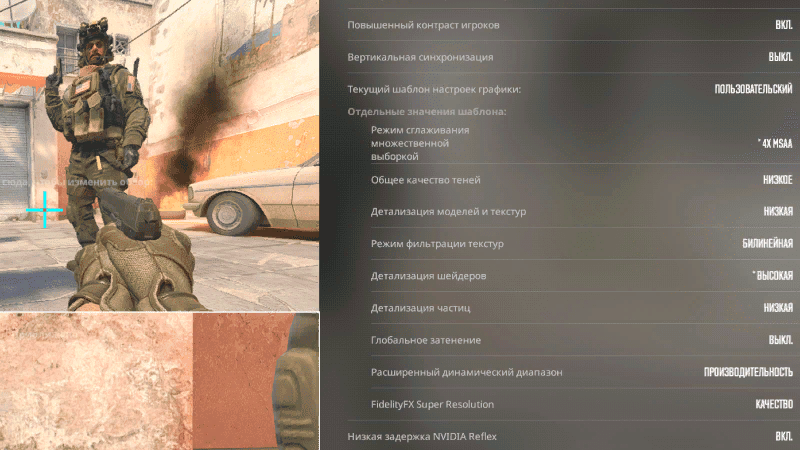
Many players use these basic video settings:
brightness: 100%;
aspect ratio: 4:3 (a matter of taste, plenty of players use 16:9);
resolution: 1280x960;
display mode: fullscreen;
refresh rate: the maximum your monitor supports (for example 144, 240 or 360 Hz).
Advanced settings often chosen for FPS and visibility:
Boost Player Contrast: enabled;
Wait for Vertical Sync: disabled;
Current Video Values Preset: custom;
Multisampling Anti-Aliasing Mode: 4x MSAA;
Global Shadow Quality: low;
Model / Texture Detail: low;
Texture Filtering Mode: bilinear;
Shader Detail: high;
Particle Detail: low;
Ambient Occlusion: disabled;
High Dynamic Range: quality;
FidelityFX Super Resolution: disabled;
NVIDIA Reflex Low Latency: enabled.
How to Fine-Tune Performance
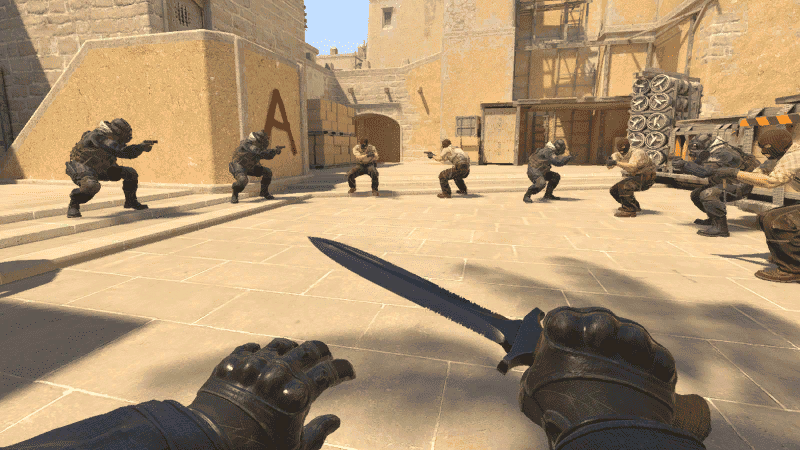
After changing settings, test them. If you are happy, keep them; if not, adjust.
We recommend the following:
Compare your FPS before and after changing CS2 launch options (using telemetry or the Steam counter). Measure idle, in firefights and in busy parts of the map, then repeat with the new values.
Use MSI Afterburner to watch CPU and GPU temperatures. It can also log FPS values so you can compare them later.
FAQ
What are the best launch options for CS2?
A short working set: -novid -console -fullscreen -nojoy +fps_max 0. Most other flags from old CS:GO guides do nothing in CS2.
Does -tickrate 128 work in CS2?
It does not affect official matchmaking: CS2 servers use the subtick system, and a launch option cannot change that.
Where do I enter CS2 launch options?
In Steam: Library, right-click Counter-Strike 2, Properties, General tab, Launch Options field. Separate commands with spaces.
