


To enable FACEIT Anti-Cheat on Windows 10 or 11, download the client from the official faceit.com/en/anti-cheat page, run the installer as administrator and restart your PC. Before that, make sure TPM 2.0 and Secure Boot are enabled in your BIOS and that the BIOS runs in UEFI mode: without them the client installs fine but will not let you into a match. On Windows 10 you need build 22H2 or newer. Below are the system checks, the install, the BIOS setup (including the MSI special case) and fixes for the most common errors.
FACEIT Anti-Cheat operates at the kernel level. It loads before the game launches and checks everything from driver integrity to hardware security settings. As of November 25, 2025, FACEIT made TPM 2.0 and Secure Boot mandatory for all players without exception, as confirmed on the platform's official blog. Without them you will not get into a match. If you are new to the platform, start with our guide on how to register on FACEIT in CS2.
What Is FACEIT Anti-Cheat and Why Is It So Demanding?
FACEIT AC is a kernel-level anti-cheat. It operates deeper than standard applications and catches things a regular antivirus would miss. That is why simply installing the client is not enough: the system has to be ready at the hardware level, or FACEIT will refuse to connect you to a server.
Since April 2025, the platform has been rolling out two more requirements: IOMMU and VBS. They act as hardware-level protection for RAM and block DMA cheats that could previously bypass standard protections. As of August 2025, IOMMU and VBS are mandatory for all players above 3,000 Elo, and the rollout for everyone else continues in waves.
What Are the System Requirements for FACEIT Anti-Cheat?
Before downloading anything, check whether your system meets the minimum requirements. This avoids the frustrating case where the installation goes fine but FACEIT still throws an error when you try to join a match. Requirements per FACEIT's official documentation:
| Parameter | Requirement |
|---|---|
| Operating System | Windows 10 (build 22H2+) or Windows 11 |
| Architecture | 64-bit |
| TPM | Version 2.0 |
| Secure Boot | Enabled (mandatory since November 25, 2025) |
| BIOS Mode | UEFI (not Legacy) |
| IOMMU / VBS | Required for Elo 3,000+ |
A note on Windows: FACEIT Anti-Cheat will not run on an outdated Windows 10. FACEIT supports only build 22H2 (19045) and above; older builds are not supported. On pirated or modified copies of Windows, FACEIT officially refuses support, and there is no way around it. Keep the deadline in mind as well: FACEIT has announced that it drops Windows 10 support entirely on October 14, 2026, after which Windows 11 is the only option.
How to Check If Your System Is Ready Before Installing

Spend a few minutes checking your current system state before installing. It saves you from digging through settings after FACEIT throws an error. All three checks use built-in Windows tools, no BIOS access required.
These steps tell you whether anything needs adjusting before you install FACEIT Anti-Cheat, or whether your system is already good to go:
Check TPM: Win → tpm.msc → Enter. Status should read 'The TPM is ready for use', Specification Version: 2.0.
Check Secure Boot and BIOS mode: Win → msinfo32 → Enter. Look for BIOS Mode: UEFI and Secure Boot State: On.
Check via Windows Security: Win → Windows Security → Device Security → Security Processor. The section should be active with no warnings.
If all three check out, you are clear to download the client. If any of them shows an error or an unexpected value, sort out the BIOS first. Otherwise FACEIT AC will install fine but fail when you try to join a match, and you will end up back in the BIOS anyway.
How to Download and Install FACEIT Anti-Cheat on Windows
With the checks done, on to the install itself. The process is identical on Windows 10 and Windows 11. The key rule: download the client only from faceit.com, nowhere else. If you had an older version of the AC client, remove it fully via 'Apps & Features' first.
Installation steps:
Go to faceit.com/en/anti-cheat.
Click the client download button.
Run the downloaded file as administrator (right-click → 'Run as administrator').
Follow the on-screen prompts through the installation.
Restart your PC; FACEIT AC activates automatically after the reboot.
After the reboot, the FACEIT icon appears in your system tray. Before your first match, the client may ask for one more update; that is normal, just let it finish. If the platform still shows an error after installation, the issue is almost always the BIOS settings, not the client. Once the anti-cheat runs, our guide on how to play on FACEIT in CS2 walks you through your first match.
How to Enable Secure Boot in BIOS for FACEIT Anti-Cheat
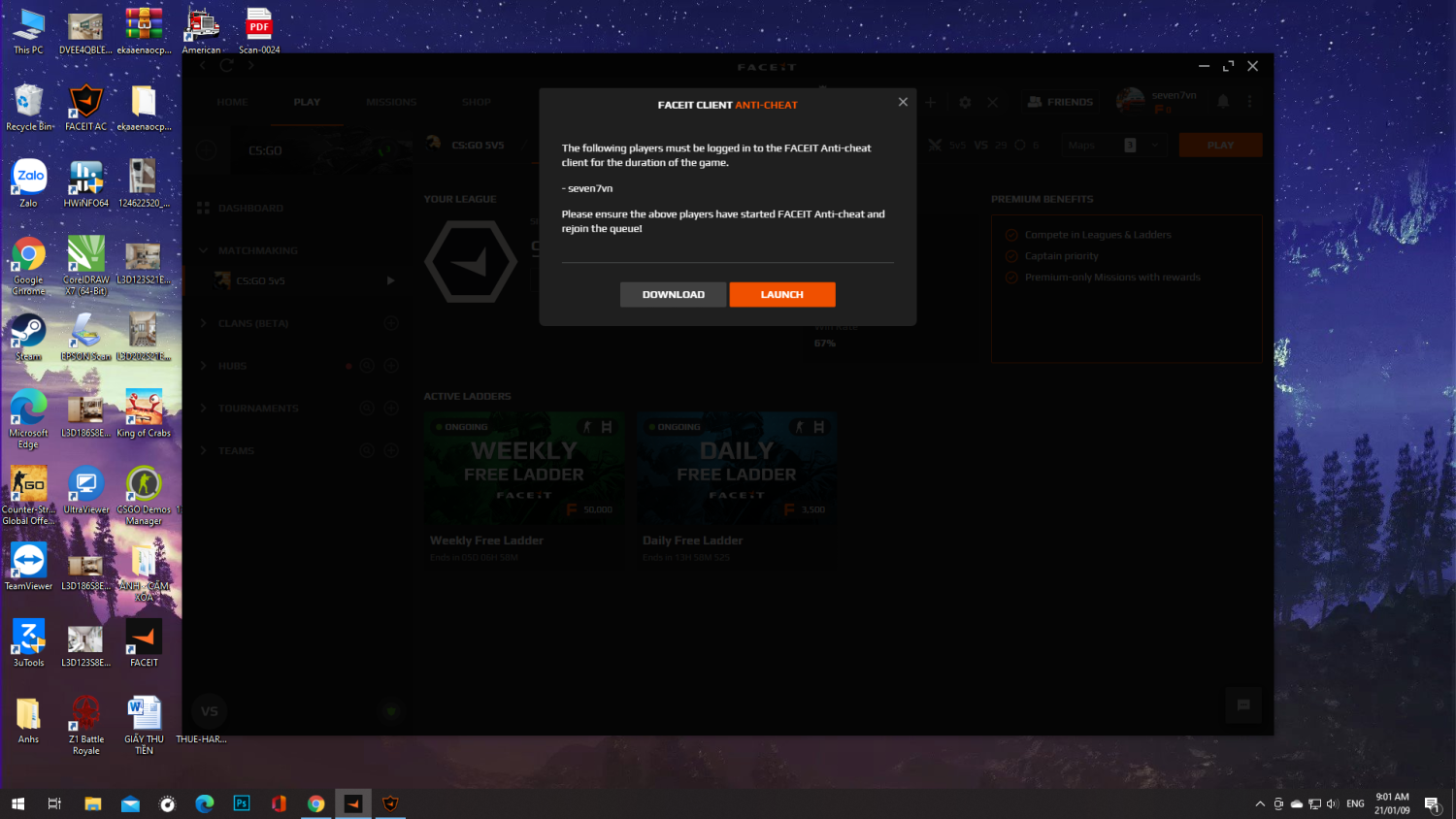
This is where most players get nervous: the BIOS. There is nothing to worry about as long as you know what you are changing and why. Enabling Secure Boot for FACEIT takes patience and attention to detail more than technical skill. One warning before you start, though.
If msinfo32 shows BIOS Mode as Legacy rather than UEFI, you need to convert your drive from MBR to GPT first. This is a critical step: a mistake during conversion can leave your system unbootable. If you have any doubts, have someone experienced handle it. FACEIT explicitly flags this risk in its official documentation.
The general process for enabling Secure Boot is the same on most motherboards:
While your PC is booting, press the BIOS key: usually DEL, sometimes F2, F10 or ESC.
Navigate to Security → Secure Boot.
Confirm that UEFI boot mode is selected.
Set Secure Boot to Enabled.
Press F10, confirm and reboot.
After rebooting, open msinfo32 again and confirm that Secure Boot State now shows On. If it does, your system is ready and you can go back to the client installation. If Secure Boot still shows Off, the issue is likely your disk partitioning or BIOS version. Vendor-specific steps are in our guide on how to enable Secure Boot for FACEIT on Gigabyte, MSI and ASUS.
Enabling Secure Boot on MSI Boards: A Special Case
MSI motherboard owners face a specific, officially documented issue: on certain MSI boards, Secure Boot can show as Enabled in both BIOS and Windows while not actually working. The standard procedure will not fix it.
The official FACEIT Support solution covers exactly this case. Before making any changes, be aware: if the required menu options are missing from your BIOS, your firmware is outdated and needs updating first. There is no workaround here; the BIOS update is not optional.
Steps for MSI boards:
Restart your PC and press DEL on boot.
Navigate to Settings → Security → Secure Boot.
Set Secure Boot Mode to Custom.
Set Secure Boot Preset to Maximum Security.
Press F10 and confirm to save.
If 'Secure Boot Preset' or 'Image Execution Policy' is not in the menu, your BIOS needs updating. To find your board model, open Win → msinfo32 and note the BaseBoard Product value, then download the latest firmware from the official MSI website. After updating, run through all the steps again. According to FACEIT's Known Issues documentation, a firmware update resolves the problem in the vast majority of MSI cases.
What to Do If FACEIT Anti-Cheat Still Won't Launch
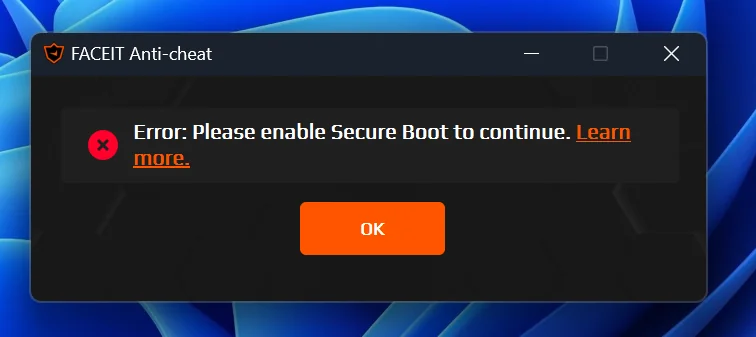
Sometimes everything is configured and rebooted, and FACEIT still throws errors. Before going through the setup again, identify the exact error. Every error message has a targeted fix, and FACEIT keeps a dedicated support section for them because they come up regularly.
The most common issues and their fixes:
'TPM not ready'. Most common on AMD systems. Update your BIOS: AMD has released firmware with fTPM fixes for most boards.
'Legacy BIOS Mode'. Switch to UEFI mode and confirm your drive is partitioned as GPT, not MBR.
'Missing Windows security updates'. Go to Settings → Windows Update and install everything available: FACEIT only works with up-to-date builds.
FACEIT will not launch after overclocking. Temporarily close MSI Afterburner, Intel XTU and similar tools: the anti-cheat can flag them as potentially dangerous processes.
Secure Boot shows On but FACEIT still complains. Check the mode: it needs to be User Mode, not Setup Mode. Fix: in BIOS, find Key Management → Install Default Secure Boot Keys.
If none of this helps, contact FACEIT's official support at support.faceit.com and include screenshots of the error and a system log. The support team knows hardware-specific issues and usually resolves them faster than a search for non-standard fixes on forums. If the anti-cheat runs but the game will not connect, see our guide on what to do if you can't connect to FACEIT servers.
What You Need to Run FACEIT Anti-Cheat: Summary
Three conditions are mandatory to run FACEIT Anti-Cheat without errors: Secure Boot enabled, TPM 2.0 active and a supported Windows build. Everything else depends on your hardware and can be resolved through official guides or platform support.
Keep the deadlines in mind: TPM 2.0 and Secure Boot have been mandatory since November 25, 2025, and FACEIT supports Windows 10 only until October 14, 2026, after which the platform requires Windows 11. Better to sort everything out ahead of time than to discover a problem ten minutes before an important match. Some modes may also require FACEIT verification.
FAQ
How do I enable FACEIT Anti-Cheat on Windows 10?
Update Windows 10 to build 22H2 (19045) or newer, enable TPM 2.0 and Secure Boot in UEFI mode in your BIOS, then install the client from faceit.com/en/anti-cheat as administrator and reboot. Note that FACEIT ends Windows 10 support on October 14, 2026.
Why won't FACEIT Anti-Cheat start even though it is installed?
The cause is usually the BIOS: Secure Boot is off, TPM is not ready, or the BIOS is in Legacy mode instead of UEFI. Check tpm.msc and msinfo32, then go through the error list above.
Do I need Prime to play on FACEIT?
It is not an anti-cheat question, but it often comes up on first launch. Our article on whether you need Prime for FACEIT CS2 answers it in detail.
