


If you can't connect to FACEIT servers in CS2, the cause is almost always one of four things: FACEIT Anti-Cheat is not running or has frozen, the wrong Steam account is linked to your profile, a firewall or antivirus is blocking the connection, or your game files are corrupted. Start by restarting the anti-cheat as administrator, confirm the linked Steam account under Integrations, and verify the CS2 files in Steam. If the anti-cheat refuses to start at all, check that TPM 2.0 and Secure Boot are enabled, since FACEIT AC does not run on Windows without them.
Below, every common cause is covered in order, from anti-cheat errors and network issues to updates that land mid-match. A quick diagnostic checklist and an FAQ close the guide.
Main Causes of Connection Problems
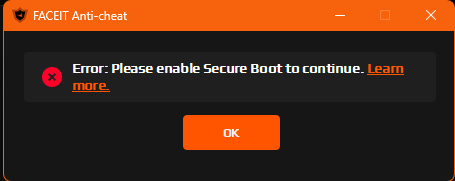
There are several reasons FACEIT may refuse to connect you to a CS2 server. The platform relies on its own anti-cheat client, which has to run alongside the game, and any failure in that client blocks the connection. The second frequent cause is the account itself: FACEIT checks that CS2 is running on the same Steam account that is linked to your profile.
Network problems are just as common. Firewalls and antivirus software can block the required connections, an ISP may filter traffic to the anti-cheat servers, and a router may not forward the ports the game needs. Corrupted CS2 files can also cause conflicts during the handshake.
Updates are a separate case. If Steam or Counter-Strike 2 updates during a match, your client version no longer matches the server's. And when several friends play from the same home network, their PCs can end up fighting over the same port.
Checking Basic Connection Settings
Correct Steam Account Linking
The first thing to check is which Steam account is linked to your FACEIT profile. Each Steam account can be tied to only one FACEIT account, and launching the game from a different one triggers connection errors.
Go to the FACEIT website, open Settings and then the Integrations tab. The linked Steam account is shown there; make sure it is the exact account you launch CS2 from. If it isn't, unlink the old account and link the correct one. Our guide on how to link CS2 to FACEIT walks through the process step by step.
Another common mistake is starting the game directly from cs2.exe instead of through the Steam library. FACEIT requires Counter-Strike 2 to be launched via the Steam client; otherwise its security system cannot verify the game session.
Ways to Connect to a Match
FACEIT gives you two official ways to join the match server. The first is to copy the server IP with the "Copy" button in the match room and paste it into the CS2 console. The console opens with the tilde (~) key once the developer console is enabled in the game settings (see how to open the console in CS2). Paste the address and press Enter.
The second is the "Connect via Anti-cheat" button. FACEIT then launches CS2 for you and joins the server automatically. The game must be updated to the latest version for this to work.
If connecting through the console fails, try the button, and vice versa. Depending on your system setup, one method is sometimes more reliable than the other.
Fixing FACEIT Anti-Cheat Problems
TPM 2.0 and Secure Boot
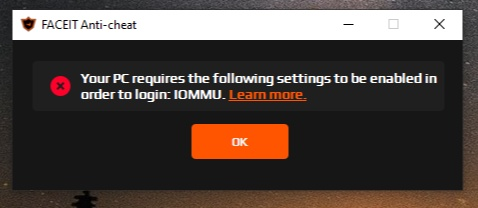
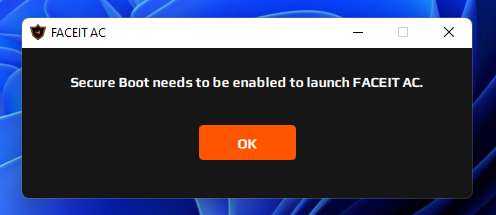
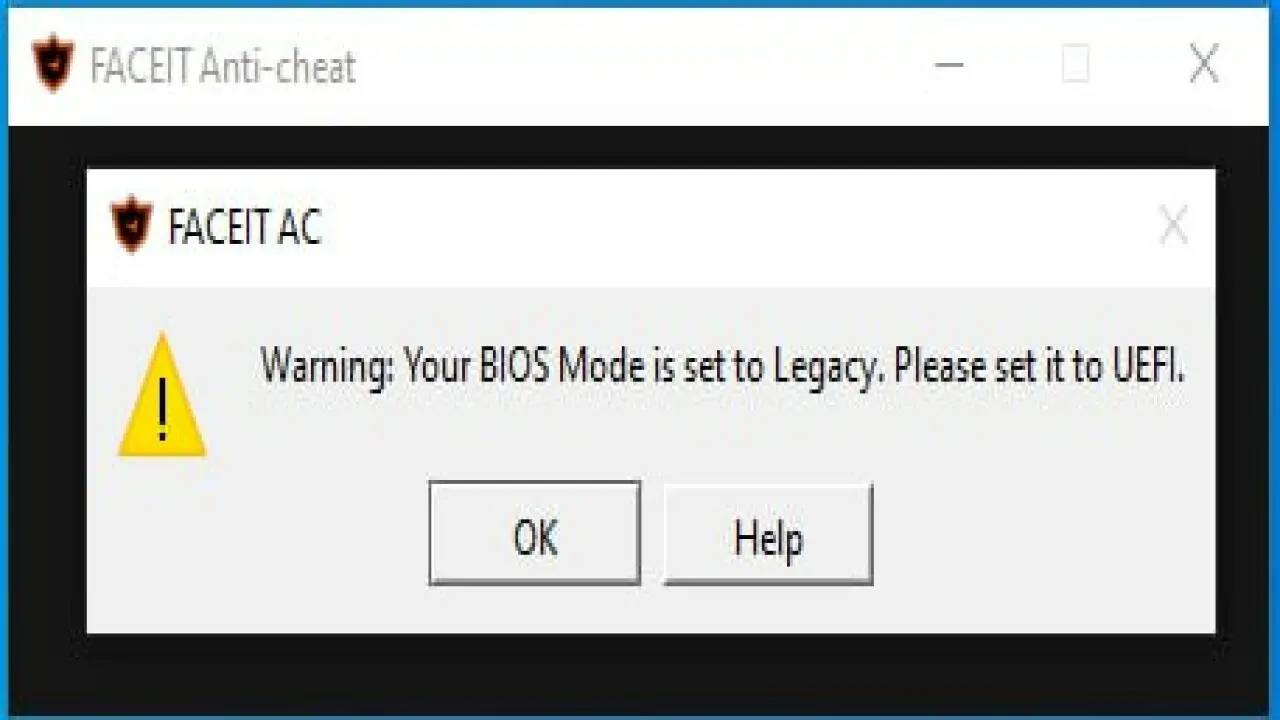
On Windows, FACEIT's anti-cheat requires both TPM 2.0 and Secure Boot to be enabled. If either one is turned off in BIOS/UEFI, the client will not start or will not let you join a match, no matter how many times you restart it. So when the anti-cheat fails at launch, check these two settings first.
Board-specific steps are in our guide on how to enable Secure Boot for FACEIT, and the full install and launch process is covered in how to enable FACEIT Anti-Cheat.
Stuck on "Connecting to FACEIT servers..."
When the FACEIT Anti-Cheat client shows "Connecting to FACEIT servers..." and hangs, the issue is usually the network link to the anti-cheat servers. Start by closing the app completely and relaunching it as administrator.
If a restart doesn't help, check the platform's status at faceitstatus.com. FACEIT occasionally runs maintenance or has temporary outages, and in that case the only option is to wait until service is restored.
If everything is fine on FACEIT's side, look at your own connection. The anti-cheat connects to the host ac-client-ws.faceit.com, and if your ISP or a corporate network filters that traffic, the connection will not go through.
Clean Reinstall of FACEIT Anti-Cheat
When the basic fixes fail and FACEIT still won't let you onto the server, do a clean reinstall of the anti-cheat client. Uninstall the current version via Settings → Apps → Installed apps ("Apps & features" on Windows 10).
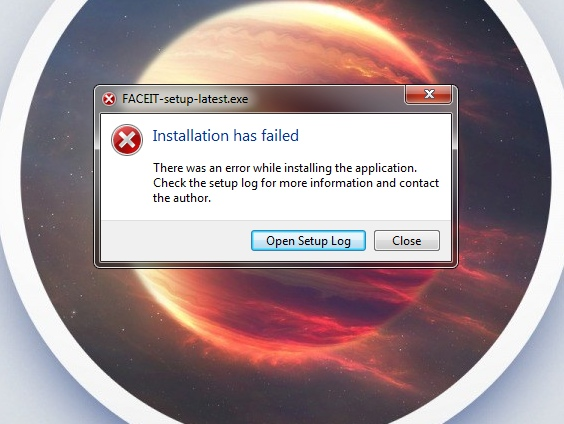
Restart your PC after uninstalling so leftover system hooks and temporary files are cleared. Then download a fresh copy of FACEIT Anti-Cheat from the official FACEIT website only, never from third-party mirrors.
Run the new install as administrator right away. To make that permanent, open the FACEIT AC shortcut's Properties, go to the Compatibility tab and tick "Run this program as an administrator."
"Anti-cheat client running" Error
The message "You need to have the Anti-cheat client running to connect" appears when you try to join a match without FACEIT AC running. The fix is simple: make sure the client is active before you press Connect.
If the error shows up even though the anti-cheat is running, you are most likely on the wrong Steam account: FACEIT compares the account in the anti-cheat client with the Steam profile the game was launched from. Other platform messages are explained in our guide on what to do if FACEIT gives an error.
Fixing Network Problems
"Connection failed after 30 retries"
When the CS2 console shows "Connection failed after 30 retries," something on the network path between your PC and the FACEIT server is failing. Begin by checking your speed and stability with a service like speedtest.net.
A full router restart often solves it: power the router off, wait 30 seconds, and turn it back on. This refreshes network settings and can clear routing conflicts.
If you still can't join the FACEIT server after that, temporarily disable Windows Defender Firewall and any other firewall, then try connecting again.
Don't leave protection off. Once the connection works, turn the firewall back on and add CS2 and FACEIT Anti-Cheat to its exceptions list in Windows Defender Firewall settings.
Port Setup for Players on One Network
Friends playing from the same house run into a specific problem: several PCs try to use the same network port to reach FACEIT. CS2 uses port 27005 by default, and when two players behind one IP address connect at once, the server cannot tell their connections apart.
FACEIT's recommended fix is to give each player a unique port through launch options. In your Steam library, right-click Counter-Strike 2, choose Properties and enter the command in the Launch Options field.
Port assignment by player:
| Player | Launch Options command | Port |
|---|---|---|
| First | +clientport 27005 | 27005 |
| Second | +clientport 27006 | 27006 |
| Third | +clientport 27007 | 27007 |
| Fourth | +clientport 27008 | 27008 |
| Fifth | +clientport 27009 | 27009 |
Close the Properties window and launch the game. As long as every player uses a different port, the FACEIT server handles all connections correctly.
Verifying and Repairing CS2 Files
How to Verify File Integrity
Corrupted or modified game files are a frequent reason you can't join a FACEIT server in CS2. Steam has a built-in tool that checks the files and repairs them automatically.
Open Steam, go to your Library and find Counter-Strike 2. Right-click the game, choose Properties, open the Installed Files tab and click "Verify integrity of game files."
Steam then compares every game file with the reference version. The scan usually takes 2 to 10 minutes, and any damaged files are downloaded and replaced automatically.
When to Run a File Check
Run a verification after any crash or launch error. CS2 updates sometimes install incorrectly, especially on an unstable connection, so a check after each update heads off a lot of trouble. If CS2 won't open at all, start with our guide on what to do if CS2 won't launch on Steam.
The error "Unable to establish connection with game server" is often tied to the game files. If FACEIT Anti-Cheat reports a problem with your files, a Steam verification usually fixes it.
It also makes sense to verify after installing HUD mods, custom Workshop maps or editing config files. Even harmless changes can conflict with the anti-cheat.
Updates During a Match
Steam Client Updates
According to FACEIT, a Steam client update during a match should not affect the game. In practice it sometimes drops the connection, and you get kicked from the FACEIT server with no quick way back.
If you were disconnected during a Steam update, wait for the update to finish completely. Attempts to reconnect to the FACEIT server before then will fail.
Once it's done, fully restart Steam and Counter-Strike 2. Keep in mind that FACEIT does not refund Elo lost to disconnects caused by updates.
Rolling Back CS2 After an Update
A harder case is when Counter-Strike 2 itself updates during a FACEIT match. The server is still on the previous build while your client is already updated, and the version mismatch makes reconnecting impossible.
For this situation FACEIT suggests rolling the game back through Steam betas: open Counter-Strike 2's Properties, go to the Betas tab and, if a previous build is offered there, select it. Steam downloads the required files on its own.
After the match, be sure to set the beta option back to "None," or the game will stay on the old build.
Console Commands for Diagnostics
Core Connection Commands
The CS2 console has a few commands that matter for server connections. connect [IP:PORT] joins a FACEIT server manually; it is what you enter after copying the address from the match room.
If you dropped but the match is still live, retry reconnects to the last server. disconnect forces you off the current server, which helps when the game hangs.
For diagnostics, status shows information about the server you are connected to.
Resetting Windows Network Settings
When the standard fixes don't help and the problem is clearly in Windows network settings, a full network stack reset usually does. Search for Command Prompt, right-click it and choose "Run as administrator," then enter these three commands in order:
ipconfig /flushdns clears the DNS cache;
netsh winsock reset resets the Winsock catalog;
netsh int ip reset resets TCP/IP settings.
Restart your PC after running all three. It is also worth clearing the Steam download cache under Settings → Downloads → Clear Cache.
Timeouts and Avoiding Bans
Leaving the Server
Know how FACEIT's penalty system works so a dropped connection doesn't turn into a long ban. The platform automatically issues an abandon penalty if a player is away from the server for more than five minutes.
If you need to step out briefly to restart your router or fix a technical issue, ask your team to call a timeout. This is done by typing !pause in the server's all-chat before the round starts.
The timeout gives you five minutes to sort out the problem without risking a ban: enough to restart hardware, check settings or take other quick steps to restore the connection.
Dealing With High Ping
If everyone on the server has high ping or lag, the problem is on the server side. In that case the team captain should contact FACEIT support from the match page using live support.
If the teams are moved to a new server, every player has to join it: a team with a player who doesn't connect may be handed the loss.
If only one player has high ping, the issue is that player's own connection. Start with a speed test, and see our breakdown of why ping is high in CS2 for the usual causes and fixes.
Contacting FACEIT Support
If you've run out of fixes and still can't join the FACEIT server, open a ticket with official support at support.faceit.com. How fast and how well they respond depends directly on how much detail you provide.
Before creating a ticket, gather:
the exact time the problem occurred;
the server IP from the match room;
screenshots or a video of the error;
ping and tracert results to the server.
Choose the category "Elo, Server & Matchmaking Issues" → "Server Issues" and describe the problem briefly but specifically, including what you have already tried.
Preventing Future Problems
The best way to avoid connection issues is routine maintenance. Verify the CS2 files in Steam after every major update, even if the game seems fine.
Keep FACEIT Anti-Cheat up to date and check faceitstatus.com before a session. For maximum stability, use a wired connection instead of Wi-Fi.
Add CS2 and FACEIT Anti-Cheat to your antivirus exclusions, and close resource-heavy programs before playing to free up system resources and avoid conflicts.
Quick diagnostic checklist:
| Priority | Action | Time |
|---|---|---|
| 1 | Restart FACEIT AC and CS2 | 2 minutes |
| 2 | Check status on faceitstatus.com | 30 seconds |
| 3 | Check Steam account linking | 1 minute |
| 4 | Verify file integrity | 5-10 minutes |
| 5 | Temporarily disable the firewall | 1 minute |
| 6 | Reset network settings | 5 minutes |
| 7 | Reinstall the anti-cheat, check TPM 2.0 and Secure Boot | 10 minutes |
| 8 | Contact support | 10-15 minutes |
Most problems are solved by the first four steps. Working down the list from the top usually gets you back into a FACEIT match within minutes. For everything else, from sign-up to your first match, see the LIS-SKINS guide on how to play on FACEIT in CS2.
FAQ
Why can't I connect to FACEIT servers?
Most often the anti-cheat isn't running or has frozen, a different Steam account is linked to your profile, a firewall is blocking the connection, or TPM 2.0 and Secure Boot are disabled. Less often it is corrupted CS2 files or an outage on FACEIT's side, which you can confirm at faceitstatus.com.
Why won't FACEIT connect me even though the anti-cheat is running?
Make sure CS2 is launched from the Steam library and on the same account linked under Integrations. If the accounts match, update the game and try the other connection method: the console or the "Connect via Anti-cheat" button.
What should I do if I get kicked from a FACEIT server mid-match?
Try to rejoin with retry in the console or through the match room. If you need time to restart your router, ask your team to pause with !pause so you don't get an abandon penalty for being away longer than five minutes.
Why can't I join FACEIT after a CS2 update?
Let Steam finish installing the update, restart Steam and CS2, and verify the game files. If the game updated during a match and the versions no longer match, roll back through the Betas tab and set it back to "None" afterward.
