


If you have been playing CS:GO for some time, you may have wondered how to enable the microphone in CS:GO and what settings are best to use. Since Counter-Strike is a team game, effective communication with other players is essential for success. Therefore, it is worth checking in advance how the microphone works, understanding which usage scheme is more convenient, and setting the necessary parameters.
Sequence of Actions
The easiest way to turn on the microphone in CS:GO is to connect it to the computer before starting the game. In this case, the program will most likely recognize it immediately, and it will appear in the settings. You can check it on Discord or another voice communication program. After ensuring that the microphone is working, you can proceed to its settings in CS:GO.
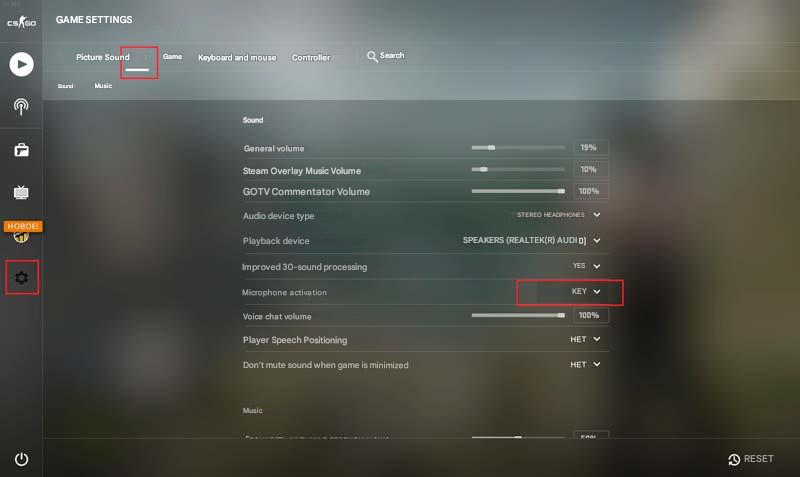
Go into the game, open the sound settings, and see what is indicated in the “Microphone Activation” option. Many players are interested in how to turn on the microphone in CS:GO with a key, as this option is the most convenient. If the microphone is always on, other players will hear a lot of extraneous noise that will distract them. Therefore, it is more convenient to use the microphone in push-to-talk mode so that other players hear you only when you press the key assigned to "Activate Microphone."
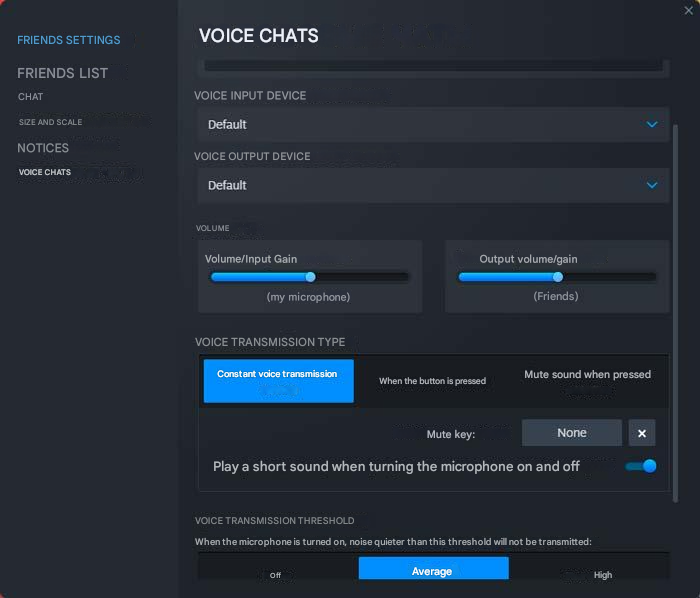
Additionally, you need to check the voice chat settings in Steam. Note that the necessary parameters are located not in the main client settings, but in the "Friends & Chat" settings. Open the “Voice” section to see the parameters necessary to enable the microphone in CS:GO. In particular, you will be asked to select the following characteristics:
Audio input and output volume;
Type of voice transmission (constant or push-to-talk);
Noise reduction threshold.
You can also separately enable or disable echo cancellation and noise reduction if you only need one of these components. Please note that the “Voice Transmission Type” setting works separately from a similar setting in the game.
Additional Microphone Settings
Counter-Strike: Global Offensive itself does not have detailed microphone settings, so if you are not satisfied with its sound, you will need to refer to the system parameters. For a comfortable game, you will not only need to turn on the microphone in CS:GO but also configure it, and for this, the following tools will be useful:
Sound manager;
Microphone settings in the control panel;
Sound settings in system parameters.
In Windows 11, sound settings are located in the system parameters. If there are several microphones (for example, a built-in laptop microphone and a headset microphone that you connect to it), you can choose which one should be used, as well as select its volume.
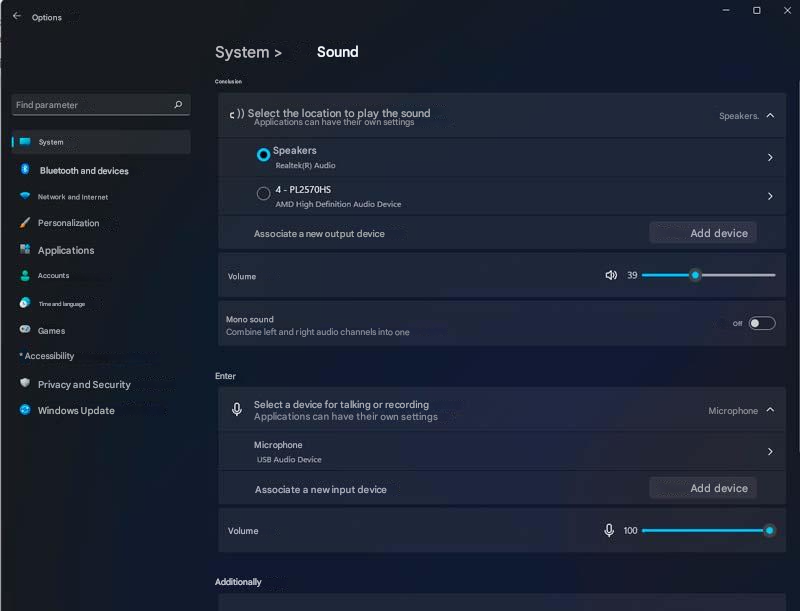
More detailed settings are in the control panel. Here you can test how sound is recorded and played back from connected devices, and in the case of a laptop – ensure that the microphone settings do not change when switching to battery operation.
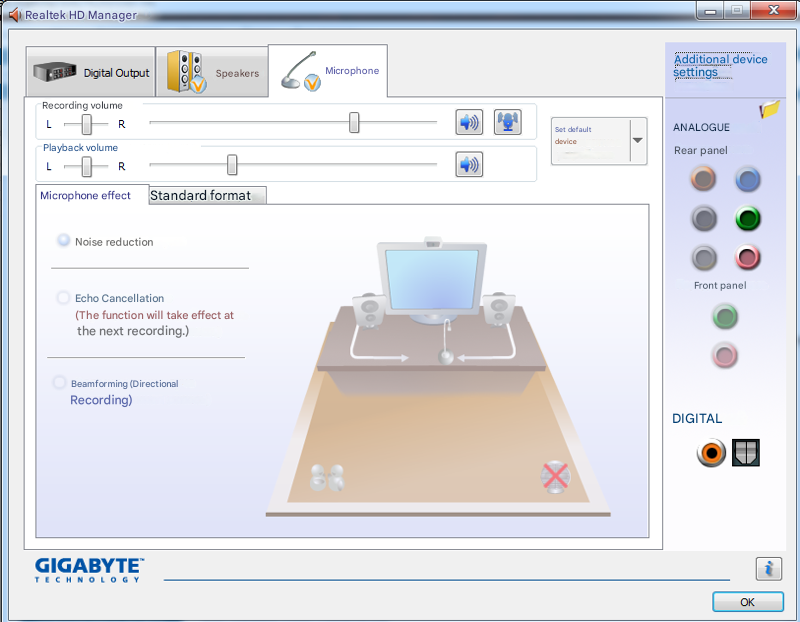
The appearance of the audio manager will depend on the audio driver. On both personal computers and laptops with Windows, the Realtek audio driver is most often used. By opening the sound manager, you can specify the following parameters:
Balance, i.e., the ratio between the sound volume on the right and left channels. You want the slider to be in the neutral position.
Microphone effects can reduce the presence of noise and interference.
Microphone boost will help if you are hard to hear.
Audio level determines how loud the sound coming into the microphone is.
Console Commands for Setting Up the Microphone
Additionally, you can use console commands to turn on the microphone in CS:GO and change its parameters. It is better to experiment with them before a match to find the combination that provides the best sound quality.
Using console commands, you can perform the following actions:
Listen to your voice (voice_loopback 1);
Mute extraneous sounds temporarily (voice_overdrive 1) for a specific time in seconds (voice_overdrivefadetime 0.4);
Customize how teammates’ voices sound (voice_maxgain 1–5);
Eliminate sudden volume jumps (voice_threshold 0.1–0.5) to reduce interference and background noise;
Set the microphone fade-out time in seconds after releasing the key (voice_fadeouttime 0.1).
Most often, you need to test several combinations to determine the optimal sound, but this will not take long. Try different values until you find the best result. The voice_loopback command is especially useful here, as it allows you to check microphone performance even when you are alone on a map.
The Microphone Does Not Work in CS:GO
If you discover that your microphone is not working in CS:GO, the issue can usually be resolved quickly. First, check the device itself: make sure the microphone cable is securely plugged in, not damaged, and that the device is powered on. If your microphone has its own volume control, ensure it is not muted. In Windows sound settings, confirm that the microphone is detected and selected as the input device.
Next, check the in-game settings. If you previously set up push-to-talk in CS:GO, try changing the key — the assigned one might not be functioning. Also verify that the correct input and output devices are selected. Sometimes problems arise if the microphone is connected after launching the game — in this case, CS:GO might not detect the new device.
You may also find the command voice_enable 1 useful. It activates all voice chats and related audio. If voice functions were accidentally disabled due to changed settings, this command can help restore them.
If the microphone still doesn't work, verifying the integrity of the game files or reinstalling CS:GO might solve the issue. If the problem is caused by corrupted files, this step can help. However, such drastic measures are rarely needed — in most cases, the issue is fixed earlier.
By learning how to enable the microphone in CS:GO using a key, you can make voice communication as convenient as possible. The best key to use depends on personal preference. For instance, if you have a gaming mouse, you can assign microphone activation to one of the side buttons, avoiding the need to lift your hand from the keyboard.
It is enough to learn how to turn on and configure the microphone in CS:GO once, and then it will be easy to adjust it even after a system reinstall. Moreover, this knowledge will help with microphone setup in other games, as the process will likely be similar.
