


NiKo's CS2 settings are simple and easy to copy: an 800 DPI mouse at 0.79 in-game sensitivity (about 630 eDPI), 1152x864 stretched 4:3, and a static classic crosshair with a negative gap. Below are all of his settings: mouse, graphics, video, launch options and a crosshair code you can import in seconds.
Nikola "NiKo" Kovač started out in iNation, Team Refuse and GamePub, then played for mousesports and FaZe Clan, spent 2020 to 2024 with G2 Esports and moved to Team Falcons in 2025. He is one of the most productive riflers in Counter-Strike history, which is why his config gets copied so often. If you want his inventory too, see the skins NiKo uses.
NiKo's Mouse Settings
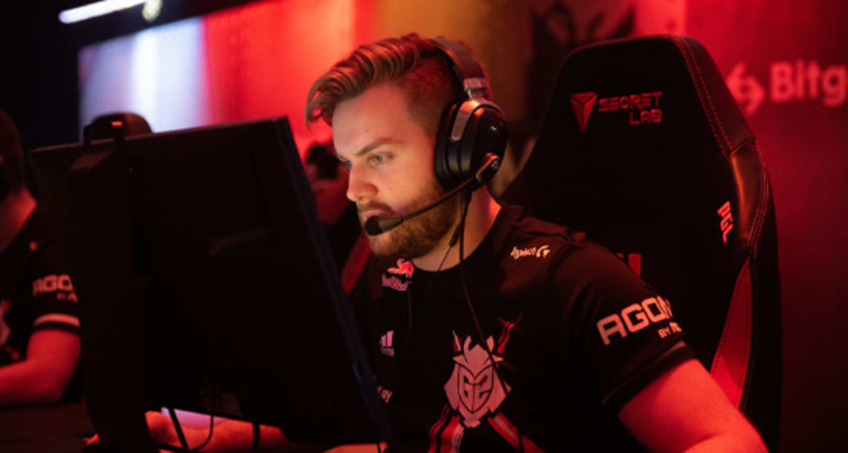
For playing CS2, NiKo uses the fast and comfortable Razer Viper V3 Pro White mouse. He does not make any complex settings, and you can easily replicate them. Nevertheless, his personal settings allow him to effortlessly handle the AK-47 and M4A4, bringing his team to victory even in the most challenging situations.
NiKo is a rifler, so, unlike snipers, his mouse sensitivity is not very high. This allows for comfortable and effective spray control.
NiKo's main mouse settings are:
DPI - 800;
acceleration - 0;
zoom sensitivity - 1;
Hz - 4000;
sensitivity in Windows - 6;
sensitivity - 0.79.
Mouse sensitivity is an entirely subjective parameter, so it should be adjusted for your own gameplay through experimentation, rather than just copying NiKo's settings in CS2.
Seating, Basic and Advanced Graphics Settings
Many CS2 tournament participants fine-tune their ideal seating arrangement, even using a ruler to set the height of the table and the placement of the keyboard on it. As for NiKo, he doesn't focus much on this aspect. As a kind of reference, he uses a mouse pad: first, the player positions the monitor diagonally, and then rotates it to its natural position. The gesture has no special meaning; it is simply a habit. NiKo claims that this method allows for maximum space on the desk. Like many other players, he uses a Zowie XL2556K monitor.
Now let's move on to NiKo's settings in CS2 regarding graphics:
screen mode - fullscreen;
screen resolution - 1152x864;
screen scaling - stretched;
detail level of effects - low;
motion blur - off;
refresh rate - 240 Hz;
texture and model detail - medium;
NVIDIA Reflex low latency - on;
shadow quality - high;
boost player contrast - off.
Additionally, in NVIDIA settings, NiKo sets digital vibrance at 75%. Like other parameters, brightness is subjective, so there is no universal value.
Graphics settings ensure maximum FPS while keeping opponent models clearly visible to NiKo.
Video and Launch Parameters
NiKo has no special preferences for launch options. His line looks like this:
-noforcemaccel -noforcemspd -noforcemparms -freq 360 -console -novid -tickrate 128.
Some of these flags (-noforcem*, -tickrate 128) are left over from CS:GO. With CS2's sub-tick system they make practically no difference in matchmaking, so you don't need to copy them.
His advanced video settings are:
particle detail level - low;
ambient occlusion - high;
Boost Players Contrast - off;
global shadow quality - high;
texture and model detail level - medium;
vertical sync wait - off;
texture filtering - anisotropic 4x;
motion blur - off;
FidelityFX Super Resolution - off.
Most of NiKo's video settings are optimized. For example, high-level ambient occlusion allows seeing the enemy's shadow on the wall some time before they appear. This provides an additional advantage in the game and increases the chances of a successful outcome.
Crosshair Like NiKo's
In NiKo's settings in CS2, the crosshair setting is crucial. This player uses a classic, static crosshair. For this, he uses the following settings:
outline - 0;
transparency value - 255;
dot in the center - no;
length and thickness - 1.0 each;
gap dependency on the weapon - none;
color values (blue, green, red) - 255 each;
gap (-4.0);
friendly fire warning - always on.
With all three RGB channels at 255 the crosshair is white, which stands out against most textures. To build your own, see the guide on how to create a crosshair in CS2 or the list of the best CS2 crosshairs.
NiKo's CS2 crosshair settings can be entered in several ways. The slowest option is to set the parameters manually. For this, go to settings, select "Game," then "Crosshair," and manually enter the necessary values.
Simpler methods include importing a ready-made crosshair and inserting commands through the developer console. The first option: in the crosshair menu, click "Share or Import" and paste the code:
CSGO-fhJKk-aaMsh-6MqmZ-ewehx-fnNkO
— NiKo's Crosshair Code in CS2
The second option is to enter console commands (you can also save them in an autoexec, see how to install a config in CS2):
cl_crosshair_drawoutline 0; cl_crosshairalpha 255; cl_crosshaircolor 5;
cl_crosshaircolor_b 255; cl_crosshaircolor_g 255; cl_crosshaircolor_r 255;
cl_crosshairdot 0; cl_crosshairgap -4; cl_crosshairsize 1; cl_crosshairstyle 4;
cl_crosshairthickness 1; cl_crosshair_sniper_width 1;
— NiKo's Console Commands for Crosshair in CS2
NiKo's settings in CS2 are convenient specifically for this player, as they have been developed through experience. It is not advisable to expect that a configuration set from a well-known esports athlete will immediately help achieve good results. Finding "your" parameters requires a trial-and-error method.
