


Proper crosshair configuration in Counter-Strike 2 is one of the key factors affecting shooting accuracy and overall comfort during gameplay. Many players spend hours searching for ideal settings but often don't know where to start. The question of how to make a crosshair in CS2 arises for most newcomers and even experienced players. There are three main configuration methods: through the in-game menu, using console commands, or by importing ready-made codes from professional players. In this article, we'll break down each method in detail and show you how to create the perfect crosshair for your playstyle.
Main Crosshair Configuration Methods
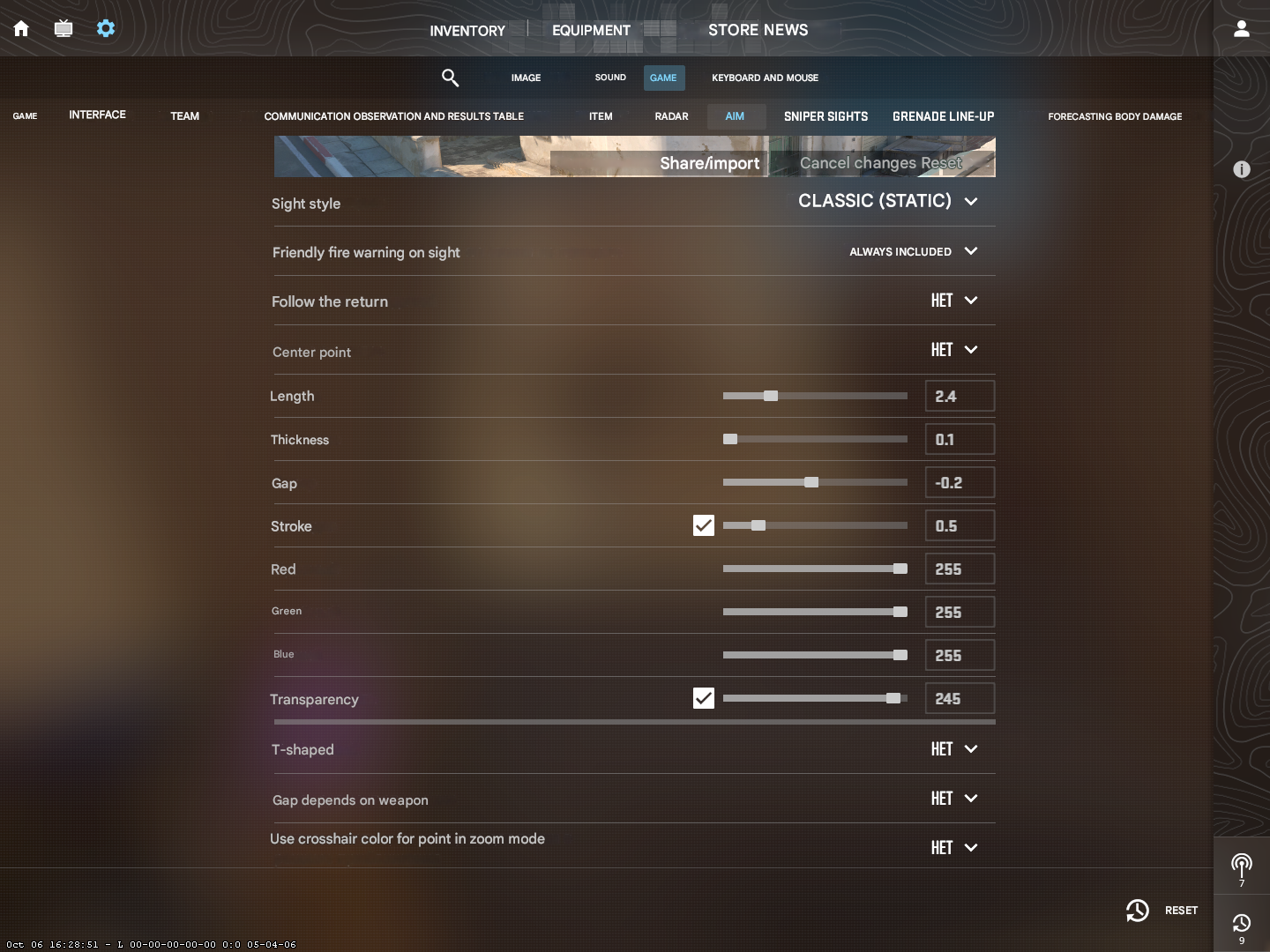
Counter-Strike 2 provides players with several crosshair customization methods, each with its own advantages. The choice of a specific method depends on your experience level and how detailed you want your visual customization to be.
How to Configure Crosshair Through the In-Game Menu?
The easiest way to make a crosshair in CS2 is to use the built-in editor in the game settings. This method is perfect for beginners who don't want to deal with console commands. To open the editor, launch CS2 and click the gear icon in the top-left corner of the main menu. Then select the "Game" section and go to the "Crosshair" tab. Here you'll be greeted by an interactive editor with a visual preview.
The editor offers the following main parameters:
Crosshair style determines behavior during shooting and movement. Classic style remains static, dynamic expands with shots.
Size controls the length of crosshair lines from the center.
Thickness controls the width of the lines.
Gap is the distance between the center and the beginning of the lines.
Center dot adds a small dot for more precise aiming.
Color can be chosen from presets or customized via RGB.
Outline adds a border for contrast.
Transparency adjusts crosshair visibility.
How to Use Console Commands for Crosshair Configuration?
Console commands open much wider customization possibilities. This method is preferred by experienced players who need precise control over every parameter. Before using the console, activate it in settings: open game settings, go to "Game" and enable "Developer Console (~)". Once activated, the console opens with the tilde key (~).
Command | Description | Value Range |
cl_crosshairstyle | Crosshair behavior type | 0 – fully dynamic, 1 – standard static, 4 – classic static, 5 – dynamic classic |
cl_crosshairsize | Length of crosshair lines | 0-10 (decimal values allowed) |
cl_crosshairthickness | Line thickness | 0-10 (recommended 0.5-3) |
cl_crosshairgap | Distance from center | -10 to 10 (negatives create overlap) |
cl_crosshairdot | Center dot | 0 – disabled, 1 – enabled |
cl_crosshaircolor | Crosshair color | 0 – red, 1 – green, 2 – yellow, 3 – blue, 4 – cyan, 5 – custom RGB |
cl_crosshairalpha | Transparency | 0-255 (255 – fully opaque) |
cl_crosshair_drawoutline | Outline border | 0 – disabled, 1 – enabled |
Basic console commands for crosshair configuration: For example, to create a popular green static medium-sized crosshair, enter: cl_crosshairstyle 4; cl_crosshairsize 3; cl_crosshairthickness 1; cl_crosshairgap -2; cl_crosshaircolor 1; cl_crosshairdot 1.
How to Import Ready-Made Crosshair Codes?

Counter-Strike 2 uses a Share Code system for quick sharing of crosshair settings. To make a crosshair in CS2 using code import, open game settings, go to the "Crosshair" section, click "Share or Import", paste the copied code in the format CSGO-xxxxx-xxxxx-xxxxx-xxxxx-xxxxx and confirm the action.
Popular resources for finding crosshair codes:
ProSettings.net contains a database of settings from hundreds of professionals.
Total CS offers a collection of over 900 crosshairs with visual previews.
Crashz' Crosshair Generator v3 — a Steam Workshop map with an interactive editor right in-game.
Creating Different Crosshair Types
The variety of playstyles requires different approaches to crosshair configuration. Let's look at the most popular types and how to create them.
How to Make a Static Crosshair in CS2?
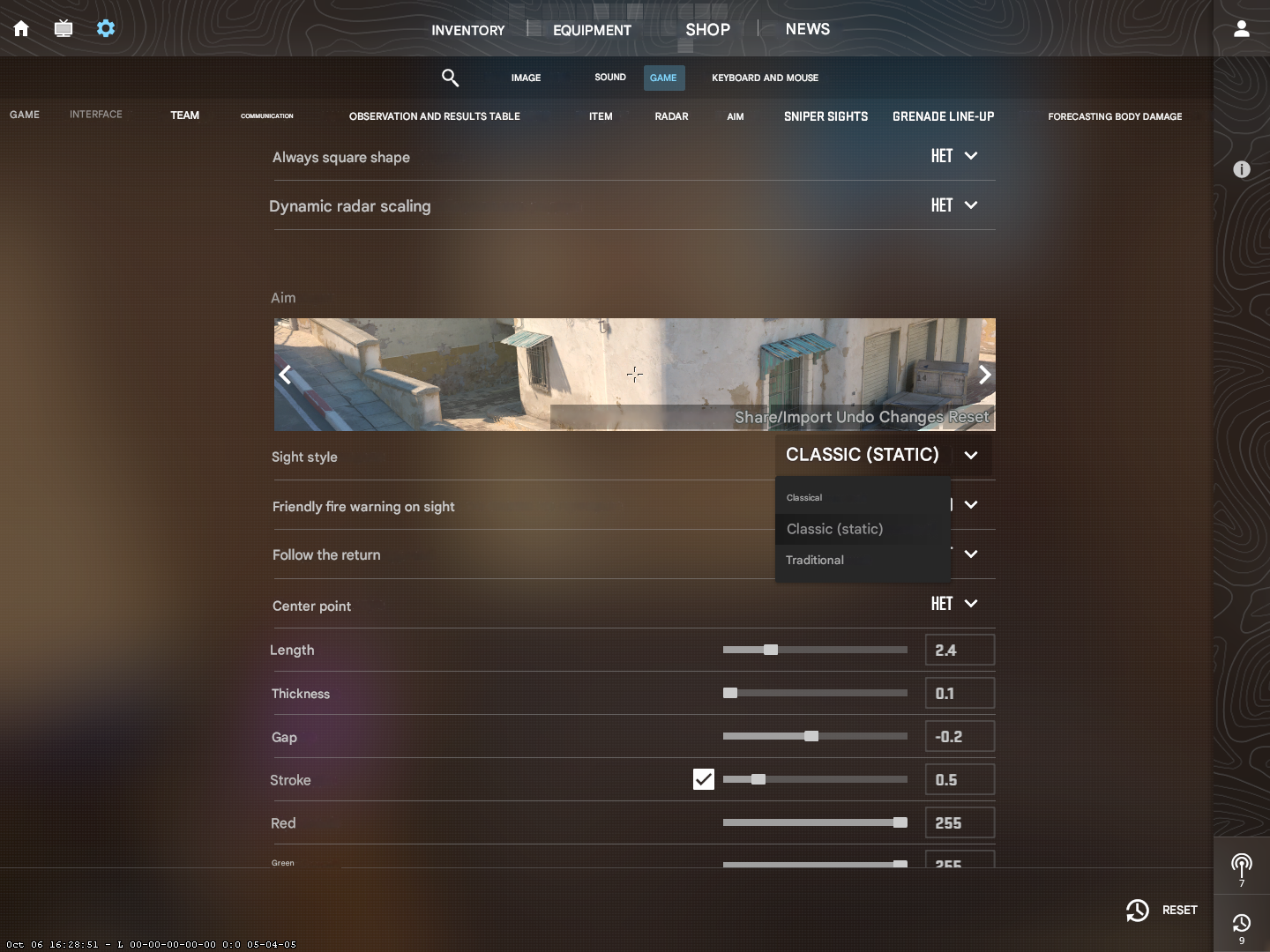
A static crosshair remains motionless during any player actions. This type is especially popular among players who rely on precise single-shot firing. To make a crosshair in CS2 static, use the command:
cl_crosshairstyle 4
For detailed configuration, add:
cl_crosshairsize 2.5
cl_crosshairthickness 1
cl_crosshairgap -2
cl_crosshairdot 1
cl_crosshaircolor 1
This configuration creates a compact green static crosshair with a center dot, perfect for precise shooting.
How to Make a Dynamic Crosshair?
A dynamic crosshair expands when shooting, visually showing the current bullet spread. This helps better control recoil. For a fully dynamic crosshair, use:
cl_crosshairstyle 0
For classic dynamic, which expands only when shooting:
cl_crosshairstyle 5
How to Make a Small Crosshair in CS2?

A small compact crosshair is preferred by players who don't want to obstruct their view. It's especially effective at long ranges. Optimal configuration:
cl_crosshairsize 1
cl_crosshairthickness 0.5
cl_crosshairgap -3
cl_crosshairstyle 4
cl_crosshairdot 1
The negative gap value makes the lines overlap in the center, creating a very compact shape. When using a small crosshair, it's especially important to add a bright color with an outline:
cl_crosshaircolor 4
cl_crosshair_drawoutline 1
cl_crosshair_outlinethickness 1
How to Make a Dot Crosshair in CS2?
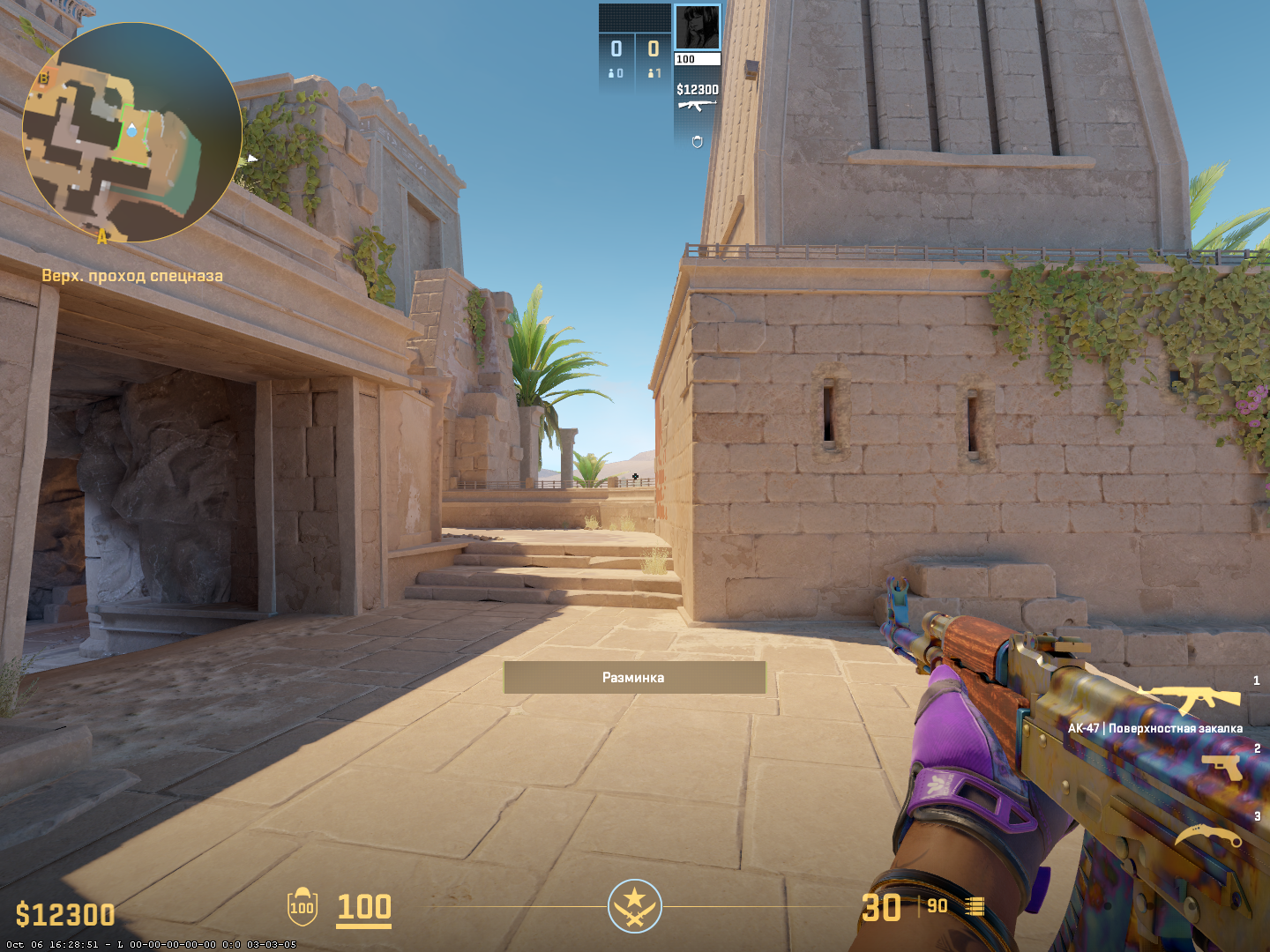
A dot crosshair represents a minimalist option without lines. To create a crosshair with only a dot, use:
cl_crosshairdot 1
cl_crosshairsize 0
cl_crosshairstyle 4
If you want to make a crosshair in CS2 as a dot with minimal lines:
cl_crosshairdot 1
cl_crosshairsize 1
cl_crosshairthickness 0.5
cl_crosshairgap -2
cl_crosshairstyle 4
How to Make a Large Crosshair?

A large crosshair with long lines provides maximum visibility. Recommended configuration:
cl_crosshairsize 5
cl_crosshairthickness 2
cl_crosshairgap 2
cl_crosshairstyle 4
cl_crosshaircolor 1
cl_crosshair_drawoutline 1
Crosshair Color Configuration
Crosshair color plays a critical role in its visibility on various maps. Counter-Strike 2 offers five preset colors: red (0), green (1), yellow (2), blue (3), cyan (4), and custom RGB (5).
How to Make a White Crosshair in CS2?

A white crosshair is universal and works well in most situations. To make a white crosshair in CS2, use:
cl_crosshaircolor 5
cl_crosshaircolor_r 255
cl_crosshaircolor_g 255
cl_crosshaircolor_b 255
Be sure to add a black outline for visibility on light surfaces:
cl_crosshair_drawoutline 1
cl_crosshair_outlinethickness 1
How to Make a Black Crosshair in CS2?
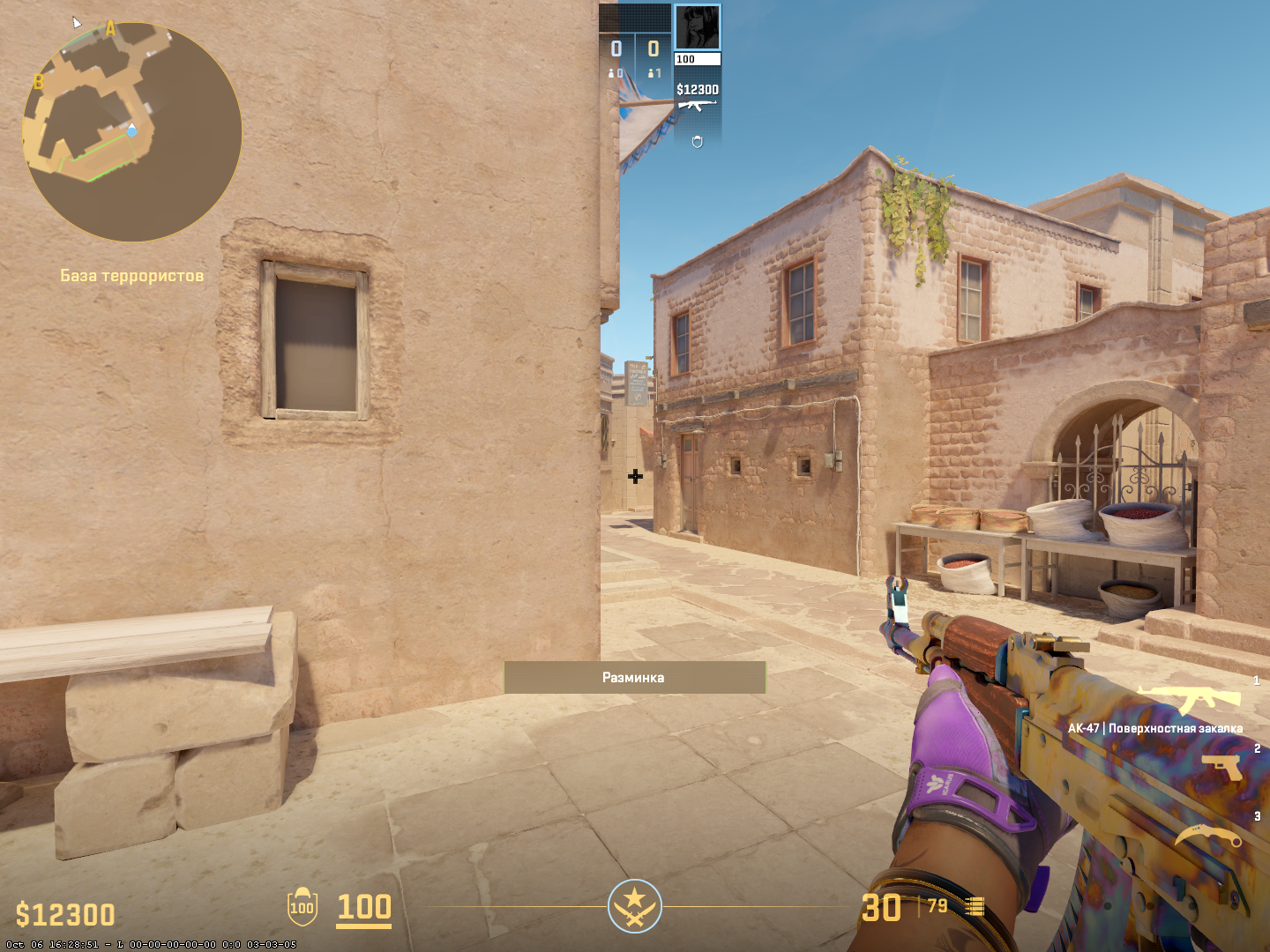
A black crosshair works well on bright maps. Creation requires zero RGB values:
cl_crosshaircolor 5
cl_crosshaircolor_r 0
cl_crosshaircolor_g 0
cl_crosshaircolor_b 0
It's critically important to add a light outline:
cl_crosshair_drawoutline 1
cl_crosshair_outlinethickness 2
How to Make a Purple Crosshair?

A purple crosshair stands out with its uniqueness and excellent visibility. RGB commands for bright purple:
cl_crosshaircolor 5
cl_crosshaircolor_r 255
cl_crosshaircolor_g 0
cl_crosshaircolor_b 255
Custom Colors
Popular custom variants:
Pink:
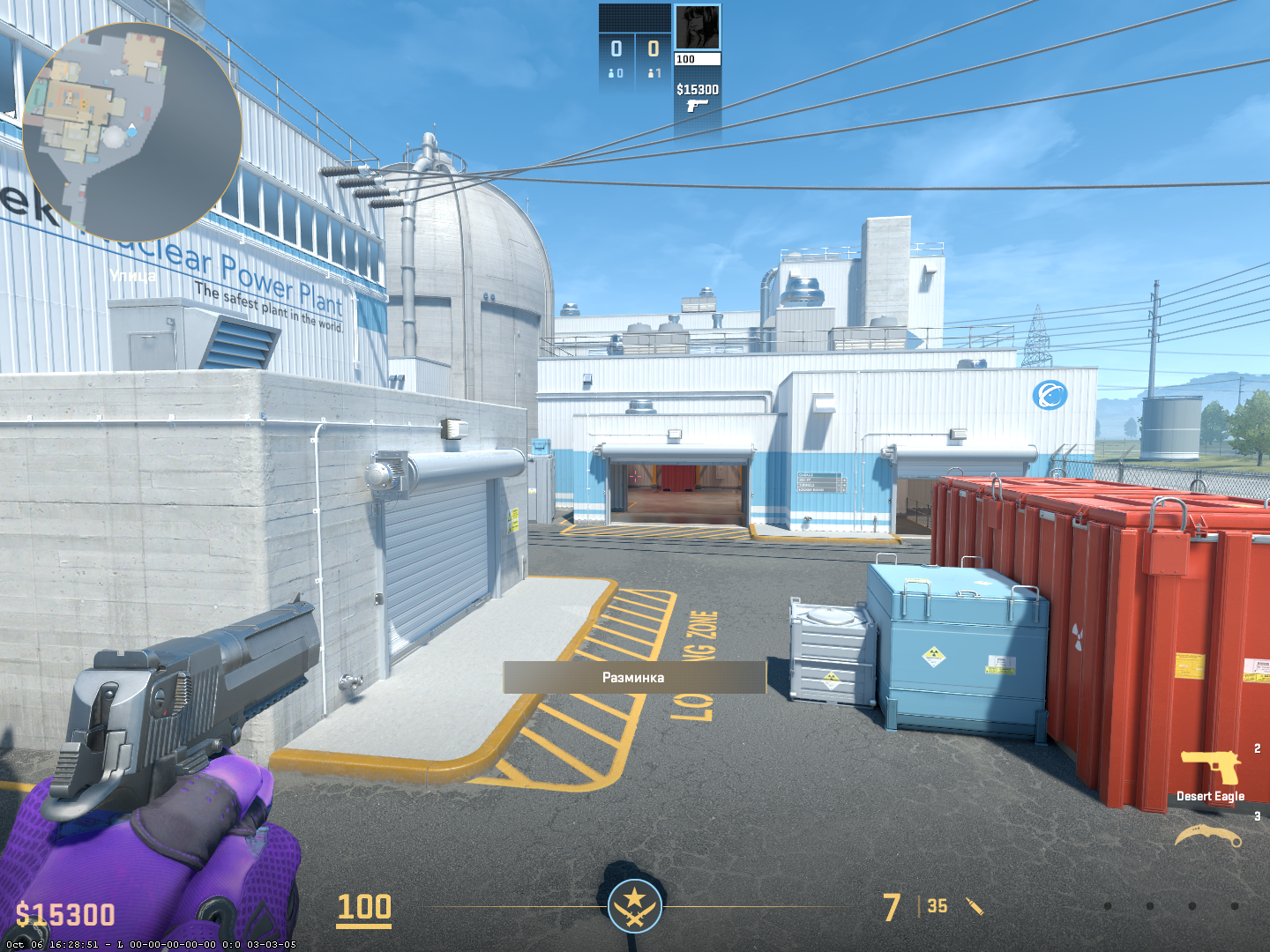
cl_crosshaircolor 5; cl_crosshaircolor_r 255; cl_crosshaircolor_g 105; cl_crosshaircolor_b 180
Orange:
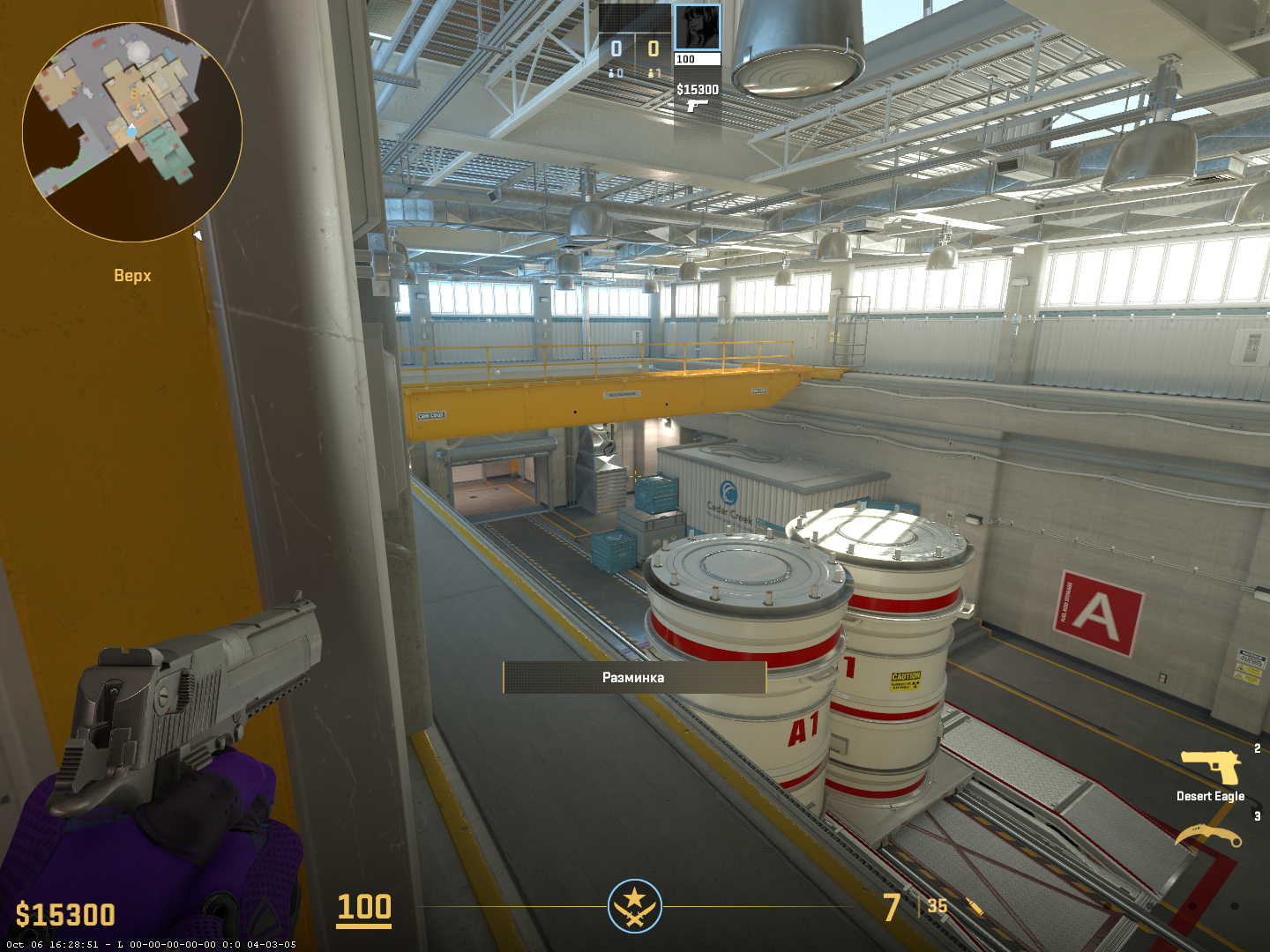
cl_crosshaircolor 5; cl_crosshaircolor_r 255; cl_crosshaircolor_g 165; cl_crosshaircolor_b 0
Experimenting with RGB allows you to make a crosshair in CS2 unique and perfectly suited to your vision.
Special Crosshair Types
How to Make a Square Crosshair in CS2?
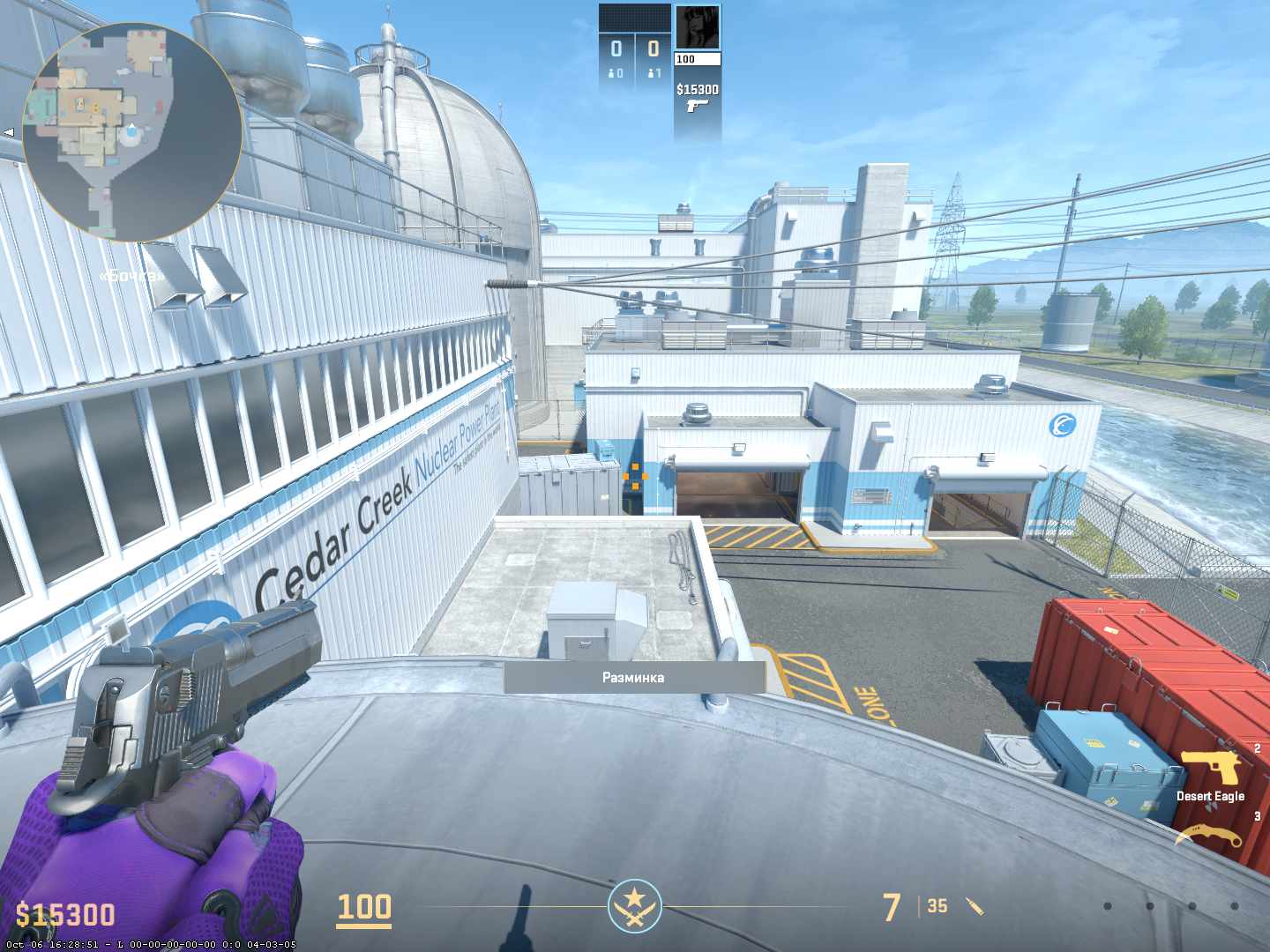
A square crosshair is created with equal size and thickness values:
cl_crosshairstyle 4
cl_crosshairsize 3
cl_crosshairthickness 3
cl_crosshairgap 0
How to Make a Heart Crosshair?

A perfect heart is impossible to create due to engine limitations, but a close approximation:
cl_crosshairstyle 4
cl_crosshairsize 2
cl_crosshairthickness 1
cl_crosshairgap -3
cl_crosshairdot 1
cl_crosshair_drawoutline 1
How to Make a Completely Static Crosshair?
For an absolutely static crosshair, use:
cl_crosshairstyle 4
cl_crosshair_dynamic_splitdist 0
cl_crosshair_sniper_width 1
Professional Player Crosshairs
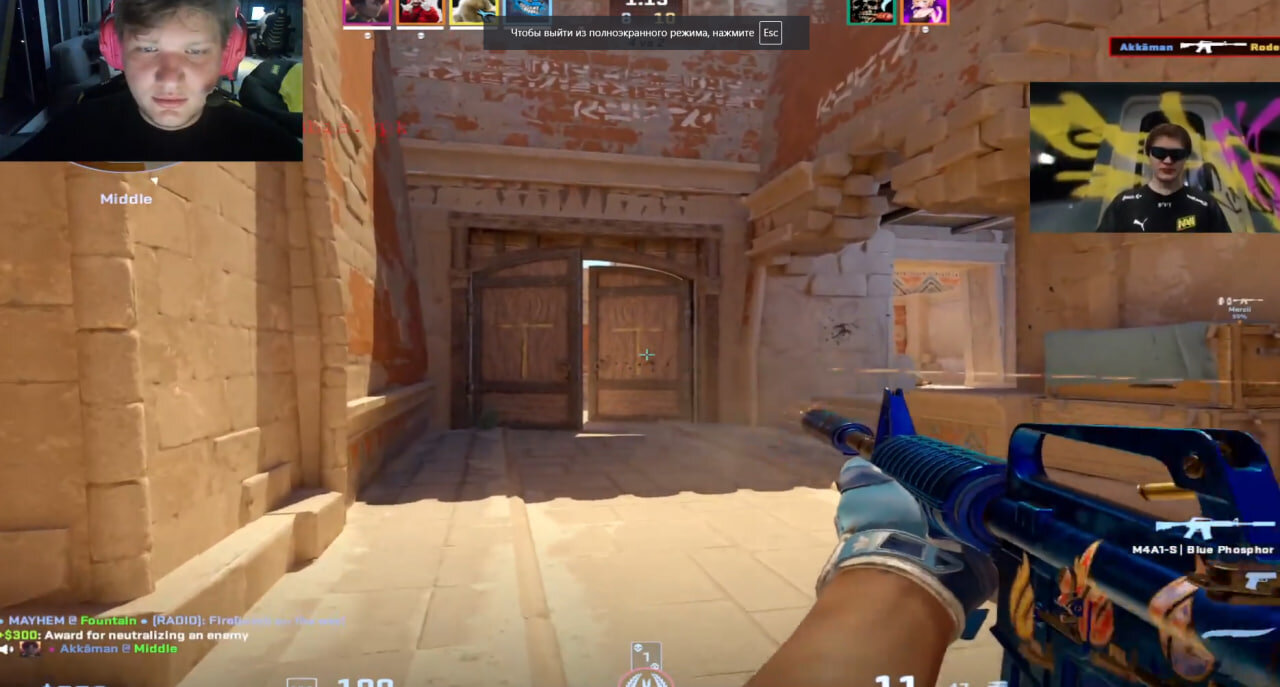
Studying top player settings helps find optimal configurations. Most professionals prefer static medium-sized crosshairs with bright colors.
s1mple uses a classic static cyan crosshair with a center dot. NiKo prefers a green static crosshair of slightly smaller size. ZywOo plays with a yellow static medium-sized crosshair without a center dot.
Common traits of professional crosshairs: static style (cl_crosshairstyle 4), size 2-4, gap from -3 to 1, bright contrasting colors, and outline for visibility. These settings can be used as a base for creating your own crosshair.
Additional Settings and Tips
How to Add an Outline for Better Visibility?
An outline border is critically important for visibility against any background:
cl_crosshair_drawoutline 1
cl_crosshair_outlinethickness 1
An outline is especially necessary for light crosshairs on bright maps.
How to Save Crosshair Settings?
Use Share Code through game settings or create an autoexec.cfg file in the folder \Steam\userdata\[your_Steam_ID]\730\local\cfg\ with your commands:
// Crosshair settings
cl_crosshairstyle 4
cl_crosshairsize 2.5
cl_crosshairthickness 1
cl_crosshairgap -2
cl_crosshaircolor 1
cl_crosshairdot 1
Quick Switching Between Crosshairs
Create separate configs for different weapons and bind them to keys:
bind "F1" "exec crosshair_rifle"
bind "F2" "exec crosshair_awp"
bind "F3" "exec crosshair_pistol"
This allows you to adaptively make a crosshair in CS2 for various situations.
Common Mistakes and Solutions
Why Won't My Crosshair Change?
Main causes: console not enabled, syntax errors in commands (use underscores, not hyphens), conflict with autoexec.cfg, or need to restart the map. Make sure commands are entered correctly and the console is activated in settings.
How to Make a Normal Crosshair if Everything Got Messed Up?
To reset to default settings, use:
cl_crosshairstyle 1
cl_crosshairsize 5
cl_crosshairthickness 0.5
cl_crosshairgap 1
cl_crosshaircolor 1
cl_crosshairdot 0
These commands restore the basic green cross, from which you can start configuring anew. Basic parameters help make a normal crosshair in CS2 when experiments have led to chaos.
How to Find Your Perfect Crosshair?
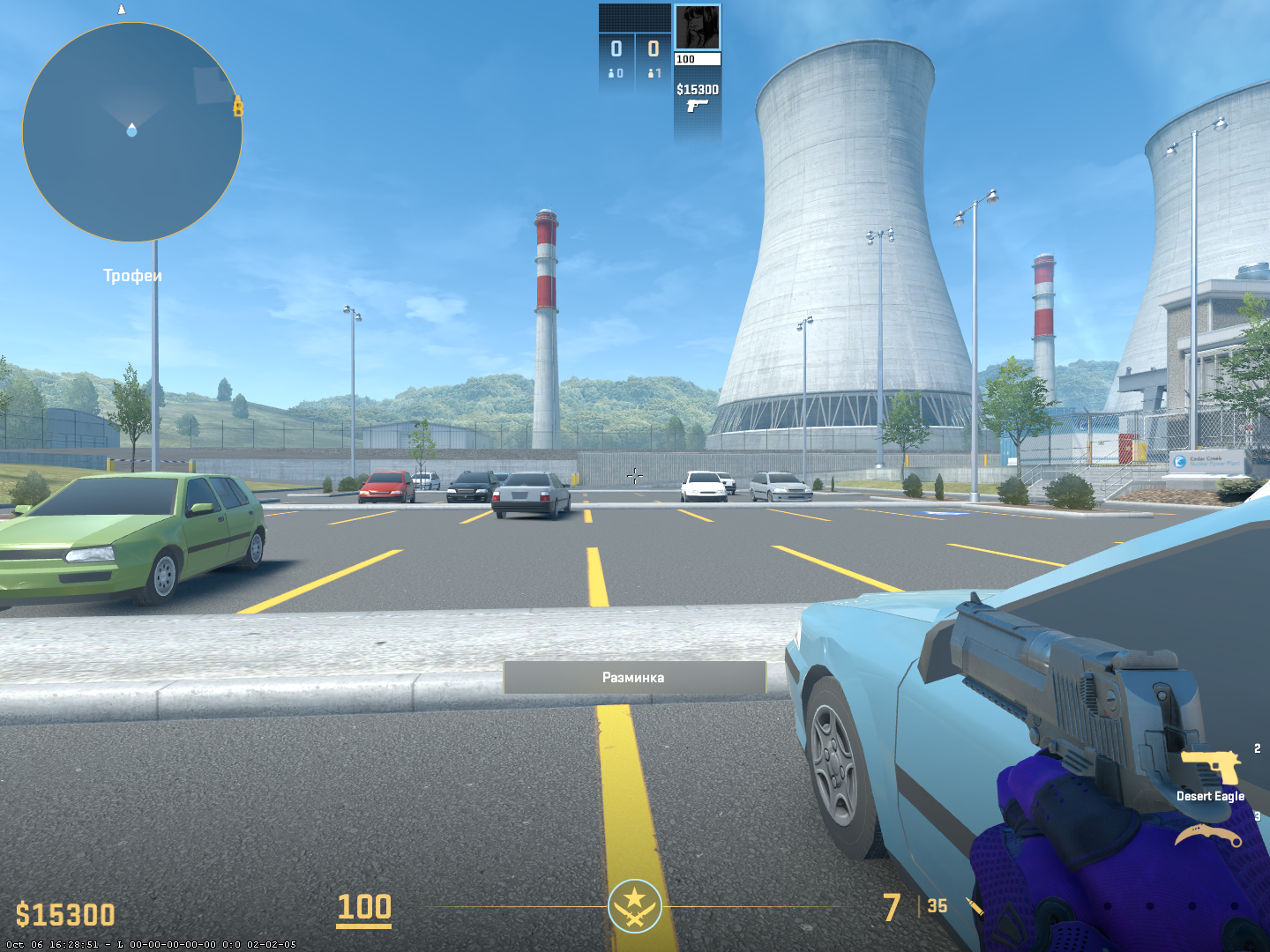
Configuring a crosshair in Counter-Strike 2 is a personal process requiring experimentation. There's no universal crosshair for everyone. Start by choosing a base type (static or dynamic), determine a comfortable size, select a contrasting color, and add an outline. Test the result in real matches before making final adjustments.
Don't rush to change your crosshair after every unsuccessful match. Give yourself a week to get used to the configuration. Use the Crashz' Crosshair Generator v3 map for visual comparison of options. Study professional settings on ProSettings.net as a base for your experiments.
Properly making a crosshair in CS2 is an important element of preparation for successful gameplay. A comfortable crosshair increases confidence, reduces eye strain, and allows you to focus on strategy. Spend time on thorough configuration, and your accuracy will definitely improve. Experiment, test, but trust your feelings — the perfect crosshair is the one you're comfortable playing with!
