


To remove bots in CS2, open the developer console with the ~ key and type bot_kick: hit Enter and every bot leaves the server at once. To clear only one side, use bot_kick t or bot_kick ct, and if bots keep coming back, set bot_quota 0 and turn off auto-balance (mp_autoteambalance 0, mp_limitteams 0). These commands work in Practice mode, on a local server and in a private lobby you host; you cannot control bots in Premier or Competitive.
Below, every command is broken down by task: removing bots, lifting team limits, setting up practice, bot armor and weapons, adding bots back, and fixing common problems.
How to Enable the Developer Console for Bot Management
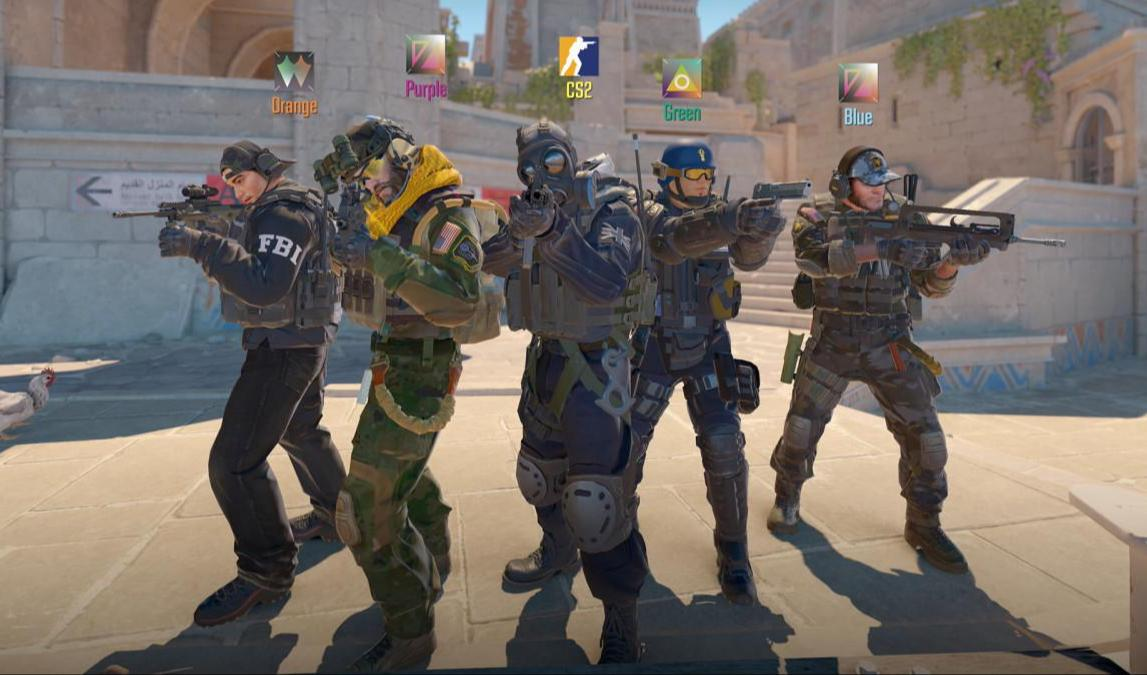
Before you can start removing bots in CS2, you need access to the developer console. It is disabled by default, and plenty of newer players do not know it exists. The console is a command line that gives you direct access to game and server settings.
The first way to enable it is the CS2 settings menu. Launch the game, open Settings (the gear icon in the top-left corner), go to the Game tab and find Enable Developer Console (~). Switch it from No to Yes and the console is available right away.
The second method suits players who want the console open on launch. In your Steam library, right-click Counter-Strike 2, select Properties and find Launch Options under the General tab. Type -console (no quotes), and the console will load every time the game starts. Our guide on how to open the console in CS2 covers more options.
Once enabled, the console opens with the ~ (tilde) key above Tab. One thing to keep in mind: the key registers on an English keyboard layout. If the console does not open, switch your input language to English first, usually with Alt + Shift.
CS2 Bot Removal Commands
The console commands for removing bots in CS2 come in a few variants depending on what you need: clear every bot, one side only, or a single bot. They work the same in Practice mode, on local servers and in private lobbies you created.
The main command for clearing the map is bot_kick. It removes every bot at once regardless of team or difficulty. If you only want to clear one side, use its variants:
| Command | Description | Use Case |
|---|---|---|
| bot_kick | Removes all bots from the server | Full map clear |
| bot_kick t | Removes all Terrorist bots | Clear bots from one side only |
| bot_kick ct | Removes all Counter-Terrorist bots | Leave bots on the T side only |
| bot_kick NAME | Removes a specific bot by name | e.g. bot_kick Igor or bot_kick Cliffe |
| bot_quota 0 | Sets the bot count to zero | Bots do not respawn |
The process is as simple as it gets: open the console with ~, type the command, press Enter. Bots vanish immediately, with no wait for the round to end. That is handy when a practice session needs an empty map from the start.
Note that bot_kick t and bot_kick ct remove every bot on that side. You cannot specify a number in the command; there is no bot_kick ct 3. To remove only some of the bots, kick them by name or lower the total with bot_quota.
Bot names are shown above their models and on the scoreboard. CS2 uses a standard name pool: Igor, Yuri, Viktor, Minh, Arnold and others. Kicking a bot by name is useful when you want to keep team sizes at a set number but drop one particular slot.
How to Remove Bot Limits in CS2 and Disable Auto-Balance
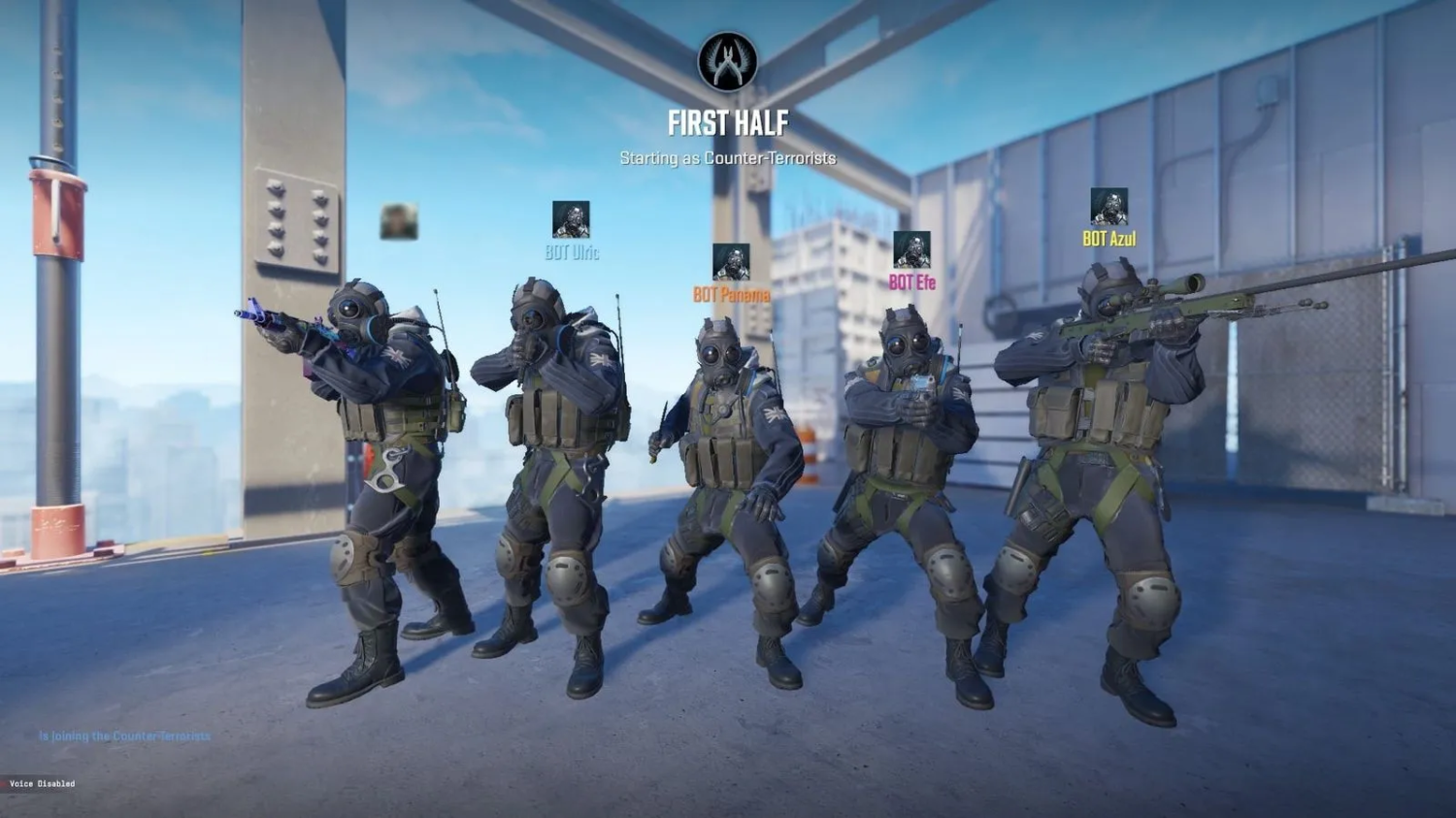
By default, CS2 auto-balances teams and limits how uneven they can be. That gets in the way when practice calls for an asymmetric setup, say one player against ten bots: the game keeps shuffling bots between teams to even things out.
To remove bot limits in CS2, you need two console commands. The first, mp_limitteams 0, lifts the cap on how uneven the teams can be. The second, mp_autoteambalance 0, turns off automatic balancing. Run them together.
| Command | Value | Effect |
|---|---|---|
| mp_limitteams 0 | 0 = limit disabled | Any team sizes |
| mp_limitteams 5 | 5 = allowed difference | Sets a specific cap |
| mp_autoteambalance 0 | 0 = auto-balance off | Disables bot team balancing in CS2 |
| mp_autoteambalance 1 | 1 = auto-balance on | The game equalizes teams |
The order that works: mp_autoteambalance 0 first, then mp_limitteams 0, and only then add or remove bots. If you mix up the sequence, the game may bring bots back or move them across teams on its own.
These settings matter for specific drills. Retake practice on a bombsite often calls for a 1v5, where you drill quick decisions while outnumbered. Without disabling the limits, that setup is impossible because the game keeps filling your team with bots.
Removing Bots in CS2 Practice Mode: Setting Up Your Training Environment
Getting the most out of practice takes more than bot_kick. You also need to set round time, economy and other server settings. The easiest route is a ready-made command set that turns a regular map into a practice server.
A solid setup starts with sv_cheats 1, since most useful commands are locked without it. From there, you kick the bots with bot_kick and set the round timer. The default two minutes is not enough for complex lineups, so most players set 60 minutes with mp_roundtime_defuse 60.
| Command | Description | Why You Need It |
|---|---|---|
| sv_cheats 1 | Enables cheat mode | Unlocks practice commands |
| bot_kick | Removes all bots | Clears the map for practice |
| mp_roundtime_defuse 60 | Sets round time to 60 minutes | Effectively unlimited practice time |
| mp_freezetime 0 | Removes the freeze period | Round starts instantly |
| mp_buy_anywhere 1 | Buy from anywhere on the map | No need to run back to spawn |
| mp_buytime 60000 | Buy time set to 60000 seconds | Buy menu available at any point |
| sv_infinite_ammo 1 | Infinite ammo | Spray control practice without reloading |
| mp_startmoney 16000 | Starting money | Max funds for any buy |
These commands are usually pasted into the console as a single line:
sv_cheats 1; bot_kick; mp_roundtime_defuse 60; mp_freezetime 0; mp_buy_anywhere 1; mp_buytime 60000; mp_startmoney 16000; sv_infinite_ammo 1; mp_restartgame 1
Paste it in and the server restarts with the new settings applied.
This configuration works well for grenade lineups, map study and positioning practice. Infinite ammo lets you drill recoil control without stopping to reload, and buying anywhere saves the walk back to spawn between reps. If you also want unlimited utility, see our guide on infinite grenades in CS2.
For more advanced practice, add commands like sv_grenade_trajectory 1, which shows the flight path of thrown grenades, or sv_showimpacts 1 to display bullet impacts. These tools help you understand how shots and throws behave.
How to Remove Bot Armor in CS2 and Configure Their Loadout
Controlling what bots carry opens up new drills. Removing bot armor in CS2 is useful for headshot practice: without a helmet, a bot dies to a single headshot from most weapons. That speeds up accuracy work and lets you practice flicks without chasing down wounded targets.
The main armor command is mp_free_armor with three values. Zero removes free armor, one gives a vest only, and two gives the full kit with a helmet. The command applies to everyone in the match, including you.
| Command | Value | Effect |
|---|---|---|
| mp_free_armor 0 | No armor | Bots spawn without protection |
| mp_free_armor 1 | Vest only | Body protection, no helmet |
| mp_free_armor 2 | Full armor | Vest and helmet automatically |
| bot_knives_only 1 | Restriction | Bots use knives only |
| bot_pistols_only 1 | Restriction | Bots use pistols only |
Additional commands restrict bot loadouts. bot_knives_only 1 leaves bots with knives only, which works for movement practice: bots become moving targets without dangerous weapons.
For pistol duels, bot_pistols_only 1 does exactly what it says. Pair it with mp_free_armor 0 and you get conditions close to a real pistol round, with unarmored opponents. This kind of practice sharpens the first-round skills that often set the tone for a half.
These settings combine well with behavior commands. For example, bot_stop 1 freezes bots in place as static targets, and bot_stop 0 brings them back to life. If bots freeze and do not respond to that, our guide on why CS2 bots stand still goes through the causes.
One important note: most bot control commands require sv_cheats 1. Without cheat mode they either do nothing or throw an error in the console. This is how Valve keeps them out of official matches.
Adding Bots Back After Removing Them
Once the server is clear, you will often want bots back to continue practicing. Adding them is just as simple as removing them, with a different set of commands. You control both how many bots join and which side they play on. Our guide on setting up bots in CS2 covers this in detail.
The basic bot_add command puts one bot on whichever team has fewer players. For precise control, use the variants with a side and difficulty.
| Command | Description |
|---|---|
| bot_add | Adds a bot to the smaller team |
| bot_add_t | Adds a bot to Terrorists |
| bot_add_ct | Adds a bot to Counter-Terrorists |
| bot_add_t expert | Expert bot on the T side |
| bot_add_ct easy | Easy bot on the CT side |
| bot_quota X | Sets the total bot count |
bot_quota is the quickest way to set things up. Instead of typing bot_add ten times, run bot_quota 10 and the game fills the server to that number, usually splitting the bots evenly between sides.
The reverse, bot_quota 0, works as an alternative to bot_kick: a quota of zero removes every bot from the server and keeps new ones from spawning.
The player cap per side depends on the game mode. If you need more bots on one side than the mode allows, use mp_limitteams 0 and mp_autoteambalance 0 as covered above, and you can build any numbers you need.
To vary your practice, add bots of different difficulty. bot_difficulty takes values from 0 to 3: 0 is easy, 1 normal, 2 hard and 3 expert. You can change it mid-session; see our guide on how to increase bot difficulty in CS2 for details.
Advanced Commands for Full Control
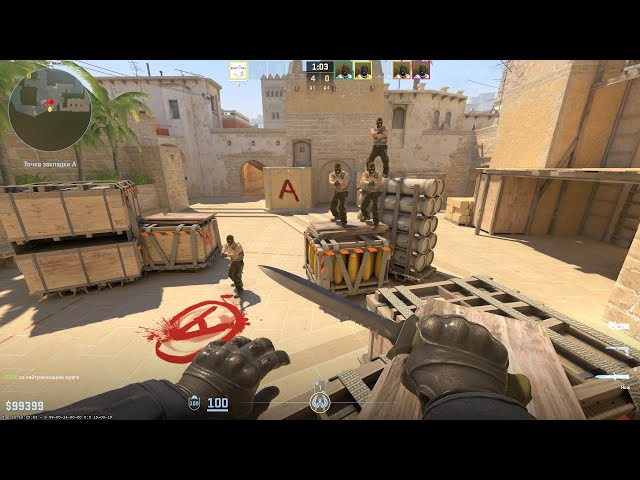
Advanced bot management includes commands most casual players never touch but that pay off in practice. They let you take bots out of active play without kicking them, or place them at exact positions on the map.
bot_stop 1 freezes every bot in place: they stop moving and stop reacting to you, which suits static aim drills or studying angles. Run bot_stop 0 to restore normal behavior. A related command, bot_zombie 1, goes further by stopping bots and disabling their attacks entirely.
| Command | Effect |
|---|---|
| bot_stop 1 | Freezes all bots in place |
| bot_place | Places a bot at your crosshair |
| bot_difficulty 0-3 | Difficulty from easy to expert |
| bot_zombie 1 | Turns bots into static targets |
| bot_chatter off | Silences bot voice lines |
| bot_dont_shoot 1 | Bots do not fire |
bot_place is especially popular in the community. It puts a bot exactly where your crosshair points, so you can set bots around a bombsite and drill pre-fire angles. Ready-made maps for that are collected in our list of the best prefire training maps.
Combining bot_stop 1 with bot_dont_shoot 1 suits utility practice. Bots hold their spots and do not interfere, but they still serve as reference points to check where your smoke or molotov lands. Once the lineup is set, bot_stop 0 brings them back so you can test it against moving targets.
bot_chatter off removes a common distraction. CS2 bots keep calling out what is happening with voice lines such as "Fire in the hole!" and "Need backup!", which gets in the way when you are working on timing and focus.
Troubleshooting Common Issues
Even with the right commands, players run into snags. The most common one is the console not opening on ~. Usually the cause is the keyboard layout: as in CS:GO, the console key responds on the layout it was bound in.
The fix is simple: switch to English with Alt + Shift and try again. If that does not help, check the in-game controls: the Keyboard/Mouse section lets you bind the console to any key you like, so you never have to switch layouts mid-session.
The second common issue is bots returning after you removed them. That usually means auto-balance is still on or the game is refilling bots up to the bot_quota value. Enter mp_autoteambalance 0 and mp_limitteams 0 before bot_kick, and if bots still spawn, set bot_quota 0.
The third scenario is commands not working or the console saying sv_cheats is required. Most advanced commands need cheat mode, so sv_cheats 1 should be the first line of any practice setup. On official Valve servers these commands are locked; they only work in Practice mode or on a server you control.
Quick Reference Summary
Full bot control in Counter-Strike 2 lives in the console. The core set (bot_kick, bot_quota 0, mp_limitteams 0, mp_autoteambalance 0) becomes second nature after a few sessions.
It pays to save your practice setup in a cfg file so you do not type it every time. Put autoexec.cfg in the game\csgo\cfg folder of your CS2 install and add +exec autoexec.cfg to the launch options. Our article on where to find the config file in CS2 shows exactly where that folder is.
Flash practice calls for one setup and aim training for another. The flexibility of CS2 console commands lets you build any practice environment, from static targets to tactical scenarios against active bots.
FAQ
How do I kick all bots in CS2 with one command?
Open the console and type bot_kick. To keep bots from spawning again, add bot_quota 0.
Why do bots come back after bot_kick?
The game refills bots up to the bot_quota value or evens out teams with auto-balance. bot_quota 0, mp_autoteambalance 0 and mp_limitteams 0 fix it.
Can I remove bots in Premier or Competitive?
No. Bot commands only work in Practice mode, on a local server or in a private lobby you host.
