


To increase bot difficulty in CS2, use the developer console: type bot_kick, then bot_difficulty 3, and add bots back with bot_add. The command takes values from 0 to 3, where 0 means easy bots and 3 is the top Expert level. The new setting only applies to bots that join after the change, which is why you have to kick and re-add them.
Practicing against bots in Counter-Strike 2 is still one of the easiest ways to sharpen your aim, learn positions or warm up before Premier and Competitive. This guide covers every method: enabling the console, the core command, changing difficulty mid-match, extra bot commands and ready-made training setups.
Why Can't You Change Bot Difficulty From the Menu?
Back in CS:GO, it was straightforward: when you started a match with bots, you picked the difficulty from a dropdown ranging from Easy to Expert. When CS2 launched, Valve rebuilt the interface, and the practice menu no longer has a separate bot difficulty selector.
That leaves the console as the way to control bot difficulty in CS2. Checking the current value is easy: type bot_difficulty with no number, and the console prints the level that is set right now. A lot of players feel that CS2 bots on default settings play more passively than they did in CS:GO, so almost everyone who practices offline ends up asking how to make them tougher.
What the console lacks in visuals it makes up for in flexibility. You can change bot difficulty in a few seconds without leaving the match, and the commands combine easily into training setups. Learn three or four of them, and after a couple of sessions the process becomes second nature. For the basics of adding and managing bots, see our guide on how to set up bots in CS2.
How to Set Up the Console for Bot Configuration
Before you adjust bot difficulty through the console, make sure the developer console is enabled. It is off by default, especially on a fresh install. Turning it on takes less than a minute and only has to be done once. Our article on how to open the console in CS2 covers it in detail, including fixes; here is the short version:
Launch CS2 and open Settings (the gear icon in the main menu).
Go to the Game tab.
Find Enable Developer Console.
Set it to Yes.
Return to the main menu.
Test it by pressing the tilde key (~) to the left of the 1 key.
Once enabled, the console opens with tilde at any point in the game. It appears as a separate window with an input field at the bottom. If it does not open, check your keyboard layout: some layouts put a different character on that key, but what matters is the physical key. You can also rebind the console to any key in the keyboard settings, which helps on laptops with unusual layouts.
How to Set Bot Difficulty in CS2 Using bot_difficulty
The most common way to change bot difficulty in CS2 is to set bot_difficulty before you start a practice match. It suits players who want to pick a level once and not think about it again. The syntax is simple: bot_difficulty X, where X is a number from 0 to 3.
Setting the difficulty before a match:
Launch CS2 and wait for the main menu to load.
Open the console with the tilde key (~).
Type
bot_difficulty X, where X is a number from 0 to 3.Press Enter. To confirm the value stuck, type
bot_difficultywith no number.Close the console by pressing tilde again.
Click Play in the main menu and choose practice mode.
Pick a map from the list.
Wait for it to load: bots spawn with the difficulty you set.
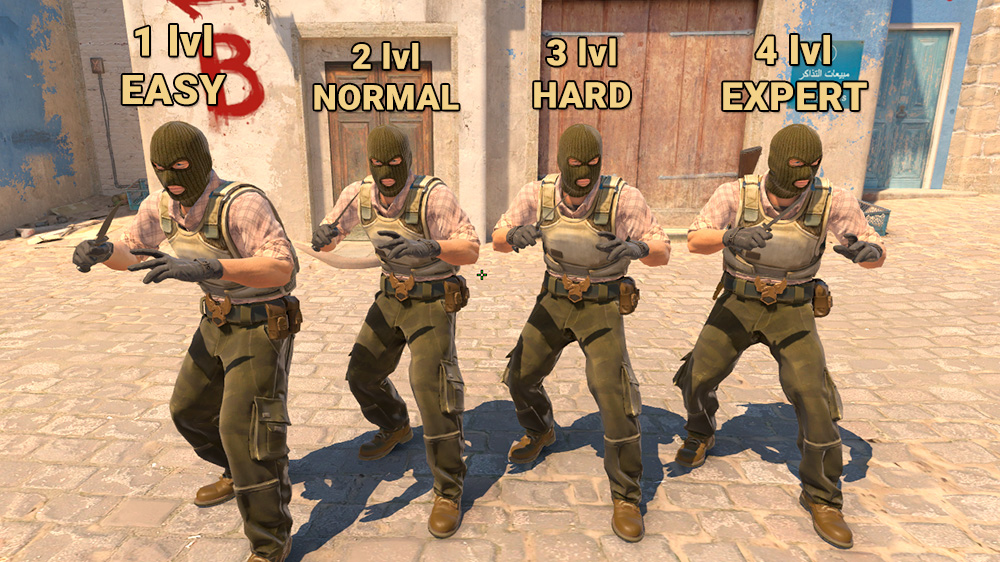
The bot difficulty command has four levels, and each one noticeably changes how the AI behaves: reaction time, accuracy and confidence in duels. Many guides mention values 4 and 5, but the command's own description lists only levels 0 to 3, so bot_difficulty 3 is all you need for the hardest bots.
CS2 Bot Difficulty Levels
| Command | Level | Behavior |
|---|---|---|
bot_difficulty 0 | Easy | Slow reactions and weak aim, good for first steps and learning maps without pressure |
bot_difficulty 1 | Normal | Bots shoot with more confidence but stay predictable and often lose long-range duels |
bot_difficulty 2 | Hard | Faster reactions and better accuracy, a solid balance for daily practice |
bot_difficulty 3 | Expert | The highest bot difficulty in CS2: fast reactions, accurate headshots, punishes open positions |
One thing to keep in mind: difficulty mainly affects how bots shoot and react, not how they manage money. Even Expert bots can buy an odd weapon on a force buy or make a strange rotation, but in a gunfight they punish every mistake. For daily warm-ups, levels 2 and 3 work for most players. If you want bots that do not shoot at all, for example to practice grenades, use the dedicated commands covered below rather than difficulty 0.
How to Change Bot Difficulty in CS2 Mid-Match
The second way to change bot difficulty in CS2 is during a live match, using a short sequence of commands. It comes in handy when you have already started practicing and realize the bots are too easy or too tough. There is no need to go back to the menu: three commands do the job, and the whole thing takes 10 to 15 seconds.
Changing difficulty mid-match:
Open the console with tilde (~) while in the game.
Type
bot_kickand press Enter: every bot leaves the server.Type
bot_difficulty Xwith the number you want, for examplebot_difficulty 3.Press Enter: the new difficulty is saved, but there are no bots yet.
Add bots back using one of the methods below.
There are two ways to bring bots back. The quick one is to type bot_add several times and let the game assign teams. The precise one gives you full control: you choose which team each bot joins and at what difficulty. If you want to get rid of bots entirely rather than make them stronger, see our guide on how to remove bots in CS2.
Methods for Adding Bots After Changing Difficulty
| Method | Command | What it does |
|---|---|---|
| Basic add | bot_add | Adds one bot, team assigned automatically |
| Add to CT | bot_add_ct | Adds a bot to the Counter-Terrorists |
| Add to T | bot_add_t | Adds a bot to the Terrorists |
| Add with a named difficulty | bot_add ct expert | Adds an Expert bot to CT (easy, normal, hard, expert) |
| Set the bot count | bot_quota 10 | Sets the total number of bots on the server |
Uneven teams for clutch practice need a couple of extra commands. The game balances teams by default, so for a 1v5 first type mp_autoteambalance 0 (turns off auto-balance) and mp_limitteams 0 (removes the limit on team size difference). After that you can set bot difficulty and bot count freely. These settings last for the current session and reset when you restart the game.
What's the Difference With custom_bot_difficulty?
Besides bot_difficulty, guides often mention a variable called custom_bot_difficulty. It relates to bot difficulty in matches started from the game menu and is a leftover from CS:GO, where difficulty was chosen in the interface.
Valve does not document exactly how this variable behaves in CS2, so it is not something to rely on by itself. Some players set it alongside the main command, for example bot_difficulty 3 and custom_bot_difficulty 3, so the level also carries over to bots the game adds the next time a map loads.
In practice, bot_difficulty together with bot_kick and bot_add covers what most players need. If bots still feel weak after that, add custom_bot_difficulty, restart the map and compare how they play.
Which Bot Difficulty Should You Choose for Training?
The right bot difficulty depends on your current level and what you want to train. Beginners often jump straight to the maximum, lose every duel and get discouraged. Experienced players sometimes make the opposite mistake and practice against bots that are too easy, when Expert would teach them more. The rule of thumb: the difficulty should sit at the edge of your comfort zone and make you work.
Hours played are a reasonable guide. Players brand new to Counter-Strike should start with bot_difficulty 0 or bot_difficulty 1 to get used to the shooting and learn maps without stress. After the first 50 to 100 hours, you can increase bot difficulty in CS2 to level 2, where positioning and the first shot start to matter.
Difficulty Recommendations by Skill Level
| Your level | Recommended command | Training goal |
|---|---|---|
| Beginner (0 to 50 hours) | bot_difficulty 0 or 1 | Learning maps, basic shooting, getting used to recoil |
| Intermediate (50 to 500 hours) | bot_difficulty 1 or 2 | Positioning and first-shot accuracy |
| Experienced (500 to 2,000 hours) | bot_difficulty 2 or 3 | Warm-ups before ranked matches, reaction time |
| Advanced (2,000+ hours) | bot_difficulty 3 plus restrictions (pistols only, 1v5) | Staying sharp, testing new positions |
A separate trick is bots that stay out of your way. Frozen or non-shooting bots are ideal for practicing grenade lineups, smoke timings and tricky movement such as bunny hops and strafing. Nobody shoots at you, so you can repeat one action dozens of times until it becomes automatic. The commands for this, bot_stop 1 and bot_dont_shoot 1, are listed below.
Levels 2 and 3 are the sweet spot for most players. At level 2 bots already react quickly but do not punish every small slip. Level 3 is closer to ranked gunfights: Expert bots land accurate headshots and spot open positions fast. If even they feel easy, make the conditions harder: play pistols only, take on five bots at once or skip armor.
What to Do When the Command Isn't Working
Sometimes bot_difficulty is typed correctly, yet the bots keep playing the same way. The most common reason is that the value was saved, but the bots on the server had already spawned with the old settings. The game does not rebuild the AI on the fly, so you have to refresh the bots yourself. Here are four typical problems and how to fix them.
Problem 1: bot_difficulty does not apply to current bots
Open the console and type
bot_kickto remove every bot.Enter the command again, for example
bot_difficulty 3.Add bots back with
bot_add,bot_add_ctorbot_add_t.The new bots spawn with the updated difficulty.
Problem 2: the developer console will not open with tilde
Check Settings → Game → Enable Developer Console = Yes.
Try switching your keyboard layout to English.
Rebind the console to another key in the keyboard settings.
Problem 3: you cannot add more than 5 bots to one team
Type
mp_autoteambalance 0to turn off auto-balance.Type
mp_limitteams 0to remove the team size limit.You can now build uneven teams for clutch practice.
These settings last until you restart the game.
Problem 4: bots act strangely or stand still after a command
Type
bot_kill: the bots die and respawn next round.Check whether
bot_stop 1is still on (bot_stop 0restores movement).If that does not help, restart the practice match.
Make sure your bot_difficulty value is between 0 and 3.
These steps cover nearly every issue players run into when setting bot difficulty in CS2 through the console. If bots keep standing still, our separate guide explains why CS2 bots stand still. If problems persist after all of the above, verify the integrity of the game files in Steam.
What Other Commands Help Fine-Tune Training?
Beyond the core difficulty command, CS2 has a whole set of console commands for fine-tuning practice. They let you build scenarios that are impossible in a regular match, from frozen bots to near-endless rounds. Some of them only work after sv_cheats 1 on a local server. The full list is in our article on CS2 console commands; these are the ones that matter for bot practice.
Adding and removing bots:
bot_add [t/ct] [difficulty]adds a bot with the given settings (example:bot_add ct hard).bot_kickremoves every bot from the server instantly.bot_killkills all bots; they respawn next round.
Changing bot behavior (requires sv_cheats 1):
bot_stop 1freezes every bot in place (bot_stop 0lets them move again).bot_dont_shoot 1stops bots from firing.bot_knives_only 1limits bots to knives.bot_crouch 1makes every bot crouch.
Server rules:
mp_respawn_on_death_ct 1andmp_respawn_on_death_t 1turn on instant respawn.mp_roundtime_defuse 60extends the round to 60 minutes.mp_buy_anywhere 1lets you buy weapons anywhere on the map.mp_buytime 999999removes the buy time limit.mp_ignore_round_win_conditions 1keeps the round going even when a win condition is met.
One combination is especially useful for an endless practice mode. Enter mp_roundtime_defuse 60, mp_buy_anywhere 1, mp_buytime 999999 and mp_respawn_on_death_ct 1, then mp_restartgame 1. You get a mode where you can train without interruptions: bots respawn right after dying, the round lasts almost forever, and you can buy anything anywhere. It works well for long aim sessions. To avoid typing all of this every time, save the commands in a file and load it as described in our guide on how to install a config in CS2.
How to Use Different Difficulty Levels for Different Goals
Because bot difficulty in CS2 is so adjustable, you can build practice modes around a specific skill. Strong players do not run the same practice every day; they tune the settings to the goal. One day goes to raw aim mechanics against Expert bots, another to grenade lineups on frozen bots. A structured approach pays off much faster than random practice without a plan.
Training scenarios:
Scenario 1: grenades and smokes
Commands:
sv_cheats 1+bot_stop 1.Bots stand still and stay out of the way.
Ideal for drilling lineups until they are precise.
Handy for learning new tactical smokes.
Scenario 2: sound and predicting positions
Command:
bot_difficulty 0orbot_difficulty 1.Bots move slowly and predictably.
Helps you learn to read footsteps and anticipate where an enemy will appear.
As your skill grows, raise the difficulty to 2.
Scenario 3: standard aim warm-up
Command:
bot_difficulty 2.The middle ground for warming up before ranked matches.
Bots are quick enough without being frustrating.
Fifteen minutes of this helps bring back muscle memory.
Scenario 4: testing new positions
Command:
bot_difficulty 3.Expert bots react fast and punish open positions.
Lets you test unusual setups in conditions close to a real match.
If a position holds up against Expert bots, it is worth trying in a game.
Scenario 5: 1vX clutch practice
Commands:
mp_limitteams 0+mp_autoteambalance 0+bot_difficulty 2.Add 5 bots to the opposing team with
bot_add_torbot_add_ct.Trains timing and utility usage under pressure.
Raising it to
bot_difficulty 3makes the drill genuinely hard.
Each scenario solves its own problem and calls for its own settings. No single value works for every goal: how effective a session is depends on choosing the right parameters. Experienced players keep text files with a command set for each scenario so they do not have to type everything by hand and can switch between practice types quickly. If you prefer to train aim outside the standard maps, take a look at our lists of the best CS2 maps with bots and the best aim maps in CS2.
Key Takeaways for Configuring Bot Difficulty
Setting bot difficulty in CS2 through the console may feel less convenient than the old CS:GO menu, but it gives you more control. Changing the difficulty level comes down to one command, bot_difficulty with values from 0 to 3, plus refreshing the bots with bot_kick and bot_add.
The key principle is to raise bot difficulty gradually as your own level improves. Starting with Expert bots right away is counterproductive and only drains motivation. Begin at a level where you win most of your duels, and step up once it starts to feel too easy.
Experiment with command combinations. Sometimes changing bot difficulty in CS2 means more than changing one number: it means combining bot_difficulty with bot_stop, respawns and other server rules to recreate exactly the situation you need. A saved training config then loads with a single command.
Valve removed the menu, but bot settings in CS2 are no less capable than in CS:GO. Changing difficulty mid-match with bot_kick and bot_add saves time and lets you adjust practice on the fly. After a few sessions, the console commands stop feeling complicated and become just another training tool.
FAQ
What is the maximum bot difficulty in CS2?
The top level is bot_difficulty 3 (Expert). To apply it, remove the bots with bot_kick and add them back with bot_add.
Why did the bots stay the same after the command?
The command only affects bots that join after the change. Bots already on the server keep their old level, so kick them and add them again.
Do you need sv_cheats 1 to change bot difficulty?
No. bot_difficulty, bot_kick and bot_add work without it. sv_cheats 1 is needed for commands like bot_stop and bot_dont_shoot.
Can you change bot difficulty in the CS2 menu?
CS2 has no separate difficulty selector in the menu, so difficulty is changed through the developer console. You only need to enable it once in the Game tab of the settings.
