


Your screen starts stuttering, your hero responds with input delay, and every teamfight turns into a slideshow – sounds familiar. The first thing to do in that situation is to turn on the FPS counter in Dota 2 and check the actual numbers. You can do it in three built-in ways: through the in-game settings, through Steam launch options, or through the global Steam overlay. No third-party software or paid tools needed – everything is free and works right out of the box.
Why Do You Need an FPS Counter in Dota 2?
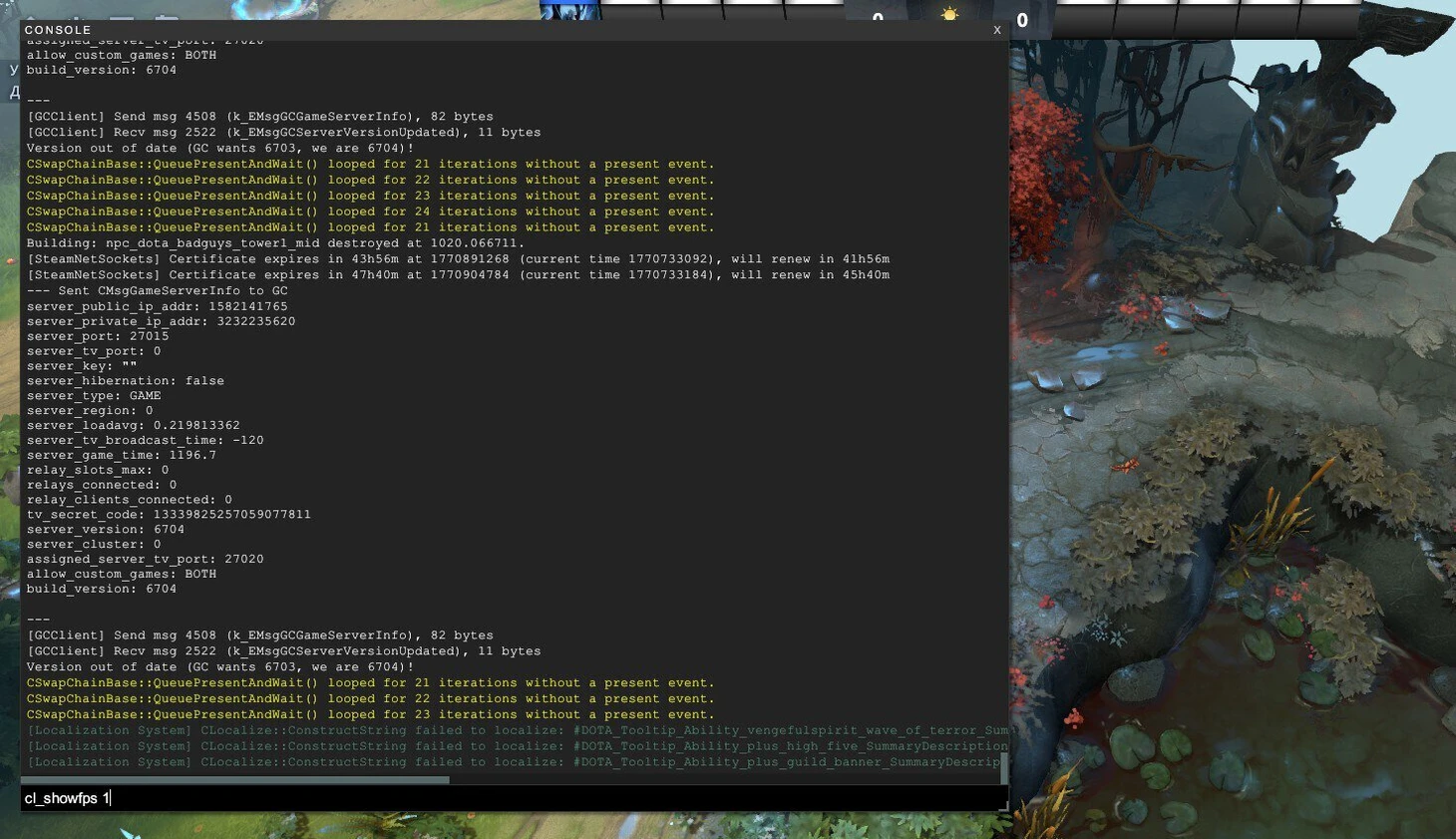
Many players spend years playing by feel and never think about how to check FPS in Dota 2. But the frame counter is exactly what helps you understand where the real problem is: your hardware or your internet connection. These are completely different issues, and they are fixed in completely different ways.
FPS (Frames Per Second) is the number of frames your PC can render in one second. The higher the number, the smoother the image and the more responsive the game feels. Low FPS usually points to a hardware bottleneck: your GPU, CPU, or RAM. High ping and packet loss, on the other hand, are network-related problems. Mixing the two up means trying to fix the wrong thing.
For most players, 100–120 frames per second is a comfortable target. At this level, the game stays smooth even in big teamfights, when dozens of effects and animations are happening on screen at the same time. The minimum level where the game remains at least somewhat playable is around 30 FPS, but that is already rough, especially during teamfights.
How to Turn On the FPS Counter in Dota 2 Through the Game Settings
This is the simplest and most convenient method – you do not need to leave the game, dig through Steam launch options, or install anything. Everything is done straight from the Dota 2 main menu in less than a minute. This is the option worth trying first, because alongside the FPS counter in Dota 2, it also shows ping and packet loss – giving you the full picture of what is happening with the game.
To enable the built-in monitor, follow a few simple steps. The sequence looks like this:
Launch Dota 2.
Open Settings – the gear icon in the main menu.
Go to the «Controls» tab.
Find the «Game» section, then the «Miscellaneous» option.
Check the box next to «Display Network Information».
Click «Back» and return to the game.
After that, a small window with three lines will appear in the upper-right corner of the screen: FPS, Ping, and Loss. This is exactly the combination you need – by seeing all three values at once, you can immediately understand where to look for the cause of the problem. There is also a faster alternative: in the upper-left corner of the settings menu, there is a search bar – just type «Display Network Information», and the option will appear right away. To disable the counter, simply uncheck the same box.
How to Add an FPS Counter in Dota 2 Through Launch Options
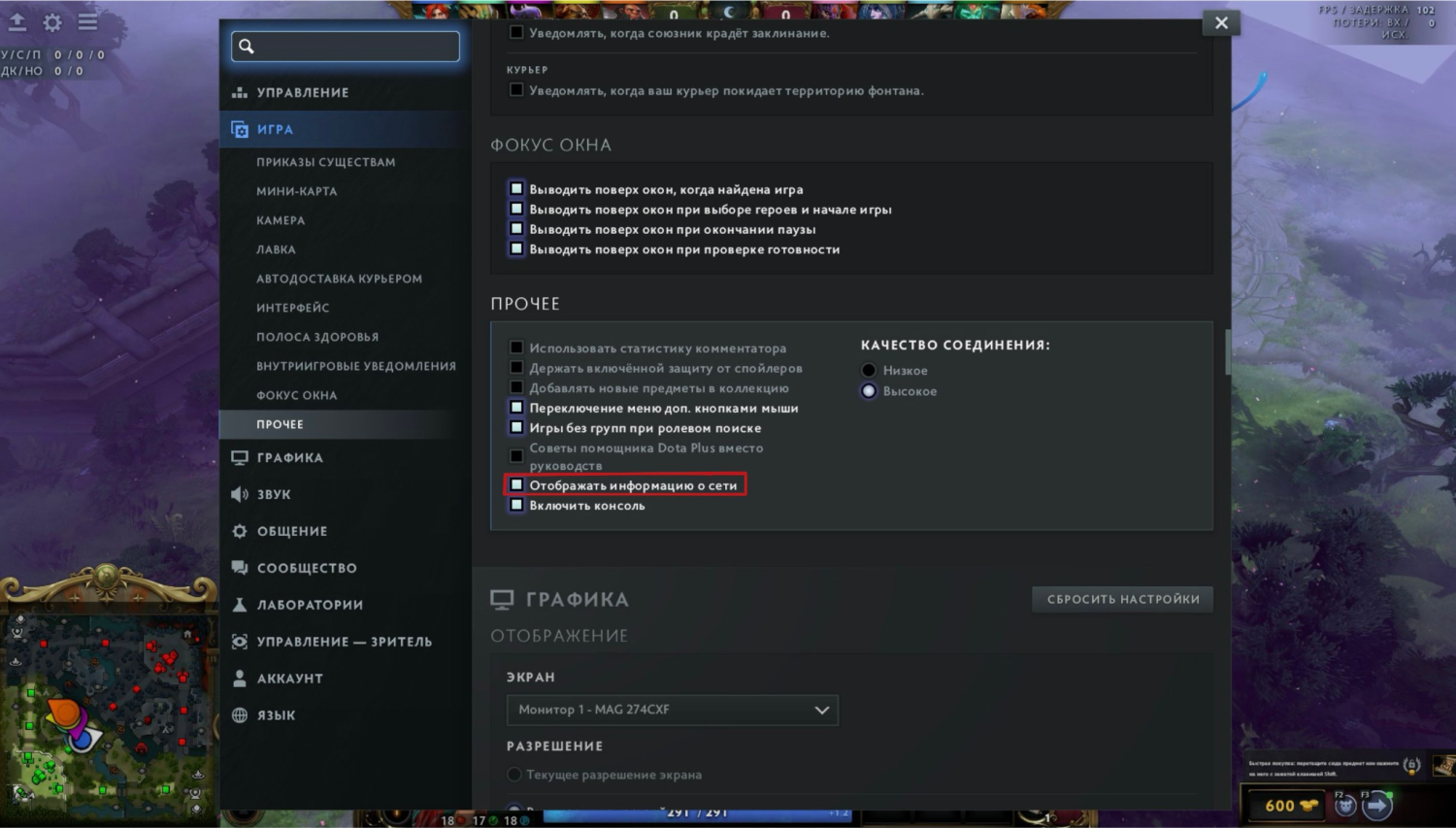
The second method is for players who want the FPS display in Dota 2 to turn on automatically every time the game launches – without having to open the settings each time. This is useful if you regularly monitor performance or test changes in your configuration. The setup is done once through the Steam client and does not require any further attention.
It is important to understand that this method uses the console command +cl_showfps 1, which is passed to the game on startup. The counter that appears as a result is displayed on the left side of the screen and only shows frames per second – no ping and no packet loss. This is a more compact option for players who only care about raw performance.
Here is how to show FPS in Dota 2 through launch options:
Open the Steam client.
Find Dota 2 in your library and right-click it.
Select «Properties».
Go to the «General» tab and find the «Launch Options» field.
Enter this command: +cl_showfps 1
Close the window and launch the game.
After that, the counter will appear automatically every time you launch the game. To remove it, go back to «Launch Options» and delete the command from the field – or replace it with +cl_showfps 0. No extra steps are needed; the change will take effect the next time you launch the game.
How to Show FPS in Dota 2 Through the Steam Overlay
The third method is the global performance monitor built into the Steam client itself. Its main advantage is that it works in every game launched through Steam, not just Dota. If someone plays several games and wants to see the FPS counter in Dota 2 and other titles as well, this is the most logical option.
The Steam counter is more compact than the in-game one: it only shows FPS, with no network information. However, you can place it in any corner of the screen, which is convenient if other UI elements already occupy the default position. It only takes a few clicks to set up.
To enable the FPS display through Steam, do the following:
Open the Steam client.
Click Steam in the upper-left corner → «Settings».
In the window that opens, go to the «In Game» section.
Find the «Performance Monitor» option.
Enable «Show Performance Monitor».
Choose the counter position on the screen: one of the four corners.
After that, the FPS counter will appear automatically in the selected corner whenever you launch any game through Steam. To disable it, return to the same settings and turn the option off. You do not need to change anything inside Dota 2 itself.
Which Method Should You Use to Enable FPS in Dota 2?
All three methods work and are reliable, but each one solves a slightly different task. To make the choice easier, here is a comparison table:
Method | Where to Set It Up | What It Shows | Best For |
Dota 2 Settings | In-game | FPS + Ping + Loss | Most players |
Launch Options (+cl_showfps 1) | Steam client | FPS only | Players who want auto-start |
Steam Overlay | Steam settings | FPS only | Players who play multiple games |
For most Dota players, the best choice is the first method: it is built directly into the game, does not require any extra steps, and immediately shows the three key values. If your FPS is fine but the game still feels laggy, you need to look at Ping and Loss. That combination gives you the clearest picture of what is happening with performance during a live match.
How to Check Your FPS in Dota 2 and What to Do If It Is Low
Say you have turned on the FPS counter in Dota 2 and the numbers are not great. What comes next? The important thing to understand is that FPS depends directly on your hardware. No network setting will increase your frame rate – that job belongs entirely to your GPU, CPU, and RAM.
Before changing anything, it is worth checking the basic system requirements. Since January 2024, Steam has only supported Windows 10 and later versions. The minimum requirements for Dota 2 include a dual-core processor running at 2.80 GHz or higher (Intel or AMD) and a DirectX 11-compatible GPU. If your hardware does not meet these specs, no settings tweak will give you a stable 60+ FPS.
Here are reliable ways to improve performance if your FPS is consistently low. Each one can make a real difference – especially when combined:
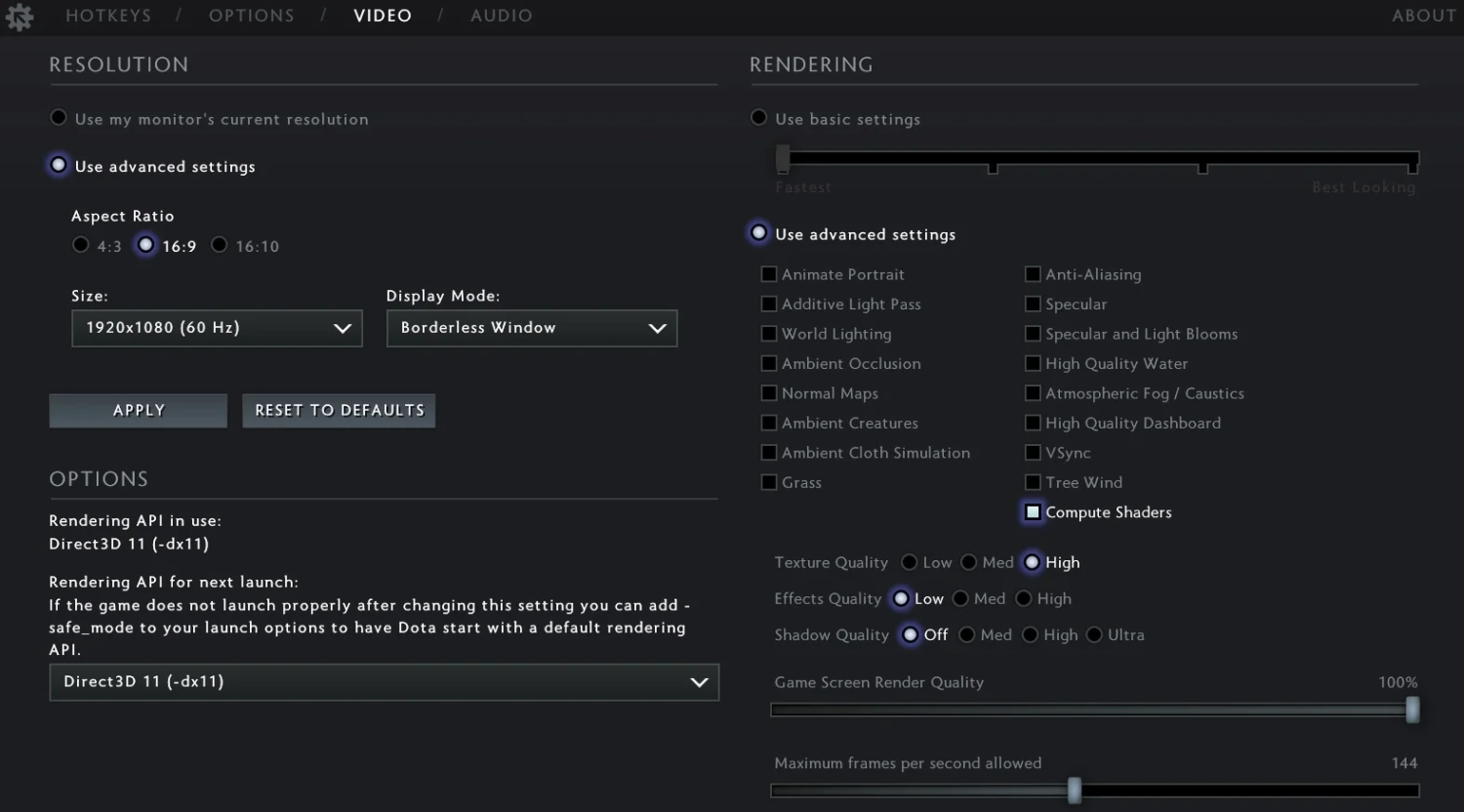
Lower the graphics settings in the «Video» section to minimum or medium.
Enable fullscreen mode – it is lighter on the system than windowed mode.
Close background apps: a browser with open tabs, antivirus software, recording programs – all of these consume system resources.
Update your GPU drivers to the latest version.
Set a maximum FPS cap in the graphics settings – this helps smooth out drops in teamfights when the screen is packed with effects.
The last point is often underrated. If the game shows 200 FPS while nothing is happening, but drops to 40 in a teamfight, the sudden dips feel like sharp stutters. Capping the maximum at around 120–144 FPS makes those drops less noticeable and the image feel more stable. You can find this option in the same «Video» section under «Maximum FPS».
The Counter Is On – What Next?
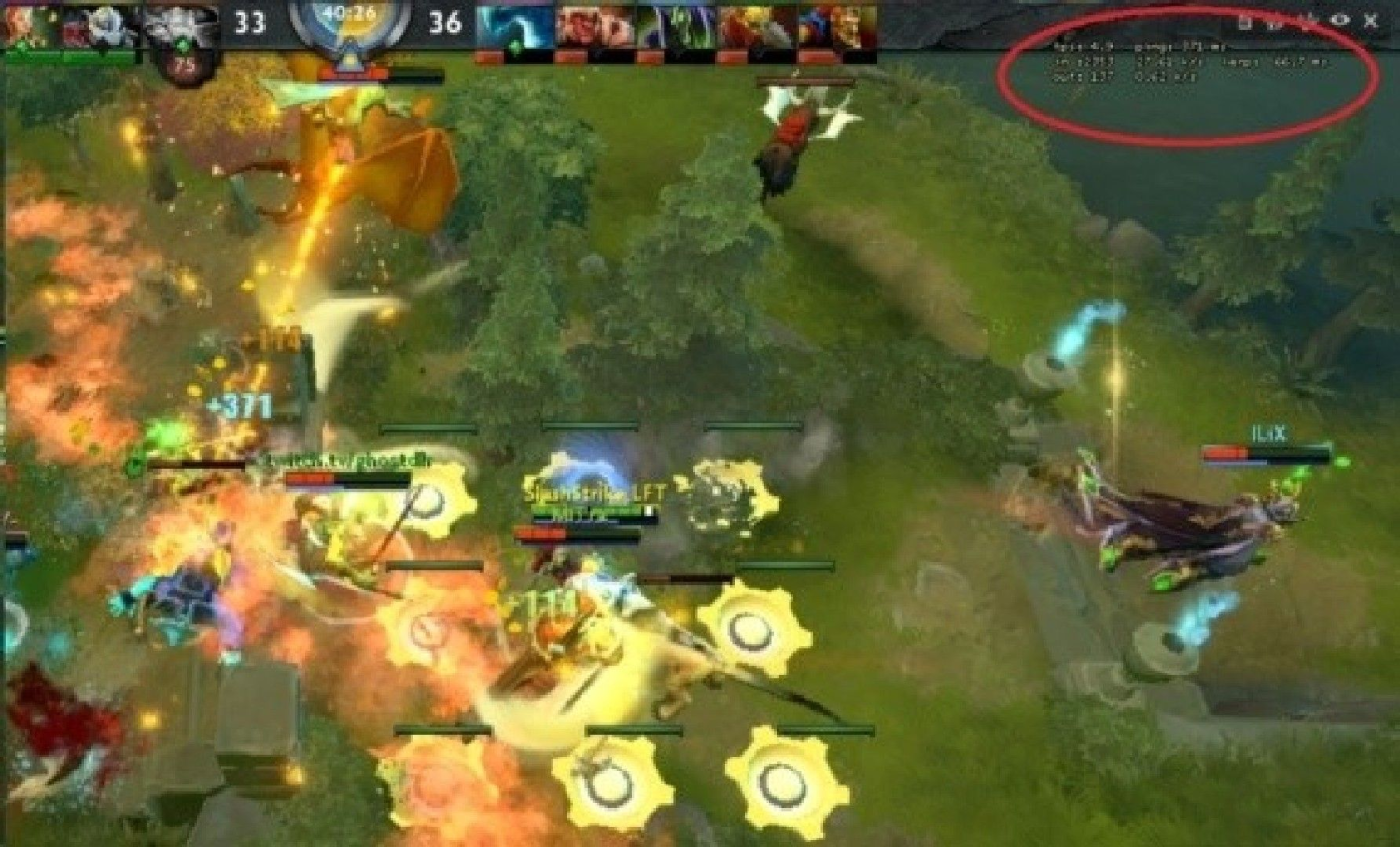
Now that you have chosen one of the methods and turned on the FPS counter in Dota 2, the next step is reading the data correctly. If your FPS is stable and stays around 100+, but the game still feels delayed, the issue is most likely ping or packet loss. That is exactly why the first method through the in-game settings shows all three values at once: FPS, Ping, and Loss.
If the FPS numbers are fine and the network is not the problem, but something still feels off, it is worth taking a deeper look at graphics optimization and game configuration. That is a separate topic, which we covered in detail in our guide to optimizing Dota 2 on LIS-SKINS.
