


If you are interested in how to put your own music in CS GO, then this material will come in handy. Yes, one can argue for a long time that unnecessary sounds in a shooter only distract, reduce vigilance, and so on. However, there is demand, which means we need to satisfy it.
Let's say right away that our guide allows you to use Steam's own player, which does not require minimizing the game to switch tracks. Firstly, it is incredibly convenient, and secondly, it can be configured only once. Well, don’t forget to periodically add a new selection of tracks to the playlist so that you don’t get tired of the current music.
The main thing you need is — Steam Overlay, a proprietary utility for all Valve games. It significantly expands the functionality and is called by the combination Shift+Tab.
The thing is very functional, it shows the number of friends, game statistics, experience for the next achievement and more. But we are interested in it as an internal player with the ability to control tracks, volume, rewind and other attributes. Yes, owners of headsets with a built-in remote control will not find the blog particularly informative, but some, for example, play with the speakers turned on, and not everyone has a multimedia keyboard.
Preparatory stage
To change the music in CS GO you will need to fiddle a little with folders.
Important: the guide does not affect the system files of the game, which can lead to a possible account ban.
First, open the Steam application and go to settings. There will be a “Music” section at the bottom, which we will customize at our discretion.
First of all, you need to delete a couple of standard folders where Windows stores audio files by default. In 90% of cases they are empty, or store standard samples. This is done with the “Reset database” command.
After this comes the second stage — scanning your PC for music files. Click the "Add" button and select the folders that you think are necessary. When everything is ready, just click “Scan”. The process will take some time, this is normal. Alarmists can relax — The computer is not frozen and is digging through the system files.
The screenshot shows that the Steam library contains 73 tracks located in the above folder. In the future, every time you update the playlist, do not forget to scan your PC, otherwise the music will not be displayed in the internal player.
Important: the music should automatically turn off when voice chat is running — check the appropriate box in the settings.
To open the player itself — open the “View” tab in the Steam client. That's where he will be. If the reduced window is inconvenient, you can switch to the expanded mode by clicking the 6 squares icon.
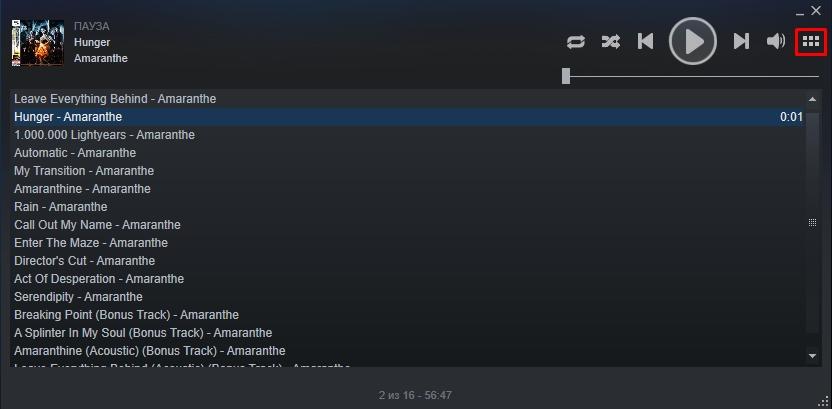
If everything is done correctly, you can go to the “Library” section. — "Music". This is where all the tracks will be stored.
The first part of the preparations is completed.
Creating playlists
Downloading albums is not a problem. It is enough to first pack this very album into a folder. Another thing — collecting different music into a specific playlist, which is not very convenient to do using Steam. But it’s a one-time job, and then it will be much easier.
First, create a playlist. To do this, switch to the appropriate menu and select the desired item.
Then next to the playlist, click “+” and enter the name of the future collection. Here everyone has their own preferences in terms of genres, tastes, and type of music. The main thing — grasp the essence of what is happening.
After that, go to albums or artists again, select any track, right-click on it and add to the previously created playlist.
Important: in order not to scan the library every time after adding new tracks, just check the appropriate box in the settings. After each restart, Steam will check for changes and add new music to the collection.
Now the preparatory work is completely completed.
Playback control
Since everything revolved around Steam Overlay, let's move on to it. First, launch CS GO, and then Valve’s proprietary utility using the Shift+Tab combination. And here at the bottom there is already a full-fledged “Music” button, which opens the playlist in a minimalist player.
To switch between playlists, just click on the 6 squares we talked about above. Otherwise, the tracks will play either one after the other or in random order. The player functionality allows this (icon with cross arrows).
We think the remaining elements are not worth explaining — they have not changed for the last few decades and are intuitive.
The only drawback of this approach — music cannot be compressed into a minimalist player and placed somewhere in the corner of the screen in the case of widescreen monitors. This approach would have been much more convenient, but Valve thought differently. All actions with rewinding, pausing and changing the volume will have to be done via Shift+Tab. In any case, this is much more convenient than Alt+Tab when you have to minimize the window with the game, and you can’t really talk in voice chat with this approach.
Changing game files
We strongly do not recommend this approach if players do not understand which game files can be changed without consequences from Valve. Bans, restrictions and all that — The company monitors the client's modifications very carefully.
Some people are annoyed by the music when starting the game and ending the battle. To fix this — go to the game files at the following address:
SteamLibrary\SteamApps\common\Counter-Strike Global Offensive\csgo\sound\music
And here the most interesting thing will happen — The folder was deleted in one of the latest updates. All in order to protect the client from third-party files, and users — from craving for modifications.
We hope our guide was useful to you. And if you have any questions — ask them in the comments and don’t forget that a lot of interesting and curious things await you at Lis-Skins.com.
