


CS2 console commands are entered in the developer console: enable it in the game settings ("Enable Developer Console") and open it with the ~ key. Below are working commands grouped by task: practice on your own server, FPS display and optimization, mouse settings, giving weapons and grenades, bot control and voice chat. Keep in mind that server commands (mp_, bot_, sv_) only take effect on your local server, and some of them, such as noclip, god and give, also require sv_cheats 1. They are not available in matchmaking or Premier.
How to use the commands?
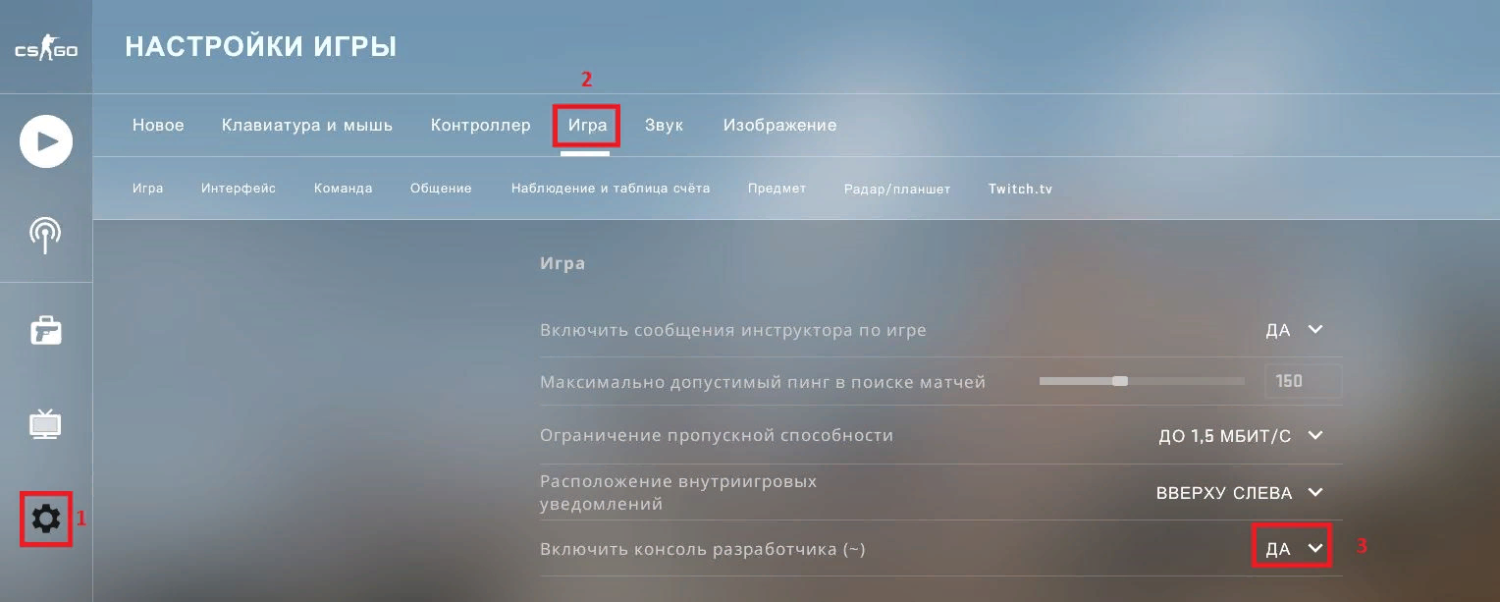
Console commands are entered through the developer console in CS2. It can be accessed by opening the settings menu: in the «Game Settings tab» you need to activate the «Enable Developer Console» option, if it is not enabled by default.
By changing this value to «Yes», you can open the console at any time by pressing the ~ key (it is located under the Esc key on your keyboard). A step-by-step guide with screenshots is in our article on how to open the console in CS2.
Once the console is open, you can use commands to adjust the interface and sound, run efficient practice sessions and control your own server.
CS2 supports several thousand commands, most of which were borrowed from the previous version of the game, CS:GO.
Note: many commands entered in the console reset after you restart the game, so you would have to type them again. You can solve this problem by using a special file — autoexec.cfg. It will allow you to store any commands as well as binds that are loaded into the game. That way you do not have to retype your commands every time.
To create the file, find the game's configuration folder on your computer. You can easily find it in your Steam library. To do this, right-click on Counter-Strike 2, select "Manage" and then "Browse local files". Then open the "game", "csgo" and "cfg" folders. In the last one, create a text document autoexec.cfg (it is very important that it has this extension, not .txt). Where else the game keeps its settings is explained in our article on where the CS2 config is located.
After that you have a file ready, where you can add the most popular, most frequently used commands. In order for such a file to be loaded at game startup every time, without the player's intervention, you need to enter +exec autoexec.cfg in the game startup parameters. This is done in the Steam library: open the game properties and use the "Launch Options" field. The full process is covered in our guide on how to install a config in CS2.
Console commands for CS2 that will be useful for playing with friends
If you practice on your own server, you will find the following commands useful (some of them need sv_cheats 1 first):
sv_cheats 1: enables cheat commands on your server (noclip, god, give, r_drawOtherModels and others);
bot_kick: remove all bots in the current session (more in our guide on how to remove bots in CS2);
noclip: activate flight mode, getting a unique ability to overcome any obstacles;
sv_infinite_ammo 1: to get infinite grenades, ammo, ammunition;
god: activation of immortality;
mp_buy_anywhere 1: making purchases anywhere;
mp_warmup_start: start warmup;
mp_warmup_end: disabling warmup;
mp_warmup_pausetimer 1: setting warmup in continuous mode;
r_drawOtherModels 2: ability to see outlines of bots and players through surfaces;
mp_autoteambalance 0: disable player autobalance;
sv_grenade_trajectory 1: visualization of the path the grenade took;
sv_rethrow_last_grenade: activation of the grenade that was thrown last and exact repetition of its trajectory;
mp_roundtime 3: setting the round time (in minutes);
sv_showimpacts 1: demonstration of bullet traces (this allows you to determine which of the walls in the game can be shot through, and which — cannot);
sv_visiblemaxplayers 25: defining the maximum possible number of players on the map;
cl_showpos 1: show your position coordinates;
r_drawparticles 0: remove weapon animation, water splash and other effects;
mp_restartgame 1: restart the match on the server;
mp_respawn_on_death_ct 1 / mp_respawn_on_death_t 1: instant player recovery after death;
mp_roundtime_hostage: customize round duration for hostage matches;
bot_add_ct/bot_add_t: add one bot per side for each team;
launch_warmup_map [Map Name]: load a specific map in warmup mode.
Console commands for CS2 that increase FPS
FPS — is a metric that reflects the number of frames per second displayed by the game. The higher this score, the more enjoyable it is to play. CS2, which replaced CS:GO in 2023, is more demanding on hardware, so on older PCs it pays to keep an eye on your frame rate.
To monitor and cap your FPS, use the following commands (other methods are in our article on how to show FPS in CS2):
cl_showfps [0/1]: display your FPS on the screen during the game (1 — enable, 0 — disable);
fps_max [number]: set a limit on the maximum possible number of frames per second;
rate [number]: limits the data rate between you and the server; it does not affect FPS, and 786432 suits a fast connection;
the old net_graph command is gone in CS2: ping, packet loss and FPS are shown by the telemetry HUD, which you enable under Settings > Game > Telemetry or with the cl_hud_telemetry_* commands.
Console commands for CS2 that optimize the game
Performance plays a crucial role in how comfortable and enjoyable the gaming experience is. To make participation in the shooter exciting and comfortable, take note of these commands. The ones starting with "+" or "-" are launch options: you add them in the game properties in Steam, not in the console (see our list of the best CS2 launch options).
+cl_forcepreload 1: preload textures and models even before the game starts;
+fps_max 0: removing the FPS cap so that the game can run at the highest possible level;
-fullscreen: switching the game to fullscreen mode;
-tickrate 128: sets a 128 tick rate for the local server you practice on (official CS2 servers run at 64 tick with the subtick system, and this option does not affect them);
cl_autohelp [0/1]: enable or disable in-game prompts;
-console: opening the console at game startup;
-novid: removing the launch video to speed up CS2 loading;
cl_crosshair_friendly_warning [0/1]: enable or disable friendly fire warning in crosshair;
cl_hide_avatar_images [0/1]: enable or disable the visibility of avatars of game members;
cl_disable_ragdolls 1: eliminate some physical elements that overload the processor, affecting its performance.
Console commands for CS2, which will help to customize the mouse in the game
The mouse is crucial for CS2 if you want to succeed in the game against real players. The outcome of a fight is greatly affected by how comfortable and convenient the player is in using it. You can use special commands to improve controllability, to make interaction with the mouse-manipulator more convenient:
sensitivity 5.5: setting sensitivity;
m_customaccel 0: disable mouse acceleration;
m_customaccel_scale 0.04: set mouse acceleration default value;
m_mousespeed 1: mouse acceleration factor in Windows.
Keep in mind that CS2 always uses raw mouse input, so Windows acceleration does not affect the game, and m_customaccel and m_mousespeed are CS:GO-era commands that may not work. The setting that matters most in CS2 is sensitivity; the 5.5 value above is only an example.
Console commands for CS2, which will make the game more fun
In case you are bored with the normal playstyle, you can make games on your own server more fun with these commands. They require sv_cheats 1, and some of them come from CS:GO and may not work in CS2:
sv_party_mode 1: activate party mode;
mat_showlowresimage 1: set low resolution graphics;
ent_fire player addoutput health -1: freeze player;
sv_gravity «-999 to 999999»: setting gravity and attraction values;
ent_create hostage_entity: create hostage;
mat_wireframe 1: ability to view wall frames.
Console commands for CS2 that are responsible for issuing weapons in the game
Counter-Strike has a big selection of weapons. To get one on your own server (with sv_cheats 1) outside of the buy menu, just enter the appropriate console command. It always starts the same way, with give weapon_, followed by the name of the weapon you are interested in. These are:
_ak47: the AK-47 rifle (with give, either side can get it);
_aug: obtaining an AUG rifle with telescopic sight;
_xm1014: XM1014 automatic shotgun with high damage at close range;
_tec9: Tec-9 semi-automatic pistol, effective at close and medium range;
_usp_silencer: the silenced USP-S semi-automatic pistol, which is quite quiet and has good damage ratings;
_nova: inexpensive Nova shotgun, effective for surprise attacks;
_awp: Awp sniper rifle, which instantly causes the death of an opponent when hitting almost any part of the body;
_p90: the P90 submachine gun, which is characterized by consistent accuracy in continuous fire;
_galilar: Galil assault rifle, which is characterized by its rapid fire rate;
_deagle: a powerful Desert Eagle semi-automatic pistol that kills an opponent when it hits him in the head, even if he is protected by a helmet;
_ssg08: the Ssg-08 sniper rifle, which, although it does little damage, is characterized by its cheapness, lightness, and accuracy.
Console commands for CS2 that allow you to control bots
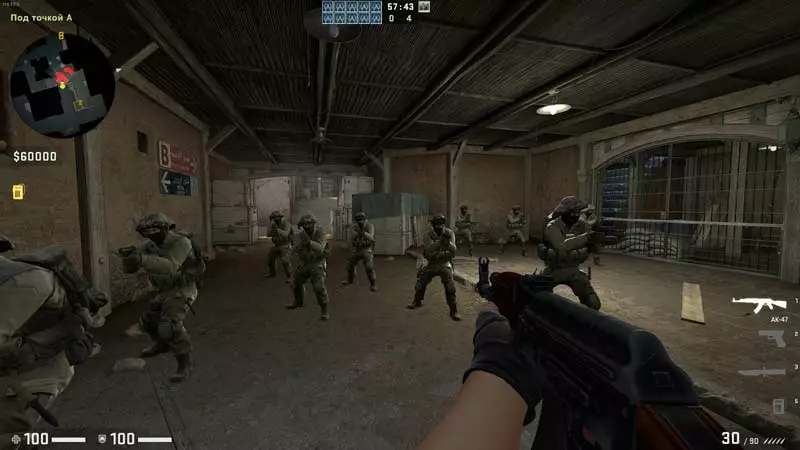
If you like playing with bots, these commands help you control them. They all start with the word bot, followed by the action:
_add: add bot (in this case, the character will automatically be added to the team where there are not enough players to equal);
_add_t: add a character to the team playing for terrorists;
_add_ct: add a bot to the Counter-Terrorist team;
_kill: kill all bot characters on the map;
_dont_shoot: stop bots from shooting;
_stop: stop them;
_zombie 1: freeze all bots;
_kick: kick all bots;
_place: place a bot directly in front of you in the game;
_crouch 1: bot squats;
_difficulty: set the bot skill level from 0 (easy) to 3 (expert); more in our guide on how to increase bot difficulty in CS2;
_mimic 1: the bot repeats actions that a certain player performs;
_kick Jon: kick a particular bot (specify the name).
Console commands for CS2, which will help to customize the voice chat in the game
Voice chat is a very important feature in Counter-Strike 2. This is one of the main ways of transferring information in the game, with its help you can organize competent teamwork. The main console commands start with the word voice, followed by the action. Some of them come from CS:GO and may be missing in CS2; the most reliable way to set voice chat volume is the Audio section of the game settings:
_enable 1: enabling voice chat in the game;
volume 1.0: overall game volume (typed without the voice prefix);
_modenable 1: activate voice chat in mod;
_forcemicrecord 1: enable microphone recording in the game;
windows_speaker_config 1: switch speaker mode to headphones;
_scale 1: set volume level for all players;
_loopback 0: ability to hear your own voice in headphones.
Console commands in CS2, controlling the issuance of grenades in the game
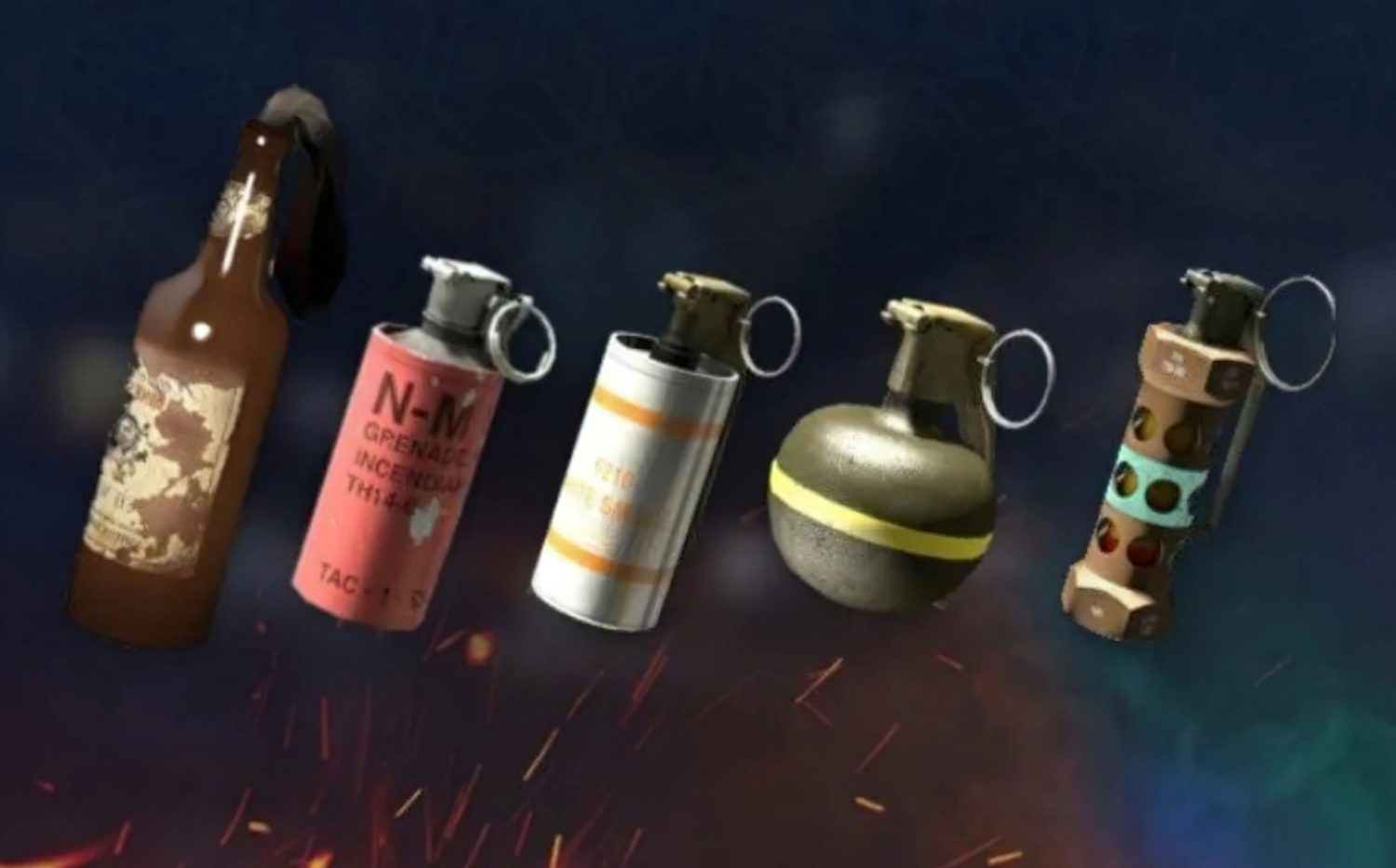
Grenades are actively used in CS2, their correct use significantly affects the result of the game. Give commands only work on your own server with sv_cheats 1. To get grenades, you will need the following commands starting with give weapon_ (followed by the name of the grenade of interest):
_c4: c-4 bomb;
_incgrenade: incendiary grenade;
the defuse kit is given with give item_defuser (with the item_ prefix, not weapon_);
_smokegrenade: smoke grenade;
_flashbang: «flashbang»;
_hegrenade: battle grenade;
_decoy: false grenade.
We have suggested quite a few console commands for playing CS2, but this is by no means a complete list. It is impossible to tell about all of them in one article, but we have selected the most popular and demanded ones. The ones you use most are worth putting on keys: see our article on how to make a bind in CS2.
FAQ
Why do console commands not work in CS2?
Most often the command needs sv_cheats 1 or host rights, so it only works on your local server and not in matchmaking. Some CS:GO commands have also been removed from CS2.
How do I make my commands persist?
Put them in an autoexec.cfg file in the game\csgo\cfg folder and add +exec autoexec.cfg to the game launch options.
How do I show FPS on screen in CS2?
Type cl_showfps 1 or enable telemetry in the game settings, which shows FPS, ping and packet loss.
