


One of the key questions that interests many gamers — how to bind jump in CS2? Why is this so important? The fact is that in Counter-Strike 2, as in many other computer games, speed plays a key role: the faster the character reacts to commands and carries them out, the higher the likelihood of winning the desired victory in the next battle.
What Is a Jump Bind
Bind implies some additional setting in a computer game that allows binding specific actions to corresponding buttons on the keyboard or mouse. Binds are created specifically to make the game easier. They allow you to improve control as much as possible.
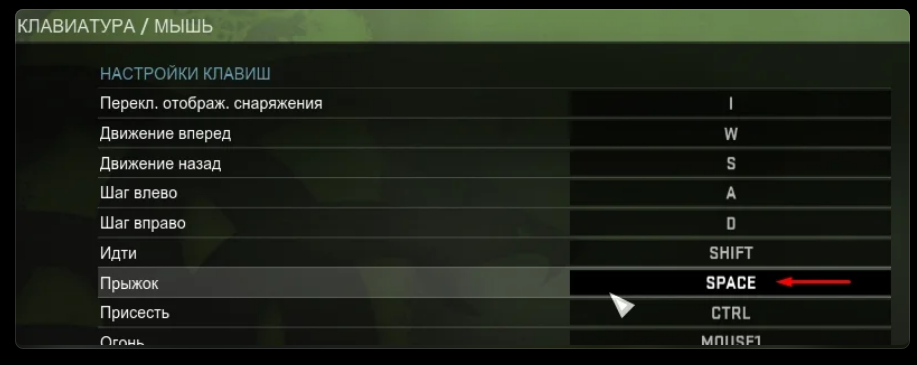
The “Space” key is standardly responsible for the jump binding in CS2, but since this is one of the longest keys with the greatest depth of pressing, a lot of time passes from the moment the gamer decides to jump until the moment of the jump itself, which is not very convenient and effective. That is why the developers recommend experimenting with the controls and using the mouse wheel rather than the Spacebar to jump. Let's figure out how to bind the jump correctly through the console, settings and configuration file.
How to Set Up a Bind for Jumping on the Mouse Wheel in CS2 Through the Settings
This method is one of the simplest and most accessible. Everything that is required from a gamer — follow the following instructions:
Open the settings in the game.
Select the “Keyboard and Mouse” section.
Go to the “Movement” tab.
Find the item "Jump".
Reassign the corresponding button to the mouse wheel.
Save settings.
Congratulations, you're done! Bind to jump in CS2 on a wheel will give completely different opportunities in the game.
How to Set Up a Bind for a Wheel Jump in CS2 Via the Console
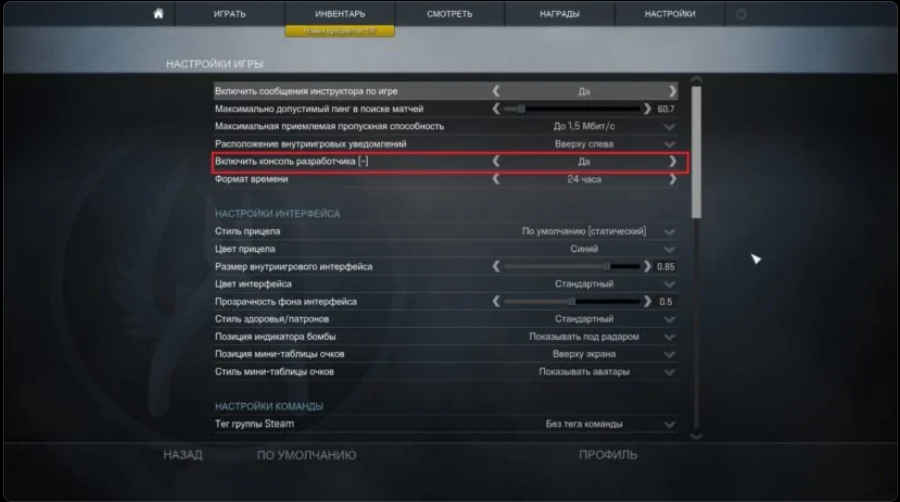
You can also change the jump button in the game using the console. It opens with the Fn or ~ key. The console is already turned on by default, but it also happens that the key on the keyboard responsible for turning it on does not work. In this case, you must first enable the console in the settings. How to do this? Step-by-step instructions:
Launch the game.
Click on the “gear” icon located in the left corner of the screen.
Open the “Game” tab.
Find the “Enable Developer Console” item.
Specify the value "Yes" opposite this item.
Save the changes.
If you did everything correctly, then when you press the Fn or ~ key, the game console will immediately pop up on the screen.
Next task — set up a bind for jumping in CS2 via the console. The procedure is as follows: enter one of the following codes into the command line:
bind "mwheeldown" +jump; bind "mwheelup" +jump; bind "space" +jump — the jump will be performed when the mouse wheel is scrolled up or down, or when the Spacebar is pressed.
bind "mwheeldown" +jump; bind "space" +jump — the character will jump when the gamer scrolls the wheel down or presses the Spacebar.
bind "mwheelup" +jump; bind "space" +jump — jumping is performed by scrolling the wheel up and pressing the "Space" key.
If you made a mistake when entering the code into the command line or decided that you will not use the bind to jump in CS2 at all, write the same command that you used earlier, only instead of the word bind, enter the word unbind.
The developers recommend using a similar method in case it becomes necessary to delete a jump using the "Space" key. For example, if you previously jumped with the “Space” and now want the command to be executed exclusively by scrolling the mouse wheel, write: unbind "space" "+jump".
How to Bind Jump in CS2 Via Config File
Open Steam.
Go to the library.
Right-click on the game name.
Select the “Browse Local Files” command.
Go to: Steam/steamapps/common/[Game Name]
Find the file config_default.cfg and open it with any text editor (e.g., Notepad).
Find the line with jump bind — bind "SPACE" "+jump". Use CTRL+F and search for "space" or "jump".
Replace SPACE with mwheelup or mwheeldown (e.g., bind "mwheelup" "+jump").
In this case, the jump in the game will be performed immediately when you scroll the mouse wheel up.
Important: if you changed the original code as above, you will no longer be able to jump using the “SPACE” key.
How to Bind Jumpthrow in CS2
Another useful option — jumpthrow — throwing a grenade while jumping. Since the old bind was removed, a new control scheme appeared: the gamer must first pull the pin, then jump and throw. Often, this user bind disappears after restarting the game. If that happens, enter the command manually in the console.
To reconfigure the jumpthrow bind in CS2:
Open the game console.
Before the bind, write three aliases: alias "+boing" "+jump", alias "+ding" "-attack; -attack2", alias "+dong" "-jump".
Then write the bind: bind "key" "+boing; +ding; +dong" (replace "key" with a convenient button).
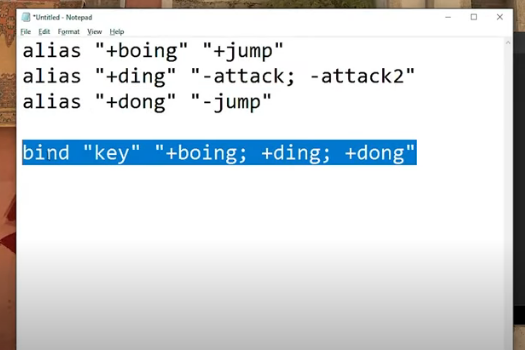
To bind jumpthrow to the Alt key, enter: bind "ALT" "+boing; +ding; +dong".
How to Configure Forward Jumpthrow and Runthrow
Forward Jumpthrow is actively used by pro players to throw a grenade while jumping with a step forward. Runthrow allows you to throw without jumping.
Open the autoexec.cfg file and add:
alias "+jumpaction" "+jump;"
alias "+throwaction" "-attack; -attack2"
alias "-jumpaction" "-jump"
bind "c" "+jumpaction;+throwaction;"
alias "+forwardjumpthrow" "+forward;+jump;"
alias "-forwardjumpthrow" "-jump;-forward"
bind "x" "+forwardjumpthrow;+throwaction"
bind "z" "+forward;+throwaction"
Key "C" = Jumpthrow, "X" = Forward Jumpthrow, "Z" = Runthrow. You can replace these with any convenient keys.
As practice shows, making jump binds in CS2 is not as difficult as it might seem. The main thing is to enter the command correctly, and there will be no problems with the settings.
