


You can find a Steam ID in CS2 (or CS:GO) in three ways: run the status command in the in-game console, read the digits from your Steam profile link, or paste the profile link into a lookup site such as steamid.io. The fastest option that does not require launching the game is to open your Steam profile and copy the 17-digit SteamID64 from the page address (or add "?xml=1" to the link).
A Steam ID is a sequence of numbers unique to each account. It never changes, even when the player changes nickname, so you can still find someone by ID after a rename. Some game forums ask for it in your profile, server admins ask for it in unban requests, and tournament organizers usually require it at registration.
How to See the Steam ID in the Console
The easiest way to find a Steam ID inside CS2 is the console. Open it with the "~" key unless you have rebound it; see how to open the console in CS2 for details. Type "status" and press Enter: the console prints information about the current server, including a list of connected players.

Each player is listed with a name and an identifier. In CS:GO it sat in the "uniqueid" column and started with "STEAM_"; CS2 changed the output format and the number may appear in a different form, so if you cannot see the ID in the list, use the profile link method below. The command is handy if you want to report a suspicious player and need to point to the exact account. You can copy text from the console with CTRL+C and CTRL+V, as in any other program. Besides the ID, the output contains other useful data:
name: the player nickname others see;
ping: ping at the moment of the request;
loss: packet loss.
The status command also works in other Valve games built on the Source and GoldSrc engines. More useful commands are collected in our list of CS2 console commands.
How to Open the Console
If you press "~" and nothing happens, you need to enable the console in the game settings first. Open Settings, go to the "Game" tab and find "Enable Developer Console (~)": it must be set to "Yes". If the "~" key (it is called a tilde) is inconvenient, you can rebind it in the "Keyboard / Mouse" tab.

Another way to keep the console always on is to add "-console" to the launch options. Open the CS2 properties in your Steam Library and type it into the "Launch Options" field. Other settings go there too; we cover them in the best CS2 launch options.
Other Ways to View Your Steam ID
The console is not the only way to find your Steam ID. The number is often visible right in your profile address. Open your profile page in Steam, right-click anywhere and choose "Copy Page URL". Paste it into a browser: if a long string of digits follows "profiles/", that is your SteamID64. This only works if the profile has no custom URL; otherwise the address shows a nickname after "id/", which is not what you need.

To get the digits anyway, add "?xml=1" to the end of the address. Instead of the profile page you will see a list of profile data, and the second line (the one that says "steamID64") contains your ID.
Websites to View Your Steam ID
If you would rather not deal with the console or the address bar, a few websites will do the job for you. Copy the account link as described above and paste it into one of these sites:
https://www.steamidfinder.com/
https://steamid.io/
https://steamid.co/
The site shows the public information about the profile: every Steam ID format (SteamID, SteamID3, SteamID64), any bans on the account, the creation date and more. It works for any account, not just yours: right-click a player in your friends list, choose "View Profile", copy the link and paste it into the site. You do not need to sign in with Steam for this; if a lookup service asks for your login and password, treat it as a red flag (common schemes are covered in how to protect your inventory from scammers).
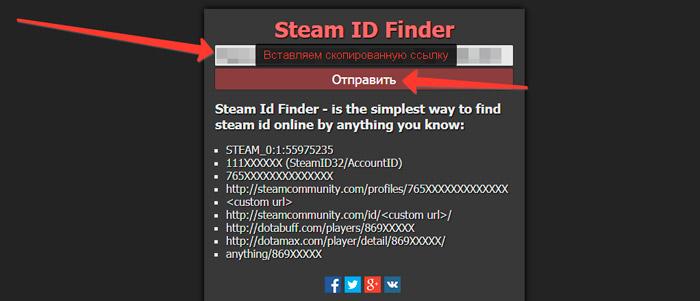
You will save a little time if you enable "Display web address bars when available" in the Steam settings, so the link is always easy to copy.
What a Steam ID Is For
A Steam ID comes in handy in several situations. You need it if you want to create your own CS2 server and give yourself admin rights, since the ID is used in the server config. If you get banned on a server, you will have to include your Steam ID in the unban request. Knowing another player's ID lets you find them even after a nickname change. Tournament registrations usually ask for it as well. Do not confuse the Steam ID with a trade link, which is what you need for item trades; see where to find your trade link.
As you can see, there are plenty of ways to find your Steam ID. You can do it in game while connected to a CS2 server, or without launching the game by copying your Steam profile link. Each method takes a couple of minutes, so pick whichever suits you. And when you want bright and rare skins for your inventory, you can find them on the LIS-SKINS market.
