


To launch CS2 you no longer need an invite: on September 27, 2023, Counter-Strike 2 replaced CS:GO and is free on Steam. Install Steam, find Counter-Strike 2 in the store, click Play, wait for the download to finish, and start the game from your Library. If the game won’t start or crashes, the main causes and fixes are covered below.
The free version gives you the regular modes on official servers. Premier and weekly rewards require Prime status; see how much Prime costs in CS2.
How to Get CS2 Now
Download and install the Steam client, then sign in or create an account.
Find Counter-Strike 2 in the Steam store and click Play. If you owned CS:GO, the game is already in your Library and your inventory carried over.
Pick a drive with enough room: Valve lists 85 GB in the requirements; see how to check the size of CS2 on your PC.
When the download finishes, launch Counter-Strike 2 from your Library.
Before installing, check the minimum requirements: Windows 10 or newer, a CPU with 4 threads, 8 GB of RAM, and a DirectX 11 graphics card with at least 1 GB of video memory. On weaker hardware the game may not start at all.
Once the game is installed, it updates automatically through Steam. If an update gets stuck, restart Steam and make sure the drive still has free space, since patches unpack next to the existing files before replacing them.
How Access Worked During the 2023 Beta
Valve started the Counter-Strike 2 Limited Test on March 22, 2023, and only a small share of players got in. Back then there were three routes: wait for a Steam invite, buy or rent an account that had access, or download a pirated build. Today only official Steam matters, but here is briefly how it worked.
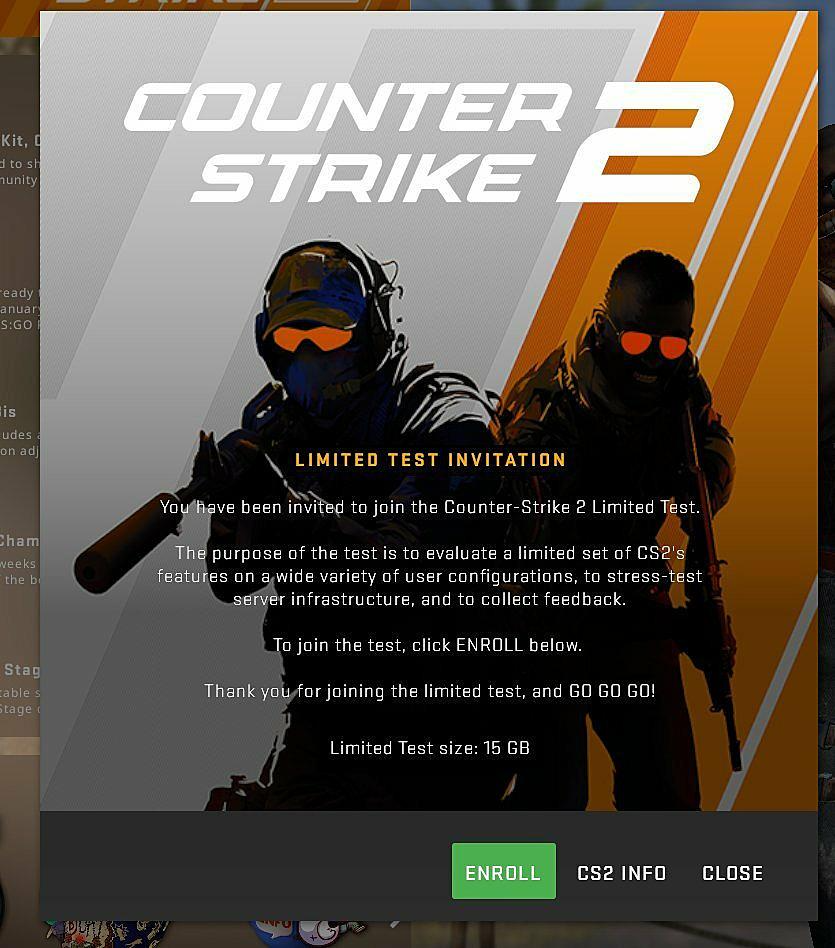
The official invite appeared in the CS:GO main menu as a large pop-up that covered almost the whole screen. You clicked Enroll at the bottom of it, which started the download of the new game. After the download, you closed and reopened Steam, and from then on the launcher let you choose between regular CS:GO and the beta: clicking Limited Test started Counter-Strike 2. Players who got in this way were among the few who tried CS2 before its release in the fall.
Right after the beta launched, listings appeared selling and renting accounts with test access. For buyers it was risky: the account could have a history (for example, cheating) and get banned, and scammers sold ordinary CS:GO accounts as “beta” ones. Buying someone else’s account is still a bad idea: it breaks Steam’s rules, and the account can be reclaimed by its original owner or locked.
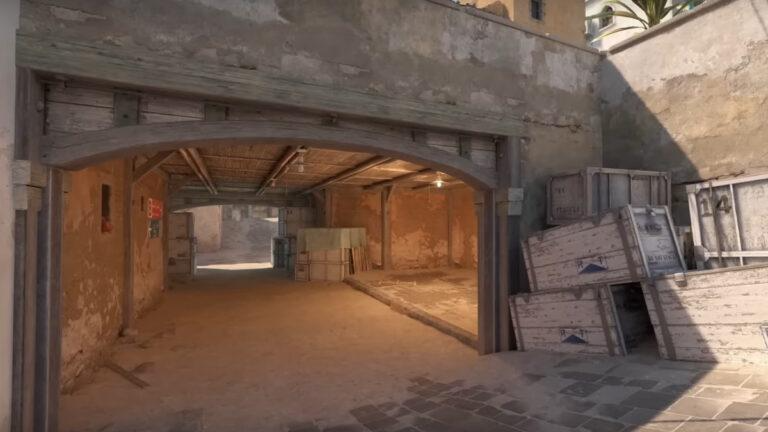
Pirated builds appeared the day after the test started. We do not support piracy, and today it makes no sense anyway: the official game is free, while a pirated build can’t connect to Valve servers, only works with bots, and often carries malware. To see the new graphics, smokes, and tracers, just download the official CS2.
How to Solve Startup Problems (Part 1)
So, let’s deal with the situation when you installed CS2, but the game does not start. Possible reasons:
Game files have been damaged. Go to Steam, right-click on CS2, select “Properties” → “Installed Files” → “Verify integrity of game files”. Damaged files will be re-downloaded.
An old version of Windows may prevent CS2 from starting normally. Update your system.
Outdated DirectX. Download the latest version from Microsoft’s official website.
How to Solve Startup Problems (Part 2)
If the previous methods didn’t help, check for updated versions of Visual C++ and .NET Framework — they are also available on Microsoft’s website.
Your antivirus may conflict with CS2. Either temporarily disable it or add the game to the exceptions list.
The video card may also cause issues, so update your drivers. If your card doesn’t support DirectX 11, it will need replacing. If the game starts but runs unstably, the right launch options can help.
Also, CS2 may not start if the folder path includes Cyrillic characters. Rename all folders in the full path using only Latin letters.
What to Do if It Crashes During the Game
You managed to launch CS2, but it crashes during gameplay. Most likely, the problem is in the launch file. Possible causes and fixes:
Use of Cyrillic in folder names — rename them with Latin letters.
Corrupted game files — see “Startup Problems (Part 1)”.
Outdated OS or GPU drivers — update them.
Conflicting mods — remove them one by one to test stability.
Your system may not handle high graphics settings, so lower texture quality, effects, and anti-aliasing (see our CS2 settings for weaker computers).
Try compatibility mode: right-click on cs2.exe → “Properties” → “Compatibility” → check “Run in compatibility mode”. If it doesn’t work — update Windows.
Solving Other Problems
Another common issue — a black screen. If it appears after launch, the problem may be with the video driver. If it appears during gameplay — update Visual C++.
Sometimes the game doesn’t even install. Common causes are a full drive, an interrupted download, or antivirus software blocking files. Free up space, check your connection, and add the Steam folder to your antivirus exceptions. If you try a pirated build, your antivirus may delete infected files from it and break it, so install only the official version from Steam.
If none of this helps, see our full breakdown of what to do if CS2 won’t launch on Steam.
