


To remove the text in the bottom left corner of CS2 (the build info line with the build version and date), open the console and enter r_show_build_info 0. The command only lasts until you restart the game, so for a permanent fix add +r_show_build_info 0 to your Steam launch options. The FPS counter is turned off with cl_showfps 0, and performance readouts such as FPS, ping and packet loss are controlled in the telemetry section of the game settings.
CS2 can show several kinds of on-screen text, and each has its own source: build info is there for bug reports, the FPS counter and telemetry are usually switched on by the player, and white debug messages come from developer mode or community servers. Below we go through each one: what it is, which command removes it, how to make the change stick, and which notifications cannot be hidden at all.
What's the Text in the Bottom Left of CS2?
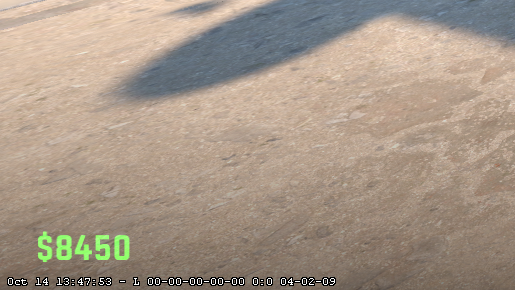
The line in the corner is service information about the current build of the game: the version, build number and date. The exact format can vary slightly between client versions. It is usually called build info.
You see it everywhere: in the main menu, in the lobby and during matches.
Why does Valve show it? When a player finds a bug and sends a screenshot or video, the developers can immediately see which version of the game it happened on. With CS2 updating as often as it does, that speeds up bug triage considerably.
For a regular player, though, this information is useless and simply takes up screen space. It is especially annoying if you record videos, take screenshots or just prefer a minimal interface. That is why "how to remove the bottom text in CS2" remains one of the most common questions about the game's HUD.
How to Remove Bottom Text in CS2 Through Console?
The developer console is the main tool for fine-tuning the game: it controls display settings, performance options, binds and much more. It is disabled by default, so you need to turn it on first. Our guide on how to open the console in CS2 covers this in more detail.
Enabling Developer Console
The first option is the game settings. Launch CS2, click the gear icon in the top left corner, open the "Game" tab and find "Enable Developer Console." Set it to "Yes." From now on the console opens with the tilde key (~), which sits just below Esc on a standard US keyboard.
The second option is Steam. Open your library, find Counter-Strike 2, right-click it and choose "Properties." In the "Launch Options" field, type -console. The console will now open automatically every time the game starts.
Main Command for Removing Build Info
With the console enabled, open it and enter one of these commands:
r_show_build_info false
Or, if a number is easier to remember:
r_show_build_info 0
There is no difference between them: false and 0 work the same way. Press Enter and the text disappears right away. To bring it back, enter r_show_build_info true or r_show_build_info 1.
Important Console Method Limitation
A command typed into the console manually only lasts until you restart the game. The next time you launch CS2, the text comes back and you have to enter the command again. If you play every day, that gets old quickly.
The permanent fix is either Steam launch options (covered below) or an autoexec.cfg file, where you can store the command so it runs every time the game starts. Our guide on how to install a config in CS2 explains how to create and load one.
For one-off tasks the console method is perfectly fine: if you need to record a clip or take screenshots for a guide, type the command and the screen is clean.
How to Remove Date Text in CS2 Through Launch Parameters?
The date and build number are part of the same build info line, so the same command removes them. To avoid typing it every session, use Steam launch options, which run console commands automatically each time the game starts.
Advantages of Launch Parameters Method
Launch options are commands that Steam passes to the game at startup. They are applied before the main menu loads, so every setting listed there takes effect automatically. The main advantage is that you only have to remove the text once, and it will not appear again on later launches. For other options worth adding, see our list of the best CS2 launch options.
Step-by-Step Setup
Open the Steam client and go to your library.
Find Counter-Strike 2, right-click the title and choose "Properties."
On the "General" tab, find the "Launch Options" text field.
Enter the command below and close the window; changes are saved automatically.
+r_show_build_info 0
Pay attention to the "+" in front of the command name. In launch options, it tells the game to run what follows as a console command. Without the plus sign the command does nothing and the text stays on screen.
If the field already contains other options, add the new command after a space. A full line might look like this: -console +r_show_build_info 0.
Checking Functionality
After setting the launch options, fully restart Counter-Strike 2. The command runs automatically as the game loads, and the build version text should no longer appear. If it is still there, check the spelling: the usual culprits are a typo, a missing "+" or no space between options.
How to Remove FPS Text in CS2?
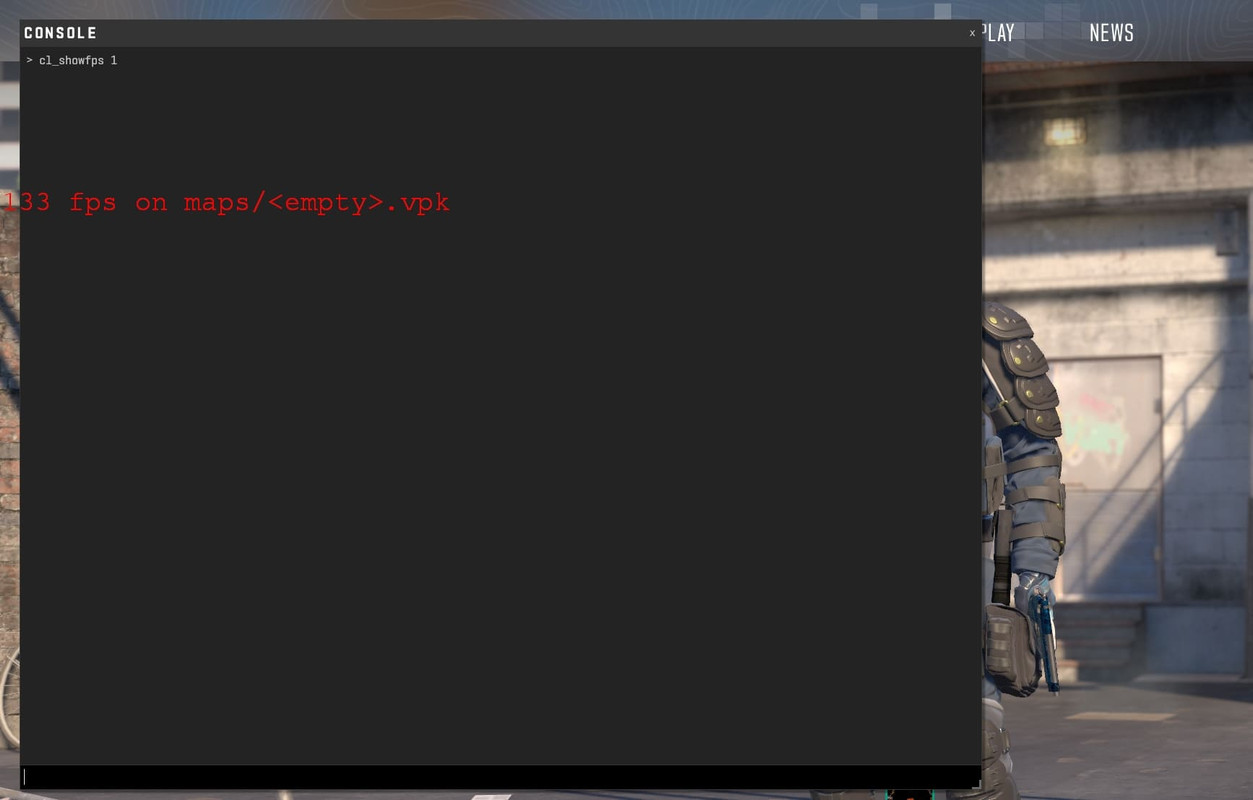
The frame rate (FPS) counter is another piece of text that can appear on the Counter-Strike 2 screen. Unlike build info, it is not on by default: the player turns it on through the console or the settings. Many players keep it on to watch performance, but there are times you want it gone, for example before recording a video.
What the FPS Counter Shows
When the counter is on, the screen shows how many frames per second your graphics card is rendering at that moment. The number tells you whether your PC keeps up with the game: the more stable the FPS, the smoother the picture and the more responsive the controls. If you later want it back, see our guide on how to enable FPS in CS2.
The cl_showfps command has several modes with different levels of detail. The exact readout depends on the client version, but the general idea is as follows:
| Command | What it shows |
|---|---|
| cl_showfps 0 | Turns the FPS display off completely |
| cl_showfps 1 | A compact frame counter |
| cl_showfps 2 | An extended readout with additional stats |
| cl_showfps 3 | The most detailed statistics |
For network metrics and detailed stats, CS2 offers telemetry: in the game settings (the "Game" tab, telemetry block) or with the cl_hud_telemetry_* commands you can control the display of FPS, ping, packet loss and frame time separately. If those numbers are cluttering your screen, switch them off in the same place.
Disabling FPS Counter
Removing the FPS text in CS2 is as simple as it gets. Open the developer console and enter:
cl_showfps 0
Once you press Enter, the counter disappears immediately, with no restart required. You can turn it back on at any time with cl_showfps 1 or any other mode from the table above. If the numbers come from telemetry rather than cl_showfps, turn off the matching items in the settings instead.
Alternative FPS Monitoring Methods
If you want to track performance without the built-in CS2 counter, there are other options. Steam can display FPS through its overlay: open the Steam settings, go to the "In Game" section and pick a screen corner for the in-game FPS counter. To remove that counter, set the option back to "Off."
NVIDIA GPU owners can use the NVIDIA overlay (in the NVIDIA App, previously GeForce Experience), which opens with Alt+Z and shows FPS along with other system metrics. Its advantage is that it works over any game, not just CS2. If a counter stays on screen no matter which game commands you use, check these overlays first.
How to Remove White Text in CS2 (Debug Messages)?
Besides build info and the FPS counter, CS2 can show white debug messages. They come from the Source 2 engine and usually appear when developer mode is on or when you play on community servers.
Types of Debug Text
These messages vary. Developer mode prints service information used when debugging the game. Other messages report server errors or problems loading a map. A regular player almost never needs them, and they only block part of the view.
Each type of message has its own command:
developer 0: turns off developer mode messages;
cl_showerror 0: hides error messages.
If the console replies with unknown command, the parameter is not available in your client version. In that case, focus on switching off the source of the messages (for example, developer 0) or the specific overlay or telemetry item. A full list of working commands is collected in our guide to CS2 console commands.
You enter these commands in the console the same way as any other: type the command, press Enter, and the corresponding messages stop appearing. Depending on the type of text, these are the ways to remove white text in CS2.
When Debug Text Is Useful
Sometimes these messages are worth keeping. When you build custom maps or test modifications, developer mode provides important technical information, and error messages help track down problems on community servers. So it makes sense to turn them off for regular play but leave them on while working on maps or diagnosing issues.
Text That Cannot Be Removed in CS2
Not every piece of text on the Counter-Strike 2 screen can be turned off with console commands. Valve made some notifications permanent because they report security or connection problems.
VAC Warnings
VAC (Valve Anti-Cheat) shows its own notifications, for example when it was unable to verify your game session. You cannot hide this kind of text with a command, since it is a Valve safety measure. A restart of Steam and the game, or verifying the integrity of the CS2 files in the game's Steam properties, usually helps.
If the warnings only show up on certain community servers, the problem is most likely the server itself. On official Valve servers such messages are rare.
Low Performance Notifications
When the game detects connection or performance problems, icons and warnings can appear on screen. Commands cannot hide them, because they point to technical issues that need your attention.
Rather than hiding these notifications, it makes more sense to fix the cause: lower the CS2 graphics settings, update your GPU drivers, close background apps or check your network. Once the game runs smoothly, the warnings go away on their own.
Frequently Asked Questions
Why doesn't the command save after game restart?
The r_show_build_info command entered in the console only applies to the current session; on the next launch the game goes back to the default value. To keep the text hidden, add +r_show_build_info 0 to your Steam launch options or to autoexec.cfg.
Can all text be removed with one command?
No, there is no single command for that. Each interface element is controlled separately: r_show_build_info handles the build version, cl_showfps the FPS counter, developer and cl_showerror the debug messages, while performance metrics live in the telemetry settings. Other HUD elements work the same way; see our guide on how to remove the crosshair in CS2.
Console won't open in CS2, what to do?
First, check that the console is enabled in the game settings. Then make sure you are pressing the right key: the tilde (~) below Esc. On non-English keyboard layouts the same physical key may produce a different character, so switching the layout often helps. Another fix is adding -console to your Steam launch options.
Does disabling text affect performance?
Practically not at all: the FPS counter and build info use a negligible amount of resources. Players turn them off for a cleaner screen and better focus, not for extra frames.
Is it safe to use these commands?
Yes. All of the commands described here are built into the game by Valve and only change how the interface is displayed, so they do not break any rules and cannot lead to a VAC ban. You can remove text in CS2 this way without any worries.
Optimal Clean Screen Setup
For the cleanest interface, combine the methods. The build version text is best disabled through Steam launch options with +r_show_build_info 0, which makes the change permanent. The FPS counter can stay under the cl_showfps console command, so you can quickly turn it on whenever you need to check performance.
Here is a summary table of all the commands for quick reference:
| Text type | Console command | Launch option |
|---|---|---|
| Build info (version and date) | r_show_build_info 0 | +r_show_build_info 0 |
| FPS counter | cl_showfps 0 | +cl_showfps 0 |
| Developer mode messages | developer 0 | +developer 0 |
| Error messages | cl_showerror 0 | +cl_showerror 0 |
If a command does not apply and the console reports unknown command, the parameter is not available in your client version or mode; just remove it from your launch options.
With these settings, you can tailor the Counter-Strike 2 interface to your liking. A clean screen without extra text makes it easier to focus on the game, and every change can be undone at any time with the same command set to 1.
