


As of today, there are 2 ways to enable FPS in CS 2: using the console or through third-party applications.
Enabling the FPS indicator in the console
Since CS 2 is a very fast and dynamic game, where split seconds often decide a shootout, tracking the FPS indicator on a computer is critically important. FPS is an English abbreviation and stands for Frames per Second, i.e. the number of frames displayed on your monitor per second.
If the FPS is high, the image will move smoothly, without jerking, freezing, or blur. In case of low FPS, you risk encountering freezes, jerks and poor picture quality.
There are also situations when the game goes easily, without problems and freezes, but sometimes, for example, when the enemy throws smokey or flash grenades, it starts to slow down and slow down. Here, the first thing you should do is check the FPS, and to do this, turn on the FPS in CS 2. Then you need to find out why it drops. Usually the FPS “jumps” for 2 reasons: either your monitor has a low refresh rate, or weak hardware.
If you previously had questions about whether the developers will leave the console in the new Counter Strike or remove it, then we hasten to rejoice: everything will remain in place, and even most of the commands will not be changed.
So, in order to enable FPS in CS 2, you need to:
Start the game.
After that you need to turn on the console using the key that is assigned in your settings, or by clicking on “~” (set by default). The key may not work, which means only one thing: the console was not previously activated in the game settings. Below we will tell you how to activate it specifically in CS 2.
In the console, write cl_showfps 1, to confirm, press Enter.
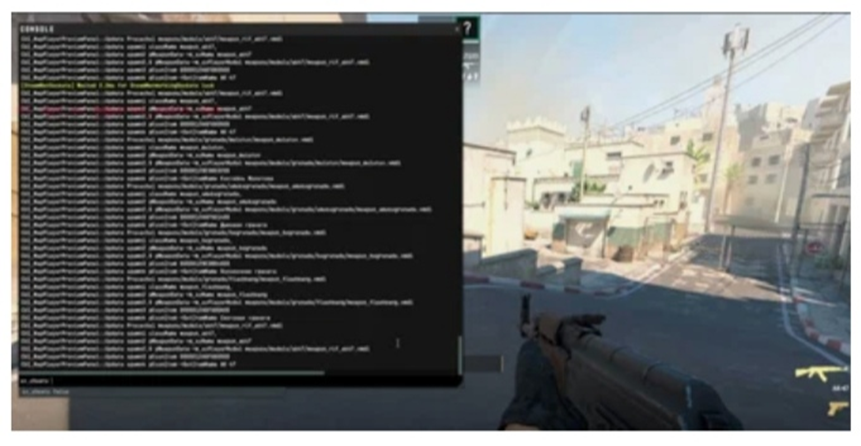
Now pay attention to the upper left corner of the screen. If you turned on FPS in CS 2 correctly, you will be able to see a counter there. If there is no counter, then carefully write the command again.
In order to remove the FPS indicator, just call the console and write cl_showfps 0 in it. The counter should stop being displayed on the screen.
Activating the console
The problem with turning on the console is perhaps the main difficulty with which you will have to face if you decide to turn on FPS in CS 2. It can be solved in several steps.
First, you should launch a new Counter Strike, and then go to the so-called main screen. This is necessary to be able to go to the game settings.
Secondly, on the main screen at the bottom, on the left side, you will see an icon indicating a gear. Click on it and among the tabs that drop down, click on “Game Settings.”
Thirdly, when you go to this tab, you will see a list. In this list there will be an option called “Enable Developer Console”. You need to click on it to change the option value to “Yes.”
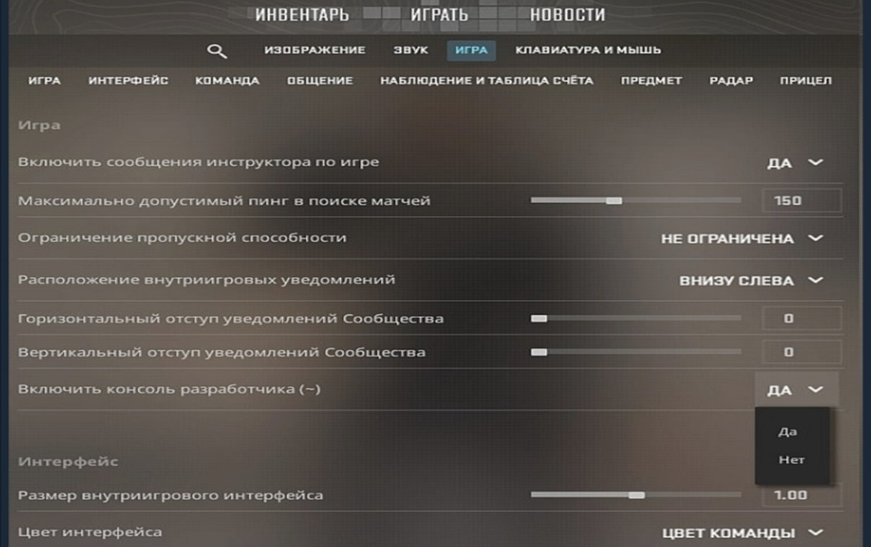
Fourth, confirm your choice by clicking on the “Apply” button. at the bottom of the screen. If you do not click on the button, then you will have to go through all steps from 2 to 4 again.
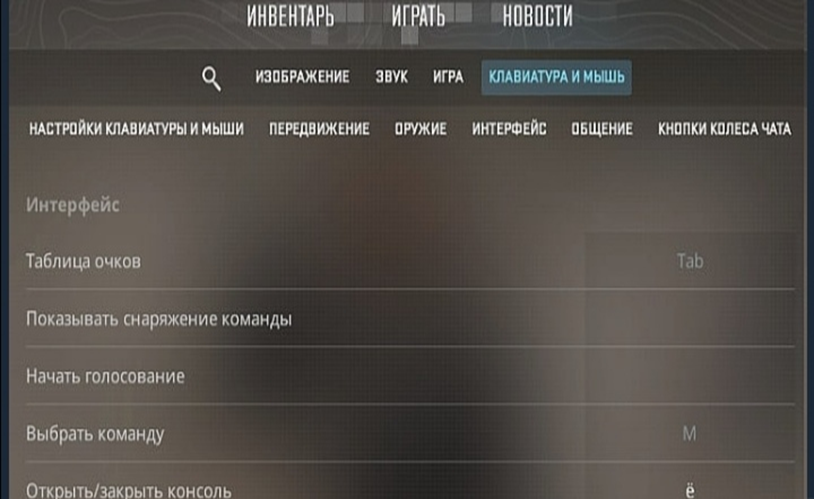
Fifthly, if you want to set a new button to open the console, then in the game settings go to the tab called “Keyboard and Mouse”, scroll through the list, find “Open / close console”. Click on it, then press the key that will later be used to open the console.
Enable FPS in CS 2 through third-party programs
In this case, you first need to find out which video card manufacturer you are using:
For video cards from NVIDIA you will need the NVIDIA GeForce Experience program.
For video cards from AMD you will need the AMD Radeon program ReLive.
In addition, with the help of this software you can not only enable FPS in CS 2, but also use additional tools built into it to improve your gaming experience.
To activate the FPS indicator in the NVIDIA GeForce Experience program, first go to the settings menu. Then find the In-Game Overlay option and activate it. After that, without leaving the program, find CS2 in the list of games and launch it. If you did everything correctly, you will see the FPS counter. To remove it, disable the In-Game Overlay option.
As for the Radeon ReLive program, it is convenient in that you can open the full-screen version or limit yourself to the sidebar. The ALT+R combination launches the full screen version, and the ALT+Z combination opens the sidebar. In the program, go to the settings and activate the “Enable FPS counter” option. Now you have enabled FPS in CS 2 for Radeon video cards.
Comparison of FPS in CS 2 and CS GO
Based on the meager information that comes from Valve, we have come to the conclusion that there is a direct connection between the screen refresh rate and the minimum FPS value, without achieving which It will not be possible to reach the threshold of playability, i.e. for a comfortable game without delays. So:
For monitors with refresh rates below 144 Hz, the minimum FPS should be at least 200, and this is a stable 200, and not jumping to 60 and below. So higher is possible, lower is undesirable.
For monitors with refresh rates above 144 Hz, the minimum FPS should be at least 300.
It is worth saying that at the moment there are reasons for concern. Apparently, Valve has not yet fully optimized the new Counter Strike and there are some problems.
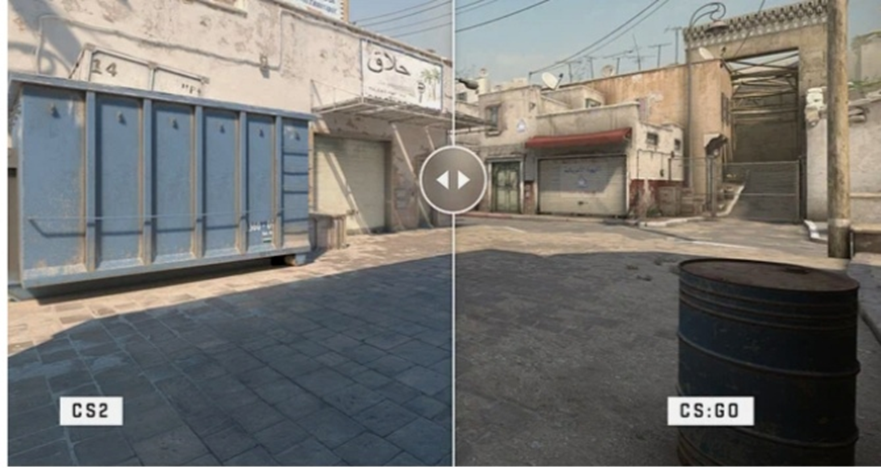
For example, if you enable FPS in CS 2 on good hardware» with an i7 processor, 32 GB RAM and an AMD 6900 XT video card, then at maximum you will only get 315 FPS. While in CS GO such a computer would give from 600 to 800 FPS.
If you take a computer with average hardware, then at maximum settings you will get, at best, only 70 FPS. After resetting the settings to minimum, raise the value to 200. To compare with CS GO, multiply these numbers by 2.
Tips for increasing FPS on your device
You turned on FPS in CS 2, saw its value, and it did not suit you. We will offer you some tips that will help you increase your FPS.
First, adjust your graphic settings. This is the most effective way to quickly fix the FPS problem. First of all, you need to reduce the resolution, shadows and shader detail settings. After that, check if the gameplay is smoother
Secondly, check if you have any background programs enabled. They take up a significant RAM resource, which is often not enough for the game.
Thirdly, update the drivers, especially on video cards. Old "firewood" greatly limit the capabilities of new sophisticated "videos", so do not be lazy to find new versions of drivers.
Fourth, update Windows and install a more modern version.
Fifth, check if your hard drive is cluttered, remember how long ago you cleaned it or defragmentation.
Sixth, put your device in high performance mode, however, keep in mind that in this mode the amount of electricity consumed will increase.
Seventh, clean the device from dust.
