


Hands in CS2 are set up with four viewmodel console commands: viewmodel_offset_x (left and right), viewmodel_offset_y (closer and farther), viewmodel_offset_z (higher and lower) and viewmodel_fov (how large the model looks). Enable the console, enter the values and save them in autoexec.cfg so they don't reset. The smallest, least intrusive hands come from viewmodel_fov 68, viewmodel_offset_x 2.5, viewmodel_offset_y 0, viewmodel_offset_z -1.5. Below are all the parameters, ready-made setups and the most common mistakes.
Hand position gives no direct gameplay advantage, but it affects visibility and aiming comfort: the weapon model can take up a noticeable part of the screen or barely get in the way. Many players who moved over from CS:GO want their old viewmodel back, and in CS2 the same viewmodel commands do the job. For how hands were configured in the older game, see our guide on hand customization in CS:GO.
What Affects Hand Display in CS2
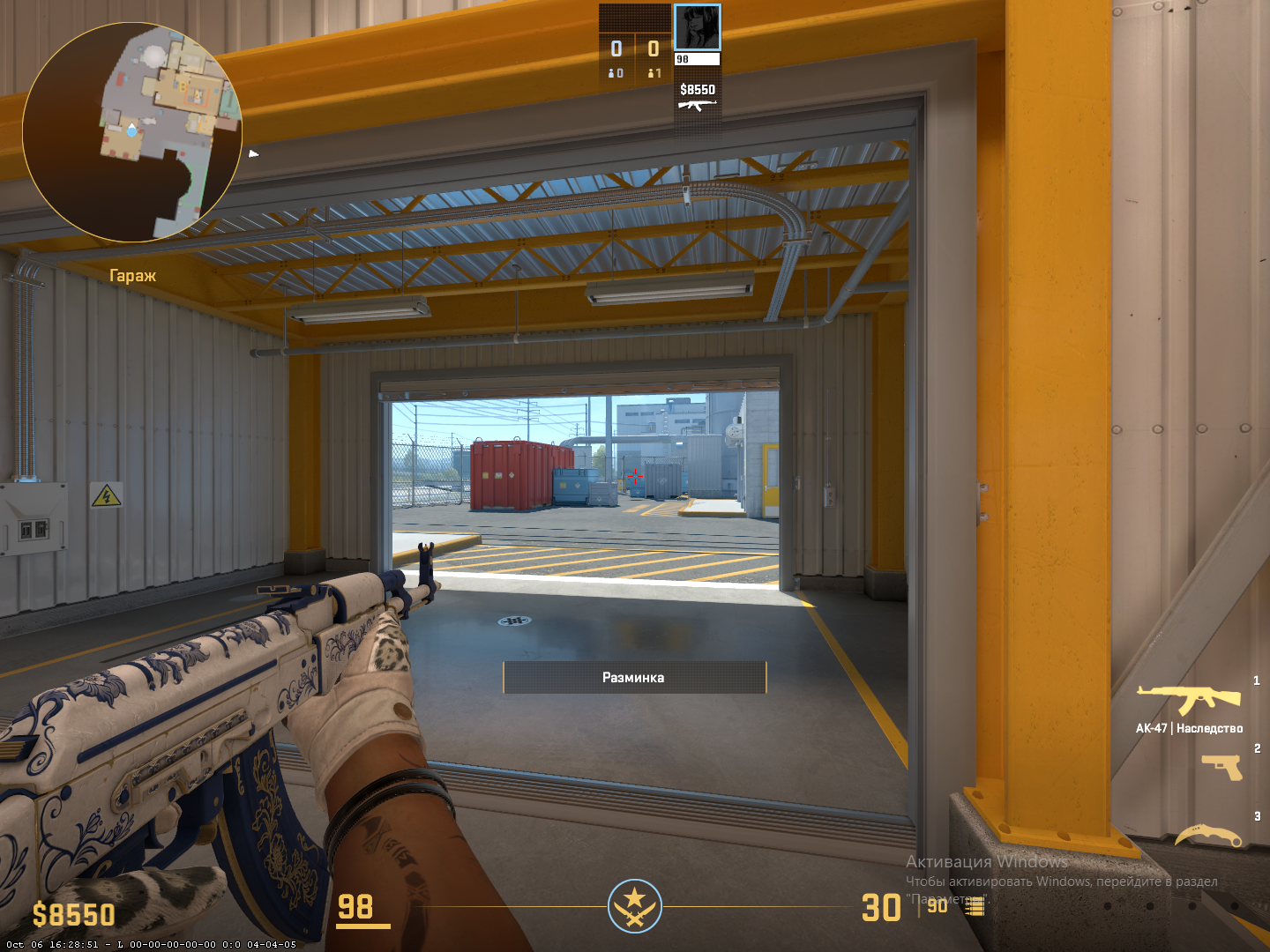
In CS2, the first-person model of your hands and weapon is called the viewmodel. It looks different from player to player, and that is not only about skins or gloves: much depends on the settings that control where the model sits on the screen.
The main parameters that determine hand position in CS2:
| Parameter | Function | Range |
|---|---|---|
| viewmodel_offset_x | Horizontal offset (left and right) | -2.5 to 2.5 |
| viewmodel_offset_y | Forward and backward offset | -2 to 2 |
| viewmodel_offset_z | Vertical offset (up and down) | -2 to 2 |
| viewmodel_fov | Model field of view | 54 to 68 |
These commands let you literally "reposition" the hands: move them toward the center, lower them, pull them back or change the model's apparent size with the FOV.
The default values are usually:
viewmodel_offset_x 1
viewmodel_offset_y 1
viewmodel_offset_z -1
viewmodel_fov 60
Although hand position in CS2 gives no direct advantage, it shapes aiming comfort and how the weapon reads on screen. You notice it most in tense moments where every fraction of a second counts.
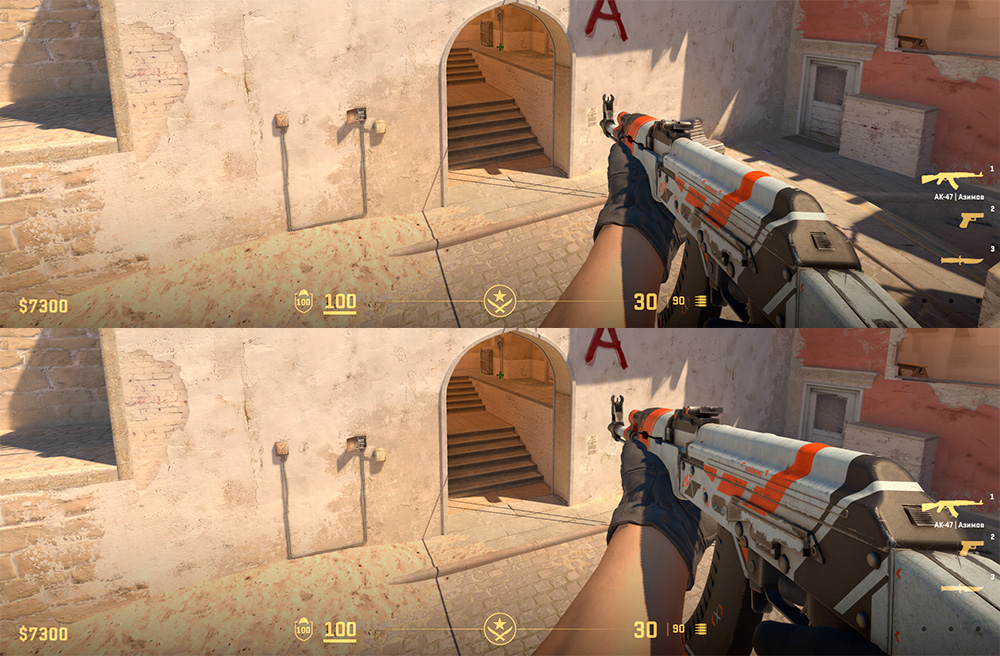
How to Change Hand Position via Console
First, open the console in CS2: go to Settings, the Game tab, and set "Enable Developer Console (~)" to Yes. Then enter the commands, for example the defaults:
viewmodel_offset_x 1
viewmodel_offset_y 1
viewmodel_offset_z -1
viewmodel_fov 60
A closer look:
viewmodel_offset_x moves the model along the X axis (left and right). Range: -2.5 to 2.5.
viewmodel_offset_y controls the Y axis, how close or far the hands are. Range: -2 to 2.
viewmodel_offset_z sets the vertical position on the Z axis. Range: -2 to 2.
viewmodel_fov sets the model's field of view: the higher the value, the farther and smaller the weapon looks and the "longer" the arms appear. Range: 54 to 68.
To keep the changes, add them to autoexec.cfg (shown below). For other useful commands, see our list of CS2 console commands.
How to Make Small Hands in CS2
If the weapon covers too much of the screen, you can shrink the model and push it into the bottom right corner. Use the maximum FOV plus an offset to the right and down:
viewmodel_fov 68
viewmodel_offset_x 2.5
viewmodel_offset_y 0
viewmodel_offset_z -1.5
This is the most compact option: hands and weapon take up minimal space and the center of the screen stays clear. It matches the classic viewmodel position from older versions of CS, which is why many former CS:GO players pick it. If the model feels too small, lower viewmodel_fov to 64 or 65.
How to Make Hands Closer, Farther, Lower, or Higher
Many players want to move the hands in one specific direction. Here is how.
1. Closer to the Screen
To bring the hands closer in CS2, use:
viewmodel_offset_y -1.5
Negative Y values pull the model toward the camera, so the weapon looks larger. Players who like a "cinematic" look choose this.
2. Farther from the Screen
Command:
viewmodel_offset_y 2
The model moves forward and takes up less space, which reduces visual clutter. It suits rifles and SMGs.
3. Lower or Higher
To lower the hands in CS2, enter:
viewmodel_offset_z -1.5
To raise them:
viewmodel_offset_z 1.5
A lower position keeps the screen cleaner, especially on maps with busy geometry.
4. Longer or Shorter Hands
This uses the viewmodel_fov parameter. To make the hands look longer in CS2:
viewmodel_fov 68
For shorter hands:
viewmodel_fov 54
You can also shift the model to the side:
viewmodel_offset_x 2
or
viewmodel_offset_x -2
Don't overdo it: extreme values can throw off the visual balance and distract from the game.
A balanced setup for most players:
viewmodel_offset_x 1.5
viewmodel_offset_y 2
viewmodel_offset_z -1
viewmodel_fov 60
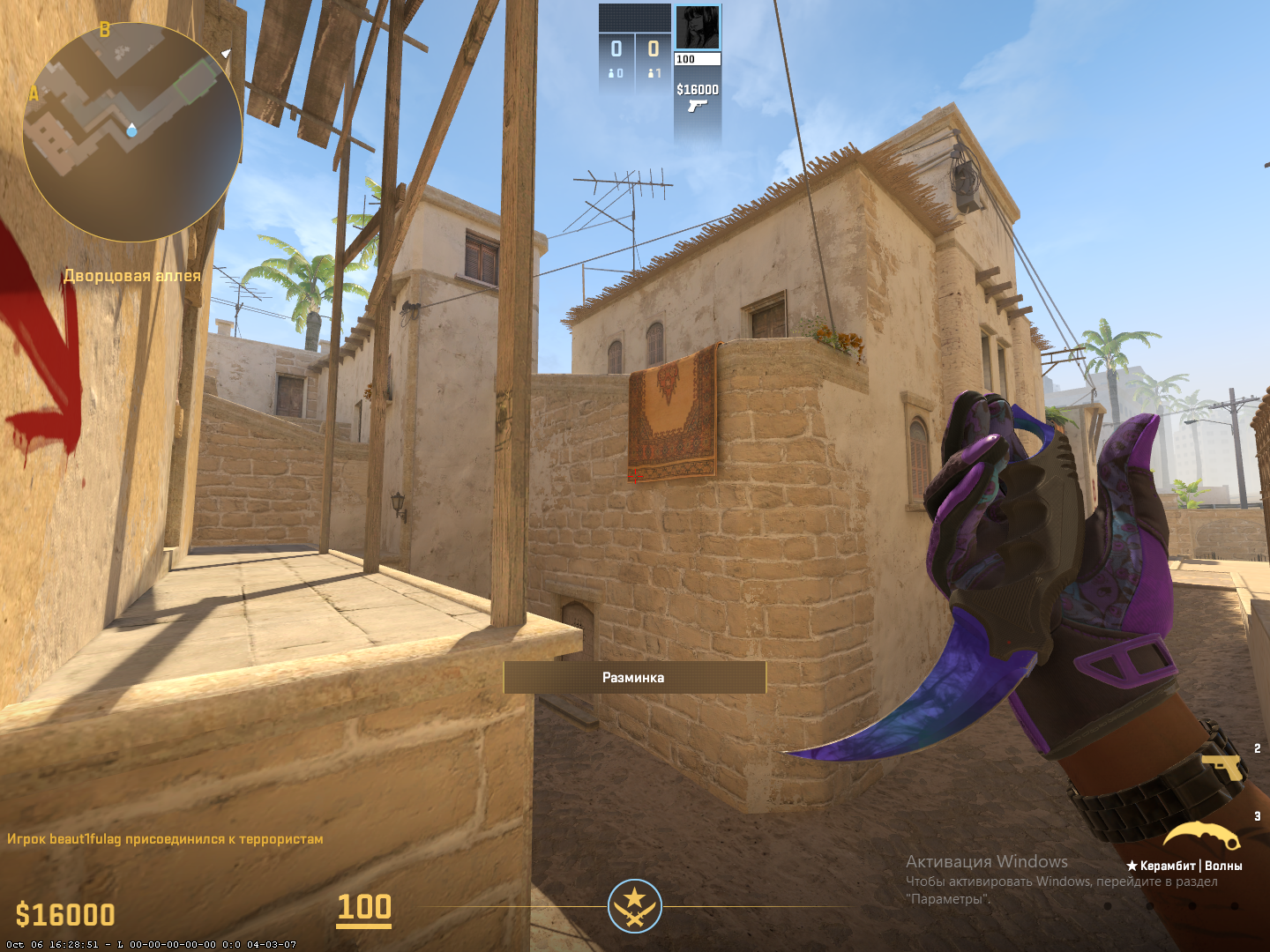
How to Center and Symmetrize Your Hands
Some players want centered hands in CS2, especially when coming from other shooters. There is no fully centered position, but you can get close:
viewmodel_offset_x 0
viewmodel_offset_y 0
viewmodel_offset_z 0
These settings give a straight model shifted neither left nor right. It is convenient for beginners and works well for aim training.
If you want to move the weapon to the other hand, there is a separate setting for that; see our guide on how to switch to the left hand in CS2.
How to Restore Default or Aesthetic Hand Positions
If your settings got messed up or you want the original view back, the simplest fix is to enter the defaults again (viewmodel_offset_x 1, viewmodel_offset_y 1, viewmodel_offset_z -1, viewmodel_fov 60). You can also use the viewmodel_presetpos preset command carried over from CS:GO:
| Preset | Command | Description |
|---|---|---|
| Desktop | viewmodel_presetpos 1 | Standard position (default values) |
| Couch | viewmodel_presetpos 2 | Larger model closer to the center |
| Classic | viewmodel_presetpos 3 | Classic compact position (FOV 68, offset right and down) |
Players also look for ways to make their hands look good in CS2. Beyond the settings, it depends on:
the model's field of view (viewmodel_fov), which decides how much of the arms and gloves you see;
a good balance between the weapon and the HUD;
skins and gloves that look good together; see our best skin and glove combinations.
At a high FOV the gloves are barely visible, so if you want to show off expensive gloves or a skin, a moderate value such as viewmodel_fov 60 works better.
Individual Hand Position Adjustment
Lighting and backgrounds differ from map to map, so there is no single universal setup. To make your hand position in CS2 comfortable everywhere, test your settings on Workshop maps.
Examples:
AWP: viewmodel_fov 58, viewmodel_offset_y -1.2, viewmodel_offset_z -1.5;
rifles: viewmodel_fov 65, viewmodel_offset_y 2, viewmodel_offset_z 0.
Many professional players use a high viewmodel_fov and shift the model right and down so the weapon blocks less of the view. Keep in mind that hands pushed too far away show reload and inspect animations less clearly.
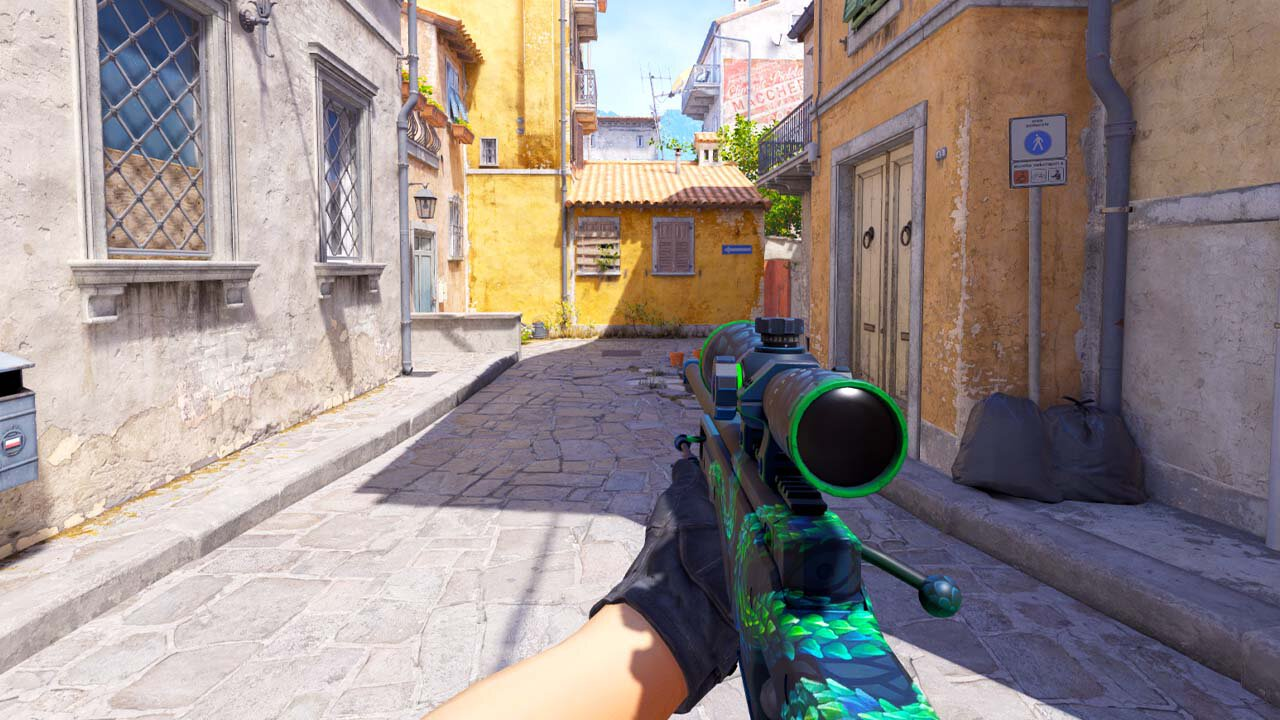
Common Mistakes When Adjusting Hand Models
Simple as the commands are, tuning the hand model in CS2 can backfire if you don't understand the logic behind it. Players often make the same mistakes, and they directly affect comfort during matches.
The first beginner mistake is placing the hands too close. When viewmodel_offset_y goes negative, the weapon model gets larger and fills more of the screen. It looks cinematic, but in real games it limits visibility, especially in close-quarters fights and on fast-paced maps.
The second is setting the hands too high. With viewmodel_offset_z at its maximum, the model partly blocks your view, especially with bulky weapons like the M249 or SG 553. Shooting feels less intuitive, and it is easy to lose control in a critical moment.
The third problem is unsaved settings. A player tunes everything, tests it, and the next day CS2 launches with default hands again. The reason is simple: the changes were never saved to autoexec.cfg.
A subtler mistake is copying someone else's config. A player sees an unusual hand position in a pro's video and assumes it is the "meta." But mouse sensitivity, screen resolution and aiming style differ from person to person, and what is ideal for one player can be uncomfortable for another.
That is why values should come from testing, not guesswork. The right parameters don't distract, don't cover the HUD and let you stay focused on the crosshair. Test them in practice mode, switching weapons and distances. Ten minutes spent on tuning beats constantly fighting an awkward viewmodel layout.
How to Save and Quickly Switch Configurations
Tuning the hands is only half the job: if you don't save the changes, you will have to enter them again after every restart. That is why players write their parameters into the autoexec.cfg autoload file. It lives in the game's cfg folder; see where to find the config file in CS2:
Steam\steamapps\common\Counter-Strike Global Offensive\game\csgo\cfg\autoexec.cfg
If the file doesn't exist, create it in Notepad. Just make sure to save it with the .cfg extension, not .txt.
Example contents for a comfortable, neutral hand model:
viewmodel_offset_x 1.5
viewmodel_offset_y 2
viewmodel_offset_z -1
viewmodel_fov 60
Then add this line to the game's launch options:
+exec autoexec.cfg
This makes sure CS2 loads the config every time it starts. Our guide on how to install a config in CS2 walks through it step by step.
In practice, players switch styles. With an AWP you might want the weapon closer and lower, with rifles farther away. To avoid retyping values every time, define aliases in autoexec.cfg, short commands that switch between setups. Example:
alias compact "viewmodel_offset_x 1; viewmodel_offset_y 1.5; viewmodel_offset_z -1.2; viewmodel_fov 58"
alias classic "viewmodel_offset_x 1.5; viewmodel_offset_y 2; viewmodel_offset_z -1; viewmodel_fov 60"
Now just open the console (~) and type compact or classic, and the layout switches instantly. You can also put an alias on a key; see how to make a bind in CS2. This is especially handy if you play different roles, such as AWPer and rifler.
For testing, Steam Workshop maps let you switch weapons calmly and check whether the model covers your crosshair or view. This is especially useful when you are building one universal config for FACEIT and Premier.
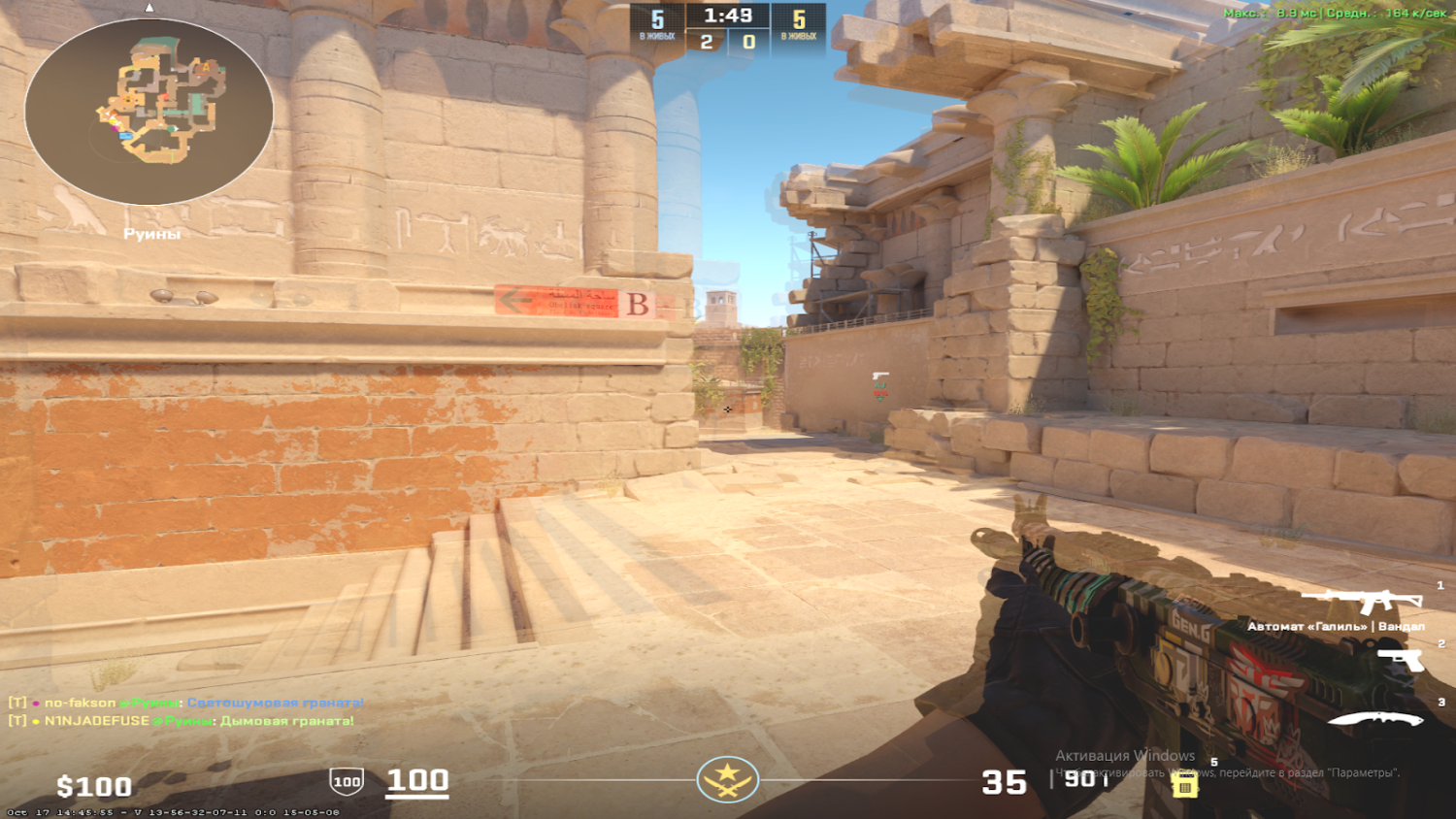
Personal Comfort Is the Main Rule of Viewmodel Adjustment
Setting up your hands in CS2 is about comfort: it decides how clean your screen is and how comfortable the game feels. There is no universal recipe, since everyone has their own habits, monitor and playstyle. Experiment, save the setups that work in autoexec.cfg and switch between them with aliases.
FAQ
How do I make small hands in CS2?
Enter viewmodel_fov 68, viewmodel_offset_x 2.5, viewmodel_offset_y 0 and viewmodel_offset_z -1.5 in the console. The model becomes compact and moves into the bottom right corner of the screen.
Do CS:GO viewmodel commands work in CS2?
Yes, viewmodel_offset_x, viewmodel_offset_y, viewmodel_offset_z and viewmodel_fov work in CS2 with the same ranges. Some CS:GO commands, such as cl_bob, were removed.
How do I reset my hands to default in CS2?
Enter the defaults: viewmodel_offset_x 1, viewmodel_offset_y 1, viewmodel_offset_z -1, viewmodel_fov 60. If you have other values in autoexec.cfg, replace them there too.
Why do my hand settings reset after a restart?
Values typed into the console are not saved on their own. Put them in autoexec.cfg and add +exec autoexec.cfg to your launch options.
