


Smoothness in CS2 is one of those factors that determine whether the game will fly or lag. When there are no micro-freezes and frame lags, everything goes smoothly: gameplay is sharp, and the picture is jerk-free. Today, we will explain how to optimize CS2 for super smooth performance without lags at critical moments.
What Affects Smoothness in CS2?
Factors that affect the smoothness of the image in the shooter include:
Vertical synchronization. This setting can cause input delay and reduce image smoothness.
Monitor refresh rate. With a high refresh rate, it is important to check if the system is using it correctly.
The overall condition of the computer, the number and requirements of open background programs. They can overload the disk, which affects the smoothness of the image during gameplay. This can lead to PC overheating.
High FPS. This parameter can cause micro-delays.
Disabling NVIDIA Reflex (if using an NVIDIA graphics card). Turning it on can make the game more responsive.
Optimization issues. Sometimes the game is not fully optimized for specific hardware, causing freezes and FPS drops. Uneven performance is not uncommon in such cases. We recommend checking if the drivers and the graphics card are updated to the latest version to fix bugs and improve stability.
Graphics settings. Some parameters negatively affect image smoothness, causing delays. Therefore, it's necessary to experiment with graphics settings – for example, reducing the quality of shadows or disabling post-processing.
If the game feels too sharp, you can change some settings. Below, we will describe the recommendations in more detail.
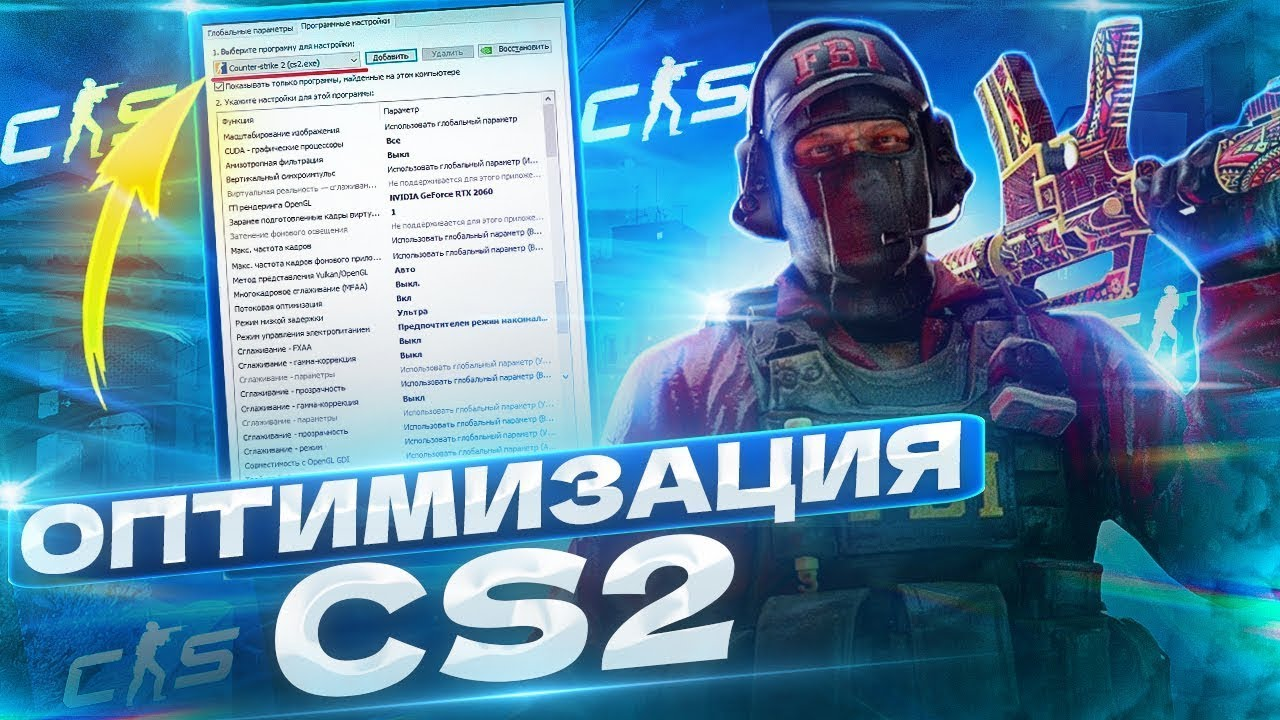
How to Make CS2 Smoother
Even those with powerful machines sometimes find that CS2 is too "jittery" and looks like a sandbox. But this can be fixed by tweaking the settings. Try changing the following parameters:
Brightness. Set it to a level that allows you to spot enemies in dark areas while preventing glare. Try brightness at 110%.
Detailing of textures and models. High-quality models and textures provide beautiful realistic graphics but result in higher video memory consumption. It's worth setting this parameter to a medium value.
Other graphics parameters. Try reducing the resolution settings, disable particle effects or at least lower their values.
Activate performance mode. This setting is found in the graphics settings menu. This mode will disable additional external effects, thereby increasing performance.
Update video card drivers. This requires using specialized software from the specific graphics card manufacturer.
Disable applications that run in the background. To remove excessive load from the CPU and RAM, close all programs that are not needed at the moment.
Disable V-Sync. Vertical synchronization should be turned off not only in the CS2 game settings but also in the graphics card drivers.
Turn off FidelityFX Super Resolution.
Reduce CPU load. For this, it is recommended to add the parameter -threads X in the game's startup settings in Steam. Here X is the number of cores that the game will use.
Enter special commands in the console. This will enhance performance. For example, fps_max 300 limits the maximum FPS to 300, increasing stability. The command mat_queue_mode 2 activates the multitasking mode of the graphics card, improving performance.
Special Settings for Graphics Cards
To make CS2 smoother, it's worth tweaking the graphics card settings. For example, if you have NVIDIA, you should enable NVIDIA Reflex Low Latency — this feature is recommended to reduce latency, especially on systems with supported graphics cards.
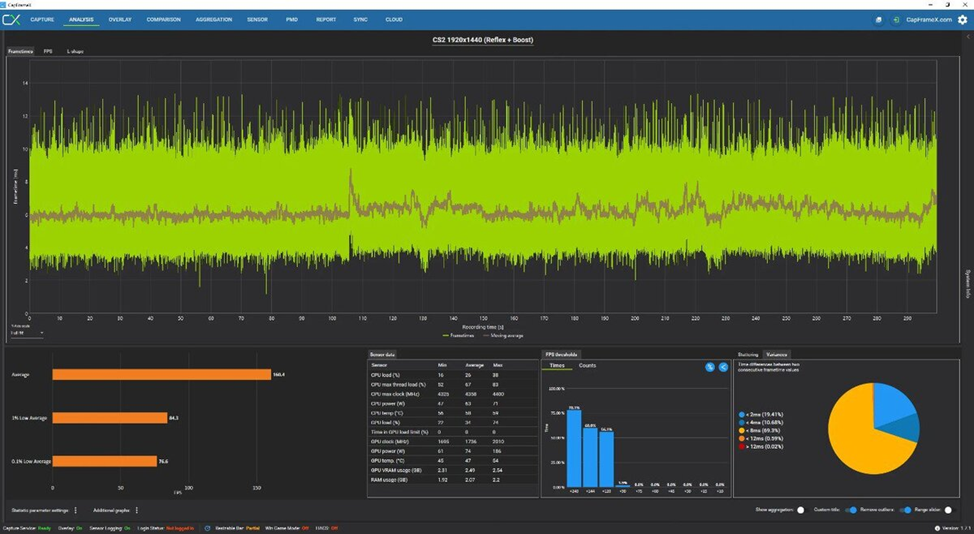
A smoother picture in CS2 not only makes the game maximally comfortable and improves perception but also allows you to increase your effectiveness in the game. Changing settings is not difficult. It's worth experimenting with them for the best picture.
