


You cannot remove hand shake in CS2 completely: weapon sway is built into the game's animations, and many CS:GO commands no longer work. You can, however, reduce it a lot. Try cl_usenewbob 0 (if the console recognizes it), tune your viewmodel (viewmodel_fov 68 and an offset that pushes the weapon toward the edge of the screen), and save everything in autoexec.cfg so it loads on every launch. Hand shake does not affect accuracy; it is a purely visual effect.
The question came up more often after the early 2024 updates, in which Valve adjusted viewmodel animation smoothness at low and unstable frame rates, and some players began to notice arm sway during movement and shooting more. Some like the effect for its "alive" feel, while others find it distracting when aiming, especially players used to the static model in CS:GO or those on weaker PCs. Below are the methods that work: commands, viewmodel tuning, a Workshop map, and an autoloading config.
What Hand Shake Is and Why It Exists
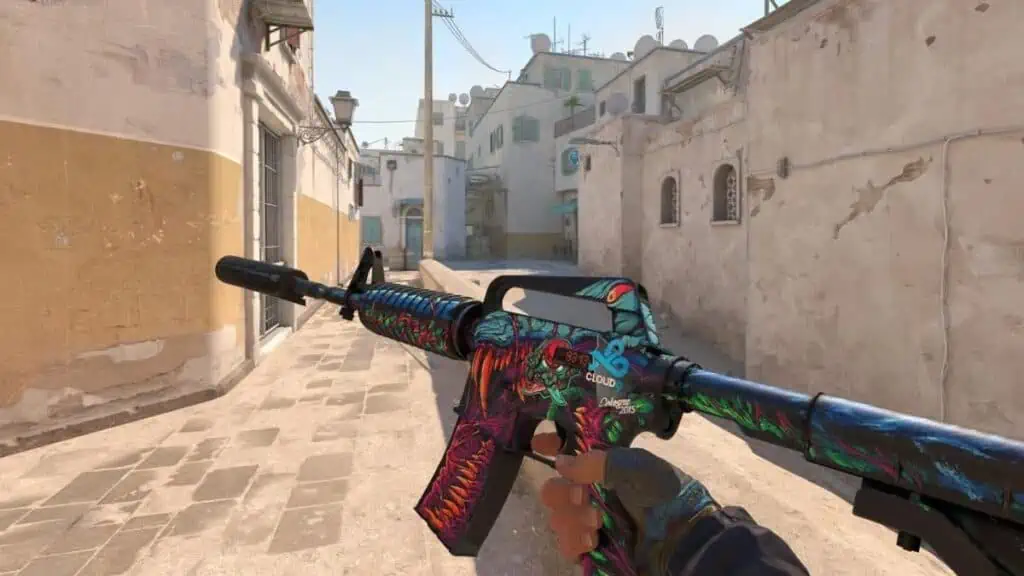
Hand shake in CS2 is a visual effect that imitates natural weapon sway while your character moves and fires. The developers added it for realism: nobody holds a heavy rifle perfectly still while running. The Source 2 engine made it possible to build more complex animations that account for the weight of each weapon type.
The key point: hand shake has no effect on accuracy or weapon behavior. It is purely cosmetic and does not change bullet spread or recoil. Still, the visual noise can get in the way: the crosshair feels less stable, and that is most noticeable in tense moments.
How to Remove Hand Shake While Moving: The Main Command
The simplest way to reduce weapon sway while moving is a console command, if your version of CS2 supports it. First enable the developer console: "Settings" → "Game" → "Enable Developer Console" → "Yes." The guide on how to open the console in CS2 covers this in more detail.
Then press the tilde key (~) below Escape. In the console, type cl_usenewbob 0 and press Enter. cl_usenewbob false does the same thing.
The command turns off the newer arm movement animation and brings back a calmer view, closer to CS:GO. It applies instantly, so you can check the result on any map. The difference is most visible when running with rifles like the AK-47 or M4A4, where sway is strongest.
If the console replies with unknown command, your CS2 version does not support it, so move on to viewmodel tuning (below). Even when cl_usenewbob works, it only affects sway while moving, not the visual kick when shooting.
cl_usenewbob Values
| Value | Effect | What you see |
|---|---|---|
| cl_usenewbob 1 (or true) | Shake on | Stronger sway while moving |
| cl_usenewbob 0 (or false) | Shake reduced | Calmer weapon model while moving |
The table applies only if the game recognizes the command. It does not remove visual effects when shooting; those need other settings.
How to Remove Screen Shake When Shooting
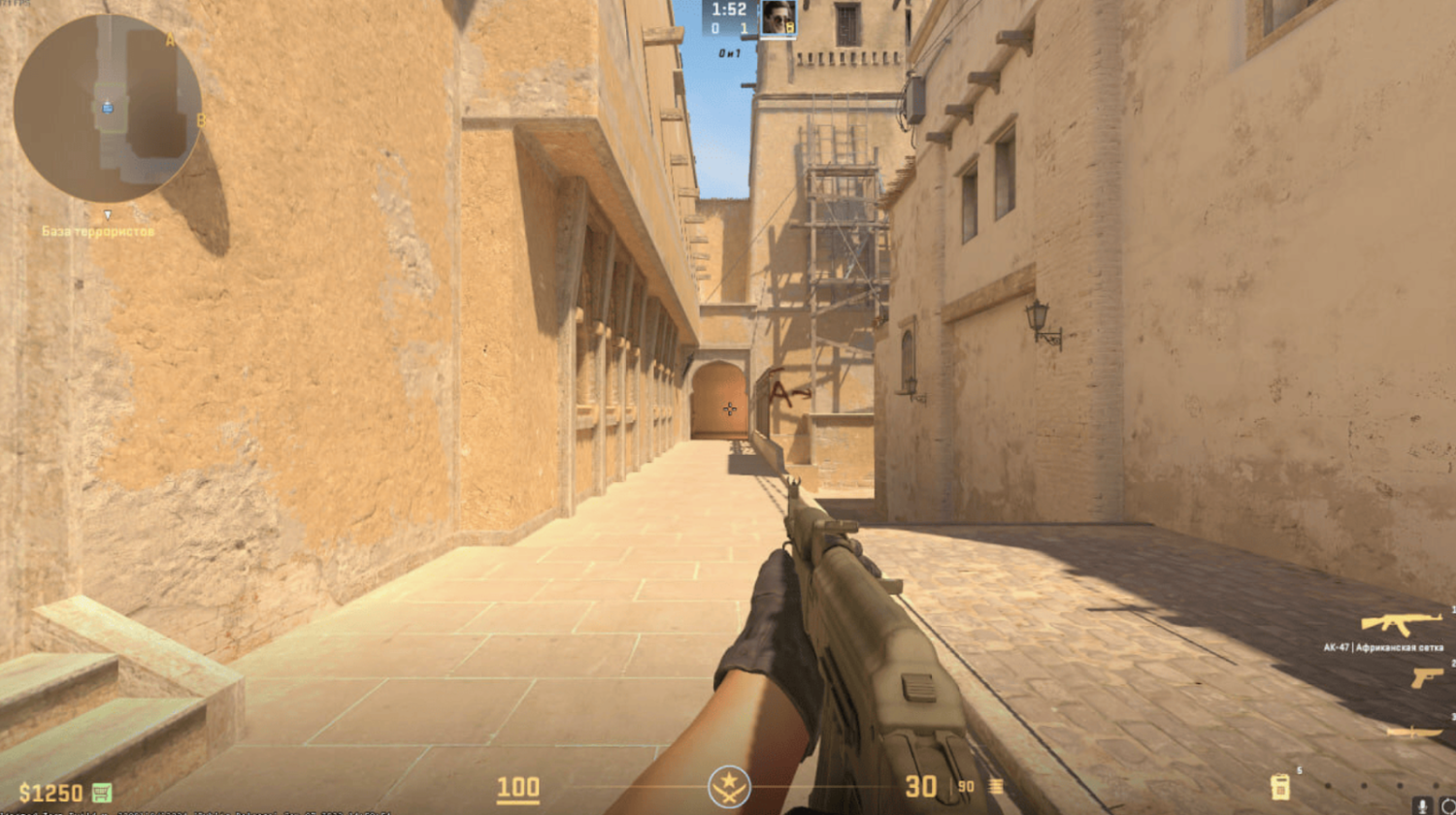
Besides the sway of the weapon model, there is a second effect: camera shake when shooting, technically called view punch. It is a slight jolt of the whole image when you fire, take damage, get hit by a grenade blast, or fall from a height. There is a separate guide on how to remove screen shake in CS2; here are the essentials.
The view_punch_decay 999 command makes view punch fade faster and returns the camera to its position sooner, but it only works with sv_cheats 1, meaning on a local server or in practice. Do not count on it in Premier or regular matchmaking. If you practice on your own server, open the console, enter sv_cheats 1, then view_punch_decay 999. The effect is easiest to see with long rifle sprays and AWP shots.
Popular CS:GO commands such as viewmodel_recoil 0, cl_bob_lower_amt, cl_bobamt_vert 0.1, and cl_bobamt_lat 0.1 do not work in Counter-Strike 2: Valve dropped many old parameters in the move to Source 2. If an old guide tells you to enter them and the console says unknown command, just skip that step.
Commands for Reducing Shake
| Command | Effect | Status in CS2 |
|---|---|---|
| view_punch_decay 999 | Speeds up view punch decay | Only with sv_cheats 1 |
| cl_bob_lower_amt 1 | Sway parameter from old guides | CS:GO command, not in CS2 |
| viewmodel_recoil 0 | Used to disable the recoil animation | Does not work in CS2 |
| cl_bobamt_vert 0.1 | Used to cut vertical sway (CS:GO) | Does not work in CS2 |
That is why, in competitive modes, the main working approach is to move the viewmodel so the weapon's motion is less noticeable.
Using the crashz' Viewmodel Generator Map
If you would rather not deal with the console, a Steam Workshop map does the job. crashz' Viewmodel Generator CS2 is an interactive map where you adjust how the weapon is displayed without typing commands.
Open the Counter-Strike 2 Workshop in Steam, search for "crashz' Viewmodel Generator CS2," and subscribe. In the game, choose "Play" → "Workshop Maps" → crashz' Viewmodel Generator.
Find the "Viewmodel Bob Motion" block and press the green "Lowest" button to set sway to its minimum. When you are happy with the settings, shoot the "Save Viewmodel" button to save them.
The advantage of the map is that you see changes in real time: you can run, jump, and shoot while watching how the weapon behaves. It also offers ready-made presets that make a good starting point.
Tuning the Viewmodel to Minimize Visual Shake
Even though shake cannot be removed entirely, the right weapon position greatly reduces its impact. The idea is to make the model take up as little of the screen as possible, so the sway happens in your peripheral vision and feels less intrusive. The guide on how to set up hands in CS2 goes deeper into the viewmodel commands.
The main commands:
viewmodel_fov (54 to 68): the model field of view. The higher the value, the smaller the weapon looks; many players use 68.
viewmodel_offset_x: moves the weapon left or right, up to ±2.5.
viewmodel_offset_y: moves it forward or back, up to ±2.
viewmodel_offset_z: moves it up or down, up to ±2.
viewmodel_presetpos 0: custom position mode, so your offsets are not reset.
If your viewmodel keeps resetting, set viewmodel_presetpos 0 first and only then enter the offsets. You can also move the weapon to the left hand; the guide on how to switch to the left hand in CS2 explains how.
The easiest place to test the result is practice mode or your own map with bots. Run in a straight line and strafe a few times with an AK-47, a knife, and an AWP: sway looks different on each weapon type, and a position that suits a rifle can get in the way with a sniper. Change one parameter at a time, otherwise it is hard to tell which setting made the difference.
Pro Player Settings
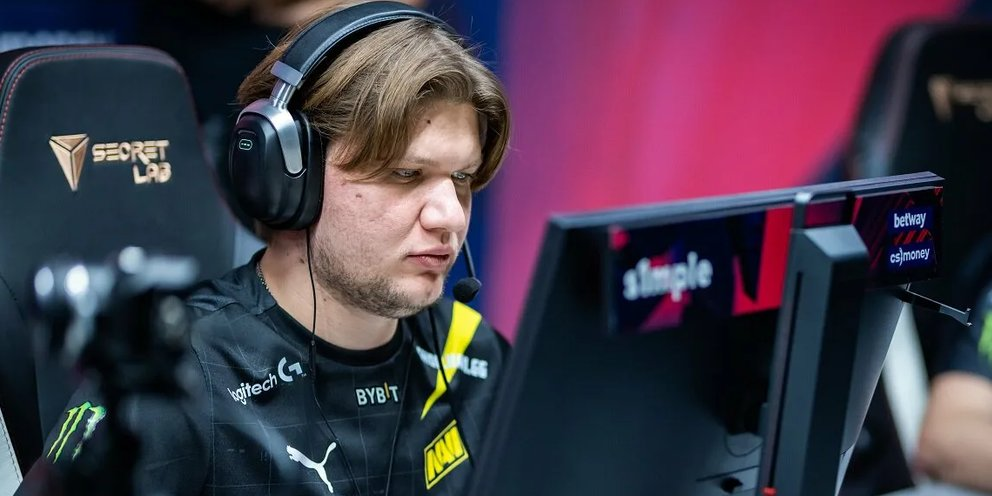
Pros spend thousands of hours in the game and arrive at their viewmodel by trial and error, so their configs are a convenient starting point. The best-known setup is viewmodel_fov 68, viewmodel_offset_x 2.5, viewmodel_offset_y 0, viewmodel_offset_z -1.5: s1mple used these values, and they match the classic preset from CS:GO. The weapon sits to the right and low, barely covering your view.
| Parameter | Classic setup (s1mple) | Allowed range |
|---|---|---|
| viewmodel_fov | 68 | 54 to 68 |
| viewmodel_offset_x | 2.5 | -2.5 to 2.5 |
| viewmodel_offset_y | 0 | -2 to 2 |
| viewmodel_offset_z | -1.5 | -2 to 2 |
Individual players change their settings over time, so check dedicated breakdowns for current configs, for example all of m0NESY's CS2 settings. Do not copy pro settings blindly: use them as a base and adjust them to your play style and monitor.
Creating autoexec.cfg for Automatic Loading
Typing commands every time you launch the game gets old fast. The fix is an autoexec.cfg file that runs your commands automatically when CS2 starts.
Open Windows Notepad and enter the commands, one per line:
viewmodel_presetpos 0
viewmodel_fov 68
viewmodel_offset_x 2
viewmodel_offset_y 0
viewmodel_offset_z -2
The fastest way to open the right folder: Steam → CS2 → "Properties" → "Installed Files" → "Browse," then go to game\csgo\cfg. If you are not sure where the files are, see where to find the config file in CS2.
Save the file as autoexec.cfg (set the file type to "All Files" instead of "Text Document") and place it in the game\csgo\cfg folder of your game directory.
To make sure it loads, add a launch option in Steam: right-click CS2 → "Properties" → "Launch Options" → +exec autoexec.cfg. Your settings now apply on every launch. Other useful options are covered in the best launch options for CS2.
An Extra Windows Tweak: Smoothness, Not Shake
Some players disable fullscreen optimizations for cs2.exe. This does not remove hand shake, but on some systems it reduces micro-stutters and the "jerky" feel that makes sway seem stronger.
Open your Steam library, right-click Counter-Strike 2, and select "Properties" → "Installed Files" → "Browse." In the game folder, go to game\bin\win64, right-click cs2.exe, and choose "Properties" → "Compatibility." Tick "Disable fullscreen optimizations," then click "Apply" and "OK."
Results depend on the system: it helps some players and does nothing for others. There is no ban risk, since this is a standard Windows setting.
If the Shake Still Bothers You
If your commands and viewmodel are set and the sway still bothers you, check your frame rate stability. At low or fluctuating FPS, weapon animations look choppy and the shake seems stronger than it really is. Update your graphics drivers, close background programs, and lower demanding graphics settings if FPS drops in firefights.
Getting used to it helps as well: many players stop noticing the sway after a few days, especially with the weapon model offset toward the edge of the screen. If that does not happen, go back to a setup with the maximum viewmodel_fov and the lowest offset_z: in that position the weapon barely enters the center of your view.
Frequently Asked Questions
Can you turn off hand shake in CS2 completely?
No. CS2 has no command that fully disables the sway animation in regular matches. You can only make it less noticeable with cl_usenewbob (if available) and viewmodel tuning.
Will disabling shake affect bullet spread?
No, that is a common misconception. Hand shake is purely visual. Spread and recoil are calculated independently of the weapon model animation, so only the picture changes, not the mechanics.
Can you get a VAC ban for these commands?
No, as long as you use standard client commands and viewmodel settings. VAC bans cheats and tampering with game files, not ordinary display settings.
Why did the shake come back after an update?
Major updates sometimes reset user settings. Use autoexec.cfg with the +exec autoexec.cfg launch option, and your values will load automatically after any patch.
Are these settings allowed in tournaments?
There are no restrictions in regular matchmaking or on most servers. Tournament organizers may restrict certain commands, so always check the rules of the specific event.
Why don't some "CS:GO-style" commands work?
Many cl_bob* parameters and similar commands belong to CS:GO and do not exist in CS2, hence the unknown command reply. For the current list, see console commands for CS2.
Summary
You cannot remove hand shake in CS2 completely, but the right combination of settings keeps it to a minimum. The main tools: cl_usenewbob 0 (if your version supports it) for sway while moving, a viewmodel with viewmodel_fov 68 and the weapon offset toward the edge of the screen, the crashz' Viewmodel Generator CS2 map, and autoexec.cfg to load it all automatically. view_punch_decay works only on a local server with sv_cheats 1, so do not rely on it in matchmaking or Premier.
Settings are only part of the result. A calmer picture helps you focus, but it does not replace practice: spray control and solid muscle memory still matter more than where the weapon model sits.
