


Each of you is used to playing Counter Strike at different screen resolutions, hand positions, sound volume, etc., so figuring out how to customize CS 2 for yourself will be very useful.
Setting up CS 2
Let's start with news that may cause you to be fiercely angry at the developers. The fact is that in the beta testing of the new Counter Strike that is still ongoing, there is no way to change the character’s hand with which he is holding the weapon from right to left. There are persistent rumors circulating on the Internet that Valve is not going to include a command for replacing hands in the game. Allegedly, this is all due to the fact that the game model now has a shadow, and her legs have also become visible.
Part of the CS2 community generally believes that the real reasons are much more prosaic: Valve likes to make money on Counter Strike, but does not like to work hard to maintain the normal functioning state of the game and make the game well, without bugs and errors.
Let's specify the actual reasons
According to gamers, in CS2 you can’t set up your hands based on 2 real ones reasons:
Because of the new smokes.
Because of the simple laziness of the developers.
As you probably know, in addition to improving the graphics, Valve made revolutionary changes in the smokes, which in KS 2 you can shoot through. So, if you allow a change in the hands, then, accordingly, the side from which the smoke will be shot will change. This, in turn, entails complication of the game code, i.e. it will be necessary to specify the flight of the bullet in the code; the place where the bullet enters the smoke; the trajectory of the bullet through the smoke, etc. In short, Valve saved money on programmers' salaries, but in return she received dissatisfaction from the gaming community, who wanted to customize CS 2 for themselves by transferring the weapon to the character's left hand.
As for the second reason, the laziness of the developers, there is an opinion that Valve did not want to draw animations of models holding weapons in their left hand, but, simply put, gave up on it. Before CS2, in early versions of the game, when changing hands, the usual mirroring of models occurred. It didn’t look very nice, but it didn’t load the hardware. Now, doing mirroring is a tough trick, and drawing models is long and expensive, and, apparently, Valve decided not to bother.
Setting up the mouse (part 1)
In order to set up CS2 in the most familiar way for you, you also need to adjust mouse. First of all, its 2 important functions:
Acceleration.
Sensitivity.
Let's start with acceleration. To make it clearer, this word refers to increasing the speed at which the mouse pointer moves using software. So yes, if this function works for you, then you do not fully control the mouse movement, so disable acceleration in the operating system and in Counter Strike itself. Of course, you will be very uncomfortable the first time, but we believe that it’s okay to set up CS2 and get full control over the movement of the sight is worth it.
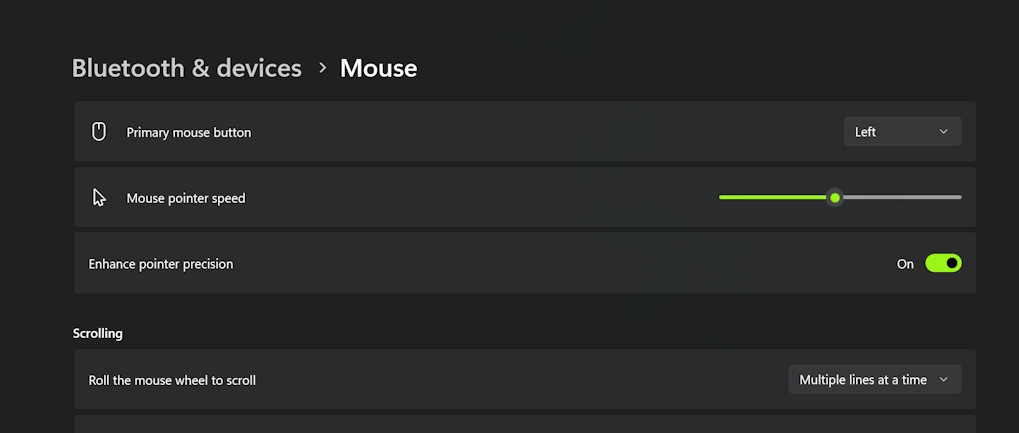
In Windows, this function is disabled through the Start menu. Go into it and select “Control Panel”. Next, look for “Mouse,” click and go to the tab called “Pointer Options.” There should be an item “Enable increased accuracy of pointer installation”, the checkbox on it is by default, and it needs to be unchecked. Confirm your selection by clicking "OK".
Configuring the mouse (part 2)
We continue to configure CS 2, now turn off acceleration in the game itself.
Right-click on the game shortcut from which you launch CS 2 to bring up the context menu. Select the item called “Properties”. Look for the “Object” item. You will need to enter the following commands in the first line: -nofocemparms -noforcemaccel -noforcemspd -32bpp. Confirm the changes made by clicking on “OK.”
Move on to mouse sensitivity. It can also be configured in CS 2 and in Windows.
We start with Windows. Go through the “Start” menu, then select “Control Panel”. Next, look for “Mouse,” click and go to the tab called “Pointer Options.” Choose the speed that is most convenient for you. Keep in mind that setting mouse sensitivity in Windows affects sensitivity in CS 2. In addition, keep in mind that mouse resolution and sensitivity are interdependent parameters: the higher the resolution, the better the sensitivity.
Customizing the mouse (part 3)
Now we will adjust the sensitivity of the mouse in CS2. This is done through the console using several commands:
sensitivity "1.0". This setting means that the mouse sensor in Counter Strike will be exactly the same as in Windows.
m_filter "0". This will turn off mouse smoothing. This is important because the game requires accuracy and speed of movement rather than smoothness.
zoom_sensitivity_ratio "0.5". Sets the mouse sensor when the optical sight is on. It is advisable to bet 2 times lower than the main sense in the game to make it easier to aim with a sniper.
m_yaw "0.045". Sets the horizontal or X-axis sensitivity factor.
m_pitch "0.022". Sets the sensitivity coefficient along the vertical or Y axis. It is advisable to set this coefficient 2 times lower than the coefficient along the X axis. In this case, it will be easier for you to keep the sight level and at the same level, making it easier to make headshots.
Now you know the basic commands for the mouse, with which you can better customize CS 2 for yourself.
We set the jump through the mouse wheel
Some professionals do not Counter Strike use the standard “Space” button for jumping, and reconfigure it to the mouse wheel. This is done in 2 ways: through the game settings and through the console.
If you decide to go through the game settings, then first launch CS 2 and open the settings. You need a section called "Keyboard and Mouse", and in this section - "Movement". After that, look for the “Jump” item, in it assign the mouse wheel to jump.
If you prefer to work with the console, then write mwheeldown +jump in it (the jump will be made when you scroll the mouse wheel down); mwheelup +jump (the jump will be made when you scroll the mouse wheel up).
These commands can be bound if desired, for example, bind your key "mwheeldown" +jump or bind your key "mwheelup" +jump.
Useful tips
Correctly setting up CS 2 is not only about finding out what exactly needs to be changed in Windows or in Counter Strike itself, but also choosing good components in the form of a reliable and inexpensive “rodent”. You can set great settings, but if your mouse falls apart and the buttons work every once in a while, then our entire post above is essentially useless for you. We want to help you make it easier for you to play and achieve victories in the rinks.
First, do not chase the most expensive mouse. Its high cost, as a rule, includes the price for the brand and advertising. Mice in the mid-price segment are usually not inferior to the top ones.
Secondly, you should not play without a mouse pad. It absorbs some of the mouse's movement, so you can move your crosshair more accurately. Also, glitches are unlikely to occur on the mat.
Thirdly, you need to save a record of all the commands and settings you used in a file. Word and Notepad will help you. Then upload this file to a flash drive or external hard drive. If your Windows crashes, then after reinstalling the game you can easily set up CS 2 again.
